Can You Get Blender on Mac? A Practical Guide
A comprehensive, beginner-friendly guide to getting Blender on Mac, including Apple Silicon considerations, installation steps, performance tips, and troubleshooting for a smooth creative workflow.


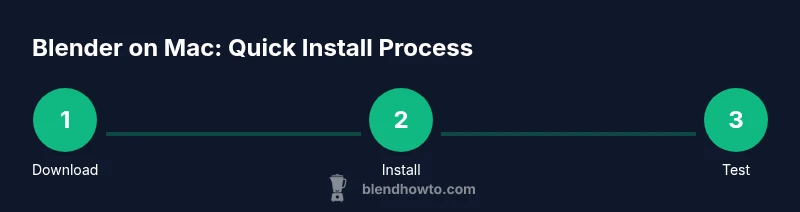
Yes—Blender runs on Mac, including Apple Silicon. To get started: 1) verify you have a modern macOS and sufficient disk space; 2) download the universal binary from blender.org; 3) install Blender and grant the required permissions if prompted; 4) launch Blender and adjust preferences for smooth performance.
Blender on macOS: Compatibility overview
Blender is designed to run on macOS as one of its primary platforms alongside Windows and Linux. For Mac users, the official Blender builds are typically provided as universal binaries, which means they are intended to run natively on Apple Silicon (M-series) and Intel-based Macs alike. This universality helps avoid performance hiccups caused by emulation. While macOS updates can occasionally affect software compatibility, Blender maintains regular releases that emphasize stability, security, and the best possible rendering performance on Mac hardware. If you’re unsure whether your Mac supports a specific Blender version, check the official Blender download page for the latest macOS notes and system requirements. BlendHowTo’s analysis shows that most modern Macs can run Blender smoothly when using the appropriate binary and keeping the software up to date.
How Blender runs on Apple Silicon vs Intel
On Apple Silicon Macs, Blender can run natively with a universal binary, which tends to deliver better performance and efficiency than running under Rosetta. Intel-based Macs still work with Blender, though users may notice different performance characteristics depending on CPU and GPU configurations. The key recommendation from BlendHowTo is to download the universal binary when you have Apple Silicon, and to ensure you’re using a Blender version that explicitly supports macOS. Always verify you’re using the official build from blender.org to avoid incompatible or tampered installers. Keeping Blender updated helps minimize compatibility issues after system updates.
How to install Blender on a Mac
Installing Blender on macOS is straightforward. Start by visiting blender.org and downloading the macOS installer package (the universal binary when you have Apple Silicon). Open the downloaded .dmg file, then drag Blender into your Applications folder. If macOS Gatekeeper prompts you with a security warning, open System Preferences > Security & Privacy and allow Blender. Once installed, launch Blender from Applications and complete any initial configuration prompts. A common first step is to set your preferred project directory and adjust the initial render engine (Cycles or Eevee) in the Preferences to match your workflow.
Performance considerations on macOS
Performance on Mac depends on several factors: CPU/GPU capabilities, available RAM, and storage speed. For light projects (modeling a simple scene or basic animation), a typical modern Mac will handle Blender comfortably. For heavier scenes, ensure you have ample RAM and fast storage, and consider closing background apps to free resources. In Blender’s Preferences, you can tune memory usage and startup files, and for render tasks, choose appropriate sampling and tile settings that align with your hardware. If you have an Apple Silicon Mac, use a Blender build labeled as universal to maximize native performance.
Common issues on Mac and fixes
Mac users occasionally encounter Gatekeeper prompts, permission requests, or startup issues after macOS updates. A typical fix is to right-click Blender in the Applications folder and select Open to bypass Gatekeeper, or adjust Security & Privacy settings to allow apps from identified developers. If Blender won’t start, ensure you downloaded from blender.org, verify the checksum if provided, and try launching from a fresh user profile to rule out addon conflicts. For render problems, check that you’re using a supported render engine version and that your scene isn’t excessively heavy for your RAM and GPU.
Quick-start projects you can try on Mac
To get up to speed quickly, try a few small projects: 1) a basic still life with simple lighting, 2) a low-poly character rigging exercise, 3) a short 3–5 second animation of a bouncing ball, and 4) a quick environment scene with procedural textures. These exercises will let you test the viewport performance, rendering flow, and basic material setups without overwhelming your system. As you grow more confident, gradually increase scene complexity and experiment with Blender’s built-in modifiers and simple particle effects.
Maintenance, updates, and safety tips
Keep Blender up to date by enabling automatic updates where possible or setting a regular manual check. Always download from blender.org to avoid compromised installers, and consider backing up your Blender projects to a versioned storage solution. Regularly review add-ons for compatibility with your Blender version, since some addons may require updates after major releases. Finally, maintain a healthy workflow with autosave intervals and clear project naming conventions to prevent data loss during long sessions.
Tools & Materials
- Mac computer with macOS (latest supported)(Ensure you have an internet connection for downloads and updates.)
- Blender installer (universal binary)(Download from blender.org to ensure authenticity and compatibility.)
- Stable internet connection(Needed for download and online documentation.)
- External drive or cloud backup(Optional for backing up large projects.)
- Gatekeeper awareness(Know how to allow apps from identified developers when prompted.)
Steps
Estimated time: 20-40 minutes
- 1
Check system compatibility and download Blender
Verify your Mac meets general compatibility with macOS and has enough disk space. Then visit blender.org and download the macOS universal binary suitable for Apple Silicon if available.
Tip: Prefer the universal binary on M-series Macs for native performance. - 2
Install Blender on Mac
Open the downloaded .dmg, drag Blender into Applications, and launch. If macOS asks for permissions, grant them in System Settings.
Tip: Keep the installer in a known location until you confirm Blender runs correctly. - 3
First launch and security settings
Open Blender; if Gatekeeper blocks it, right-click the app and choose Open, then confirm your intent to run Blender.
Tip: Running Blender first time may trigger security prompts—allow access as needed. - 4
Configure initial preferences
In Blender, go to Edit > Preferences and set your preferred file paths, memory limits, and render engine (Cycles or Eevee).
Tip: Enable Auto Save and set a reasonable backup interval to avoid data loss. - 5
Run a quick test project
Create a simple scene, render a frame, and observe performance. Adjust sample rates and tile sizes if necessary to balance quality and speed.
Tip: Test on a small scene before attempting heavy projects. - 6
Save, back up, and plan upgrades
Save your project with versioning, back up regularly, and monitor system updates that may affect Blender.
Tip: Keep a linked folder structure to ease project management.
Frequently Asked Questions
Can Blender run on Apple Silicon Macs?
Yes, Blender runs on Apple Silicon Macs using universal binaries for native performance. Always download the macOS build from blender.org.
Yes, Blender supports Apple Silicon Macs with native builds. Download from Blender’s site to get the universal binary.
Do I need Rosetta to run Blender on Mac?
Most recent Blender versions offer a universal binary that runs natively on Apple Silicon. Rosetta may be needed only for older builds or plugins not updated for Apple Silicon.
Rosetta is usually not needed with the latest Blender builds for Apple Silicon.
What is the minimum macOS version to run Blender?
Blender supports modern macOS versions. Check the official Blender download page for the latest notes on supported macOS versions.
Blender supports current macOS versions; verify the minimum requirements on Blender’s site.
How can I optimize Blender performance on a Mac?
Use the universal binary, ensure ample RAM, close background apps, and adjust render engine settings and sample rates to match your hardware.
Use a universal binary, free up RAM, and tune render settings for your Mac.
Where can I safely download Blender for Mac?
From blender.org, the official Blender website. Avoid third-party installers to prevent unsafe or outdated builds.
Download Blender for Mac from blender.org to stay safe and up to date.
Is Blender native on Mac or must I use CPU-only mode?
Blender runs natively on Apple Silicon Macs via universal binaries. CPU-based execution is still possible on all Macs, with GPU options depending on hardware.
Blender runs natively on Apple Silicon; you can use CPU or GPU rendering based on your machine.
Watch Video
What to Remember
- Check compatibility before downloading Blender.
- Choose the universal binary on Apple Silicon Macs.
- Install from the official Blender site and configure basics.
- Optimize preferences for your Mac hardware.
- Back up projects and keep Blender updated.