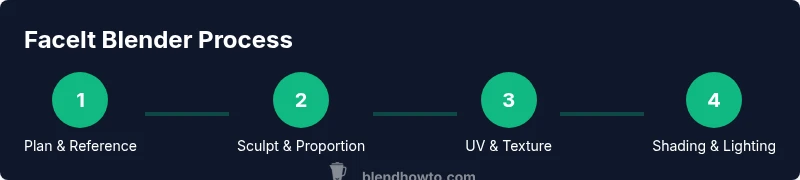
FaceIt Blender: A Practical Guide to Facial Modeling in Blender
A comprehensive, step-by-step guide to facial modeling in Blender. Learn planning, topology, sculpting, UVs, textures, shading, lighting, and rendering for realistic faces in FaceIt Blender workflows.


Master facial modeling in Blender with a practical, end-to-end workflow. This guide covers planning, topology, sculpting, UVs, textures, shading, lighting, and rendering for FaceIt Blender workflows. You’ll follow a repeatable pipeline designed for hobbyists and aspiring 3D artists, with clear steps and best practices.
What is faceit blender and why it matters
FaceIt Blender is a practical workflow for facial modeling in Blender that emphasizes a complete end-to-end pipeline from planning and topology to texturing and rendering. In this guide, we break down a repeatable process suitable for hobbyists and aspiring 3D artists. By using a methodical pipeline you can iterate quickly on likeness, expression, and material realism. The BlendHowTo team found that investing in solid topology and clean UVs early pays off in later shading and lighting passes. The goal is not to chase novelty but to build robust skills you can apply across projects, whether for games, visualization, or personal art.
- Reference gathering matters: collect multiple angles of your subject and build a mental map of planes and subsurface anatomy.
- Work in stages: blocking shapes first, then refine features, then layer micro detail for realism.
Prerequisites and project setup
Before you begin, install Blender 3.x or newer and ensure your GPU drivers are up to date. Set up a clean project directory with a reference folder and a dedicated workspace for modeling, texturing, and rendering. For best results, work with a neutral scene scale and enable Eevee or Cycles depending on your target output. BlendHowTo’s guidance emphasizes starting with a simple base mesh and a consistent topology plan. A capable workstation and a comfortable, distraction-free environment help you stay focused through long sculpting and texturing sessions.
Gathering references and planning topology
Collect multiple reference images for the subject from the front and side views. Analyze facial proportions, landmarks, and planes of the face to guide block-out stages. Plan topology loops around critical features like the eyes, nose, mouth, and jawline to support deformations during expressions. Create a lightweight reference board inside Blender or an external tool and note which areas will require denser detail and where symmetry can be relied upon.
Sculpting workflow: blocking, refine, micro-detail
Start with a rough block-out to establish overall proportions and silhouette. Gradually add primary features, then refine with targeted sculpt passes for eyelids, lips, and cheekbone structure. Use lightweight brushes for form, and switch to finer brushes for micro-details such as pores and wrinkles. Regularly compare the sculpture against reference images to avoid drift in likeness. Maintain proportional checks and routinely reset the pose to check symmetry and deformation behavior.
Retopology, UVs, and texture painting
Retopologize the sculpted mesh to create clean, animation-friendly topology around the eyes and mouth. Generate UV maps that minimize stretching in high-detail areas and plan seams along natural boundaries like under the jaw or behind the ears. Paint base colors and transition shades in texture maps, using layered textures for skin, lips, and eyes. Maintain non-destructive workflows by using texture painting with masks and drivers to control specular highlights and subsurface scattering maps.
Shaders, materials, and skin realism
Create a skin shader that combines diffuse, subsurface scattering, specular, and roughness maps. Use a subsurface scattering color that matches skin tone and adjust radius and depth to simulate light passing through thin areas such as ears and the nose. Build micro-details with normal or roughness maps to capture pores, vessels, and micro-scratches. Separate eye shading from skin to improve realism, and ensure color consistency across all maps for believable lighting response.
Lighting, rendering, and final presentation
Set up a three-point lighting rig or HDRI-based lighting to showcase form and texture. Test renders frequently to validate color consistency, shadow density, and specular highlights. When you’re satisfied with the likeness and materials, render at a higher resolution and perform post-processing to adjust contrast, color balance, and edge clarity. The goal is a presentable portrait that scales well for portfolios or game assets.
Common pitfalls and troubleshooting
Common issues include topology poles in critical deformation regions, over-dense geometry in flat areas, or texture seams that become visible under lighting. Regularly test facial expressions to confirm topology holds up under deformation. If shading looks muddy, recheck normal maps and ensure UVs are clean without overlapping islands. Keep a habit of saving incremental versions to recover from any misstep.
Advanced tips and next steps
As you gain experience, explore sculpting with dynamic topology selectively to add detail where needed, then retopologize. Practice with different lighting conditions to understand how skin responds to varied ratios of fill light and rim light. Consider creating a simple rig to test facial expressions and pose, which helps validate topology and shading under animation.
Tools & Materials
- Blender 3.x or newer(Install the latest stable release from blender.org; ensure GPU drivers are up to date)
- High-performance computer(Enough RAM and a capable GPU for sculpting and texture painting)
- Reference images set(Front, side, and optional three-quarter views for accurate likeness)
- Graphics tablet (optional)(Helpful for fine detail in sculpting and texture painting)
- External drive or cloud storage(Backups of versions and textures)
Steps
Estimated time: 6-10 hours
- 1
Prepare base mesh
Import a neutral head mesh or create a simple lo-poly base using a standard topology grid. Align with reference front and side views and set a symmetrical starting point.
Tip: Use a mirrored modifier and check alignment against reference from both sides. - 2
Block major features
Block out the head silhouette and major landmarks (eye sockets, nose bridge, mouth corners) with broad strokes to establish proportions.
Tip: Avoid committing to fine details in this stage; focus on proportions and pose. - 3
Refine the facial regions
Add primary eyelids, lip volume, and cheekbones. Maintain smooth transitions between planes and preserve symmetry while allowing for natural asymmetry.
Tip: Frequently compare your model to references from multiple angles. - 4
Detail the expression lines
Add key expression lines around the eyes, mouth, and forehead using targeted sculpting passes. Keep detail proportional to overall size.
Tip: Use a light touch and build micro-details gradually. - 5
Retopology planning
Begin retopology to create clean edge loops that support deformation. Prioritize loop placement around eyes, mouth, and cheeks.
Tip: Plan seams and avoid creating long, pole-heavy poles in critical zones. - 6
UV mapping and texture base
Unwrap UVs with attention to even distribution. Paint base textures for skin, lips, and eyes, then layer color maps for realism.
Tip: Use UDIM or atlas approach if planning multiple assets. - 7
Shading and material setup
Create skin shader with diffuse, specular, and subsurface maps. Calibrate roughness to mimic skin diffusion under light.
Tip: Test with multiple lighting scenarios to validate material behavior. - 8
Lighting and final renders
Set up lighting to reveal form and texture quality. Render at high resolution and perform post-processing for finish.
Tip: Save render passes for color grading and compositing.
Frequently Asked Questions
What is FaceIt Blender and who should use it?
FaceIt Blender refers to a practical workflow for facial modeling in Blender that emphasizes planning, topology, sculpting, texturing, and rendering. It's suitable for hobbyists and aspiring 3D artists who want a repeatable process for believable faces.
FaceIt Blender is a practical facial modeling workflow in Blender, great for beginners and enthusiasts who want a clear path from base mesh to final render.
Do I need a graphics tablet to model faces in Blender?
A graphics tablet helps with precision during sculpting and texture painting, but it is not strictly required. You can achieve excellent results with a mouse, especially if you follow a steady brush workflow.
A tablet helps, but you can sculpt effectively with a mouse if you focus on consistent brush settings.
How important are reference images for facial modeling?
Reference images are essential for achieving accurate proportions and likeness. Use multiple angles and lighting to understand planes, depth, and texture.
References are crucial for accuracy and realism in facial modeling.
Which Blender version should I start with for FaceIt Blender?
Start with the latest stable Blender release that matches your hardware. Consistency across your pipeline is more important than chasing new features.
Use the latest stable Blender version you can run smoothly.
What are common signs of topology problems in facial modeling?
Common signs include poles in critical deformation zones, nonuniform edge loops, and UV distortion around the eyes and mouth. Regularly test expressions to catch these early.
Look for poles and uneven loops that distort when you bend the face.
Watch Video
What to Remember
- Plan facial topology around critical regions
- Block out before detailing to preserve proportions
- Use reference imagery to guide decisions
- Render with consistent lighting for believable skin