How to UV Map Blender: A Practical Step-by-Step Guide
Learn how to UV map in Blender with a clear, beginner-friendly workflow. This guide covers seams, unwrap options, texture packing, and fix common distortion issues for clean texture results.


Today you’ll learn how to UV map in Blender: set up the UV editor, unwrap a mesh, and apply a texture. You’ll need Blender 2.8+ and a simple model with a texture reference. This guide covers seam placement, unwrap methods, packing textures, and common pitfalls to avoid. By the end, you’ll be able to lay out multiple textures efficiently and resolve distortion issues that pop up on curved surfaces.
What UV Mapping Does for Your Blender Projects
According to BlendHowTo, UV mapping is the bridge between your 3D model and its textures. In Blender, UV coordinates are 2D projections of your 3D surfaces that tell the texture how to wrap around the form. A clean UV map minimizes distortion and makes painting textures or baking maps far more predictable. The goal is to create a flat, non-overlapping layout for each island that corresponds to the areas of your model that share texture information. With a solid UV map, you can reuse textures across multiple parts of a model and ensure consistency when rendering final images. By understanding UVs, you gain precise control over how textures appear, even on curved or complex shapes. BlendHowTo Team
Preparing Your Model for Unwrapping
Before you unwrap, ensure your model is ready. In Blender, apply scale and rotation (Ctrl-A, then choose Scale and Rotation) so the unwrap respects the real-world dimensions of your object. Remove any duplicate vertices that can create overlapping islands, and consider separating hard edges that you want to preserve texture differences on. If you’re unwrapping a character or a hard-surface model, turning on symmetry or mirroring can speed up the process. Checking normals are facing outward helps prevent shading issues after texturing. A clean, well-structured mesh makes UV unwrapping more predictable and reduces post-unwrap tweaking.
Accessing and Using the UV Editor
Open the UV Editor by splitting the Blender window and switching one panel to UV Editing. In Edit Mode (Tab), select the entire mesh (A) and choose a unwrap method. The UV Editor displays the 2D coordinates for each face, where you can resize, rotate, and align islands. Use the X or Y axis snapping to align grids, and enable the UV Sync Selection to see how your 3D selection maps to the 2D plane. This is where you’ll adjust island scale to match texel density and prevent distortion when painting textures.
Unwrap Methods and When to Use Them
Blender offers several unwrap methods. Simple Unwrap is a quick option for low-poly models, while Project From View can be useful for product renders. For characters and complex shapes, Unwrap with seams placed along natural edges often yields the cleanest results. Smart UV Project can auto-separate islands for quick previews but may require manual adjustment for optimal texel density. Whichever method you choose, always preview in Material Preview or Rendered mode to evaluate texture alignment.
Seams: The Hidden Art of Cutting
Where you place seams determines how clean your unwrap looks. Aim to place seams along less visible edges and along texture boundaries that you don’t mind changing texture details on. A common strategy is to place seams along the back or underside of an object and along natural separations in texture detail (e.g., a seam along the edge of a car hood or shoulder line). After marking seams, use U to unwrap and inspect the layout in the UV Editor. Adjust the seam placement if islands overlap or distort texture mapping.
Texture Packing and Texel Density
After unwrapping, pack the UV islands efficiently to minimize wasted space. Use Island > Pack Islands to optimize layout, and manually tweak scale to balance texel density across islands. Aim for relatively uniform texel density so that textures look consistent across surfaces. BlendHowTo analysis shows that careful attention to texel density reduces distortion when textures are applied across multiple surfaces. If you’re baking maps, consider creating separate UV islands for lightmaps or ambient occlusion to avoid conflicts with the color texture. Always test textures in the viewport to confirm alignment and edge bleeding.
Troubleshooting Common UV Issues
Distortion often results from overlapping islands, inconsistent texel density, or skewed UVs. Overlapping UVs on separate parts of the mesh will tile textures unpredictably; fix by rearranging islands and packing them non-overlapping. Mirrored or flipped UVs can cause normals to look wrong; verify by checking the checker texture on the model. If parts of your texture appear stretched, re-evaluate seam placement and adjust the scale of islands. Keep an eye on seams appearing in visible areas; degrade them by repositioning and retiling islands.
A Practical Workflow: From Model to Textured Asset
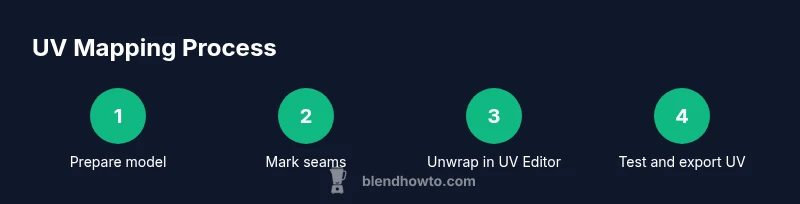
- Prepare the model: apply transforms, remove doubles, and verify normals. 2) Mark seams along logical boundaries and hidden edges. 3) Unwrap the mesh and open UV Editor to inspect islands. 4) Pack Islands, adjust texel density, and align islands for consistent texture painting. 5) Create or import a texture, connect it to the material, and test in Material Preview. 6) Export the UV layout for texture artists if necessary and save your Blender file. This workflow ensures you have a clean, reusable UV map you can reuse across similar models.
Next Steps and Practice Projects
Start with a simple cube and a checker texture to learn how UVs map. Move to a low-poly prop and practice seam placement on curved surfaces like a bottle or mug. Use a texture atlas approach to understand packing multiple materials efficiently. As you gain confidence, tackle more complex models and bake maps such as normals or ambient occlusion to see how UVs influence shading across the final render.
Tools & Materials
- Blender (latest stable release)(Download from blender.org; 2.8+ required for best UX and tools)
- 2D texture image (albedo/diffuse)(High-resolution textures (2048x2048 or 4096x4096) for realistic results)
- 3D model for UV mapping(Start with a simple mesh, then progress to complex assets)
- Checker or neutral texture (testing)(Helpful to verify uniform texel density)
- Texture painting tools (optional)(GIMP/Photoshop or Blender painting tools for color work)
Steps
Estimated time: 60-90 minutes
- 1
Prepare the model
Select your model, apply scale and rotation to reset transforms (Ctrl-A -> Scale and Rotation). This ensures the unwrap respects the model’s true size and avoids distortion later. Check for duplicate vertices and merge if needed. A clean base mesh makes the following unwrap predictable.
Tip: Apply all transforms before unwrapping to ensure texel density matches the model’s real-world size. - 2
Mark seams strategically
Enter Edit Mode, switch to edge select, and mark seams along natural boundaries or hidden edges where texture detail changes. The goal is to minimize visible seams while preserving essential texture features.
Tip: Place seams along hard edges and major texture boundaries to reduce distortion. - 3
Unwrap the mesh
With seams in place, press U and choose Unwrap (or Unwrap Along Camera for product shots). Check the UV Editor to verify island layout. If islands overlap, adjust seams or reposition vertices before re-wrapping.
Tip: If you’re unsure, start with Simple Unwrap for a baseline and refine. - 4
Adjust UV islands
Select all islands in the UV Editor (A) and scale/rotate to optimize space. Use Snap to Grid to keep islands aligned, and enable UV Sync to see the correspondence between 3D selection and 2D UVs.
Tip: Aim for evenly spaced islands with similar texel density. - 5
Pack and balance texel density
Pack islands using Pack Islands, then manually adjust scales to achieve a balanced texel density across surfaces. This helps textures look consistent when viewed from different angles.
Tip: Regularly compare large and small surfaces to keep texel density uniform. - 6
Test with textures
Assign the texture to the material and preview in Material Preview or Rendered view. Look for stretching, distortion, or misaligned seams, and iterate as needed.
Tip: Check the model from multiple viewpoints to catch edge-case distortions. - 7
Export UV layout for artists
If you’re collaborating, export the UV layout (UVs > Export UV Layout) so texture artists can paint accurately on the same map. Save your Blender file and document any decisions.
Tip: Include a reference texture guide to speed up collaboration.
Frequently Asked Questions
What is UV mapping in Blender?
UV mapping is the process of projecting a 3D model’s surfaces onto a 2D plane so textures can be painted or applied accurately. In Blender, you create a UV layout by unwrapping the mesh and adjusting the 2D coordinates. This layout tells Blender how to wrap the image onto the model.
UV mapping turns 3D surfaces into a 2D map so textures fit correctly.
When should I mark seams?
Mark seams at edges where texture detail changes or where they’ll be least visible. Seams placed along hidden faces or natural boundaries reduce visible texture lines and make the unwrap cleaner.
Seams should be placed where they won’t be seen or where the texture partition makes sense.
Can I unwrap models with multiple objects?
Yes. You can unwrap each object separately or temporarily join them to create a common UV map. Decide based on whether the texture needs to be shared or distinct between parts.
You can unwrap objects separately or together depending on texture needs.
How do I export a UV layout?
In the UV editor, choose UVs > Export UV Layout and save the image. This gives texture artists a reference map for painting.
Use the Export UV Layout option in the UV editor.
What causes texture distortion in UV maps?
Distortion usually comes from uneven texel density, overlapping islands, or skewed UVs. Fix by adjusting island scale, re-packing, and re-checking seams.
Distortion happens when texel density is off or UVs overlap; fix by rearranging.
Is there a quick unwrap method for simple models?
For simple models, Simple Unwrap or Project From View can provide a fast baseline. Always review the result in the UV Editor and refine as needed.
You can use Simple Unwrap for quick results and refine after.
Watch Video
What to Remember
- Plan seams before unwrapping
- Keep UV islands non-overlapping for predictable textures
- Balance texel density across islands
- Always preview in viewport to verify alignment
- Export UV layouts when collaborating with texture artists