Merge Vertex Blender: Step-by-Step Vertex Merging in Blender
A comprehensive guide to merging vertices in Blender, covering methods, tolerances, edge flow, and best practices for clean mesh topology. Learn step-by-step and avoid common pitfalls.


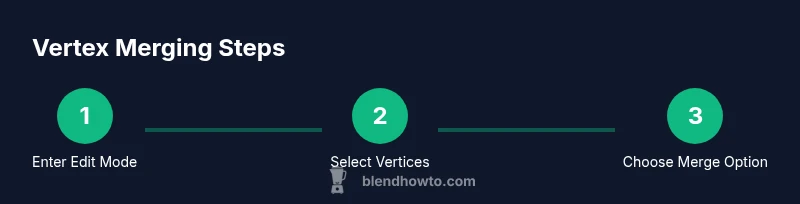
Using the merge vertex blender workflow in Blender, you can clean up a mesh by merging selected vertices, snapping to the median point, and dissolving extra edges. This quick guide shows how to perform the merge step-by-step: enter Edit mode, select vertices, and pick the appropriate merge option (At Center, At Cursor, or By Distance).
Understanding Vertex Merging in Blender
Vertex merging is a foundational operation for clean mesh topology. When you merge vertices, Blender collapses two or more vertices into a single point, eliminating redundant geometry and smoothing the edge flow. This is especially useful after retopology, boolean operations, or sculpting where stray vertices can cause shading artifacts or distorted UVs. The merge vertex blender workflow refers to performing merges in a controlled way to preserve the model’s silhouette and essential edges. In practice, you’ll merge to close gaps, remove interior vertices, or clean up duplicate vertices that appear after modifiers or boolean operations. By mastering these techniques, you can improve shading, reduce unnecessary geometry, and prepare meshes for export, rigging, or texture work. According to BlendHowTo, a disciplined approach to vertex merging keeps models lightweight and easy to edit, even for complex projects.
Merge Modes: Center, Cursor, Distance
Blender offers three primary merge modes: At Center, At Cursor, and By Distance. At Center collapses the selected vertices to the median point, which preserves overall mass but can slightly shift local topology. At Cursor merges to the current 3D cursor location, ideal when you want precise control or alignment with other geometry. By Distance merges all vertices within a user-defined tolerance into the nearest neighbor, making it perfect for removing duplicates and tidying up near-miss vertices. The right choice depends on your modeling goals: a quick cleanup, a precise anchor, or a tolerance-based pass. In practice, start with At Center for a fast pass, switch to At Cursor when you need strict alignment to reference geometry, and use By Distance to catch stray verts after importing or combining objects.
Practical Scenarios: When Vertex Merging Helps
Vertex merging shines in several common scenarios: after boolean cuts that leave leftover vertices, after boolean operations creating interior geometry that must be removed, and during retopology when you want to simplify dense regions without changing silhouette. It also helps clean up duplicates that appear after importing from other packages or exporting/importing multiple times. For UV work, reducing vertex count near seams can simplify unwrapping. BlendHowTo recommends performing merges in small batches and validating topology after each batch to avoid unintended shading changes or UV distortions. In addition, when you merge vertices, be mindful of vertex groups that drive deformations in rigs; accidental merges can affect weight painting or modifiers. Practice on a copy of your mesh to learn how different merge modes impact edges, faces, and UVs.
How to Merge Vertices in Blender: Core Methods
Blender enables three primary ways to merge vertices: At Center, At Cursor, and By Distance. The first uses the median point of the selected vertices, preserving overall mass while simplifying; the second anchors the merge to a chosen point, useful for aligning with reference geometry; the third dissolves close pairs using a user-defined tolerance, which is perfect for removing duplicates or closing micro-gaps. The actual steps are simple: select the vertices, press M to open the merge options, and pick the mode you need. After merging, review the topology to ensure there are no stray edges or flipped normals. If the result looks wrong, undo and try a different option or adjust the tolerance in the operator panel. BlendHowTo also notes that enabling vertex snapping improves precision when you want to snap the merge to a specific vertex or location.
Using Distance-Based Merges: Tolerances and Precision
Distance-based merging requires you set a tolerance value. The tolerance controls how close vertices must be to consider merging. A small value (e.g., 0.001 Blender units) is good for high-precision work, while a larger value can quickly collapse near-duplicates across larger regions but risks collapsing edges you want to keep. After performing a distance merge, check edge loops and face normals. If you notice shading artifacts, recalculate normals (Ctrl+N) or adjust seam and UV layout accordingly. When retopologizing, use By Distance to clean up dense vertex clusters along curves without changing the silhouette of the model. Tools like the 3D cursor can help set a precise merge target, especially when you want to anchor the merge to a particular vertex or location.
Normals, Edge Flow, and Seams After Merges
Merging vertices can subtly alter shading if normals and edge flow aren’t managed carefully. After completing a merge, recalculate normals (Ctrl+N) and inspect shading from multiple angles. If some faces appear inverted, use Flip Normals (Alt+N) or recalculate to restore consistency. Review edge loops around the merged area to ensure they follow the natural silhouette and don’t create long, skinny faces. Where you have UV seams, re-unwrap if necessary to prevent distortion. The goal is to preserve as much of the original geometry as possible while eliminating useless vertices. The term merge vertex blender describes the common workflow where you balance topology, shading, and texture mapping simultaneously.
Real-World Workflows: Retopology, UVs, and Export
In production-style modeling, vertex merging is part of a broader toolkit that includes retopology, UV packing, and export pipelines. During retopology, merging reduces density while preserving important silhouette lines, corners, and edge loops. In UV workflows, removing duplicate vertices near seams can prevent seams from pulling and stretching textures. Before exporting to game engines or render pipelines, verify that your topology remains clean and that merged areas won’t cause deformation when rigging or animating. BlendHowTo recommends validating your mesh in two passes: a topology pass and a texture pass, ensuring that there are no unintended changes to shading, UVs, or weight maps. By integrating vertex merging into these workflows, you’ll produce lighter, more robust models that are easier to edit later.
Common Pitfalls and How to Avoid Them
Several pitfalls can trip up even experienced Blender users. Over-merging along a surface can soften sharp features; merging across seams can collapse UV islands; using a large distance tolerance may erase necessary detail; failing to recalculate normals after merges can leave dark or shaded patches. Always rotate your view to inspect from multiple angles, and use the Isolate tool (slash key) to focus on the area you’re editing. When in doubt, merge fewer vertices first, test the result, and then repeat on nearby regions. Finally, keep a clean undo history and save incremental versions so you can revert if a merge affects hidden geometry or modifiers later.
Best Practices: Quick Reference and Reusable Checks
- Plan merges around silhouette and critical edge loops
- Start with Center, then move to Cursor or Distance as needed
- Always validate shading and UVs after a merge
- Use small distance tolerances for precision; avoid large leaps
- Save versions before major merges, especially before retopology
- Practice on a duplicate mesh to prevent data loss By following these practices, you’ll develop a reliable workflow for merge vertex blender tasks in Blender and related projects.
Tools & Materials
- Blender installed (latest version)(Download from blender.org; ensure you have a stable build.)
- Mouse with precise selection(A reliable mouse with a smooth middle-click helps with selection and menu access.)
- Backups/versioned files(Create incremental saves before large vertex merges.)
- 2-3 reference images or model references(Helpful for aligning merges to a reference silhouette.)
- Keyboard cheat sheet for Blender hotkeys(Speed up Merge, Snap, and Normals commands.)
Steps
Estimated time: 45-90 minutes
- 1
Enter Edit Mode and prepare selection
Open your Blender project, select the mesh, and switch to Edit Mode (Tab). Ensure you’re in vertex selection mode (1 or the vertex icon) so you can pick specific points precisely.
Tip: Verify visibility: enable X-Ray (Alt+Z) for hidden vertices before merging. - 2
Select the vertices to merge
Deselect nothing; click to select or box-select the vertices you want to merge. Use Shift to add to the selection if merging multiple groups.
Tip: For precise pairing, enable Vertex Snapping (magnet icon) and set snap element to Vertex. - 3
Open the Merge options
With vertices selected, press M to bring up the Merge menu. Choose the desired option: At Center, At Cursor, or By Distance.
Tip: If unsure, start with At Center to merge around the median point. - 4
Choose the right merge option
If you want to anchor to a known point, use At Cursor; for cleanup without altering silhouette, try By Distance with a small tolerance; At Center is a good general approach.
Tip: Experiment with small batches to see effects before applying globally. - 5
Fine-tune with By Distance
After merging, adjust the tolerance in the operator panel to merge any nearby vertices that should be connected without moving them far from their original positions.
Tip: Start with a small value like 0.001–0.01 Blender units and increase only if needed. - 6
Check topology and normals
Rotate the view to inspect edge flow around the merged region; recalculate normals if shading looks off (Ctrl+N).
Tip: If shading is incorrect, consider flipping normals or adjusting face orientation. - 7
Undo if needed and save
If the result isn’t correct, use Ctrl+Z to undo and try a different merge approach. Save your file frequently with meaningful version names.
Tip: Keep a named backup before large mergers. - 8
Extend to additional regions
Repeat the process on other mesh regions, maintaining consistency in edge loops and silhouette.
Tip: Document changes to avoid conflicting edits later.
Frequently Asked Questions
What is the merge function in Blender and when should I use it?
The merge function collapses selected vertices into a single point, removing duplicates and simplifying topology. Use it after retopology, after booleans, or when cleaning up imported geometry to improve shading and UVs.
The merge function collapses selected vertices into one point. Use it after booleans or when cleaning up a mesh to improve shading and topology.
What’s the difference between At Center, At Cursor, and By Distance?
At Center merges to the median point of the selection. At Cursor merges to the 3D cursor location. By Distance merges nearby vertices within a tolerance. Each serves different alignment and cleanup goals.
Center merges to the middle of the selection; Cursor anchors to the 3D cursor; Distance merges close vertices within a set tolerance.
Can I undo a merge?
Yes. Blender provides undo (Ctrl+Z) for the last action, so you can revert a merge and try a different approach or tolerance.
Yes, you can undo merges with Ctrl+Z and try another merge method.
How does merging affect UVs and textures?
Merging vertices can change UV layouts if the merged area changes topology. Check UV seams and consider re-unwrapping if textures distort after a merge.
Merging can affect UVs, so verify seams and reunwrap if needed.
Is it safe to merge in high-poly models?
Merging in high-poly models is safe if you control the tolerance and review results carefully. Use iterations and save backups to prevent data loss.
Yes, but use small tolerances and review results; always back up first.
Are there shortcuts to speed up merging?
Yes. Press M to open the merge menu and use Alt+M in some builds, or rely on the operator panel to adjust center/cursor/distance quickly.
Use M to open the merge menu, and adjust options quickly in the operator panel.
Watch Video
What to Remember
- Merge with intention to preserve topology
- Choose the right merge mode for the task
- Use By Distance for cleanup without data loss
- Always back up before major vertex edits