Mixamo Blender addon: A practical guide to animation retargeting in Blender
A comprehensive guide to using the Mixamo Blender addon for importing, retargeting, and exporting Mixamo animations in Blender. Learn installation, workflow steps, troubleshooting, and production-ready tips for hobbyists and professionals.


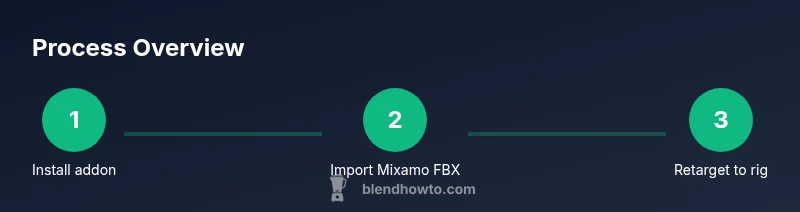
In this guide you will learn a practical, step-by-step workflow for using the Mixamo Blender addon: install the addon, import Mixamo FBX animations, retarget them to a compatible rig in Blender, adjust timing and bone constraints, and prepare clean exports for sharing or production renders. This approach saves time, reduces manual rigging, and helps hobbyists and professionals reach production-ready results.
What is the Mixamo Blender addon and why it matters
The Mixamo Blender addon is a bridge between the online Mixamo library and Blender's robust animation toolkit. It streamlines importing Mixamo FBX files, mapping animation data to Blender rigs, and baking or exporting finalized animations. For home cooks of 3D art and hobbyists, the addon dramatically reduces repetitive rigging tasks and speeds up iteration cycles. For 3D artists working on character animation pipelines, it provides a repeatable workflow that scales across scenes and characters. By using the addon, you can quickly bring expressive, diverse motions from Mixamo into Blender without manual bone-by-bone retargeting, while preserving the integrity of the original animation curves and timing. The BlendHowTo team highlights that a solid Mixamo Blender addon workflow is a foundational skill for modern Blender animators.
Key ideas to remember:
- It connects Mixamo assets to Blender rigs with minimal setup.
- It preserves keyframe timing and bone hierarchies when possible.
- It works best with a clean rig and consistent bone naming.
Tip: Start with a simple character rig to learn the retargeting basics before moving to complex creatures or multi-rig setups.
Installation and setup
Installing the Mixamo Blender addon is a two-part process: first install the addon in Blender, then enable it in Preferences and restart Blender if required. Ensure your Blender version is compatible with the addon (most additions target the 2.9x–3.x series). To install, download the addon file (usually a .zip or .py) from a trusted source, then in Blender go to Edit > Preferences > Add-ons > Install, select the file, and click Install Add-on. After installation, enable the addon by checking the box next to its name in the Add-ons list and save preferences. Finally, verify that the addon appears under a dedicated tab (often labeled Mixamo) in the Blender interface. If you encounter activation issues, disable conflicting addons and restart Blender. BlendHowTo recommends testing with a simple FBX export first to confirm correct integration.
What to watch for:
- Blender version compatibility.
- Conflicts with other animation tools.
- Correct file paths for FBX imports.
Pro tip: Enable the addon’s verbose logging if available to capture warnings during initial tests.
Importing Mixamo assets and animations into Blender
The typical workflow starts with exporting your chosen animation from Mixamo as an FBX file and then importing it into Blender. In the addon context, you’ll use a dedicated panel to load the FBX, map the animation bones to your local rig, and choose options for workspace scale and rotation. When you import, verify the axis alignment and global scale to avoid jitter and misalignment later on. If your character uses a non-standard rig, you may need to adjust the bone roll or re-name bones to match the addon’s expected mapping. After import, scrub the timeline to confirm that the animation plays back smoothly and that the root motion aligns with the scene’s floor plane. BlendHowTo notes that consistent unit scale (meters) across all assets minimizes surprises later.
Common adjustments:
- Align root bone with scene origin.
- Check bone roll and orientation.
- Re-map any missing bones to the target rig.
Pro tip: Use a neutral pose at import to simplify retargeting and minimize pose corrections later.
Retargeting animations to your rig
Retargeting is the heart of the Mixamo Blender addon workflow. The addon provides a retargeting panel that helps align Mixamo animation data with your character’s armature. Start by selecting your source (Mixamo animation) and target (your rig). The addon may offer automatic bone mapping, followed by manual tweaks for any mismatches. Focus on hip-to-hip and shoulder-to-shoulder alignment as primary anchors. After mapping, test the animation by playing the timeline and observing any foot sliding or torso twist. If issues appear, adjust bone constraints or modify the animation curves to reduce unwanted motion. Baking the animation can help lock in the retargeted results for export.
Tips for accurate retargeting:
- Confirm bone length parity between source and target.
- Use constraints sparingly to maintain natural motion.
- Periodically bake animations during retargeting to catch drift early.
Pro tip: If a limb glitches, re-check the bone roll and ensure that roll values stay consistent across both rigs.
Animating and refining: timing, curves, and bake
After successful retargeting, focus on timing and curve quality. The addon allows you to refine keyframes, adjust interpolation modes (Bezier, Linear, Constant), and smooth out any abrupt transitions. Pay attention to root motion, foot placement, and hand poses to ensure believable performance. Baking the animation can convert the retargeted data into a curve-based animation that Blender handles efficiently for rendering or export. When refining, compare cycles across similar actions (walking, running) to keep a consistent pace. Save incremental versions to prevent data loss during experimentation.
Practical refinements:
- Normalize timeline pacing across actions.
- Correct feet plants and toe-off timing.
- Ensure pose resets at loop boundaries for seamless playback.
Pro tip: Use the Graph Editor to adjust tangents for smoother transitions and to prevent overshoots in joint rotations.
Exporting and clean up for production
Exports should preserve animation fidelity while remaining compatible with downstream pipelines. The addon typically supports exporting back to FBX with baked animations or exporting as a Blender action for use in other scenes. Before export, clean up any helper bones, zero out unused channels, and verify that the scale and axis conventions match your target platform (game engine, render farm, or film pipeline). If you anticipate reusing the animation across multiple characters, consider exporting a shared retargeting setup or an animation library with standardized bone mappings. When exporting, test import into a clean scene to verify that the asset behaves as expected in isolation.
Best practices:
- Bake animations to ensure compatibility with engines.
- Keep a clean export preset with consistent scale and axis settings.
- Include a quick reference sheet for bone mappings in your project folder.
Pro tip: Create a small test clip (2–3 seconds) to validate export correctness before generating longer sequences.
Common issues and troubleshooting
Retargeting Mixamo animations in Blender can present several recurring issues. Common root causes include scale mismatches, axis misalignment, improper bone naming, and improper rig weighting. Symptoms may include jitter, foot sliding, or limbs that rotate in unexpected directions. Start troubleshooting by confirming the rig naming matches the addon’s expectations, then check the root bone alignment and global scale. If issues persist, reset the retargeting mapping and re-apply with careful attention to bone pairings. Logging output from the addon can help identify where the mismatch occurs. When in doubt, revert to a known-good import and rebuild the retargeting step-by-step.
Troubleshooting checkpoints:
- Validate scale and axis alignment before retargeting.
- Re-map bones if automated mapping misses a major bone.
- Bake frequently during troubleshooting to lock changes.
Warning: Small axis or scale errors can compound through the pipeline, making early checks essential.
Advanced workflows: facial animation and multiple rigs
For advanced users, the Mixamo Blender addon can be combined with other tools to handle facial animations and multi-rig rigs. Facial motion may require separate mapping using BlendShape or rig-specific control bones. You can drive facial rigs with Mixamo-provided morph targets or export them separately and blend them in Blender. When working with multiple characters or rigs, maintain a shared naming convention and a unified export/export-ready pipeline. This reduces repetitive work and ensures consistent animation quality across characters. Consider building a small library of retargeting presets for common rigs to speed future projects.
Advanced tips:
- Create reusable bone mappings for frequent rig families.
- Use action constraints to blend between different animations.
- Maintain a versioned library of facial and body motion assets for rapid iteration.
Pro tip: Document your rig naming scheme and mappings in a project notebook for team collaboration.
Alternatives and complementary tools
While the Mixamo Blender addon offers a streamlined workflow, other tools and plugins can complement or extend its capabilities. Some artists use external retargeting suites or Blender addons that handle motion capture data importing, advanced retargeting with IK/BK switching, or automated cleaning of animation curves. When choosing alternatives, assess the compatibility with your Blender version, rig complexity, and target export format. It’s common to combine Mixamo workflows with Python scripts to automate repetitive tasks, especially in production pipelines. Always test new tools in a controlled project to avoid disrupting a working setup.
Wrap-up:
- Mixed toolchains can unlock greater flexibility for complex rigs.
- Validate each tool’s output in the target engine or render pipeline.
- Keep backups of the baseline rig and animation before introducing new tools.
Final notes and best practices
The Mixamo Blender addon is a powerful ally for animators working with pre-built motion libraries. By following a disciplined workflow—installing correctly, importing assets, retargeting precisely, refining timing, and exporting cleanly—you can achieve reliable results with less guesswork. Maintain a clean project structure, document bone mappings, and version your assets to protect your workflow. BlendHowTo’s approach emphasizes practical steps grounded in real-world use across hobbyist and professional contexts. With time, you’ll develop a repeatable, production-ready process that scales with your projects.
Tools & Materials
- Blender (2.93+)(Prefer LTS or latest stable release for reliability)
- Mixamo Blender addon(Enable in Preferences > Add-ons; restart Blender if needed)
- Mixamo account and FBX exports(Export Mixamo animations as FBX suitable for Blender import)
- FBX file(s) from Mixamo(Keep a small test clip for initial retargeting checks)
- A compatible rig or character with a clean bone naming(Helps the addon map animation data correctly)
- Keyboard and mouse(Basic navigation for retargeting and editing)
- Stable internet connection( needed for accessing Mixamo library and updates)
Steps
Estimated time: 60-90 minutes
- 1
Install and enable addon
Download the addon, install it via Edit > Preferences > Add-ons > Install, then enable it in the Add-ons list. Restart Blender if prompted to ensure the addon initializes correctly. This creates the Mixamo panel where you will perform mapping and retargeting.
Tip: Confirm addon appears in the 3D Viewport sidebar and that its panels are accessible before proceeding. - 2
Import Mixamo FBX into Blender
In Blender, import your FBX file exported from Mixamo. Check axis orientation and global scale; adjust if necessary using the addon’s import settings. Scrub the timeline to ensure the animation plays on your target rig without major clipping.
Tip: Freeze the source pose to a neutral stance before import to simplify retargeting. - 3
Map bones and apply initial retargeting
Open the addon’s retargeting panel, select the Mixamo source and your Blender rig, and apply the default bone mapping. Review key joints (hips, shoulders, knees) for alignment and adjust mapping if a bone is misassigned.
Tip: Always verify hip alignment first; a good root anchor prevents most downstream drift. - 4
Refine animation curves and timing
Use Blender’s Graph Editor to tweak interpolation and tangents. Normalize pacing across actions and correct any jitter or foot sliding by adjusting curves or adding small constraints.
Tip: Bake occasionally to lock in successful retargeting before further edits. - 5
Bake and prepare for export
Bake the animation to ensure compatibility with engines or pipelines. Clean up unused bones and confirm a consistent scale/axis convention for export.
Tip: Test export with a short test clip to catch export-time issues early. - 6
Final review and documentation
Play back the final animation in a clean scene, verify loop points, and document bone mappings and any tweaks for future projects.
Tip: Create a personal ‘best practices’ note for future retargeting sessions.
Frequently Asked Questions
What is the Mixamo Blender addon and why should I use it?
The Mixamo Blender addon provides a streamlined bridge between Mixamo’s animation library and Blender rigs. It automates importing, bone mapping, and retargeting, reducing manual rigging time and improving consistency across projects. It is especially helpful for hobbyists and professionals who frequently reuse Mixamo assets.
The addon speeds up importing and retargeting, making it easier to reuse Mixamo assets in Blender.
Do I need internet access to use the addon effectively?
You can work offline after you have exported and downloaded the Mixamo FBX files, but initial asset acquisition and occasional updates may require an internet connection. The addon itself runs locally within Blender once installed.
An internet connection is mainly needed for obtaining assets and updates; the addon runs offline once installed.
Which Blender versions are supported by the addon?
The addon typically targets modern Blender releases in the 2.93+ to 3.x range. Always check the addon’s documentation for version compatibility and any required patch notes before installing.
Stick to supported releases listed in the addon docs to avoid compatibility issues.
How do I fix bone orientation or foot sliding after retargeting?
Check bone roll, axis alignment, and scale consistency first. Adjust the mapping or constraints in small steps, bake, and test. If the issue persists, re-map the problematic bone pair and re-test the retargeting.
Fix axis and bone roll, then re-map and re-test the retargeted bones.
Can I use Mixamo without the addon?
Yes, you can manually import FBX files and retarget animations in Blender, but the addon accelerates the process with automated bone mapping and streamlined retargeting workflows.
You can do it manually, but the addon saves time and reduces error.
What are common pitfalls in Mixamo retargeting in Blender?
Scale mismatches, axis misalignment, and inconsistent bone naming are the most frequent culprits. Regularly validate the root bone, ensure consistent unit scale, and bake animations to lock in changes.
Watch for scale, axis, and naming mismatches, then bake to lock results.
Watch Video
What to Remember
- Install and enable the addon correctly.
- Import Mixamo FBX files with consistent scale.
- Map bones precisely and check root alignment.
- Bake and refine animation curves for export readiness.
- Test export on a small scene before full production.