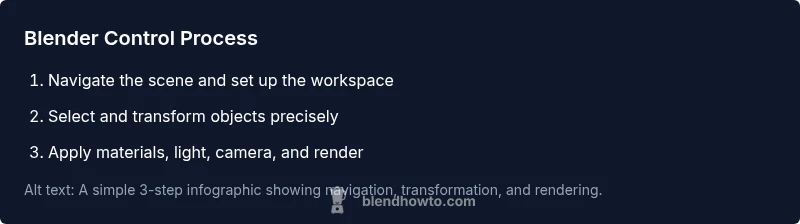
Blender Control: Essential Navigation and Shortcuts for Efficient Work
Master Blender control with practical navigation, hotkeys, and tool mastery to speed up modeling, texturing, and animation. This guide covers core workflows, keyboard shortcuts, and customization tips to boost accuracy and efficiency for beginners and enthusiasts alike.


Blender control covers navigating the interface, using keyboard shortcuts, and mastering tool panels to model, texture, and animate efficiently. This quick guide outlines essential controls, hotkeys, and workflows so beginners move from basic navigation to confident, productive Blender sessions. You'll learn viewport navigation, selection modes, transform gizmos, and how to tailor preferences for faster work.
Core principles of blender control
Blender control isn’t just about pressing keys—it’s a framework for thinking about how you interact with 3D space, your scene data, and your render outputs. At its heart, it blends navigation, selection, transformation, and non-destructive workflows. According to BlendHowTo, building a reliable control routine starts with a consistent setup: one workspace, predictable hotkeys, and a bias toward non-destructive editing. When you master these core concepts, you’ll reduce wasted motion and increase accuracy across modeling, texturing, and animation. This section defines the three pillars of blender control: navigation, manipulation, and organization, and shows how each supports faster, more precise results. As you read, look for opportunities to map common actions to your preferred keyboard layout; a small investment in habit today pays off in speed tomorrow. BlendHowTo’s practical approach emphasizes clarity, repeatable steps, and safe backups to protect work while you learn.
Viewport navigation and view manipulation
Efficient viewport navigation is the foundation of blender control. Orbit the view with the middle mouse button (MMB) to rotate around the scene; pan with Shift+MMB to move across the canvas; and scroll to zoom in and out. For fixed viewpoints, use the Numpad keys: 1, 3, 7 show front, side, and top views respectively, while Ctrl+Numpad variants flip to the opposite orientation. If you don’t have a numpad, enable Emulate 3 Button Mouse in Preferences to access the same controls with Alt+Mouse. Consistently using these gestures reduces time spent visually locating objects and increases precision when aligning pieces, mirrors, or textures. Blender control shines when keyboard shortcuts are married to logical mouse actions, a pattern that BlendHowTo has found accelerates learning for beginners and keeps workflows fluid during busy sessions.
Selection modes and object vs edit mode
Blender distinguishes between Object Mode (managing multiples objects) and Edit Mode (shaping the geometry of a single object). Use A to select or deselect all, B for box select, and C for circle select. Right-click toggles or left-click select depending on your preference, but establishing a default can save minutes per session. In Edit Mode, you’ll work with vertices, edges, and faces, applying operations like Extrude (E), Bevel (Ctrl+B), and Merge (M) to craft complex forms. Knowing when to switch modes, and how to keep transformations constrained, is essential for clean topology and predictable results. Practicing this separation is a core aspect of blender control that reduces confusion as scenes grow more intricate.
Transform operations: grab, move, rotate, scale, and the gizmo
Transform operations are the core of every blender control task. To grab and move, press G and then move the mouse; constrain to an axis with X, Y, or Z. Rotate with R and scale with S; double-tap R to keep rotation along the local axis. The Transform Gizmo provides a visual handle for translation, rotation, and scale, which can speed up precise adjustments especially for beginners. For exact values, type numbers after initiating a transform (e.g., G, X, 2 inputs). Enable snapping (magnet icon) to align objects to grid, vertices, or other objects, which is invaluable when building clean assemblies. Use the origin point wisely to influence pivot behavior during transforms. This section demonstrates blender control in its most tactile form, combining keyboard input with point-and-click adjustments for accurate results.
Modeling workflows: from primitives to precision modeling
A typical blender control workflow starts with simple primitives (Shift+A) and evolves toward precision modeling through modifiers and iterative refinement. Start with a cube or plane, then use Subdivision Surface to add detail, while maintaining clean topology with loop cuts (Ctrl+R) and edge slides (G twice). Constantly switch between Object and Edit modes to refine structure without losing the overall arrangement. Keep a habit of applying scale (Ctrl+A) before heavy modeling to prevent unexpected results in transforms and modifiers. For sculpted forms, enable dynamic topology and brush controls, but always preserve a low-poly base mesh for easy manipulation. BlendHowTo emphasizes documenting decisions with quick annotations and regular backups so that you can revisit earlier stages without redoing work. This process keeps the blender control consistent across projects.
Sculpting and texturing controls
Sculpting in Blender uses brush-based tools that resemble traditional clay modeling, but the underlying topology matters for performance and subdivision results. Choose a brush set, adjust strength, and use dynamic topology to maintain detail where needed. When texturing, switch to Texture Paint mode and work with UV maps to ensure textures align to the model. The Shader Editor lets you assemble materials with node-based workflows; start with a simple Principled shader and tweak roughness and metallic values for realism. Remember to paint non-destructive textures and to bake details to normal or ambient occlusion maps when you finalize assets. Blender control here means coordinating brushwork, topology, and material properties so that every stroke has an intended effect.
Animation and timeline control basics
Animation introduces time into blender control. The Timeline shows keyframes, playback, and frame range, while the Dope Sheet provides a more compact view of timing. For a basic animation, insert a location keyframe with I while the cube is in the desired position, then scrub the timeline to set the next keyframe. Use the Graph Editor to adjust interpolation (linear, bezier) for smoother motion. N for the sidebar to access transform properties and constraints; use Auto Keying to capture changes automatically for simple rigs. This section demonstrates how to choreograph motion with thoughtful pacing, easing, and anticipation, all within Blender’s robust animation toolkit.
Customization and preferences for speed
Speed comes from a well-organized workspace and tailored preferences. In Edit > Preferences, customize your Keymap to align with your workflow; you can rebind common actions to keys that feel natural. Switch to a dark theme or a high-contrast theme to reduce eye strain, and set up startup files that open your preferred layout and add-on configuration. Enable Save Preferences on exit to preserve improvements. Create a small, repeatable workflow for repetitive tasks (for example, a standard set of steps for object duplication, alignment, and naming). Blender control becomes second nature when your environment supports your tasks rather than forcing you to adapt. BlendHowTo recommends documenting your setup so that teams can reproduce results consistently.
Practical workflow: from concept to render in Blender
This section ties blender control to a real project, illustrating how navigation, selection, transform, and shading integrate in a practical task. Start with a quick concept sketch, set up the camera and lighting, and model the base form from primitives. Refine topology, add subdivision surfaces for smooth surfaces, and apply a color or texture to convey material properties. Use the timeline to stage a short animation or camera flythrough, then render a final frame or sequence. Throughout, maintain backups and versioning, and use hotkeys to speed up routine steps. The end result should demonstrate a fluid, intentional workflow rather than a sequence of scattered actions. This is the essence of blender control in action.
Tools & Materials
- Computer with Blender installed (version 3.x or later)(Ensure your GPU drivers are up to date)
- Keyboard and mouse with scroll wheel(Numpad preferable for quick view changes)
- Optional graphics tablet or stylus(Helpful for sculpting or texture painting)
- External storage for project backups(Regular backups recommended)
- Reference images and mood boards(Useful for consistent style guidance)
Steps
Estimated time: 45-60 minutes
- 1
Open Blender and load Layout
Launch Blender and select the Layout workspace to access the 3D viewport, outliner, and properties panels. This establishes the default environment for rapid navigation and manipulation. Ensure autosave is enabled or save a project at the start to protect your work.
Tip: Tip: Use the Spacebar to quickly access tools and commands for faster setup. - 2
Familiarize viewport navigation
Learn orbit, pan, and zoom using MMB, Shift+MMB, and scroll. If you lack a numpad, enable Emulate 3 Button Mouse and use Alt+Mouse for equivalent controls. Practice until you can position the camera and select distant objects without hunting menus.
Tip: Pro tip: Practice with a grid floor and a few primitives to build muscle memory. - 3
Select objects and modes
Select the default cube in Object Mode. Switch to Edit Mode to begin shaping geometry. Use A to toggle selection, B for box select, and C for circle select. Remember to switch modes depending on the task to avoid accidental edits.
Tip: Pro tip: Use Tab to toggle between Object and Edit modes for rapid workflow. - 4
Perform basic transforms
Grab and move with G, rotate with R, and scale with S. Constrain to axes with X, Y, or Z. Try snapping by enabling the magnet and selecting 'Increment' or 'Vertex' to align with precise locations. Use the Transform Gizmo for visual control.
Tip: Warning: Apply scale before complex edits to maintain predictable results. - 5
Add geometry and refine topology
Add a primitive (Shift+A) and refine with Subdivision, Loop Cut (Ctrl+R), and Edge Slide (GG). Maintain clean topology for easier editing and better deformation later. Keep frequent backups as you iterate.
Tip: Pro tip: Use multiselect and proportional editing with O to sculpt organic forms. - 6
Apply materials and lighting
Create a basic material in the Shader Editor using a Principled BSDF, then adjust roughness and metallic values. Set up a basic light setup (area or sun lamp) and a simple camera angle. Fine-tune viewport shading to verify how materials look in render previews.
Tip: Note: Save a copy of material setups to reuse in future projects. - 7
Render a test scene
Position the camera, set render settings for a quick preview, and render a test frame or animation. Review the result, iterate on lighting and materials, and save the final output when satisfied. Use a simple render pass to verify color, lighting, and shadows before progressing.
Tip: Pro tip: Use F12 for render and Shift+Z to toggle rendered view in the viewport.
Frequently Asked Questions
What is Blender control?
Blender control refers to navigating the interface, using hotkeys, and manipulating tools to model, texture, and animate. It combines viewport actions with transform operations to enable efficient workflows.
Blender control is about moving, selecting, and transforming objects quickly using shortcuts and the interface so you can model, texture, and animate more efficiently.
Which hotkeys are essential for beginners?
G moves, R rotates, S scales, and Tab toggles between Object and Edit Modes. Numpad shortcuts help with quick view angles. Mastery of these basics speeds up most tasks.
The basics are G, R, S, and Tab, plus the numpad views for fast navigation.
How do I customize my Blender keymap?
Open Preferences, go to Keymap, and adjust bindings. Save as startup file to preserve changes across sessions. Start with a small set of changes to avoid conflicts.
In Preferences, under Keymap, rebind actions to fit your workflow and save as default.
What are good viewport navigation tips?
Use MMB to orbit, Shift+MMB to pan, and Scroll to zoom. Use Numpad 1/3/7 for standard views, or enable Emulate 3 Button Mouse if you don’t have a numpad.
Orbit with the middle mouse button, pan with Shift+MMB, and use the number keys for quick views.
Is Blender control hard for beginners?
Blender has a learning curve, but a structured, task-based approach makes progress steady. Start with small projects and gradually add complexity.
Yes, but with steady, task-based practice you’ll gain confidence quickly.
Watch Video
What to Remember
- Master viewport navigation for faster scene exploration.
- Learn core transforms and axis constraints early.
- Switch between Object and Edit modes with purpose.
- Keep topology clean to support future edits.
- Customize Blender to fit your personal workflow.