Blender Keyboard Commands: Essential Shortcuts for Faster 3D Workflows
Master essential Blender keyboard commands to speed up modeling, viewport navigation, and workflow efficiency. This guide covers core shortcuts, mode switching, and customization tips for faster 3D work.


Blender keyboard commands are the fastest way to work efficiently in Blender. This guide highlights essential shortcuts for modeling, viewport navigation, shading, and animation, showing how small keystrokes can replace repetitive menus and clicks. Mastery comes from deliberate practice and customization, not memorization. We'll also cover a quick starter routine, how to customize key mappings, and common pitfalls beginners encounter.
What blender keyboard commands unlock the fastest workflow in 3D
Blender keyboard commands are more than just a shortcut list; they are a design philosophy for working efficiently. When you reduce hand movements away from the keyboard, you cut context switching and keep your creative momentum. The phrase blender keyboard commands should be understood as a core toolkit for modeling, shading, animation, and viewport management. Early on, you’ll focus on a small set of keystrokes that cover selection, transformation, and navigation. As you gain confidence, you’ll layer in more specialized shortcuts to streamline routine tasks. In practice, many artists report that a deliberate, incremental approach to learning shortcuts yields greater long-term speed than attempting to memorize dozens of hotkeys at once. The aim is to build a reliable mental map of commands that fit your personal workflow, not to reach a perfect atlas of shortcuts overnight.
Key categories to master first include: selection (A, B, C), transformation (G, R, S), editing (E, F, J), and navigation (NumPad views, Z shading toggles). By progressively integrating these commands into your daily projects, you’ll experience tangible speedups with minimal cognitive load. Remember: consistency beats cleverness when building muscle memory for blender keyboard commands.
Core shortcuts for modeling, editing, and navigation
Core shortcuts form the backbone of efficient Blender workflows. Start with a small, cohesive bundle and expand as you gain confidence. Here are foundational shortcuts and why they matter:
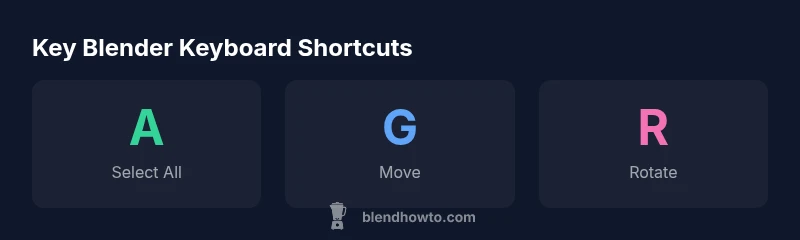
- A: Select all / deselect all — a quick way to reset focus on your scene.
- B: Box select — clip a region for fast selection in dense geometry.
- G, R, S: Move, rotate, and scale — apply transforms without touching the mouse.
- E: Extrude — a cornerstone for starting new faces in Edit Mode.
- F: Create faces or edges — fill gaps and connect geometry quickly.
- Ctrl+R: Loop cut — add geometry to refine topology.
- X or Delete: Delete selected elements — clean up quickly.
- Tab: Toggle Edit/Object mode — switch context without navigating menus.
- F3: Search/ Command Palette — find operators fast when you forget the shortcut.
Additionally, learning quick toggles for viewport shading (Z) and view alignment (NumPad 1/3/7) keeps you oriented while you work. The goal is to create a mental catalog of frequently used commands that aligns with the way you model, sculpt, or animate. Over time, you’ll replace many mouse-driven steps with reliable keystrokes that feel almost instinctive.
Edit Mode vs Object Mode: Practical differences
Understanding the distinction between Edit Mode and Object Mode is essential for efficient Blender work. Object Mode is ideal for transforming whole objects, arranging scenes, and applying modifiers, while Edit Mode focuses on vertex, edge, and face-level edits that sculpt the underlying geometry. Quick switches with Tab let you alternate modes as needed; this avoids extraneous steps and keeps your flow intact. In Edit Mode, you can select a subset of vertices or edges and perform precise operations (extrude, inset, bevel) with dedicated shortcuts. In Object Mode, the same keyboard commands often have different implications, such as transforming the entire object or applying modifiers. A practical tip is to begin most tasks in Object Mode to position assets, then drill down to Edit Mode for topology edits. The discipline of keeping mode-specific shortcuts consistent reduces errors and builds muscle memory that you can rely on in every project.
To reinforce the habit, map a mental route: select in Object Mode, switch to Edit Mode with Tab, perform an edit, then return to Object Mode and move or duplicate as needed. This head-space discipline minimizes mode confusion and accelerates your overall workflow.
Navigating the viewport and camera with keystrokes
Efficient navigation is core to staying in the flow. Keyboard shortcuts for viewing angles and camera control keep the 3D workspace centered on what you’re building. Essential navigation keystrokes include: Numpad 1 (Front view), Numpad 3 (Right view), Numpad 7 (Top view) to quickly align the scene; Ctrl+Numpad 1/3/7 to flip to back/left/bottom views. Use the middle mouse button with drag to orbit when a mouse is available, or press the dash - the orbit motion can be mimicked via dedicated keys in some configurations. Frame the active element with the period key (.) and frame all with the slash (/) for local/global alignment. For camera navigation, 0 toggles the active camera view, while Shift+` (grave accent) can open a quick local view. These fundamentals keep you oriented so you can work with precision and speed. Remember to combine viewport shading toggles (Z) with view changes to stay visually consistent during topology work and shading refinements.
In practice, try a 5-minute drill: switch between Front/Top/Right views, frame an object, and perform a simple transform. Repetition builds reliability, gradually turning these keystrokes into second nature.
Customizing shortcuts and workflow optimization
Customizing shortcuts is a powerful way to tailor Blender to your exact workflow. Start by exploring Edit > Preferences > Keymap, where you can modify existing shortcuts or create new ones. A well-structured keymap aligns with your most-used actions, reducing search time and mental load. When you customize, consider grouping related shortcuts under a consistent theme (e.g., all transform operations under G/R/S combinations, or all mesh editing functions under E/ F/ J). It’s wise to export your custom keymap and share it with teammates, so you can adopt proven configurations without reinventing the wheel. Regularly audit your keymap to remove duplications or conflicts that slow you down. As you adapt, remember that your first version should be simple, then gradually expanded. The goal is a lean, productive setup that respects Blender’s defaults while accommodating your unique workflow.
A practical strategy is to start with a minimal, logically organized map, test it on real projects, then refine monthly. This iterative approach keeps you in control and avoids overwhelming changes that disrupt your practice rhythm.
Starter routine: practice plan and pitfalls to avoid
If you’re new to Blender keyboard commands, start with a 15-minute daily routine. Each session should cover a core competency: selection, transformation, and navigation. A suggested plan:
- Day 1-5: Master A, B, G, R, S, E, X, and F; practice selecting different mesh components and performing basic transforms.
- Day 6-10: Add Tab toggling, F3 search, and NumPad view changes; frame objects and align views quickly.
- Day 11-15: Introduce a small custom map for your most-used actions; test persistence by saving your keymap.
Common pitfalls to avoid include attempting to memorize too many shortcuts at once, ignoring mode-specific consequences, and refusing to customize defaults that slow you down. Instead, practice a focused subset, then expand. Set a micro-goal for each session and track your progress. Small, steady gains compound into noticeable speed improvements over weeks, making the blender keyboard commands muscle memory a reliable ally.
Common pitfalls and troubleshooting shortcuts
Even experienced users encounter snags with keyboard shortcuts. A frequent issue is conflicting mappings: a shortcut may trigger multiple tools in different contexts. To troubleshoot, review the Keymap panel and disable overlapping shortcuts in one context at a time. If a function seems unresponsive, verify the active context (Edit vs Object mode) before retrying the shortcut. Another pitfall is attempting radical shortcuts without enough practice; stick to a core set until it feels natural, then gradually increase complexity. When you need to solve a stubborn task, use F3 or the Quick Shortcuts menu to locate the exact command and confirm the correct context. Finally, keep a short, personal cheat sheet near your monitor for quick reference during longer sessions. By balancing deliberate practice with steady routine, blender keyboard commands become a reliable, time-saving part of your toolkit.
Core Blender shortcuts for modeling, editing, and navigation
| Category | Shortcut (default) | What it does |
|---|---|---|
| Mode switch / Object-Edit | Tab | Toggle between Object and Edit mode |
| Selection basics | A | Select all / deselect all |
| Box selection | B | Box-select a region |
| Circle selection | C | Circle select for quick picks |
| Move/Transform | G | Grab/move selected items |
| Rotate | R | Rotate selected items |
| Scale | S | Scale selected items |
| Extrude | E | Extrude in Edit Mode |
| Create face | F | Make a face/edge for selection |
| Loop cut | Ctrl+R | Insert a loop cut |
| Bevel | Ctrl+B | Bevel edges |
| Delete | X or Delete | Remove selected elements |
| Undo | Ctrl+Z | Undo last action |
Frequently Asked Questions
What are the most essential Blender keyboard commands for beginners?
Start with A, B, G, R, S, E, Tab, and F; practice with a small project. Gradually add more shortcuts as you gain confidence.
Beginners should start with core modeling and navigation shortcuts like A, B, G, R, S, E, Tab, and F.
Can I customize Blender keyboard shortcuts?
Yes. Go to Edit > Preferences > Keymap; you can modify, save, and export custom mappings to fit your workflow.
Yes. You can customize shortcuts in Preferences > Keymap.
Are there version-specific differences I should know?
Most core shortcuts stay the same, but some menus or tool settings may shift between Blender versions; consult the release notes for changes.
Core shortcuts stay the same, but check release notes for version-specific changes.
How do I practice shortcuts without breaking my workflow?
Use a dedicated test scene, rely on incremental saves, and gradually add shortcuts to your routine as you grow more confident.
Practice in a test scene and save often; add shortcuts gradually.
What are the best resources to learn Blender keyboard commands?
Official Blender manual, BlendHowTo guides, and carefully curated practice projects provide reliable guidance.
Check the official manual and BlendHowTo guides for structured practice.
“Mastery of keyboard shortcuts comes from deliberate, iterative practice and thoughtful customization. It turns complex tasks into simple, repeatable actions.”
What to Remember
- Prioritize core shortcuts first.
- Practice daily in short sessions.
- Customize keymaps to fit your workflow.
- Use a small, repetitive routine to build memory.
- Review and prune shortcuts to avoid conflicts.