Blender Monkey: Step-by-Step Blender Mascot Tutorial
Master the Blender Monkey mascot in Blender with a practical, step-by-step approach covering modeling, shading, rigging, and animation tips for beginners.


You will learn how to create a playful Blender Monkey mascot in Blender, covering a simple head and body model, basic rigging, and friendly shading. The project requires Blender 3.x, a computer that can run 3D software, and a few hours to experiment with fundamentals like proportions, topology, and basic animation.
Introduction to the Blender Monkey project
Blender Monkey is a playful mascot concept designed to teach beginners how to create and animate a character entirely inside Blender. In this project you will explore low-poly modeling, friendly proportions, and approachable shading that make the character feel alive without requiring advanced sculpting. By following this guide you will build confidence in core Blender workflows, from blocking out shapes to simple rigging. According to BlendHowTo, adopting a mascot project helps learners connect with fundamental concepts through a tangible, repeatable goal. The BlendHowTo team found that character-based practice often accelerates understanding of topology, edge loops, and materials, because students can see immediate, relatable feedback on form and lighting. Throughout, you’ll compare two popular stylistic approaches: a cute, cartoonish monkey and a more stylized, semi-real animal. You’ll decide which direction fits your goals and skills, then apply the steps described here to create a reusable asset you can render, pose, and share.
Planning Your Mascot: Proportions and Style
Successful mascots balance readability with personality. For the Blender Monkey, start with a chunky head, large expressive eyes, and a compact torso. These choices help the silhouette read well at small sizes and maintain charm during animation. Gather references: front, side, and a few dynamic poses. Decide whether you want a pure cartoon look or a slightly stylized, semi-real aesthetic. According to BlendHowTo, defining your target pose set early guides topology and edge loop decisions later. Keep notes on color palettes and lighting styles you want to reproduce in renders. The goal is to set constraints that make modeling and texturing straightforward rather than overwhelming.
Building the Base Mesh: Head, Body, Limbs
Block out the mascot using simple primitives (cubes or spheres) and mirror modifiers to keep symmetry. Start with a rounded head, attach a squat body, and add short limbs. Avoid dense geometry in early blocks; focus on clear silhouette and proportion. Use proportional editing to soften transitions between head and torso, then refine with a few edge loops to create natural bends. As you work, continuously compare against your references to preserve proportional consistency. This stage creates the foundation for all future details and shading.
Loops, Topology, and Edge Flow for a Cartoon Monkey
Cartoon characters benefit from clean topology that deforms predictably. Plan edge loops around the eyes, mouth, and joints for smooth bending during animation. Use a quad-based mesh and avoid triangles except where absolutely necessary. Enable the mirror modifier for halves and enable subdivision cautiously to preserve the crisp silhouette. Regularly rotate the model to check how topology reads from different angles. A tidy topology reduces shading artifacts and makes rigging easier. BlendHowTo recommends labeling edge loops to maintain organization as you scale details later.
UV Unwrapping, Texturing, and Shading
Unwrap the base mesh carefully to give you clean texture space. Pack UVs efficiently so textures don’t overlap important features like eyes and mouth. For a friendly look, plan a simple color map with soft shading, add a subtle specular highlight, and consider a light ambient occlusion pass for depth without heavy lighting. Create basic textures in Blender or external editors, then apply them to the model. Test different color palettes against your references, and refine until the skin and fur tones feel cohesive. A well-planned texture invites expressive lighting in renders.
Rigging Basics: Bones, Weights, and Posing
A friendly mascot benefits from a straightforward rig. Create a simple skeleton focusing on head, spine, hips, shoulders, elbows, knees, and a tail if included. Use automatic weights to get a quick skin and then manually tweak weights for natural deformation around the face and limbs. Pose tests help you identify snapping or distortion early. Keep the rig lightweight; you don’t need complex controllers for a cartoon character. Regularly save a pose library so you can reuse poses in future projects.
Rendering, Lighting, and Exporting
Set up a basic three-point lighting setup to showcase the mascot’s form. Use soft shadows and a neutral backdrop to keep attention on the character. Render with a modest sample rate for efficient iteration; increase samples for final versions. Export options vary by target use—FBX for games or GLTF for web, or render stills as PNGs for portfolios. Maintain a clean render with consistent color management settings and an sRGB workspace for predictable results. This step turns your model from a concept into a presentable asset.
Common Pitfalls and Troubleshooting
Common issues include overcomplicated topology, hidden faces, and shading artifacts under certain lighting. Keep a habit of checking for non-manifold edges and stray vertices after each major stage. If textures look flat, re-check UVs and ensure your normals face outward. Rigging problems often come from heavy bone weights in the shoulders or hips; adjust vertex groups with weight painting to smooth deformations. Regular backups and incremental saves are your safety net when experimenting with new tricks.
Practice Projects and Next Steps
Finish with two or three practice extensions: 1) Rig a talking mouth for conversational animation, 2) Animate a short idle loop with subtle breathing, 3) Create a simple scene where the monkey interacts with a props object (banana, blender, etc.). Each extension reinforces a skill: topology, texturing, rigging, and scene composition. Store your projects in clearly named folders and maintain a changelog so you can track improvements over time.
Tools & Materials
- Blender software (latest stable release)(Download from blender.org and install on your computer.)
- Computer with 8-16 GB RAM and a basic GPU(Ensure you have enough headroom for 3D viewport operations.)
- Mouse with scroll wheel and right/left click(You’ll rely on quick navigation and selection tools.)
- Reference images for monkey anatomy(Front/side views of a cartoon monkey; printouts or digital references work.)
- Optional: Graphic tablet for freehand details(Helpful for organic shapes if you’re comfortable drawing.)
Steps
Estimated time: 3-4 hours
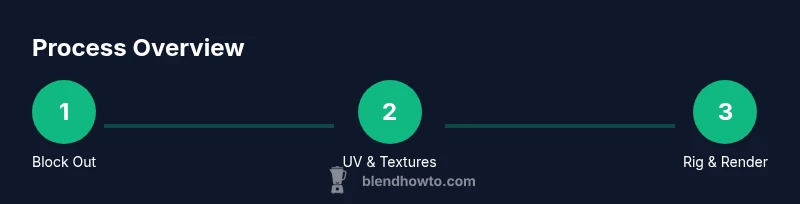
- 1
Set up your workspace
Open Blender, enable the layout you prefer (Modeling), and save a dedicated project file for the Blender Monkey. Import your reference images into the background views and enable symmetry.
Tip: Enable the mirror modifier early to keep both sides synchronized. - 2
Block head and torso
Create a rounded head and a compact torso using simple primitives; use the mirror modifier so changes apply to both sides. Position them to match your reference proportions.
Tip: Keep the initial mesh low-poly—you’ll refine details later. - 3
Add limbs and tail
Model arms, legs, and tail with basic cylinders or spheres. Use proportional editing to blend joints smoothly into the torso.
Tip: Check joint range of motion by rotating limbs at multiple angles. - 4
Refine topology
Add edge loops where you expect deformation (around joints and eyes). Aim for quads and avoid long, collapsing triangles.
Tip: Keep topology consistent across limbs for predictable bending. - 5
UV unwrap and texture
Unwrap the mesh and lay out UVs efficiently. Create a simple texture map with base color and subtle shading.
Tip: Pack UVs tightly but leave some breathing room for highlights. - 6
Create materials and lighting
Build materials with a soft, cartoon-friendly shading. Set up a three-point light rig to show form without harsh shadows.
Tip: Use a neutral environment or backdrop to avoid color cast. - 7
Rig and pose the mascot
Create a lightweight rig with a head, spine, limbs, and optional tail. Weight paint critical areas to prevent odd deformations.
Tip: Test poses frequently to catch deformation issues early. - 8
Render and export
Render a few test frames, adjust lighting and camera, then export in your preferred format (PNG, FBX, or GLTF).
Tip: Save incremental versions before major changes.
Frequently Asked Questions
What is Blender Monkey?
Blender Monkey is a playful mascot project designed to teach beginners character creation and animation inside Blender. It emphasizes approachable proportions, clean topology, and friendly shading to build confidence in core workflows.
Blender Monkey is a friendly mascot project to practice modeling and animation in Blender.
Do I need advanced skills to start?
No. The project starts with simple shapes and builds up to rigging and shading. You’ll learn by doing, with plenty of references and incremental steps.
You don’t need advanced skills to start; this builds up gradually.
Can I reuse the model for games or film?
Yes, you can export the mascot as FBX or GLTF for games and animation pipelines. You may need to optimize topology, bake animations, and adjust materials for the target engine.
You can export the mascot for games or film after optimization.
What Blender version works best for this project?
Use the latest stable Blender release to access current modeling tools, shading nodes, and rigging features. If you follow the steps, you’ll be compatible with common pipelines.
Latest stable Blender version is recommended for best tooling and compatibility.
How long will this take for a beginner?
Most beginners spend 3-6 hours on the full workflow, depending on how deeply they refine topology and textures. It’s fine to pace yourself across sessions.
Plan a few sessions—about a half-day for a thorough pass.
Where can I find monkey anatomy references?
Collect front and side views of a cartoon monkey or similar animal. Use these as guides for proportion, head shape, and limb placement.
Gather reference images to guide proportions and anatomy.
Watch Video
What to Remember
- Plan mascot proportions before modeling
- Keep topology clean for easier rigging
- Block, then refine—don’t chase details early
- Test rigging with poses early in the process
- Render with proper lighting to showcase form