Blender USD: A Practical Guide to Universal Scene Description
Learn how to use Blender's USD workflow—from importing USD, editing Stage prims, to exporting USD. This guide covers stages, prims, materials, and troubleshooting for efficient asset pipelines. BlendHowTo's analysis highlights time-savings and smoother handoffs with USD workflows.


In this guide you will learn how to work with Blender's USD workflow. You'll learn how to import USD files, create and modify Stage prims, apply USD-compatible materials, and export to USD. Essential steps cover enabling USD tools, setting up a USD pipeline, and managing sublayers and variants for efficient asset exchange.
What is USD in Blender and why it matters
According to BlendHowTo, USD (Universal Scene Description) is Pixar's open, extensible interchange format designed for complex asset pipelines. In Blender, blender usd acts as a bridge for cross-application collaboration, enabling non-destructive editing, stable asset handoffs, and consistent shading across tools. USD structures scenes as Stages with Prims, allowing teams to add, replace, or layer data without modifying existing work. This makes USD ideal for large studios and small shops alike, because it reduces file churn and ensures that artists can work in parallel across software like Maya, Houdini, and RenderMan. The Blender USD workflow also benefits from a scalable, data-driven shader pipeline, where materials can be authored once and shared via USD’s material networks. As you begin, remember that USD is not a single file format but a composition of layers, references, and variants that can be selectively loaded to meet different needs.
For new users, the key takeaway is that blender usd isn't just about importing geometry; it's about embracing a pipeline designed for collaboration. Start with a clean Stage, define your top-level prims (like a scene root, cameras, and lights), and plan how sublayers and variants will store your changes. The result is a more predictable handoff: a scene you can hand to a different studio with minimal back-and-forth. BlendHowTo’s long-form guidance emphasizes testing early with small USD scenes to verify import/export fidelity before scaling up to complex assets.
Setting up Blender for USD workflow
To get started with a Blender USD workflow, you’ll first ensure your Blender installation supports USD I/O. Blender ships with built-in USD import/export capabilities; enable them via Edit > Preferences > Add-ons, then search for USD and toggle on the Universal Scene Description add-on. With this enabled, you’ll find Import USD and Export USD options under the File menu. It’s advisable to set up a dedicated folder structure for USD work: a root “usd_project” directory with subfolders for src_usd, publish_usd, and usd_views. This helps keep layers and variants organized as your asset library grows.
Next, configure your viewport and shading to reflect USD data. Use the LookDev or Shader Editor to inspect USD materials and switch to the USD Preview Surface when you’re testing attributes. If you plan to collaborate, consider exporting sublayers and references to separate USD files. Blender’s USD tools will respect layer order and overrides, so you can layer changes during development without altering the source asset. As you practice, test cross-application imports/exports with small scenes to ensure fidelity of geometry, transforms, and materials across tools. BlendHowTo analysis shows that a disciplined setup pays off in reduced rework during handoffs.
Importing USD files into Blender
Importing USD into Blender creates a usable starting point for editing. Start with File > Import > USD, then navigate to your root USD file. Blender will load the Stage and create a corresponding scene graph. Key concepts to understand during import: Stage, Prim, and Layer. The top-level stage root is your scene, while Prims are the individual objects, lights, cameras, and more. If the USD contains multiple sublayers, Blender will merge them in a non-destructive manner, preserving the original data as sublayers, which you can toggle on/off.
After import, inspect the scene tree in the Outliner. Look for USD-specific primitives such as references and variants. If materials don’t appear as expected, you may need to push or pull surface data from USD’s material network into Blender’s shader nodes. Blender will map UsdPreviewSurface attributes to compatible shader nodes, but some advanced USD materials may require manual adjustments. A practical tip is to test a simple USD file first to confirm you understand how transforms, lights, and camera data are represented in Blender’s scene graph.
Exporting Blender scenes to USD
Exporting from Blender to USD should be straightforward once your scene is organized. Use File > Export > USD to create a new USD file. You can export the entire scene or select specific objects, and you can choose to bake transforms or preserve animation curves as USD prims. When exporting, plan for sublayers and variants: sublayers can store changes, and variants let you switch between material or geometry options without duplicating data. If you intend to hand off to a different package, consider creating a minimal export that includes the top-level stage, essential cameras, lights, and a clean material network.
For best results, verify the exported file with a USD viewer (such as usdview or a compatible tool). This helps catch issues like missing textures, non-conforming materials, or misaligned coordinate systems. If the USD file will be opened in other apps, keep transformations consistent (e.g., unit scale) and keep a separate guide for how to interpret scene hierarchies in target applications. BlendHowTo’s practical guidance stresses validating export fidelity with a quick, repeatable check routine to avoid costly rework.
Working with USD materials and shading in Blender
USD materials can be complex, because USD supports a wide range of shader networks and texture mappings. In Blender, you’ll commonly use UsdPreviewSurface or convert USD materials to Blender’s Cycles/Eevee shaders. Start by inspecting the USD material’s inputs (like base color, metallic, roughness, normal), then map those to Blender nodes. If a USD material references textures or procedurals, ensure textures are available at export time and correctly referenced in the USD layer. For large scenes, material instances can reduce memory usage while preserving variations.
One practical technique is to maintain a clear material strategy: have a small set of reusable USD materials upstream and use material variants for downstream customization. This reduces duplication and ensures consistent shading across assets. If your USD assets rely on scene-wide properties (like ambient occlusion or lighting tokens), check Blender’s render settings to ensure compatibility with USD lighting models. As you iterate, test changes by importing back the USD or re-exporting with updated materials to confirm that changes propagate as expected.
Working with variants, layers, and references in USD
USD’s layered structure and variant system allow sophisticated workflows. Variants let you switch between different material or geometry configurations without duplicating content. Subordinates (references) enable you to reuse external assets without copying them into your current scene, which is ideal for large-scale production pipelines. When working with references, keep a clean folder structure and document how each referenced asset relates to the parent scene. Variants are particularly useful when you need alternate looks for the same asset—you can swap variants at export or render time without modifying the underlying data.
In Blender, you’ll manage variants and layers by organizing your USD files into sublayers and using the USD import/export options to preserve layer and variant integrity. If you’re collaborating, provide colleagues with guidelines on naming conventions and how to enable/disable specific sublayers. BlendHowTo’s experience shows that clear governance around layers and variants reduces confusion and speeds up pipeline handoffs.
Performance, compatibility, and common pitfalls
USD workflows can be memory-intensive, especially with large scenes and detailed shader networks. Be mindful of scene complexity, and consider splitting scenes into sublayers and references to limit memory usage during editing. Version compatibility is another frequent pitfall; always verify that the USD libraries used by Blender align with those in downstream tools. If materials or geometry do not appear as expected after import, verify the USD’s stage is loaded with the correct root, and confirm that textures are accessible from Blender’s file paths. A quick check is to open the USD with usdview to confirm its data integrity before importing into Blender.
To avoid common mistakes, keep a simple test scene to validate your USD pipeline end-to-end: import a USD, modify transforms, adjust a material, export, then re-import in Blender or another app. This cycle helps you catch data-loss or path resolution issues early. A disciplined approach—consistent naming, reliable sublayers, and version checks—reduces surprises and accelerates production.
A practical example workflow: from Blender to a studio USD pipeline
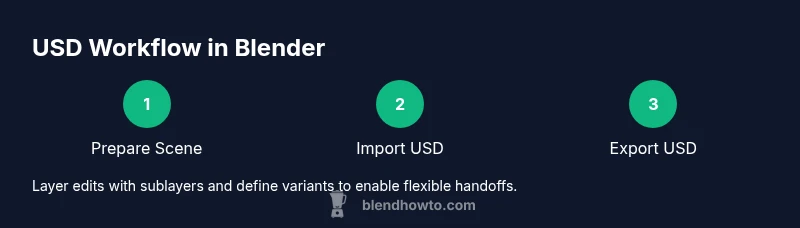
Let’s walk through a representative workflow you can adapt. 1) Create a small scene in Blender with a few primitives and a basic USD material. 2) Export to USD with a sublayer for changes and a variant for an alternate look. 3) Open the USD in usdview to verify structure and materials. 4) Share the USD with a partner studio, using references to keep asset directories clean. 5) In Blender, import the USD and apply new variants or adjust transforms for a shot without altering the source asset. 6) When ready for production, collate all USD assets into a publish folder and document how layers and variants map to your project’s shots. This pragmatic workflow highlights the core benefits of blender usd: modularity, collaboration, and predictable handoffs. BlendHowTo’s guidance emphasizes testing early and maintaining a clean separation between source data and edited files to maximize interoperability.
Tools & Materials
- Blender software (latest stable release)(Ensure USD I/O support is available and enabled via Preferences > Add-ons.)
- USD tools (built-in or external)(Use Blender's built-in USD I/O or verify external USD libraries if needed.)
- Sample USD files for practice(Start with small scenes to verify import/export fidelity.)
- A workstation with sufficient memory(Large USD scenes benefit from ample RAM and a capable GPU.)
- Proper folder structure for USD projects(Root USD project folder with subfolders for src_usd, publish_usd, usd_views.)
Steps
Estimated time: 60-180 minutes
- 1
Prepare your Blender scene for USD
Create or import the assets you want to export as USD. Keep transforms clean, name prims clearly, and organize the scene graph to reflect how you’ll structure layers and variants in USD.
Tip: Name prims with consistent prefixes to simplify downstream referencing. - 2
Enable and verify USD I/O
Turn on the USD add-on in Preferences, then test import/export with a small USD file to confirm you understand the process and that materials and textures resolve correctly.
Tip: Run a quick import/export test on a tiny scene before scaling up. - 3
Export to USD with layered structure
Use File > Export > USD and choose to generate sublayers for changes and a separate root layer for the base scene. This supports clean handoffs and future edits.
Tip: Enable sublayer export to keep changes isolated. - 4
Import USD in another app for validation
Open the exported USD in a USD viewer or another DCC app to verify hierarchy, transforms, and materials, ensuring fidelity across tools.
Tip: Check texture paths and material networks in the viewer. - 5
Edit or add variants in Blender
If you need alternate looks, create material or geometry variants in a dedicated USD sublayer and switch between them as needed during production.
Tip: Document the variant names and intended use cases. - 6
Re-export and share
After validating changes, re-export the updated USD to the publish folder and share with your team, including notes about layers, variants, and any deviations from the base scene.
Tip: Keep a changelog for USD assets to track progress.
Frequently Asked Questions
What is USD and why should I use it with Blender?
USD (Universal Scene Description) is a scalable, open interchange format designed for complex asset pipelines. In Blender, USD enables efficient collaboration, non-destructive editing, and consistent shading across software by sharing a common data model.
USD is a universal format for asset pipelines that Blender can use to share scenes and materials across apps.
Can Blender export to USD and import USD files reliably?
Yes. Blender supports importing and exporting USD. You can control how data is layered, referenced, and variant-enabled during export, which helps with clean handoffs to other studios.
Blender can import and export USD, with options for layers and variants.
How do I manage materials when using USD in Blender?
USD materials can be authored in the USD shading network or translated to Blender shaders. Start with UsdPreviewSurface for compatibility, then refine in Blender’s shader editor as needed.
USD materials map to Blender shaders; start with UsdPreviewSurface for compatibility.
What are variants and layers in USD, and why use them?
Variants let you switch between different looks or configurations without duplicating data. Layers (sublayers) separate edits from the base data, enabling clean experimentations and easier collaboration.
Variants let you swap looks, while layers keep edits organized.
What are common pitfalls when using USD with Blender?
Mismatched units, missing textures, or version incompatibilities can break USD workflows. Validate with usdview before importing, and keep your asset paths consistent.
Watch for unit mismatches and texture paths; validate with usdview.
Do I need external tools to work with USD in Blender?
Blender’s built-in USD support is usually sufficient, but for advanced viewing you might use usdview or other USD tooling to verify files outside Blender.
Often Blender alone is enough, but usdview helps cross-check files.
Watch Video
What to Remember
- Define a clear USD plan before exporting
- Use sublayers to isolate edits from the base scene
- Leverage variants for alternate looks without duplicating data
- Test USD assets in a viewer to verify fidelity
- Document your USD pipeline for smooth handoffs