Blender USDZ: How to Export AR-Ready Files from Blender
Learn how to export USDZ files from Blender for AR experiences. This step-by-step guide covers prerequisites, scene preparation, material compatibility, exporting options, testing, and optimization for smooth AR in 2026.


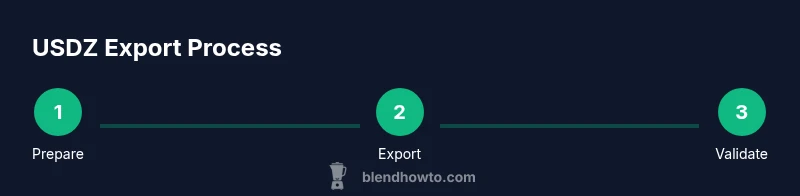
Blender USDZ is the workflow for exporting Blender scenes into the USDZ format for augmented reality (AR) on iOS and compatible viewers. To do this, you’ll need Blender 3.x or newer, the USD export add-on enabled, and a USDZ-capable runtime. Prepping geometry, unifying materials, applying transforms, and testing in a USDZ viewer are essential steps for reliable AR assets.
What Blender USDZ really enables for AR
Blender USDZ describes the process of turning Blender projects into USDZ files that can be viewed in AR on iPhone, iPad, and compatible platforms. This format preserves geometry, textures, and lighting relationships in a compact package suitable for quick previews and live AR experiences. According to BlendHowTo, mastering USDZ unlocks a smoother path from 3D concepts to interactive AR demonstrations, making it a staple for home users and professionals exploring practical AR workflows in 2026.
Prerequisites and setup for USDZ exports
Before you export, ensure you are running Blender 3.x or newer with the built-in USD export capability enabled. In Blender, go to Preferences > Add-ons, search for Universal Scene Description (USD), and activate it. You’ll also want a scene that uses simple, clean geometry, supported texture formats (PNG/JPEG), and a sane unit scale (meters are common). Having a consistent naming scheme and organized folders helps prevent broken links when assets are packed or moved for USDZ packaging.
Preparing your Blender scene for USDZ: geometry, transforms, and units
USDZ works best when geometry is clean and transforms are applied. Start by applying scale (Ctrl-A > Scale) to all objects, then set the scene units to metric (or your preferred standard) and ensure there are no non-manifold edges in the export target. If you’re using modifiers, apply them when needed for export compatibility. Keep the polycount reasonable for AR; extremely dense meshes can burden mobile viewers and increase load times.
Materials and textures: USDZ compatibility and best practices
USDZ supports PBR materials and image textures, but some Blender-specific shaders won’t translate directly. Use the Principled BSDF shader as your base, and avoid complex node setups that rely on non-essential textures. For textures, prefer PNG or JPEG with powers-of-two dimensions when possible, and consider baking lighting or ambient occlusion into textures if shader support is limited. If you can, pack textures into a local folder next to the USDZ export to keep paths stable.
The export process: options and steps inside Blender
Exporting to USDZ typically involves choosing the USD export option in Blender, selecting the target folder, and enabling assets you want to include (meshes, materials, textures). Make sure to mirror your project’s scale and apply transforms before export. If Blender exposes additional USDZ-specific options, such as texture packing or embedding textures, choose the configuration that minimizes external file dependencies while preserving fidelity. Always save a backup before exporting to USDZ.
Testing and validation: seeing USDZ in action on iOS or viewers
After exporting, validate the USDZ file in a reliable viewer, such as Apple’s Quick Look on iOS or a web-based USDZ viewer. Check for geometry gaps, missing textures, or lighting inconsistencies. If issues appear, return to Blender, inspect the corresponding asset, adjust the texture paths, reapply transforms, or simplify materials for better compatibility. Re-export and re-test until the AR preview meets your expectations.
Tools & Materials
- Blender 3.x or newer(Ensure it’s up to date for USD export features.)
- USD export add-on(Enable via Preferences > Add-ons > search 'USD'.)
- Texture images (PNG/JPEG)(Use recommended sizes; consider compression for performance.)
- Organized project folder(Keep textures and USDZ export files together with stable paths.)
- USDZ viewer (iOS Quick Look or web viewer)(Always test in an AR-capable viewer.)
Steps
Estimated time: 30-60 minutes
- 1
Set up scene scale and units
Open your project, apply Transform on all objects, and set scene units to metric. This aligns Blender measurements with USDZ’s expectations and AR scales. Ensure origin points are consistent to avoid misplaced objects in AR.
Tip: Apply scale (Ctrl-A > Scale) before exporting to prevent scale drift in USDZ. - 2
Enable USD export and verify options
In Blender, enable the USD export add-on, then review options such as including meshes, materials, and textures. Decide whether to embed textures or keep external references based on your testing workflow.
Tip: If you plan to share a folder bundle, pack textures with the USD file to reduce link errors. - 3
Prepare materials for USDZ
Switch to a simple, PBR-based workflow using Principled BSDF. Replace non-translatable shaders with base materials and bake lighting if needed. Keep texture sizes reasonable to maintain AR performance.
Tip: Prefer PNG for transparency textures and JPEG for color textures to balance quality and size. - 4
Configure and run export
Set the export destination, verify the file name, and run the export. Avoid path mistakes by exporting to a dedicated folder and keeping a backup of the original Blender file.
Tip: Test exporting a small sample mesh first to verify workflow before a full scene export. - 5
Validate in a USDZ viewer
Open the resulting USDZ in Apple Quick Look or another AR viewer. Check alignment, textures, and lighting fidelity. Note any performance issues on target devices.
Tip: If textures don’t appear, re-check texture paths and confirm embedding options. - 6
Iterate and optimize
Based on feedback, adjust geometry density, texture resolution, and material setup. Re-export and re-test until the AR preview is smooth and faithful to the source.
Tip: Consider a texture atlas to simplify material management and reduce draw calls.
Frequently Asked Questions
What is Blender USDZ and why use it for AR?
USDZ is a universal 3D file format designed for AR experiences. Exporting from Blender lets you place Blender-created scenes into real-world environments on iOS and compatible viewers. The workflow emphasizes compatibility, texture fidelity, and efficient AR performance.
USDZ lets you bring Blender scenes into AR on iOS. It’s all about compatibility and fast previews.
Which Blender version supports USDZ export?
USDZ export is supported in Blender 3.x and later. Ensure the USD add-on is enabled in Preferences to access the export options.
Use Blender 3.x or newer with the USD add-on enabled.
Do I need external plugins for USDZ?
Most USDZ workflows rely on Blender's built-in USD export capabilities. Some users choose sidecar tools for texture packing, but it’s not required for basic USDZ export.
Blender’s built-in USD export usually suffices.
Can animations export to USDZ in Blender?
USDZ supports static geometry and simple animation, but complex Blender animations may require baking or simplified motion in the export. Check viewer compatibility for animated sequences.
Animated USDZ is possible in some cases, but test is essential.
How do I test USDZ on an iOS device?
Transfer the USDZ file to an iOS device and open with Quick Look or an AR app. Verify scale, lighting, and texture fidelity in real-world scenes.
Open USDZ in Quick Look on iOS to preview AR.
What are common USDZ export pitfalls to avoid?
Non-manifold meshes, missing textures, and mismatched units frequently cause issues. Keep geometry clean, textures well organized, and test progressively.
Avoid non-manifold geometry and missing textures; test early.
Watch Video
What to Remember
- Prepare a clean scene with proper units and transforms.
- Use Principled BSDF and standard textures for USDZ compatibility.
- Test exports in a USDZ viewer to catch issues early.
- Optimize texture sizes and geometry for AR performance.