Can You Use Blender with a Drawing Tablet? A Practical Guide
Discover how to use a drawing tablet with Blender for Grease Pencil, texture painting, and brush work. This step-by-step guide covers setup, calibration, workflow tips, and troubleshooting to help hobbyists and 3D artists integrate tablets into Blender in 2026.


Yes—Blender works with most drawing tablets. To get started, install your tablet driver, connect the device, and enable tablet input in Blender. Calibrate pressure sensitivity, assign pen buttons to common actions, and test with Grease Pencil to sketch and ink. A properly configured tablet can streamline brushwork and improve precision.
Overview: Can you use Blender with a drawing tablet?
Blender’s drawing capabilities, especially through Grease Pencil, benefit immensely from pressure-sensitive tablets. A drawing tablet lets you sketch, ink, and shade with a natural hand motion, translating tablet pressure into brush size, opacity, and tilt dynamics. This guide explores the practical, real-world workflow for home cooks turned 3D hobbyists and aspiring artists who want to merge traditional drawing instincts with Blender’s digital toolkit. Throughout, you’ll see how BlendHowTo researchers tested popular tablet models for compatibility, latency, and responsiveness in 2026, and how you can apply those findings to your setup.
The core idea behind tablet support in Blender
Tablet input isn’t a gimmick; it’s a bridge between pen-on-paper habits and 3D software precision. Blender supports pressure sensitivity for Grease Pencil, brush-based texture painting, and even sculpting assists with stylus input. The main takeaway: with a compatible tablet and proper mapping, you gain more control over stroke weight, falloff, and line quality. The BlendHowTo team notes that most modern tablets deliver reliable pressure curves out of the box, but fine-tuning pays dividends in longer sessions and detailed work.
Key components of a tablet-enabled Blender workstation
Your setup should include a capable computer, Blender (latest stable release), a drawing tablet with active pressure sensitivity, and the tablet’s drivers. For best results, pair your device with a clean, high-contrast display and a comfortable desk arrangement to reduce fatigue during long sessions. It’s also wise to have a backup input method (keyboard/mouse) for non-drawing tasks, ensuring you can switch gears quickly when needed. In 2026, BlendHowTo findings indicate that a balanced hardware mix minimizes latency and improves brush feel during intensive Grease Pencil sessions.
Understanding Blender’s brush systems from a tablet user’s perspective
Grease Pencil is Blender’s flagship 2D/3D drawing toolset, designed to leverage pen pressure, tilt, and dynamic line width. When using a tablet, you’ll notice that brush size changes fluidly with pressure, while tilt can influence brush angle or stroke curvature, depending on the brush you’ve chosen. Texture painting and vertex painting also respond to pressure, allowing subtle shading and stroke variation that mimic traditional media. The result is a more expressive, intuitive workflow that still benefits from Blender’s robust 3D capabilities.
Driver setup and initial configuration: the foundation of a smooth experience
Start by installing the tablet driver from the manufacturer, then reboot your system. In Blender, head to Edit > Preferences > Input and enable tablet support if needed. You may need to select the proper device and ensure the tablet is detected as an input device. If you use multiple input methods, creating a simple keymap for frequently used actions (brush select, undo, redo) can dramatically speed up your workflow and reduce context switching during drawing sessions.
Calibrating pressure and mapping for reliable strokes
Calibration is about aligning the pen’s pressure curve with the brush’s response in Blender. Many tablets offer a default pressure curve that can be adjusted via their control panel. In Blender, test your stylus by drawing quick strokes and adjust minimum/maximum pressure in the brush settings until a gentle press yields thin lines and a harder press yields thick lines. Don’t neglect tilt mapping—if your tablet supports tilt, map it to brush angle or stroke width where appropriate to enrich line variation and depth.
Grease Pencil workflow: basic sketching, then inking in Blender
Begin with a light pencil-like stroke to establish composition, then switch to a darker ink pass for clarity. Use a tablet-friendly brush with appropriate opacity and spacing. Pro tip: enable real-time tablet input in the 3D view by setting the brush to Screen Space or World Space as needed. Practice basic shapes first, then layer with additional strokes, using the tablet’s pressure to control stroke weight and opacity for a natural hand-drawn feel.
Sculpting and painting with a tablet: a holistic approach
While Grease Pencil excels at 2D/3D drawing, painting textures and sculpting can also benefit from pen input. In texture painting, use brush pressure to vary stroke thickness and texture depth. In sculpting, your tablet can control brush size and strength dynamically. The key is to adapt Brush Settings to your tablet’s behavior: enable pressure sensitivity for size/strength, adjust falloff curves, and map commonly used brush types to tablet buttons for quick access during sessions.
Performance considerations: latency, resolution, and viewport settings
Latency is the main concern when pairing Blender with a tablet. To minimize delay, ensure your GPU drivers are current and Blender is configured to use GPU acceleration where available. Reduce viewport anti-aliasing during drawing, and consider lowering texture resolution temporarily if you notice lag. If you experience jitter, try a smaller brush tip, adjust the tablet’s sampling rate, and verify that Windows Ink or similar OS-level settings aren’t introducing extra latency.
Workflow integration: tips for a smooth, repeatable setup
Create a dedicated tablet profile and save it with your Blender startup file so your preferred brush, pressure curve, and keybinds load automatically. Maintain a clean brush library and practice with a daily warm-up sketch to keep your line quality consistent. Finally, document your mapping choices so you can reproduce the same experience on another computer or share it with fellow Blender enthusiasts.
Tools & Materials
- Blender (latest stable version)(Ensure full installation)
- Drawing tablet with pen pressure sensitivity(Wacom, Huion, XP-Pen, or similar)
- Tablet drivers/software from manufacturer(Install latest drivers before Blender launch)
- USB cable or wireless dongle(Stable connection; reduce latency)
- Spare nibs and cleaning cloth(Optional but recommended)
Steps
Estimated time: 60-90 minutes
- 1
Install and verify your tablet drivers
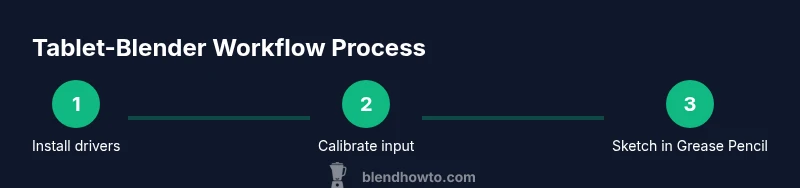
Download and install the latest drivers from your tablet manufacturer. Reboot if prompted, then confirm the tablet is detected by the OS and Blender recognizes input in a basic drawing test. This step prevents driver conflicts and ensures reliable pressure data.
Tip: Run the driver installer as administrator if on Windows to avoid permission issues. - 2
Connect tablet and launch Blender
Physically connect the tablet, then open Blender and ensure the tablet is listed as an input device in Preferences. If Blender doesn’t see the device, try restarting Blender or the computer. A stable connection reduces input lag during live drawing.
Tip: Test with Grease Pencil a quick sketch before proceeding to more complex tasks. - 3
Enable tablet input in Blender and map buttons
In Edit > Preferences > Input, ensure tablet support is enabled. Map common actions (brush toggle, undo, redo) to tablet buttons to speed up your workflow. This reduces context switching between keyboard and pen.
Tip: Set up a dedicated profile you can reuse across projects. - 4
Calibrate pressure curve and tilt mapping
In the tablet’s control panel, adjust the pressure curve so light pressure yields thin lines and full press yields solid lines. In Blender’s brush settings, align pressure to brush size and opacity. If tilt is supported, map tilt to brush angle or width for richer strokes.
Tip: Use a few quick line tests to confirm the curve feels natural across light, mid, and heavy presses. - 5
Create a Grease Pencil object and set up brushes
Add a Grease Pencil object and switch to Draw mode. Choose a brush with a responsive pressure curve and adjust spacing and opacity for ink-like lines. Practice a few strokes to ensure the tablet’s input translates cleanly to 3D space.
Tip: Experiment with different brush presets to find one that matches your traditional drawing style. - 6
Sketch in 3D space and refine with layers
Use your tablet to lay down a rough 3D sketch in space, then add layers for ink, color fills, and shading. Pressure controls line weight; layer opacity changes can help you evaluate composition and depth.
Tip: Keep a separate layer for rough sketches so you can refine without erasing the original shapes. - 7
Test painting and switch to texture brushes
Switch from Grease Pencil to texture painting on a simple mesh to test how pressure affects brush strength and texture application. Map tablet buttons to common texture-paint actions for faster iteration.
Tip: Use a small texture to quickly assess how your brush responds to tablet input. - 8
Optimize performance and save your profile
Tune Blender’s performance settings ( viewport display, clipping ranges, and GPU acceleration) to reduce latency. Save your tablet and Blender settings as a startup file or a dedicated workspace profile for future projects.
Tip: Create a backup of your profile so you can recover quickly after system updates. - 9
Troubleshoot common issues
If strokes lag or drift, check driver updates, verify device compatibility, and test with a new brush. Recalibrate if necessary and consider lowering brush complexity or texture resolution for smoother performance.
Tip: Keep a simple diagnostic sketch open during sessions to detect drift quickly.
Frequently Asked Questions
Can Grease Pencil work with a drawing tablet?
Yes. Grease Pencil fully supports drawing tablets, including pressure sensitivity and tilt on compatible devices, enabling expressive line work in Blender. Start with basic brushes and gradually add layers for shading and ink.
Yes. Grease Pencil supports drawing tablets, including pressure sensitivity and tilt on compatible devices, enabling expressive line work in Blender.
Do I need any add-ons to use a tablet in Blender?
Most tablets work with Blender out of the box, but some users enhance their experience with add-ons that improve tablet mapping or brush management. Check Blender’s user community for recommended options that fit your workflow.
Most tablets work with Blender without add-ons, but some users opt for mapping or brush-management add-ons to optimize workflow.
Is tilt support available in Blender’s brushes?
Tilt support varies by brush and tablet model. If your device supports tilt, enable the feature in Blender’s brush settings and map tilt to brush width or angle to enrich line variation.
Tilt support depends on your device and brush; enable tilt in Blender to map to width or angle for more nuanced lines.
Will using a tablet slow Blender down?
Latency depends on hardware, drivers, and Blender settings. Most modern systems handle tablet input smoothly if you optimize viewport settings and use GPU acceleration where possible.
Latency can impact you if hardware or settings aren’t optimized, but GPU acceleration and lighter viewport settings help a lot.
Can I use an iPad as a drawing tablet for Blender?
iPad can work with Blender via third-party apps that provide input streams, but this is less direct than using a dedicated Wacom-like tablet. For best results, use a native tablet with Blender’s drivers.
An iPad can work with Blender through third-party apps, but a native drawing tablet generally provides a more direct experience.
What practices reduce tablet-related latency in Blender?
Keep drivers up to date, enable GPU acceleration, and reduce viewport complexity during drawing. Saving a dedicated workspace profile also helps maintain consistent performance.
Update drivers, enable GPU acceleration, and simplify the viewport during drawing to reduce latency.
Watch Video
What to Remember
- Enable tablet input to unlock pressure-based strokes in Blender.
- Calibrate pressure curves for natural brush response.
- Use Grease Pencil for sketching and inking with a tablet.
- Profile and save settings to maintain a consistent workflow.