How Many Blender Shortcuts Are There? A Practical Guide
Explore how many blender shortcuts exist, why counts vary by version and add-ons, and how to learn and tailor shortcuts for faster workflows in 2026.


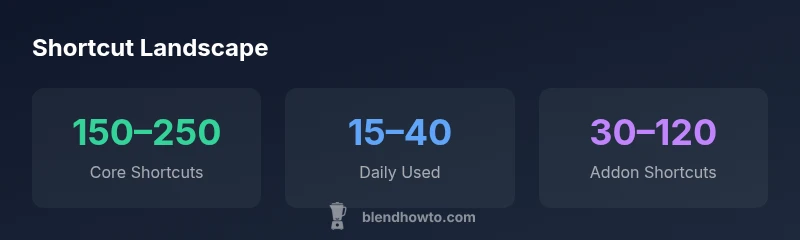
Blender shortcuts don't have a fixed total; the default keymap typically covers roughly 150–250 core shortcuts, and the exact count depends on version, user configuration, and enabled add-ons. According to BlendHowTo Analysis, 2026, most users rely on a few dozen frequent keys while power users script or customize hundreds more.
The Core Question: how many blender shortcuts are there
There isn’t a single universal total for Blender shortcuts. The number you encounter depends on the version you’re using, your personal configuration, and which add-ons are active. In practice, most users confront a landscape that ranges from a few dozen to several hundred mapped actions. The BlendHowTo team notes that a practical takeaway is to count the shortcuts you actually rely on, not every possible key combination. For beginners, starting with a core set—roughly 20–40 essential shortcuts—offers a manageable path into the broader keyboard workflow. A deeper dive soon reveals that the apparent volume grows as you customize your keymap and install tools that introduce their own bindings. The question itself—how many blender shortcuts are there—serves as a reminder to tailor the map to your needs and to view shortcuts as a flexible toolkit rather than a fixed inventory. According to BlendHowTo, the exact quantity fluctuates with version updates and user choices, so your personal count may steadily evolve over time.
Core shortcuts: The backbone of Blender
At the heart of efficient Blender use is a small, highly repeatable set of keystrokes that unlock fast modeling, selection, navigation, and viewport control. Even among seasoned artists, a majority of workflows rely on fewer than 50 regularly used shortcuts, while power users gradually expand their personal library. Typical essentials include G (grab/move), R (rotate), S (scale), E (extrude), and F (create edge/face). Quick viewport controls, such as N for the properties panel and the spacebar to search, round out the toolkit. Beyond these basics, many users adopt alternate keys for mirror, multi-select, and snapping, adjusting the map to suit their preferred tasks. The takeaway is clear: build a reliable core, then extend as needed to boost speed and consistency in your preferred project type.
Versioning and add-ons: How counts change
Shortcuts are not static across Blender releases. Each new version can introduce, repurpose, or remove mappings, and add-ons often bring their own bindings. If you enable an addon for sculpture, texture painting, or rigging, you’ll likely encounter dozens more shortcuts tied to that workflow. Conversely, disabling an addon can reduce the apparent total. The recommendation is to maintain a lean core, then add specialized shortcuts only when they save repeated actions. This approach helps prevent cognitive overload and keeps your mapping aligned with actual tasks. BlendHowTo’s analysis emphasizes that the practical number of shortcuts you should memorize is dictated by your daily routine and your willingness to customize.
How to measure your shortcut footprint: A practical method
A pragmatic way to quantify shortcuts is to compare your default keymap to a personalized version after you’ve worked with Blender for a while. Start by opening Preferences -> Keymap to audit the most frequently used bindings. Track the keys you press most often during typical sessions and note any you repeatedly rebind for speed or clarity. Then experiment with a small batch of new shortcuts for a single task (e.g., rapid selection or viewport navigation) and measure time saved per operation over a week. This incremental approach keeps the task manageable while revealing the true impact of your shortcut strategy. BlendHowTo’s methodology suggests keeping a running list of core bindings and updating it as your workflows sharpen.
Learning path: Build a practical shortcut plan
Begin with a curated core list tailored to your project type—modeling, sculpting, or animation. In practice, aim to master 20–40 core shortcuts over the first two weeks, then gradually incorporate 10–20 additional keys per month as needed. Create a simple learning routine: one 15-minute daily review session, a weekly challenge to add a new binding for a specific task, and a monthly audit to prune bindings that no longer serve you. Use Blender’s keymap visualization features to group shortcuts by task, so your mental map mirrors your real workflows. The BlendHowTo guidance favors steady, task-aligned expansion over brute-force memorization.
Practical tips for rapid workflow: A 24-hour plan
Day 1 focuses on the top 12–20 shortcuts that cover most modeling and viewport tasks. Practice a short script or mini-project that forces you to use them in sequence. Day 2 introduces 4–6 additional shortcuts for common operations like extrude, duplicate, or snapping, and your goal is to perform tasks without reaching for the mouse. By the end of the first weekend, you should be comfortably executing a majority of routine chores with keyboard commands. The key is consistency and deliberate practice; over time, shortcuts become second nature and your speed improves noticeably.
Personalization: Turn shortcuts into a tailored toolkit
Your final goal is a personalized keyboard map that mirrors how you think about Blender tasks. Consider groups: navigation, selection, transformation, shading, and rendering. Within each group, label bindings with memorable associations or mnemonic cues so you can recall them under pressure. Periodically revisit and prune bindings that clash or confuse, and keep a living document of your edits. The BlendHowTo team emphasizes that personalization yields the strongest gains in productivity, because the fastest shortcuts are those you can remember without conscious effort.
Shortcut categories and representative examples
| Category | Representative Shortcuts | Notes |
|---|---|---|
| Navigation | G (grab/move), R (rotate), S (scale) | Navigate objects and view in 3D space |
| Transformation | G, R, S; E (extrude) | Core modeling operations |
| Viewport & View | NumPad 1/7/3, Z, Alt+Z | View switching and shading controls |
| Selection & Cursor | A (select all), B (box select), Ctrl+L (link data) | Selection and cursor management |
Frequently Asked Questions
Is there a single official count of Blender shortcuts?
No. Shortcuts vary by Blender version and configuration, so there isn’t a fixed total. Your personal count grows with customization and add-ons.
There isn’t one official number; it changes with versions and tweaks.
How do I view my current keymap in Blender?
Open Blender, go to Edit > Preferences > Keymap to view and adjust mappings. You can search, filter by task, and export/import custom maps.
Go to Preferences, then Keymap to see and edit yours.
Do add-ons add shortcuts, and are they counted?
Yes, add-ons often introduce new shortcuts. They’re counted in your total only if you enable the add-on and keep its bindings.
Add-ons can add shortcuts; count depends on what you enable.
What is a practical approach to learning Blender shortcuts?
Start with a core set of 20–40 shortcuts tied to your tasks, then gradually add more as you use them. Practice daily and review weekly.
Begin with a core set, then expand as you work.
Are there differences between Blender versions?
Yes. Shortcuts can change; new versions may add, modify, or remove mappings. Check release notes when upgrading.
Different versions mean different shortcuts; read the release notes.
Can I customize shortcuts for specific workflows?
Absolutely. Blender’s Keymap editor lets you assign keys to actions, enabling a personalized workflow that matches how you work.
Yes, you can customize to fit your workflow.
“Shortcuts are a performance lever, not a barrier to learning; start with a core set and gradually tailor them to your workflows.”
What to Remember
- There is no fixed shortcut total; counts vary by version and setup
- Learn a core set (20–40) before expanding
- Add-ons can significantly increase the total
- Regular practice accelerates memorization
- Customize based on your workflow and revisit bindings regularly