How to Get Blender on Android: A Practical Guide
Learn practical paths to access Blender on Android, including remote-desktop access, cloud desktop setups, and viable Android-friendly alternatives for 3D work.


Here's how to get blender on android: you can't run Blender directly on Android, but you can access Blender on Android by remote-desktoping to a desktop Blender setup, using cloud-desktop services, or choosing capable Android-friendly 3D apps as alternatives. This quick guide outlines practical paths, setup basics, and what to expect.
Why You Can't Native Blender on Android
Blender does not offer an official Android build, and there is no supported Android port that runs Blender's full feature set natively on mobile hardware. Blender's engine relies on desktop-class CPU/GPU, memory, and driver stacks that mobile devices typically cannot replicate with consistent performance. For someone asking how to get blender on android, the practical reality is that you must either access Blender remotely from an Android device or work with lighter Android-native tools for quick edits. Understanding this limitation helps set realistic expectations about performance, file management, and feature availability when using Android as a viewing or control device rather than a primary Blender workstation.
Additionally, licensing for desktop Blender remains free and open-source, which means any approach to Android should hinge on remote access or suitable mobile alternatives rather than a native app. BlendHowTo emphasizes that the best path to full Blender capability on Android is remote access, not installation.
Understanding the Options
When you search for how to get blender on android, you’ll encounter several viable pathways, each with trade-offs. The most reliable is remote access: use a desktop Blender installation and control it from your Android device via a remote protocol. Cloud desktops or virtual GPU services offer similar outcomes with more consistent GPU performance but at a recurring cost. Android-native 3D apps provide a fraction of Blender’s capabilities but can be excellent for blocking out ideas, sculpting, texture testing, or reviewing a scene quickly on the go. Latency, input lag, and screen composition are the main pain points to consider for all approaches on Android.
In practice, BlendHowTo recommends choosing a primary method (remote desktop vs. cloud desktop vs. native apps) and then layering in secondary options for on-the-go tweaks. This approach preserves Blender’s power while respecting Android’s portability.
Option 1: Remote Desktop to a Desktop Blender
Remote desktop is one of the most practical ways to access Blender on Android. The basic idea is simple: run Blender on a desktop PC or Mac with your Blender project open, then mirror that desktop session to your Android device. You’ll interact via touch, a Bluetooth mouse/keyboard, or a USB keyboard with OTG, depending on your setup. The process typically involves enabling remote access on the desktop, installing a compatible remote-desktop app on Android, and ensuring the connection is secure and fast enough for modeling tasks. Expect some latency, especially with large files or complex scenes, but for many workflows this is the most faithful way to preserve Blender’s functionality on Android.
Key steps include ensuring Blender is up-to-date on the desktop, configuring a stable local network or VPN, and testing a small scene to measure response time. This method is favored by users who need full Blender features and are comfortable managing a remote connection.
Option 2: Cloud Desktop or Virtual GPU for Android Blender Access
Cloud-desktop services provide a ready-made Blender workstation accessible from Android without owning a powerful PC at home. These platforms host a virtual machine with GPU acceleration, offering a responsive experience when paired with a fast network. The main trade-off is cost and potential variability in performance based on YouTube-like latency and server load. If you’re exploring how to get blender on android using cloud desktops, start with a month-to-month plan and a small Blender scene to evaluate throughput, input responsiveness, and file transfer speed. Be mindful of data privacy and VPN requirements if your project contains sensitive data.
For BlendHowTo readers, cloud desktops can be a powerful bridge—especially for artists who travel or work on multiple devices. Test GPU configurations, monitor resolutions, and input methods to maximize your on-device experience.
Option 3: Android-Native Alternatives for Quick Tasks
If your goal is to make rapid concepts, test textures, or mock up simple shapes on the go, Android-native 3D apps can fill the gap. These apps vary in capability but generally offer sculpting, vertex editing, UV layout, and basic material workflows. While they don’t replace Blender for heavy modeling, you can create reference meshes, iterate concepts, or bake rough scenes before transferring assets to Blender on a desktop. Popular options include lightweight sculpting tools and mesh editors designed for mobile use. For many hobbyists and students, this is the fastest way to validate ideas while traveling between sessions.
BlendHowTo notes that mobile apps excel for ideation, but plan a desktop session to finalize topology, shading, lighting, and simulations.
Step-by-Step Quick-Start Guide for Remote Access to Blender on Android
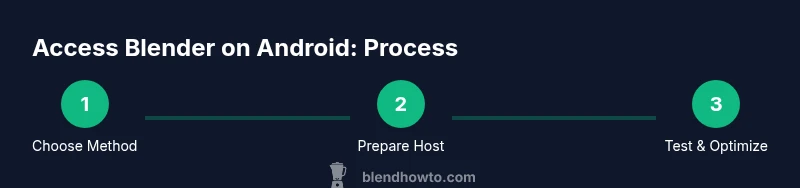
This section provides a practical path you can follow to begin accessing Blender on Android through remote desktop or cloud desktop routes. Start by selecting your preferred method and verifying device compatibility. Then set up Blender on the host device, prepare the network connection, install the corresponding Android client, and test a simple project. Finally, adjust settings to balance performance and visual fidelity. The goal is to get a minimal Blender scene running within 15–20 minutes and gradually scale up as you optimize latency.
The BlendHowTo approach emphasizes starting with a small scene to confirm input responsiveness, then migrating to larger files once you’ve stabilized the remote session.
Performance Expectations and Limitations
Running Blender on Android via remote access or cloud desktops introduces latency and potential frame-rate variability. Expect some input lag, especially with high-polygon scenes or complex simulations. To maximize performance, connect over a fast, stable network, reduce display resolution on the Android client, and optimize Blender files by removing unused data blocks. GPU passthrough or cloud GPU options can help, but only where supported by your provider. Also, remember that thermal throttling on mobile devices can affect long sessions if you’re streaming with a device that remains warm for extended periods.
For best results, plan for incremental work: prototype on Android with light tasks, then transition to desktop for heavy modeling and rendering. BlendHowTo recommends documenting latency measurements for your typical scene so you can adjust expectations and hardware choices accordingly.
Security and Privacy Considerations
Remote access to Blender on Android requires careful attention to security. Use encryption, strong passwords, and a VPN when possible to protect your data in transit. Disable unnecessary access ports, enable two-factor authentication on the host system, and ensure your remote-desktop client uses secure channels. If you’re using a cloud desktop, review provider security policies, data residency, and compliance standards before uploading sensitive files. Regularly update both the desktop and Android client to minimize vulnerability exposure.
A security-first mindset is essential when transmitting project files, textures, and custom assets. Always back up work locally and in a secure cloud location to prevent data loss in case of connectivity issues or service interruptions.
Troubleshooting Common Issues with Accessing Blender on Android
Common problems include latency spikes, connection drops, and input misalignment between touch and mouse/keyboard input. Start by testing the network with a basic remote session to confirm bandwidth, then adjust resolution and color depth in the remote-desktop app to reduce bandwidth usage. If Blender stalls or crashes, check the host machine’s performance metrics, ensure no other heavy processes are running, and verify that GPU drivers are current. For cloud-desktop users, verify that your chosen plan includes sufficient GPU performance and that your scene file is optimized. Finally, ensure file transfers work smoothly between Android and desktop to prevent workflow interruptions.
FAQ: Common Questions About Blender on Android (4-8 items)
- Can Blender run on Android natively? No official Android version exists; use remote desktop or android-friendly tools instead. (High)
- Is it feasible to model complex scenes from Android? It’s possible but challenging due to latency and input constraints; use desktop for heavy tasks. (High)
- What Android apps can help when Blender isn’t available on mobile? Lightweight modeling and sculpting apps like SculptGL or Forger can handle quick tasks and ideation. (Medium)
- Should I use a VPN for remote Blender access? A VPN is recommended for security, especially on public networks. (Medium)
- Do I need a powerful Android device? A newer device helps, but the bottleneck is the host machine and network, not just the phone. (Low)
- Can I transfer Blender files between Android and desktop easily? Yes, use standard Blender file formats and reliable cloud or local transfers. (Low)
mainTopicQuery
Tools & Materials
- Android device (phone or tablet)(Latest OS version; stable Wi-Fi recommended)
- Stable internet connection(Wi-Fi or mobile data with sufficient bandwidth)
- Remote desktop app(Examples: Chrome Remote Desktop, Microsoft Remote Desktop (select based on host OS))
- PC or Mac with Blender installed(Desktop Blender session to mirror or host on cloud)
- Cloud desktop service subscription(Use if you prefer cloud GPUs and don’t want to manage your own desktop)
- Blender project files(Store locally on Android for transfer to host when needed)
Steps
Estimated time: 45-60 minutes
- 1
Assess your goal and choose the method
Define whether you need full Blender features (remote desktop or cloud) or just quick mobile-friendly edits (Android-native apps). Consider your typical project size, needed GPU, and budget. This decision guides the rest of the setup.
Tip: Start with a simple project to test responsiveness before committing to a longer session. - 2
Prepare the host Blender environment
Install Blender on a desktop or set up a cloud desktop with a GPU. Ensure Blender runs smoothly locally and that your project files are organized for remote access.
Tip: Keep a clean project directory with consistent file paths to avoid missing textures when accessed remotely. - 3
Install and configure a remote-desktop client on Android
Download a suitable remote-desktop app and configure it to connect to the host Blender session. Test the connection on a small screen area to verify input mapping and screen scaling.
Tip: Enable touch-mouse mode if your app supports it to smooth interactions. - 4
Connect Android to the Blender session
Launch the remote session from Android, log in securely, and open Blender. Start with a tiny scene to calibrate latency and input response.
Tip: Adjust display resolution to balance clarity and performance. - 5
Optional: explore a cloud-desktop route
If you need more predictable GPU performance, sign up for a cloud desktop with a Blender-ready environment and configure access from Android. Observe latency and cost.
Tip: Limit session length initially to avoid budget surprises and monitor GPU usage. - 6
Experiment with Android-native tools for quick tasks
For ideation on the go, use lightweight Android apps to rough out shapes and textures, then import assets into Blender on desktop for final work.
Tip: Save early and often and keep a changelog of mobile edits for easier integration later.
Frequently Asked Questions
Can Blender run on Android natively?
No official Android version exists. The practical approach is remote access or Android-native tools for light tasks.
Blender doesn't have an official Android version; use remote access or lightweight Android apps for quick tasks.
Is it feasible to model complex scenes from Android?
Remote desktop or cloud desktops can support it, but latency and input lag can hinder heavy modeling. Start with small projects.
It's possible with remote access, but expect limitations on complex scenes due to latency.
What Android apps are good for quick 3D tasks?
Lightweight apps like SculptGL or Forger can handle quick ideation and basic modeling, but you’ll need Blender on desktop for final work.
Try SculptGL or Forger for quick ideas, then bring assets into Blender on your computer.
Should I use a VPN for remote Blender access?
Yes, using a VPN adds security when accessing a desktop or cloud session over the internet.
Yes—use a VPN to secure your remote Blender sessions.
Do I need a powerful Android device?
A newer device helps, but the bottleneck is typically the host machine and network speed rather than the phone alone.
A newer device helps, but the main limits are the host and network.
How do I transfer files between Android and desktop Blender?
Use standard Blender file formats and reliable transfer methods (cloud storage or direct network transfer) to keep assets in sync.
Use Blender-friendly file transfers like cloud storage or direct sync to keep assets aligned.
Watch Video
What to Remember
- Blender doesn't run natively on Android; use remote or alternative apps.
- Remote desktop and cloud desktops offer workable paths to Blender on Android.
- Android-native tools are best for quick ideation, not final production.
- Security and bandwidth crucially impact performance and safety.
- Plan, test, and scale your workflow gradually to balance quality and speed.