How to Remove Materials in Blender: A Practical Guide
Learn how to remove materials in Blender with a clear, step-by-step method. Remove single materials, clean up scenes, and troubleshoot persistence across objects for better retexturing and rendering.


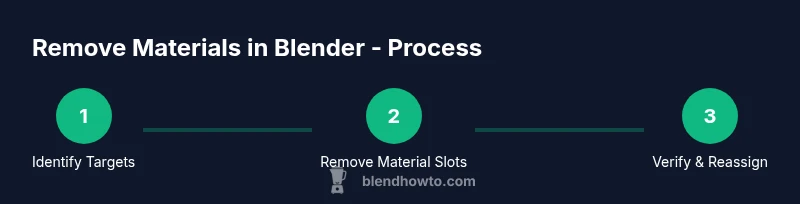
You can remove materials in Blender by clearing the material slots from selected objects. Start by selecting the object, then open the Material Properties tab, and click the minus icon to remove the active material. For multiple objects, repeat or use the Outliner to select all objects and clear their material slots. This quick process works in Blender 3.x.
Why removing materials matters
In many Blender projects, stray materials can complicate shading, bloating your file and slowing renders. Knowing how to remove materials in Blender gives you a clean slate for new textures and a more predictable workflow. According to BlendHowTo, the simplest starting point is to inspect each object's Material slots and decide what to keep. The BlendHowTo Team tests material workflows to make them practical for home users and hobbyists, ensuring these steps are easy to reproduce. This foundational knowledge helps you prepare models for new textures, re-lighting, or exporting to game engines, where unused materials can cause confusion or errors.
Understanding Blender materials and slots
Blender stores material data in materials datablocks and links them to objects via material slots. An object can have multiple material slots, and each slot can reference a different material. You can see these in the Material Properties panel under the Materials tab, or in the Shader Editor where node-based materials live. Understanding slots prevents accidental persistence of materials you no longer want, and it makes retexturing a lot faster when you know where each material is applied.
Removing a single material from an object
To remove one material, select the object and open its Material Properties. Identify the active material slot you want to remove and click the minus icon to delete that slot. If the material is used elsewhere, those other instances remain unaffected. After removal, switch to a different material or leave the slot empty to indicate no material is assigned.
Replacing vs removing: what happens to shader nodes
Removing a material slot does not automatically delete the material datablock if it is still assigned to another object or slot. If you want to permanently erase the material, ensure it is not used anywhere else. You can also choose Make Single User for objects you wish to edit independently, which breaks linkages and makes deletion safe.
Removing materials from multiple objects efficiently
When cleaning a scene, you often need to remove materials from many objects. A fast approach is to select all target objects, use the Outliner to confirm the selections, then remove the material slots in each object's Material Properties. For large scenes, consider scripting a small Python snippet to clear all material slots from selected objects. This approach aligns with BlendHowTo's emphasis on scalable workflows.
Using the Outliner for mass removal
The Outliner helps you pick all objects sharing a material quickly. Switch to the Outliner, enable the Data API view if needed, and filter by material usage. Select all items with the same material, then clear or delete the material slots in the Material Properties panel. This method keeps your scene organized and saves repetitive clicking.
Keyboard shortcuts and quick actions
Familiarize yourself with the Material Properties controls: use the minus button to remove a slot, press N to reveal the properties shelf, and use the search feature in the Outliner to speed up selection. Consistency matters, so keeping the same removal pattern across objects makes the workflow predictable and faster over time.
Special cases: instances and linked data blocks
If you duplicate objects, Blender often creates instances that reuse materials. Before removing, Make Single User to edit materials on a single object without affecting others. If you want to purge a material from the scene, search for its datablock in the Data API and remove it only after verifying no object references remain.
Troubleshooting: why a material seems to persist
If a material seems to persist after removal, it might be shared by multiple objects, or it might be driven by a node network that assigns materials dynamically. Check the Node Editor for links, inspect the active material slot, and confirm there are no drivers or constraints reapplying materials. A quick re-check can prevent exporting with unwanted assets.
Verifying removal in different workspaces
Switch between Layout, Modeling, and Shader Editor to confirm the material is gone. In Render Preview modes (Material Preview or Rendered View), ensure the object no longer shows the material in use. This cross-tool verification helps you catch edge cases that only appear in certain contexts.
Example workflow: clean slate for a retexturing pass
- Save a backup copy of your scene. 2) Select the target object and remove its slot. 3) Check all objects in the scene for remaining slots referencing the old material. 4) Use the Outliner to bulk-clear anything linked to the material you are removing. 5) Re-check in the Shader Editor to confirm the material is fully removed before starting a new texture pass.
Common mistakes to avoid
Forgetting to remove all usages of a material can leave hidden references that reappear after export. Don’t rely on a single object; search through the Outliner for any instances. Also avoid deleting a material while it is still used by another object, as this can cause gaps in your scene’s shading. Finally, always save a backup before large cleanups to prevent data loss.
Next steps: how to assign new materials
After removing old materials, you are ready to assign fresh materials. Open the Shader Editor, create a new material, and assign to the desired slots. If you are preparing assets for a specific engine, consider exporting materials with proper textures and nodal setups. This final step closes the loop from cleanup to retexturing.
Tools & Materials
- Blender software (version 3.x)(Installed on a capable computer; latest stable release preferred)
- Computer with sufficient RAM(8GB+ recommended for smooth editing; more if you work with complex scenes)
- Mouse or trackpad with precise control(Helpful for selecting specific material slots quickly)
- Outliner panel(Essential for selecting multiple objects and verifying references)
- Test object or small scene(Use for practice before applying to major projects)
- Python scripting (optional)(Useful for bulk clearing on large scenes)
Steps
Estimated time: 60-90 minutes
- 1
Open the scene and identify targets
Launch Blender and orient to a layout where you can see Material Properties. Select the objects whose materials you want to remove, using the Outliner for quick multi-selection if needed.
Tip: Label objects or use collections to keep track of which assets you plan to retexture. - 2
Open Material Properties for the target object
With an object selected, switch to the Material Properties panel to view its material slots. Identify which slot you will remove first and ensure the object isn’t in a group where the material is shared.
Tip: If you don’t see a slot, the object currently has no material assigned. - 3
Remove a single material slot
Click the minus icon next to the active material slot to delete that slot. If the material datablock is used elsewhere, it will still exist if referenced by other objects.
Tip: Consider removing in the order of least-used materials first to avoid accidental removals. - 4
Clear materials from multiple objects
Select all target objects and repeat the removal process, or use the Outliner to bulk-select and remove slots. For very large scenes, a short Python snippet can automate clearing all material slots from chosen objects.
Tip: Filter the Outliner by material usage to speed up selection. - 5
Make Single User for editing isolation
If you need to edit materials on one object without affecting others, use Make Single User to detach from the shared datablocks.
Tip: This step is critical when you plan to customize materials independently after removal. - 6
Verify removal in the Shader Editor
Open the Shader Editor to confirm no nodes reference the removed material in the affected objects.
Tip: If a material reappears, search for drivers or overrides that reassign it. - 7
Viewport verification
Switch to Material Preview or Rendered View to ensure the material no longer appears on the object(s) and that shading is as expected.
Tip: Check both 3D Viewport shading and any linked node setups. - 8
Bulk cleanup with scripting
For many objects, a Python one-liner can clear all material slots from selected objects efficiently.
Tip: Test the script on a small subset first before running globally. - 9
Backup and save
Always save a backup before large cleanups so you can revert if something goes wrong.
Tip: Use versioning (scene_v01.blend) for safe revisions. - 10
Reapply new materials
After cleanup, create or assign new materials as needed and apply them to the desired slots.
Tip: Organize materials by type (metal, plastic, glass) to streamline retexturing. - 11
Document the changes
Note which materials were removed and why, to help future team members or yourself revisit the workflow.
Tip: Keep a simple changelog within the project directory. - 12
Finalize export settings
If exporting to game engines or external renderers, verify that materials and textures align with engine requirements.
Tip: Export a test object first to catch material mismatches early. - 13
Review and iterate
After you finish, review the entire scene for any stray references and refine your material organization for future projects.
Tip: Iterative cleanup often yields the most reliable long-term results.
Frequently Asked Questions
Can I remove materials from linked objects without affecting others?
Yes. If materials are shared, removing a slot from one object may not affect others. Use Make Single User if you intend to edit the material on that object alone.
Yes. You can remove materials from linked objects, but use Make Single User if you want to edit only one copy.
Will removing a material delete the texture images from disk?
No. Removing a material in Blender only removes the material linkage from objects. Textures on disk remain unless you delete them separately.
No, removing a material doesn’t delete textures from disk; it only unlinks them from the material.
How do I remove materials from multiple objects at once?
Select all target objects in the Outliner, then clear material slots in each object’s Material Properties panel. For very large scenes, a short Python script can automate the process.
Use the Outliner to pick all objects, then bulk-clear their material slots, or run a quick script for large scenes.
What Blender versions support this workflow?
The workflow described applies to Blender 3.x and newer, with minor UI tweaks across versions. Always check the Material Properties layout in your specific release.
This approach works in Blender 3.x and newer; UI may vary slightly by version.
What is the difference between removing materials and replacing them?
Removing a material slot clears the object’s linkage; replacing changes the material reference. If a material is used elsewhere, its datablock may remain until all references are removed.
Removing clears the slot; replacing swaps materials. If the material is shared, the datablock still exists until all references are gone.
Should I delete a material from the datablock entirely?
Only delete the datablock if no objects reference it. Otherwise Blender will keep the datablock for other uses. Use the Data panel or Outliner to verify references.
Only delete a datablock if nothing references it; otherwise leave it to avoid missing materials elsewhere.
Watch Video
What to Remember
- Identify and remove unused material slots to clean up scenes
- Use the Outliner for efficient bulk material removal
- Verify removal in both Shader Editor and viewport
- Make Single User to edit isolated materials when needed
- Always keep backups before major cleanups