RenderMan for Blender: A Practical Guide to Photorealistic Rendering
Learn how to install, configure, and use RenderMan inside Blender to achieve photorealistic renders with RIS. This guide covers shaders, lighting, workflow, and troubleshooting for home studios and hobbyists.


You will set up RenderMan for Blender, configure the renderer, and produce photorealistic renders with RIS. This quick answer confirms you can install the plugin, wire up materials, lights, and render passes, and optimize performance for Blender projects, from hobbyist scenes to small productions. The guide covers practical steps a home blender can follow to get reliable results quickly and safely.
What RenderMan for Blender is and why it matters
RenderMan for Blender is a bridge that lets you drive Pixar's RenderMan engine directly from Blender's workflow. It exposes RenderMan's RIS path-tracing renderer as an option in Blender's render engine, enabling physically-based shading, light transport, and advanced material networks without leaving Blender. According to BlendHowTo, RenderMan for Blender provides a robust integration that unlocks photoreal shading for Blender users, making it easier to reach studio-quality results in personal projects and small productions. This section explains the value proposition: you get a proven production renderer with a flexible node-based material system, support for AOVs, and tight integration with Blender’s viewport preview. The goal is to help you decide whether RenderMan belongs in your toolkit.
Core concepts: RIS, PBR shading, and material networks
RenderMan's RIS is a physically-based path-tracing render engine that computes light transport by tracing rays through the scene. In Blender, RenderMan for Blender leverages RIS to render high-fidelity lighting, shadows, and materials. A modern RenderMan workflow uses a Material Network (RiShader) with PBR-style textures, OSLO shading language shaders, and modular attribute nodes to drive color, roughness, metallicity, and displacement. For artists, the core concepts are shading networks, light transport, color management, and render passes (AOVs). Using these concepts helps you predict how textures and lighting interact in the final image and ensures consistency across lighting setups, camera angles, and environments. This knowledge forms the foundation for practical decisions later in this guide.
Prerequisites and environment setup
Before diving in, verify you have a Blender version compatible with the RenderMan add-on and an accessible RenderMan license. You’ll want a workstation with a modern CPU and a GPU capable of handling ray-traced workloads, plus enough memory for large textures. Ensure your operating system is up to date and that graphics drivers are current to prevent driver-related rendering issues. You should also create a dedicated Blender project directory and organize assets (textures, HDRIs, and meshes) for efficient iteration. Finally, familiarize yourself with RenderMan’s official documentation, so you have a reference point for advanced features like AOVs and RIS options.
Installing and enabling the RenderMan add-on in Blender
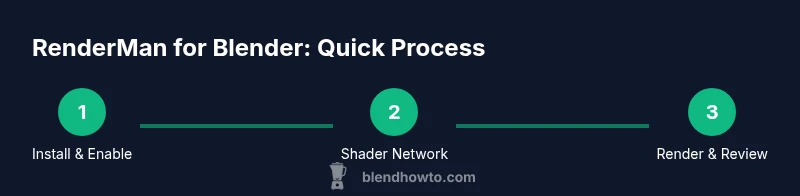
Start by downloading RenderMan for Blender from the official source and install the Blender add-on through the Preferences > Add-ons panel. After installation, enable the add-on and select RenderMan as the render engine in the Render properties. Configure basic settings such as the pixel samples and the connect to your RenderMan license. If you’re switching from another engine, take note that you may need to adjust color management (Filmic vs. RenderMan’s color space) to ensure consistent output. A quick check render helps verify the integration is working and that the scene is visible in the compositor and render layers. This step lays the foundation for a reliable workflow.
Creating your first RenderMan shader network
In RenderMan, shaders are connected in a node-based material network. Create a simple metal or dielectric material and assign it to a mesh. Use foundational nodes for base color, roughness, metallicity, and normal mapping, then wire in texture maps or procedural textures. Start with a baseline shader (e.g., a PBR-based RiMaterial) and gradually add detail using texture maps and microfacet parameters. The goal is to establish a repeatable workflow you can reuse across scenes. Save a small test scene so you can quickly compare different lighting setups without rebuilding materials from scratch. We’ll cover more advanced shader networks later in this guide.
Lighting in RenderMan: lights, exposure, and color management
Lighting is critical to realism. RenderMan supports area lights, mesh lights, and procedural light types that integrate with the shading system. Place lights to define key, fill, and rim lighting, then adjust intensity, color temperature, and exposure to achieve the desired mood. In Blender, ensure consistent color management by using a linear workflow and mapping HDRI or environment textures to the scene. RenderMan’s color pipeline typically uses linear color space and physically-based light transport; align your camera exposure and tone mapping to your target output to avoid blown-out highlights or muddy shadows.
Material workflows: textures, OS L shaders, and render passes
A robust RenderMan workflow uses a combination of texture maps (albedo, roughness, metallic, normal), OS-level shading, and render passes for post-processing. Explore Texture Space, UDIMs, and image-based lighting to get realistic results. Leverage AOVs to isolate lighting or material channels for debugging. The node graph should be organized and commented, helping teammates understand the shading logic. As you accumulate assets, create a library of reusable materials and variants for doors, fabrics, metals, and plastics, so production is faster and more consistent across scenes.
Render settings: sampling, denoising, and RIS performance tips
Fine-tune sampling to balance render speed and noise. Start with viewport sampling for previews and then switch to higher-quality settings for final frames. Use RenderMan’s denoiser if appropriate for your scene and enable progressive rendering for early feedback. Optional RIS optimizations include adjusting the max depth, light sampling, and BVH settings for complex geometry. RAM usage and disk caching can become bottlenecks in large scenes; plan cache organization and texture streaming accordingly. Remember, incremental renders save time during iterations.
Rendering workflow: from test renders to final frames
Begin with small, quick test renders to validate materials, lighting, and camera framing. Once the look is satisfactory, scale up your render settings for final frames, ensuring consistency in resolution and color space. Create a render pass workflow with beauty, specular, shadows, and ambient occlusion passes, then composite in a post pipeline. Finally, perform a frame range render for animation projects, verifying consistency across frames and adjusting for flicker, sampling, or denoising artifacts. The goal is a repeatable, predictable pipeline that yields stable results across scenes.
Troubleshooting common issues
Common problems include miscolored textures, noise, or unrealistic lighting. If a scene renders slowly, consider optimizing geometry or textures, or revising sampling settings. If materials look flat or garish, review light placement, HDRI exposure, and color management. License issues or plugin not loaded can prevent rendering; verify the RenderMan add-on is enabled and that your license is active. Noisy renders can be mitigated with higher sampling or denoising; ensure a proper balance to avoid long render times. When in doubt, use a clean test scene to isolate the issue.
Real-world pipeline examples
In small studios, artists often use RenderMan for Blender to stage pre-visualization and final renders for product shots or animations. A typical pipeline might start with concept passes, blocking, and layout in Blender, followed by materialization in RenderMan using a library of shaders. Lighting design uses HDRI and area lights to achieve realism, while AOVs help QA teams review individual channels. The ability to render with RIS in Blender enables artists to achieve consistent results across frames and camera angles even on modest hardware. BlendHowTo's team notes that the integration remains a strong option for home studios seeking quality results.
Authority sources and further reading
- RenderMan official docs: https://renderman.pixar.com
- Blender manual: https://docs.blender.org
- RenderMan for Blender documentation: https://docs.renderman.org
Tools & Materials
- Blender (latest stable release)(Download from blender.org; ensure compatibility with RenderMan add-on.)
- RenderMan for Blender plugin(Install from the official RenderMan site; enable as Blender add-on.)
- RenderMan account/licensing(Create or sign in to access license options and permissions.)
- Modern workstation (CPU/GPU)(CPU with ample RAM; GPU acceleration helps RIS performance.)
- Up-to-date graphics drivers(Prevents rendering issues and improves stability.)
- Textures and asset library(Organize UDIMs, HDRIs, and textures for faster iteration.)
Steps
Estimated time: 2-3 hours
- 1
Install and activate RenderMan for Blender
Download the plugin, install it via Blender’s Preferences > Add-ons, and enable RenderMan as the render engine. Confirm that the license is connected and that a basic scene is visible when you switch to RenderMan in the viewport. This initial setup ensures you can access RenderMan materials, lights, and passes in Blender.
Tip: Run a quick test render to verify the add-on loads without errors. - 2
Create a simple baseline shader
In the Shader Editor, create a basic RiMaterial or PBR-based shader network and assign it to a mesh. Combine base color, roughness, metallic, and normal maps to establish a reference look before adding texture detail. This gives you a solid foundation for comparing render results across lighting setups.
Tip: Label nodes clearly and use a minimal texture set for the first test. - 3
Set up lighting and environment
Place a key light, fill light, and ambient HDRI to establish mood and realism. Adjust exposure, color temperature, and tone mapping to achieve natural skin tones and believable shadows. Ensure light paths are not clipping and monitor how environment lighting interacts with the materials.
Tip: Use AOVs to verify how separate lighting channels behave. - 4
Build your first RenderMan shader network
Expand your material with texture maps for albedo, roughness, and metallic, plus displacement or bump where needed. Integrate OS L shaders if you’re aiming for advanced control over reflections and micro-details. Organize the graph to support reuse in future scenes.
Tip: Comment the node setup to aid collaboration. - 5
Configure render settings for quality
Adjust sampling, denoising, and RIS settings to balance speed and clarity. Enable progressive rendering for quick previews and enable relevant passes (AOVs) for post-processing. Tailor these settings to your scene complexity and hardware.
Tip: Start with lower samples for previews and higher for final renders. - 6
Render test frames and iterate
Render small test frames to diagnose shading, lighting, and geometry issues. Iterate on materials and lights based on feedback from the test renders before committing to full-resolution frames.
Tip: Review color management and ensure consistent output across frames. - 7
Optimize performance for larger scenes
Reduce texture sizes where possible, enable texture streaming, and optimize BVH or ray tracing parameters for your geometry. Use caching wisely to avoid repeated loads in animation pipelines. Profile renders to identify bottlenecks.
Tip: Cache frequently reused textures to minimize disk I/O. - 8
Finalize and render
Lock the final camera, lighting, and materials. Run the final render pass with the desired resolution, then export passes (beauty, all relevant AOVs) for post-processing. Confirm output consistency across frames or shots before delivery.
Tip: Keep a versioned archive of final renders and scene files.
Frequently Asked Questions
What is RenderMan for Blender?
RenderMan for Blender is a plugin that lets you run Pixar's RenderMan directly inside Blender, providing RIS-based path tracing, advanced shading, and material networks within Blender's workflow.
RenderMan for Blender lets you render with Pixar's engine inside Blender, bringing high-end shading and lighting to your projects.
Is RenderMan for Blender free?
Licensing terms vary. RenderMan offers different options, and Blender integration is supported within those terms. Check the official licensing page for current options and requirements.
Licensing terms vary; check the official RenderMan licensing page for current options.
Can RenderMan replace Eevee or Cycles in Blender?
RenderMan is a separate render engine. While you can render with RenderMan inside Blender, Eevee and Cycles remain Blender’s native engines for real-time and alternate path tracing workflows.
RenderMan is a separate engine; you can render with it in Blender, but Eevee and Cycles are still available as Blender engines.
What hardware do I need for RenderMan?
A modern CPU and sufficient RAM are important; a capable GPU helps with RIS acceleration and faster previews. Keep drivers up to date and balance memory usage with texture sizes and scene complexity.
A modern PC with enough RAM and a capable GPU helps, plus up-to-date drivers.
Can I use UDIM textures with RenderMan for Blender?
Yes, RenderMan supports UDIM workflow and common texture formats. You can map albedo, roughness, normal maps, and other textures through the shader network.
UDIM textures are supported and work well with a well-structured shader network.
Where can I learn more about RenderMan for Blender?
Start with the RenderMan official docs, Blender manual, and the RenderMan for Blender documentation. These sources cover shading networks, AOVs, and production workflows in depth.
Check the official RenderMan and Blender docs for in-depth guidance.
Watch Video
What to Remember
- Install RenderMan for Blender and enable the plugin.
- Build a repeatable shader network before adding detail.
- Use AOVs to isolate lighting and materials for debugging.
- Progressively render and optimize RIS settings for speed.
- Maintain a clean, versioned pipeline for final delivery.