What to Do After Rendering Animation in Blender
Learn the essential post-render workflow for Blender: review frames, manage color, composite passes, encode outputs, and organize assets for delivery. A disciplined post-render routine from BlendHowTo saves time and ensures a reliable hand-off.


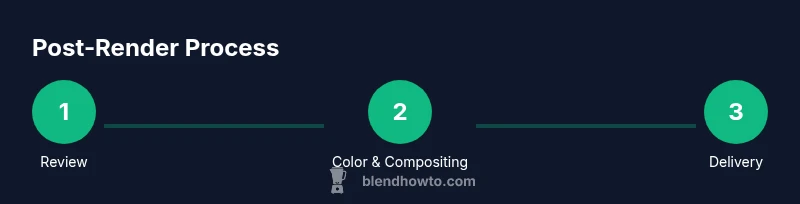
After rendering animation in Blender, start with a quick quality check, then stabilize color management, compose passes, and choose your final encoding. Save a clean project structure and back up assets. See our detailed step-by-step guide for the full workflow. According to BlendHowTo, a consistent post-render routine saves time and avoids rework.
What to do after rendering animation in blender
The moment your frames finish rendering, you enter the post-render workflow. A well-structured pipeline reduces rework and ensures your final deliverable is accurate across platforms. In this section, we lay out the core sequence: quality check, color management, pass composition, and preparing the final output. According to BlendHowTo, a disciplined approach saves time and keeps assets organized. Start by loading the rendered sequence into a review viewer and scan for dropped frames, flicker, or obvious artifacts. Keep a log of issues to address, and maintain a clean, versioned project directory. This foundation supports a smooth hand-off to editors, clients, or streaming platforms and minimizes last-minute surprises.
Review the frame sequence and perform a quick pass
Begin with a frame-accurate review of the entire sequence. Watch for dropped frames, stuttering, or any color drift between shots. Check that frame rate and resolution match your project settings, and confirm audio alignment if applicable. Mark any anomalies with clear notes and timestamp references. A quick pass saves time later by preventing a longer re-render cycle and helps your team trust the deliverable.
Color management and compositing workflows
Color accuracy matters as soon as you start post-processing. Verify your Color Management settings (Display Device, View Transform, and Exposure) to ensure consistent output across devices. In Blender’s Compositor, route your passes thoughtfully: your beauty pass, shadows, highlights, and any deferred effects should feed into a controlled node network. Use PNG or EXR for lossless passes during review, then plan your final encode based on delivery requirements. This is where a robust workflow pays off, because proper color grading and compositing dramatically affect perceived quality.
Denoising and noise reduction strategies
Denoising can clean up grain without destroying detail, but overdoing it can blur textures. Start with a light denoise pass on your render layers and use Blender's Denoise node or external tools to preserve sharp edges. If you rendered with a noisy workflow (low samples), consider denoising after gathering passes in the compositor. Always compare denoised results with the original to ensure no essential detail is lost, especially in textures or fine geometry.
Output formats, encoding settings, and delivery-ready assets
Plan your final delivery format before exporting. For animations, many teams favor a lossless or lightly compressed intermediate like OpenEXR or TIFF sequences for archival, followed by a delivery format such as MP4 (H.264/HEVC) for streaming. Define your encoding presets (bitrate, keyframe interval, color space) and run a test export to verify compatibility with target platforms. Maintain clear naming conventions (project_shot_fps_profiler) and separate folders for renders, composites, and finalized media.
Asset management, backups, and version control
A consistent folder structure and versioning scheme prevent confusion as projects evolve. Keep raw renders separate from composites and final exports, and maintain a changelog describing major edits or camera changes. Regularly back up both the project files and assets to at least one off-site location. If multiple artists work on the same project, use a simple Git-like approach for assets or a dedicated asset management system to track provenance and ensure reproducibility across machines.
Troubleshooting common post-render issues
Anticipate typical problems: color mismatches, missing frames, or codec incompatibilities. Recheck color management, verify render passes align with your compositor tree, and confirm that the final export settings match the required delivery specs. If issues persist, isolate variables: test a single frame, render a short segment, or revert to a known good preset. Document fixes for future projects so you don’t repeat the same missteps.
Final check before delivery and handoff
Before handing off, perform a last pass on the complete sequence: confirm frame integrity, verify audio alignment (if applicable), recheck color consistency, and ensure there are no stray assets in the delivery folder. Create a compact deliverables manifest that lists file names, formats, durations, and platform requirements. This final verification minimizes post-delivery reworks and ensures stakeholders receive a reliable, project-ready product.
Tools & Materials
- External hard drive or cloud storage(Back up finished renders and assets after review)
- Color management reference chart(Calibrated monitor; document display device settings)
- Blender project file with all linked assets(Ensure textures and fonts are packaged or linked correctly)
- Video encoding software(FFmpeg, HandBrake, or Blender's built-in exporter)
- Notes file or naming convention doc(Consistent naming for renders, passes, and comps)
- Quality reference images(Optional but helpful for color grading benchmarks)
- Media player or review workspace(For quick, frame-accurate playback checks)
Steps
Estimated time: 2-4 hours
- 1
Run a final check of the rendered sequence
Open the rendered sequence in a review viewer and scan every frame for dropped frames, flicker, or obvious color shifts. Verify frame rate, resolution, and audio alignment if present. Log any issues with timestamps to streamline fixes.
Tip: Use a quick 5-10 second per-frame skim across the entire sequence to catch subtle issues. - 2
Review color management and gamma
Confirm your display device and scene linear workflow are consistent. Check View Transform and Color Management settings in Blender, and calibrate your monitor if possible. If you notice color drift, adjust your LUTs or grading nodes before proceeding.
Tip: Always test a small color-corrected clip before applying global adjustments. - 3
Evaluate render passes and compositor setup
Ensure passes (beauty, shadows, highlights, normals) are correctly routed in the compositor. Validate that any extra effects (glows, depth of field) are applied in the intended pass order. Rebuild the node graph if a pass doesn’t feed correctly into downstream nodes.
Tip: Label each node group clearly to avoid misrouting in future edits. - 4
Apply denoising and noise reduction
If noise is present, apply a targeted denoise pass using Blender's Denoise node or external tools. Compare the denoised frame with the original to ensure essential texture details remain intact, especially on surfaces with fine detail.
Tip: Denoise on final composites rather than the base render when possible to preserve detail. - 5
Choose encoding settings and render a test export
Decide on final delivery formats (e.g., EXR/TIFF sequences for archiving, MP4 for delivery). Run a short test export to validate encoding speed, file integrity, and compatibility with target platforms.
Tip: Keep a log of encoder settings for reproducibility. - 6
Save and organize outputs in a clear folder structure
Archive renders, composites, and final exports in a consistent directory layout. Use descriptive filenames that reflect project, shot, and version. Maintain a simple changelog for major edits.
Tip: Automate folder creation with a script to reduce human error. - 7
Back up files and document settings
Create at least one off-site backup and keep a record of Blender version, add-ons, and render settings used. This makes project recovery painless if hardware or software changes occur.
Tip: Practice regular backup routines, not just once per project. - 8
Prepare deliverables for client or platform
Assemble a deliverables package with metadata: duration, frame rate, format, and platform requirements. Include a short handoff note with any licensing or asset specifics.
Tip: Provide a quick QA checklist with the handoff for the receiving party.
Frequently Asked Questions
What is the best format for final delivery?
The best format depends on the delivery platform. Use a high-quality intermediate like EXR for archiving, and provide a delivery-friendly format such as MP4 with appropriate bitrate and codec as required by the client.
Choose EXR for archival renders and MP4 for delivery, based on platform requirements.
Do I need to render audio separately?
If your animation includes synchronized dialogue or sound effects, render or export audio separately and sync in post-production. Blender can export audio with video, but separate tracks aid flexibility in editing.
Yes, render audio separately when possible for easier editing.
Should I keep a before/after reference for color grading?
Keeping before/after references helps validate color decisions and ensure consistency across scenes. Store reference stills alongside your color grading notes.
Yes, keep before/after references to track color decisions.
What’s the difference between OpenEXR and PNG for passes?
OpenEXR is preferred for multi-channel, high-dynamic-range passes and compositing flexibility. PNG is suitable for stills or simple passes but lacks the depth and metadata of EXR.
EXR offers HDR and multi-channel support; PNG is good for frames but not for complex passes.
How can I ensure color grading is consistent across machines?
Use a calibrated monitor, consistent LUTs, and share a standard workflow for grading across machines. Include color profiles in the project notes.
Calibrate displays and share standard grading notes.
How do I ensure project reproducibility on different workstations?
Document Blender version, add-on configurations, and render settings. Package assets when possible and keep a versioning log to reproduce results.
Document versions and render settings to reproduce results.
Watch Video
What to Remember
- Review frames thoroughly before encoding.
- Maintain a consistent folder structure and naming.
- Preserve lossless assets for archival.
- Document settings for reproducibility.
- Verify delivery specs early and test before final export.