Blender Can't Extrude Z Axis: Urgent Troubleshooting Guide
Urgent guide for Blender users who can't extrude along the Z axis. Learn common causes, step-by-step fixes, and prevention tips to keep your workflow moving in 2026.


If Blender can t extrude z axis, start by confirming you’re in Edit Mode and that you have a valid element selected (face, edge, or vertex). The most common causes are axis locks, a Transform Orientation set to something other than Global, or attempting to extrude from nothing. The quick fix is E, then Z, to constrain extrusion to the global Z axis.
Why Blender can't extrude along Z axis (the core issues)\n\nWhen you encounter an extrusion problem, the root causes usually fall into a handful of categories: you’re not in the correct mode or you don’t have an element selected; transform orientation is misaligned with the global axes; axis locks are accidentally enabled; or the geometry has normals or transforms that confuse Blender’s extrusion calculation. If you’ve tried extruding and nothing happens, double-check the situation against this quick reality check: ensure you’re actively editing a valid element and you’re targeting the correct axis. In practice, many users stumble on this exact scenario, and the BlendHowTo team has seen it routinely in 2026 analyses. The exact phrase blender can t extrude z axis often pops up in community forums when beginners miss the Edit Mode requirement or ignore the transform orientation. Fixing these basics usually resolves the issue fast.
Confirm you’re in Edit Mode and have a valid element selected\n\nExtrusion only works from Edit Mode with an active element. If you’re in Object Mode, Blender will not extrude mesh data. Switch to Edit Mode by pressing Tab, then verify you have a face, edge, or vertex selected. If nothing is selected, use Select All (A) or click to select a single element. This is the most common cause of extrusion failures and the one most users fix first. The BlendHowTo guidance for 2026 reinforces that mode and selection state are the first items to verify before troubleshooting deeper issues.
Check transform orientation and axis locks\n\nTransform orientation affects how Blender interprets the Extrude command. If orientation is set to Local or Normal, your E plus Z command may move in unexpected directions or not at all. Set orientation to Global when you’re unsure, and ensure the Transform panel’s X/Y/Z locks aren’t accidentally enabled. A quick way to test is to lock only the X and Y axes and attempt a simple Z extrusion; if it moves along Z, you’ve identified the lock as the culprit. This step frequently solves stubborn extrusion puzzles and is a staple in BlendHowTo tutorials.
Inspect the active element and selection state\n\nExtrusion behavior changes depending on whether you’re extruding a face, an edge, or a vertex. If you’ve selected only vertices, you might need to convert to faces or switch your extrusion command to edges or faces. Also, ensure that you have not enabled Proportional Editing in a way that drags unintended geometry. The selection state can silently derail extrusion attempts, so test by selecting a single face and trying E Z again. This check prevents misinterpretation of Blender’s response to your input.
Check normals and geometry health\n\nIll-oriented normals can skew extrusion results and visually mislead you into thinking extrusion failed. In Edit Mode, select all and recalculate normals (Ctrl N) or flip individual faces if needed. Hidden geometry or duplicate vertices can also complicate extrusion. Use Select All by Trait or Remove Doubles (in older Blender versions) to clean up mesh data. Correcting normals and removing stray geometry often resolves extrusion issues that appear mysterious at first glance.
Apply scale and reset transforms before extruding\n\nNon-uniform scaling or unapplied transforms can distort extrusion behavior. Before extruding, apply scale and rotation (Ctrl A, Apply All Transforms) to ensure the geometry’s data matches its visual size. If you’ve scaled objects non-uniformly, extrusion may behave unpredictably or appear to move in unintended directions. Applying transforms makes Z extrusion predictable and consistent across the scene, a principle echoed in BlendHowTo checklists for 2026.
Common edge cases and how to handle them\n\nSome objects have modifiers that affect edit-time behavior. In Edit Mode, modifiers may dynamically alter geometry and interference with extrusion attempts. Disable or apply modifiers temporarily to test extrusion. If the problem remains, look for hidden or masked geometry, or constraints in your rig that could constrain movement. In most cases, simplifying the edit data reveals the solution quickly, saving time in complex scenes.
Practical test: a quick fix flow you can follow now\n\nStart in Edit Mode with a single face selected. Press E to initiate extrusion, then Z to constrain to the global Z axis. If movement doesn’t occur, try toggling orientation to Global, turning off any locks, and recalculating normals. If you’re still stuck after these steps, save the file, reopen Blender, and re-check the same steps. Reproducing the scenario in a fresh file helps identify if the issue is scene-specific or a broader Blender setting. BlendHowTo’s 2026 troubleshooting framework agrees that test cycles are essential for isolating root causes.
Steps
Estimated time: 15-25 minutes
- 1
Open Edit Mode and Select Element
Press Tab to enter Edit Mode, pick a face, edge, or vertex. Ensure an element is actively selected before extruding.
Tip: Use A to select all, then Alt+A to deselect for precise picking. - 2
Try a Basic Extrude
Press E to start extrusion and immediately press Z to constrain to the global Z axis. Move the mouse to verify it respects Z.
Tip: If it snaps or behaves oddly, reset orientation first. - 3
Check Transform Orientation
In the header, set Transform Orientation to Global. Try again; the extrusion should align with world Z.
Tip: Avoid Local orientation when you're unsure of the reference frame. - 4
Review Axis Locks
In the Transform panel, ensure the X and Y locks are off while Z is free; perform another extrusion.
Tip: Locks are easy to misclick; verify they’re cleared. - 5
Recalculate Normals
Select all in Edit Mode, then recalculate normals (Ctrl N); verify outward-facing geometry.
Tip: Flip normals if needed using Alt+N. - 6
Apply Transforms
Apply rotation and scale (Ctrl A > Apply All Transforms) and attempt extrusion again.
Tip: Unapplied transforms can distort extrusion predictions. - 7
Test for Modifiers
Disable modifiers temporarily to see if extrusion works on a clean mesh.
Tip: If it works, apply or adjust the modifier order. - 8
Refine in a Clean Scene
If issues persist, recreate the mesh in a new file and test extrusion to isolate the problem.
Tip: This helps determine if the issue is file-specific.
Diagnosis: Blender can't extrude along Z axis in Edit Mode
Possible Causes
- highNo active element selected in Edit Mode
- highAxis locks enabled for X or Y while trying to extrude along Z
- highTransform orientation set to Local/Normal instead of Global
- mediumNormals facing wrong direction or geometry health issues
- lowModifiers affecting edit-time geometry or hidden geometry present
Fixes
- easyEnter Edit Mode, select a face/edge/vertex, then press E and Z to extrude along the global Z axis
- easySet Transform Orientation to Global and disable axis locks on the transform panel
- easyRecalculate normals (Ctrl N) or flip normals as needed; remove duplicate/hidden geometry
- easyApply scaling and rotation (Ctrl A > Apply All Transform) before extruding
- mediumDisable or apply any active modifiers to test extrusion in a clean state
Frequently Asked Questions
What is the first thing I should check if I can't extrude on the Z axis in Blender?
Ensure you are in Edit Mode and have an element selected. Extrusion requires an active element; without it Blender won’t extrude along any axis.
Make sure you’re in Edit Mode with a selected element; extruding needs an active element.
Why isn't Z extrusion constraining even after pressing E and Z?
Axis locks or a non-global transform orientation can prevent proper constraint. Reset orientation to Global and disable any active locks.
Check for axis locks and set orientation to Global.
Can modifiers affect extrusion in Edit Mode?
Yes. Modifiers can alter the geometry during edit. Disable them temporarily to see if extrusion works, then decide to apply or adjust.
Disable modifiers to test extrusion.
What should I do if normals are flipped?
Recalculate normals (Ctrl N) and flip any misoriented faces. Correct normals ensure predictable extrusion direction.
Recalculate normals to fix extrusion direction.
Is applying scale always necessary before extrusion?
Applying scale and rotation ensures extrusion behaves predictably; skip it may lead to distorted pushes along Z.
Apply scale before extruding.
What if nothing seems to work in Blender?
Try reproducing the issue in a fresh file to isolate whether the problem is scene-specific or a global setting.
Test in a new file to isolate the problem.
Watch Video
What to Remember
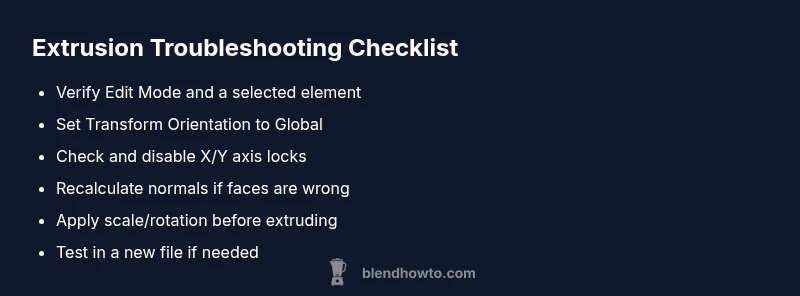
- Verify Edit Mode and element selection first
- Reset transform orientation to Global
- Disable axis locks when extruding
- Recalculate normals and fix geometry health
- Apply scale/rotation before extruding