Blender Can't Select Object: Quick Troubleshoot Guide
Struggling to select objects in Blender? This troubleshoot guide covers common causes, a diagnostic flow, and step-by-step fixes to restore reliable object picking in the 3D Viewport.


If blender can t select object, the issue is usually a mode, visibility, or selection tool problem. Start by confirming you’re in Object Mode, the target object isn’t hidden or locked, and that you haven’t enabled a conflicting transform. Then run the step-by-step guide below for deeper checks and fixes.
Why selection fails in Blender
In Blender, object selection problems are surprisingly common and can stem from a handful of easy-to-mix issues. The phrase blender can t select object often appears when the viewport is filtering what you can pick or when you’re not in the correct mode to select the target. A lot of confusion comes from subtle toggles in the Outliner, recent tool changes, or visibility settings that hide objects from the 3D Viewport. This section explains the core reasons behind failed selections and helps you spot the cue that points to the real culprit. By understanding the typical failure modes, you can quickly triage and avoid chasing phantom bugs. BlendHowTo has observed that most selection failures come from simple misconfigurations rather than corrupted files, so a calm, methodical check is your fastest path back to a productive workflow.
Common culprits: modes, visibility, and filters
Selection behavior in Blender depends on several interacting states. First, confirm you are in Object Mode when you intend to select whole objects; Edit Mode changes what you can select (vertices, edges, faces) but not the object as a whole. Hidden objects or those on a hidden layer may be visible in the Outliner but not pickable in the viewport. In addition, the Outliner can restrict selection in the viewport for individual objects or collections, and the 3D Viewport’s visibility and selection filters can limit what you can click on. Finally, some tools or transforms (like active Move or Rotate gizmos) can temporarily interfere with selection if they’re not cleared. When you encounter blender can t select object, start by checking these layers of configuration before diving into deeper fixes.
Quick checks you can do in 5 minutes
- Switch to Object Mode (Ctrl+Tab) and try selecting again.
- Look at the Outliner: ensure the eye icon (viewport visibility) and click icon (selectability) are enabled for the target object and its collection.
- Verify there are no active filters in the 3D View that block selection (e.g., Limit Selection to Visible or Select Through).
- Check if the object is on a hidden or locked layer. If so, unhide or unlock it.
- Ensure you haven’t accidentally locked or disabled the object’s Selectable property in the Outliner. A few quick toggles here resolve most issues.
If you still can t select object after these checks, you’re ready to follow the diagnostic flow for deeper problems.
Diagnostic flow you can follow
The diagnostic flow below helps you map a symptom to a likely cause and a practical fix, so you don’t waste time on trial-and-error. Start with the simplest checks (mode, visibility, filters) and progressively address more specific causes (Outliner restrictions, selection constraints, or scene-wide settings). Keep notes as you go; a single incorrect step can cascade into multiple symptoms. If the problem persists across new scenes or builds, it may indicate a broader configuration issue rather than a single defective object.
Step-by-step fixes for the most common cause
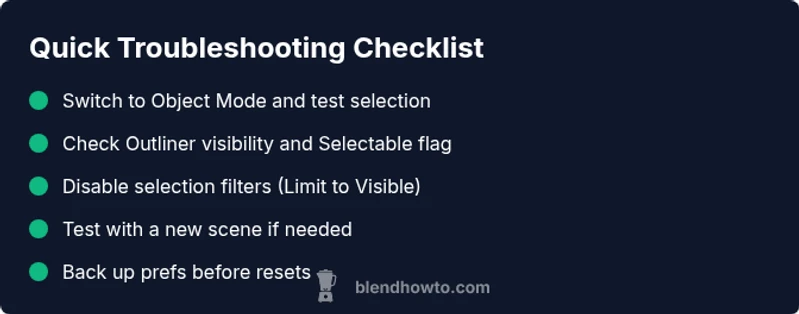
- Confirm Object Mode: Ensure you are in Object Mode and not Edit Mode when attempting to select whole objects. The shortcut is Ctrl+Tab; switch modes and retry.
- Check visibility: In the Outliner, verify the target object and its collection have the eye icon visible and that the cursor icon (restrict selection) is not engaged.
- Inspect selection filters: In the 3D Viewport header, disable any filters like Limit Selection to Visible and verify Select Through is off or on appropriately for your task.
- Review object state: Make sure the object isn’t locked or marked as non-selectable in the Outliner. If the lock toggle is on, switch it off.
- Test in a new scene: If the issue persists, create a new scene and import the object; if selection works there, the problem is scene-specific.
- Reset to defaults (as last resort): If none of the above resolves the issue, consider resetting Blender preferences or starting with a fresh startup file.
These steps cover the most common culprits and usually restore reliable object selection in minutes.
Safety, best practices, and prevention
- Save your work before making sweeping changes or resetting preferences.
- Use the Outliner for precise selection control rather than relying solely on viewport clicking.
- Create a small test scene to check selection behavior after a new Blender install or update to catch environment-specific issues early.
- Document any unique workflow quirks in your notes, so you don’t repeat the same troubleshooting path in future projects.
Steps
Estimated time: 15-25 minutes
- 1
Verify mode and target
Ensure you are in Object Mode (not Edit Mode) when selecting whole objects. If needed, switch modes with Ctrl+Tab and try selecting again.
Tip: Keep a mental map of when you should be in Object vs Edit mode for your task. - 2
Check visibility and lock status
Open the Outliner and confirm the object and its collection are visible (eye icon) and that the object is selectable (mouse cursor icon not locked).
Tip: If you see a blocked icon, unlock it to restore selection ability. - 3
Review viewport filters
Look at the 3D Viewport header and disable filters such as Limit Selection to Visible or Enable Select Through if necessary.
Tip: Toggle filters off, then perform a quick click to verify behavior. - 4
Test a simple object
Create a quick cube or use a known selectable object to confirm basic selection works in the current scene.
Tip: If the simple object selects, the issue may be specific to the original object. - 5
Isolate and reset if needed
If the problem persists, try a new scene with a minimal setup, or reset preferences as a last resort.
Tip: Always back up preferences before resetting.
Diagnosis: Blender won't let you select objects in the 3D Viewport
Possible Causes
- highObject is hidden in viewport or its collection is hidden
- mediumSelection is restricted by Outliner or viewport filters
- mediumWrong mode (Edit vs Object) for the intended selection
- lowActive tool or transform gizmo obstructing selection
- lowObject is on a locked layer or has Selectable disabled in the Outliner
Fixes
- easySwitch to Object Mode and retry selection
- easyCheck Outliner visibility and selectability for the object
- easyDisable restrictive viewport filters (Limit Selection to Visible, Select Through)
- easyVerify the object's layer/collection is active and the Selectable toggle is on
- easyTest in a new scene to rule out scene-specific settings
Frequently Asked Questions
Why can't I select objects in Blender even when they are visible?
Common causes include being in Edit Mode, hidden objects, or restrictive Outliner filters. Start by ensuring Object Mode and checking visibility and selection toggles in the Outliner.
If you can see the object but can't select it, switch to Object Mode and inspect visibility and Outliner filters.
How do I enable selection when in Edit Mode?
In Edit Mode you select components, not the whole object. Use A to select all components or switch to Object Mode to select the object as a whole.
In Edit Mode, you select vertices, edges, or faces. Switch to Object Mode to pick the entire object.
What if the Outliner restricts selection?
Check the Outliner for the Restrict Selection in Viewport icon and ensure it’s enabled for the target object. Toggle off to restore normal selection.
If the Outliner blocks selection, adjust the Restrict Selection setting so you can pick objects again.
Nothing fixes the issue—what next?
Try a new Blender scene or reset preferences after backing up. If the problem recurs across projects, it may indicate a wider installation or hardware issue.
If nothing fixes it, test in a new scene or reset preferences, after saving your work.
Are there keyboard shortcuts to re-enable selection quickly?
Common shortcuts like A to select/deselect all, or Ctrl+I to invert selection, can help when selection toggles are misapplied. Use them in Object Mode for best results.
Try A to select everything, or Ctrl+I to invert, while in Object Mode.
Should I reinstall Blender if selection issues persist?
Reinstalling is a last resort. Back up preferences and scenes first, then reinstall or reset to factory defaults if problems continue.
Only reinstall if all other fixes fail, after backing up your data.
Watch Video
What to Remember
- Check mode first, then visibility and filters
- Use the Outliner to manage selection reliably
- Test in a fresh scene if the issue persists
- Back up settings before resetting preferences
- Document any recurring issues for faster future fixes