Fix Blender Lighting: A Practical Step-by-Step Guide
Learn how to fix Blender lighting with a practical, step-by-step workflow. Balance key and fill lights, adjust exposure, and use HDRI or world lighting to get realistic shadows and color in Eevee and Cycles. This BlendHowTo guide helps home hobbyists and aspiring 3D artists.


In Blender, how to fix blender lighting begins with balancing key and fill lights, adjusting exposure, and refining HDRI or world lighting. This practical, step-by-step guide covers Eevee and Cycles, showing how to diagnose common issues and achieve natural shadows, color, and detail in renders.
Why lighting in Blender often looks off
Lighting in Blender is a balance between exposure, color, and shadows. According to BlendHowTo, many projects look flat because the world lighting and key lights aren’t tuned for the shot. Before you dive into new lamps, establish a baseline: use a simple three-point setup, set your render engine intentionally, and ensure color management aligns with your viewer's expectations. Realistic lighting arises from small, deliberate adjustments rather than a single dramatic fix. In practice, you’ll iteratively tweak intensity, color temperature, and shadow softness while comparing renders from different angles. This section explains how improper contrast, over-bright speculars, and mismatched HDRI temperatures contribute to the problem and how to approach fixes methodically.
Quick checks before dialing lights
Before you start changing light positions, perform a quick diagnostic pass. Confirm you’re rendering with the intended engine (Eevee or Cycles) and that Filmic Color Management is enabled for consistent exposure. Check the world background and ensure HDRI is either present or deliberately removed to test lighting without ambient color bias. Turn on scene lights in the viewport, and render a few quick frames to see baseline shadow distribution, color balance, and highlight recovery. These checks save time by revealing whether the issue is a lighting setup, a render setting, or a material property.
Understanding render engines: Eevee vs Cycles
Eevee and Cycles handle lighting differently. Cycles performs path tracing, producing more accurate shadows and reflections, while Eevee uses real-time approximations that require extra tweaks for realism. If your scene looks too soft or washed out in Eevee, increase sample count, enable ambient occlusion, and adjust bloom carefully. For Cycles, ensure enough light bounces and consider using Light Path nodes to control color bleed and shadow depth. Switching engines mid-project can create inconsistent lighting, so pick one and tune it thoroughly for your shot.
Lighting fundamentals: intensity, color, and shadows
Three elements define professional lighting: intensity, color temperature, and shadow quality. Your key light should establish the subject’s form, the fill light softens shadows, and the back light separates the subject from the background. Use color temperature to model the time of day or mood, not just for realism. Adjust shadow softness with size and angle of the light source, and ensure your scene has a believable falloff. Start with moderate intensities, then gradually adjust to avoid blown-out highlights or muddy shadows.
HDRIs and world lighting: when to use them
HDRIs provide a natural ambient light that helps fragrances of color and reflection. Use a neutral or cool HDRI to keep skin tones accurate, and consider rotating the HDRI for better lighting balance. If you prefer full control, disable the HDRI and build your light rig from scratch using area or sun lamps. In both cases verify that the HDRI strength does not overwhelm scene materials, especially shiny metals and glass.
Practical lamp setups you can try
A common, reliable setup uses three lights: a key light at 45 degrees, a fill light on the opposite side with lower intensity, and a back light slightly behind the subject to separate it from the background. You can substitute a sun lamp for directional daylight or use area lamps to create soft, wraparound shadows. For more control, position a rim light to highlight hair or edges, and adjust shadows with contact shadows or es- sin textures in the material.
Mastering exposure with filmic and color management
Color management is essential for believable lighting. Filmic Color Management helps prevent clipping in bright highlights. In the Render Properties, set the view transform to 'Filmic' and adjust Exposure and Gamma to taste. Tweak the World settings to find a comfortable baseline, then test renders under different camera angles to ensure consistency. Remember, exposure changes can dramatically affect color accuracy and shadow depth.
Shadows, caustics, and roughness: common issues
If shadows look harsh or blocky, reduce shadow resolution or increase light size for softness. Caustics can make glass or water unrealistic if left on by default; consider turning them off or adjusting light paths. Material roughness also influences shadow softness, so ensure your PBR materials respond realistically under your lighting. Small adjustments to normal maps and roughness values can dramatically improve perceived realism.
Real-world workflow: a 15-minute lighting pass
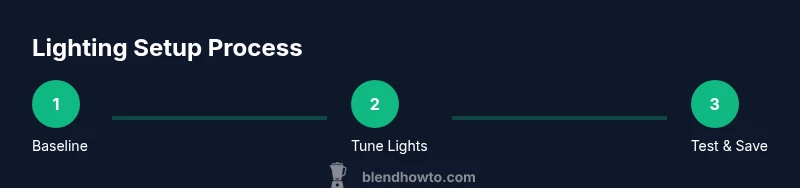
Fast tests matter. Start with a clean baseline, position three lights, and render a quick pass from camera view. Preview both color and shadow balance, then adjust temperature and intensity. Save versions frequently and compare progress side by side. A disciplined workflow accelerates iteration and yields consistent results across scenes.
How to validate your lighting with test renders
Validate lighting by rendering frames from multiple camera angles, using a neutral background, and checking highlights in diverse materials. Compare renders to reference images, focusing on color fidelity, shadow depth, and consistency across shots. Save notes from each pass and refine until your test renders align with the intended mood and realism.
Quick-start checklist to fix Blender lighting
Before finishing: ensure render engine is consistent, Filmic is enabled, HDRI intensity is calibrated, key/fill/back light ratios are correct, and all materials avoid over-bright speculars. Perform a final render check from camera view, then capture a few alternate angles to confirm the lighting holds up under varied framing.
Tools & Materials
- Blender software (latest stable release)(Ensure you are on a recent version (3.x) for best lighting features)
- Lighting kit (key, fill, back lights or sun lamp)(Use at least three lights for reliable three-point setup)
- HDRI environment map (optional)(Use a high-quality .hdr/.exr if testing ambient light)
- Render engine set to Cycles or Eevee(Pick one engine and tune it thoroughly)
- Color management reference (Filmic LUT)(Optional for color accuracy testing)
Steps
Estimated time: 90-180 minutes
- 1
Open render settings and choose engine
Open the Render Properties panel and confirm the render engine (Eevee or Cycles). This sets how lights, shadows, and reflections are computed and influences subsequent steps.
Tip: Consistency is key: stick with one engine to avoid conflicting lighting results - 2
Reset to baseline three-point lighting
Create a simple three-point lighting setup: key light at ~45 degrees, fill on the opposite side at lower intensity, back light behind and above the subject. This baseline helps establish form and separation.
Tip: Use light size and distance to control shadow softness - 3
Enable Filmic color management
In Color Management, set View Transform to Filmic to prevent clipping and preserve detail in bright areas as you balance exposure.
Tip: Avoid linear or SRGB transforms if you want realistic tonal range - 4
Test with a neutral camera position
Place the camera at your typical shot and render a quick frame to evaluate shadows, contrast, and color balance from the intended viewpoint.
Tip: Keep exposure consistent across test renders - 5
Tune key light for mood
Adjust key light intensity and color temperature to establish the subject’s form and mood without washing out details.
Tip: If faces look flat, raise contrast slightly by shifting color temperature toward warmer tones - 6
Balance with fill light
Increase fill brightness gradually to soften deep shadows while preserving edge definitions that read on camera.
Tip: Don’t overfill; subtle shadows add depth - 7
Add a rim/back light for separation
Position a rim light behind the subject to separate it from the background and enhance edge definition.
Tip: Aim behind the subject’s shoulder for a natural contour - 8
Decide on HDRI use
If using HDRI, test with and without to gauge ambient impact. Rotate the HDRI to find pleasing reflections and overall balance.
Tip: Keep HDRI strength modest to avoid color cast - 9
Check shadow quality and softness
Adjust light size and angle to calibrate shadow sharpness; ensure shadows read realistically on all materials.
Tip: Larger light sources yield softer shadows; smaller sources yield crisper edges - 10
Perform a multi-angle render pass
Render from several camera angles to verify lighting consistency across viewpoints and ensure no unintended hotspots occur.
Tip: Record observations for each angle to guide tweaks - 11
Finalize with test renders and save variants
Save final settings as a preset or versioned blend; run a final camera test and compare to reference to confirm stability.
Tip: Name files clearly by scene and version
Frequently Asked Questions
What is the difference between Eevee and Cycles for lighting?
Eevee uses real-time lighting tricks and approximations, while Cycles performs path tracing for more accurate shadows and reflections. Choose one engine and tune it, then stay consistent throughout the project.
Eevee uses real-time lighting tricks, while Cycles traces light paths for accuracy.
Should I always use HDRI for lighting?
HDRI provides natural ambient lighting and reflections but is not mandatory. You can rely on a three-point light setup and an optional HDRI to balance ambient color. Disable HDRI to test lighting without ambient bias.
HDRI is optional; use it to add ambient light if it helps your scene.
How can I fix overexposed highlights?
Reduce exposure in the Render panel, lower key light intensity, adjust the HDRI strength, and switch to Filmic color management to preserve highlight detail.
Lower exposure and tweak light strength; use Filmic to prevent clipping.
Why do shadows look blocky in Eevee?
Blocky shadows usually come from too low sample counts or too small light size. Increase samples and/or light size, and enable soft shadows where appropriate.
Blocky shadows come from low samples or too-small lights; increase them.
What is a quick workflow to test lighting?
Set up a baseline three-point rig, enable Filmic, render quick frames from camera view, and compare across iterations. Save presets for consistency.
Create a baseline with three lights, render quick tests, and compare.
Watch Video
What to Remember
- Balance lights using a three-point setup
- Enable Filmic color management to preserve detail
- Test renders from multiple angles for consistency