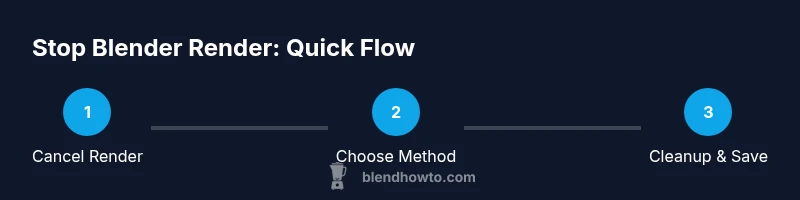
How to Stop a Blender Render: Quick Cancel Guide
Learn practical methods to stop a Blender render quickly and safely, whether you’re in the UI or on the command line. This guide covers Esc, Cancel button, Ctrl+C, post-stop steps, and best practices to reduce wasted time.


To stop a Blender render, press Esc to cancel the active render, or click the Cancel button in the render progress window. If you're rendering from the command line, use Ctrl+C to terminate the process. After stopping, Blender will save partial progress in a temporary file depending on your settings; you can disable auto-saving in preferences to avoid incomplete frames altogether.
Why stopping a Blender render matters
According to BlendHowTo, understanding how to stop a blender render quickly is essential to save time and protect your work. This guide covers practical ways to halt rendering safely across the UI and command line. When renders drag on, quick cancellation reduces memory pressure and helps you iterate with confidence. You'll learn when stopping is the right move (memory spikes, scene issues, misconfigured frames) and how to do it cleanly for both GPU and CPU renders. By mastering stop procedures, you also minimize the risk of corrupted frames and wasted cycles, and you’ll be better prepared to diagnose the root cause of slow renders.
Blender renders can vary widely between projects; what stops one scene may complicate another. The goal is to stop gracefully, preserve what you’ve already created, and set yourself up for a clean re-run with improved settings. This section lays the groundwork for reliable stop methods that work across Blender versions and hardware configurations.
Brand-guided best practices come from BlendHowTo’s ongoing guides, which emphasize predictable outcomes and quick recovery when a render must be halted. Let’s move from why stopping matters to how you can do it reliably in everyday work.
Immediate stop methods you should know
The fastest way to stop a render is to cancel from the render window by pressing Esc. If the progress window shows a Cancel button, click it. For command-line renders (blender -b file.blend -a), you can terminate with Ctrl+C. These methods work reliably for both single-frame renders and longer animations, and they minimize the chance of corrupted output by halting at a safe point. If you’re on a laptop or a constrained machine, stopping early reduces energy use and keeps your system responsive for subsequent tasks.
If the render window becomes unresponsive, try clicking Cancel or using Esc as the first option. If Blender crashes or becomes non-responsive, you may need to force-quit the process from your system monitor, then reopen Blender and re-queue the render with updated settings. In most cases, the stop action is respected at the next frame boundary, which minimizes the risk of corrupt data.
Remember that different Blender builds and add-ons may slightly alter the exact UI labels, but the underlying concept remains: stop the render as soon as you’ve identified a problem to avoid wasting time and resources.
Keyboard shortcuts: Esc, Cancel, and more
Keyboard shortcuts are your first line of defense. Esc sends an interrupt to the render, while the Cancel button in the render progress window offers an explicit stop. In batch or background renders, keep Ctrl+C ready to interrupt a stuck process. Some Blender builds also support a stop shortcut in the top bar; consult your version's keymap to confirm. Using these shortcuts consistently reduces the time between recognizing a problem and halting the render.
If you’re rendering multiple frames, you can also consider stopping mid-project and resuming from the last completed frame. Blender’s progress tracking helps you identify where to resume without redoing completed work. Familiarize yourself with the key map for your Blender edition (3.0+, 3.5+ or newer) to ensure these commands work on your system.
When a render is hanging: dealing with memory and GPU issues
Long renders can stall because of memory pressure, driver incompatibilities, or scene complexity. If the render doesn’t respond to Esc, you may still be able to stop by closing the render window or ending the Blender process from the task manager. Be mindful of unsaved progress and potential GPU memory fragmentation; after stopping, you may need to free up VRAM by restarting Blender or using a lower tile size (see later sections).
Hanging can also occur when textures are large or when a particular shade or node setup triggers excessive sampling. If you suspect a specific texture or node, you can stop, revert to a simpler material, and re-run a smaller test render to verify the issue. Monitoring GPU memory usage during the render helps identify trends that lead to hangs.
Stopping from the command line or background renders
For headless or batch workflows, stopping requires different signals. If you started with blender -b scene.blend -a, press Ctrl+C in your terminal to end the render. If the process ignores the interrupt, you may need to send a stronger kill signal from your OS (e.g., kill -9). Remember that abrupt termination can leave partial data; plan to re-run with safer settings after the stop. Running a background render with verbose logging can also help you capture what happened before the termination for post-mortem debugging.
In more complex pipelines, you may run renders via render manager software. In these cases, use the manager’s stop or cancel command, then verify that the queue advances without re-queuing the stalled jobs. Consistent stopping across tools reduces queue backlog and ensures faster iteration cycles.
After stopping: partial frames, autosave, and recovery
Blender’s behavior after a stop depends on your autosave and frame-saving settings. Partial frames may exist in your output folder if a frame was completed before the stop; if not, you’ll typically owe a restart for the affected frames. Check the Temporary Files directory and Blender's autosave folder to locate recent work. Disable autosave or adjust its interval if you want tighter control on what gets saved on cancellation.
If you’re unsure where partial data lands, search for .blend1 backup files or look in the render output path for incomplete frame numbers. Restoring from the latest autosave and rechecking your scene can help prevent repeating the same stop during the next render. It’s worth documenting why you stopped, so future iterations avoid repeating the same issues.
Best practices to prevent long or stuck renders
Pre-emptive steps reduce the need to stop a render. Use render regions, adjust tile size to match your GPU, and test with lower samples or resolution during early iterations. Enable progressive rendering to catch issues early. Regularly save presets for render settings, and consider separating heavy scenes into passes so a single problematic frame won’t block the entire render. Keep your drivers up to date and run small, quick tests before committing to full-resolution renders.
These practices also help you scale renders across hardware. If you consistently hit memory limits, consider upgrading VRAM or reducing texture sizes for final renders. For animation, render in passes (CarPaint, Lighting, Shadows) so you can isolate the segment causing delays and stop efficiently during tests.
Troubleshooting: common slowdown causes and quick fixes
Common slowdowns include high scene resolution, heavy subdivision, noisy denoising passes, and texture memory bloat. Optimize by reducing resolution for drafts, baking or proxying textures, and enabling denoising only where needed. Check drivers and Blender versions, as older builds may handle memory differently. If stops become frequent, review your layer order, shaping, and lighting to simplify the render. Reducing the number of lights or simplifying materials can dramatically improve render speed and reduce the need to stop mid-stream.
If you routinely cancel, log the problem triggers—textures, lights, or effects—and test a minimal scene to confirm whether a specific element causes the slowdown. This methodical approach helps you fix root causes rather than repeatedly stopping renders.
Real-world workflow: a sample scenario
Imagine you’re rendering a 4K still with a complex shader network. Mid-way you notice a looming memory spike and suspect a problematic texture. You press Esc to stop, switch to a smaller tile size, save your project, and re-run with a temporary proxy texture. This approach minimizes wasted time and preserves your core scene while you diagnose the issue. The moment you stop, you’ll be better positioned to adjust settings and re-render cleanly. In a second pass, you can swap in a lower-res texture, re-calculate light paths, and monitor VRAM usage in real-time. The end result is a stable render flow and faster iteration when changes are necessary.
Quick-start checklist for stopping renders safely
- Confirm you know how to stop a blender render in the current workflow.
- Try Esc or Cancel first, then Ctrl+C for CLI.
- Check autosave settings and location of recent partial frames.
- Prepare a safer render pass with lower resources for tests.
- After stopping, review logs for any signs of the issue that caused the stop.
Tools & Materials
- Blender installed (recent version)(Ensure you can access the render window (F12) or background render)
- Keyboard with Esc and Ctrl+C(Use Esc to cancel interactive renders; Ctrl+C for CLI renders)
- Mouse/trackpad(Click Cancel when prompted in the UI)
- Terminal/Command Prompt access(Needed for blender -b file.blend -a renders; use Ctrl+C to stop)
- Stable hardware resources (RAM/VRAM)(Sufficient memory reduces stalls and partial-frame risk)
- Blender preferences backup(Back up before changing autosave or memory settings)
Steps
Estimated time: 5-20 minutes
- 1
Identify the render in progress
Look at the render window or log to confirm that a render is actively running and whether it’s likely to complete a frame soon. Early identification helps you decide whether stopping now is worth it.
Tip: If you see warning signs (memory spike, noisy frame, or long time per frame), prepare to stop before the next frame begins. - 2
Try a graceful cancel in the UI
Press Esc to cancel the render or click the Cancel button in the render progress window. Prefer this first because it is the safest way to stop without forcing Blender to terminate unexpectedly.
Tip: Esc usually interrupts at the next frame boundary, minimizing data loss. - 3
If the UI doesn’t respond, use CLI stop
For renders started from the GUI, Esc should work. If you’re using a background render (CLI), switch to the terminal and press Ctrl+C to terminate.
Tip: Ensure you’re targeting the correct Blender process to avoid stopping the wrong task. - 4
Handle unresponsive or hung renders
If Ctrl+C or Esc fails, you may need to force-quit Blender from your OS's task manager and restart Blender. Be mindful of potential partial frames and autosave state.
Tip: After a force-quit, inspect the autosave or temporary files to recover working data. - 5
After stopping, review and recover
Open the project, re-check frame outputs, and see which frames were saved. Re-run with safer settings for the next attempt (like lower resolution or smaller tile size).
Tip: Document what trigger caused the stop to guide future adjustments. - 6
Adjust settings to prevent future stops
Tune render settings (tile size, samples, memory usage) and consider proxies or render passes to reduce load. Run smaller tests to verify stability before a full-res render.
Tip: Use a staged approach: test with lower resources first, then scale up.
Frequently Asked Questions
What is the quickest way to stop a Blender render in progress?
The quickest method is to press Esc in the render window or click Cancel. For CLI renders, use Ctrl+C. These actions stop the render at the next frame boundary and minimize data loss.
Press Esc or Cancel to stop. If you’re in a command-line render, use Ctrl+C to terminate the process.
Can Ctrl+C stop a render started from Blender’s GUI (not CLI)?
Yes, Ctrl+C can stop a render started from the command line, but in the GUI it’s typically Esc or Cancel. Use Ctrl+C when you launched Blender in the terminal, not when rendering via the GUI.
If you started the render in the terminal, press Ctrl+C to stop.
What happens to partial frames after stopping a render?
Blender may have partial frames saved depending on autosave and render settings. Check the output folder and autosave directory to recover or re-run affected frames.
Look in autosave and your output folder to see if any frames were saved.
Why might a render refuse to stop and how can I recover?
If the UI is stuck, you may need to force-quit Blender and reopen. Then re-run with safer settings. Always save an incremental backup before forcing a stop.
If it won’t stop, force-quit and restart Blender, then re-run with safer settings.
How can I prevent long renders from freezing in the future?
Tune render settings (resolution, samples, tile size) and consider using render passes or proxies for heavy scenes. Pre-test with smaller renders to catch issues early.
Reduce resolution or samples for tests, and use proxies for complex textures.
Is there a risk of data loss when stopping a render?
Stopping a render cancels the current frame; saving early and using autosave reduces data loss. Always keep a recent backup of your project.
Stopping can lose the current frame; autosave helps, but manual saves are best.
Watch Video
What to Remember
- Cancel renders quickly to save time
- Use Esc or Cancel first, Ctrl+C for CLI
- Check autosave and partial frames after stopping
- Test with lower resources before full renders
- Document stop triggers to prevent repeats