Step to Blender Converter: A Practical Guide
Meta description: Learn how to convert STEP CAD files into Blender-ready meshes with a practical, step-by-step workflow. Includes tools, tips, and common pitfalls.


A step to blender converter is a repeatable workflow that translates STEP CAD data into a Blender-friendly mesh. STEP is a neutral format used across engineering, and importing it directly into Blender often causes topology and scale issues. This guide provides a practical, modular process to move from STEP to a clean Blender mesh, ready for shading, UVs, and animation. By following a defined converter workflow, home hobbyists and creators can save time and reduce data-wrangling headaches. BlendHowTo emphasizes a clear, repeatable path that works with free and open tools, enabling reliable results without expensive software.
What is a step to blender converter?
A step to blender converter is a repeatable workflow that translates STEP CAD data into a Blender-friendly mesh. STEP, short for Standard for the Exchange of Product model data, is a neutral file format used across engineering and design. Importing STEP directly into Blender frequently yields oversized files, broken topology, or inconsistent scale. The aim of a solid converter is to preserve essential geometry, maintain a manageable polygon count, and set Blender up for robust shading, UV mapping, and animation. In this guide, the term step to blender converter represents the end-to-end process you’ll follow: prepare the STEP file, optionally convert to an intermediate mesh, import into Blender with the correct settings, and clean the mesh for editing. For home hobbyists, this workflow reduces guesswork and accelerates iteration. The BlendHowTo team has observed that a well-structured converter workflow dramatically improves import reliability and reduces debugging time. You don’t need pricey software to start; a practical mix of free tools and Blender addons can handle most STEP-to-mesh conversions, letting you focus on your creative outcome rather than data wrangling.
Why a step to blender converter matters for Blender artists
Converting STEP data into Blender-ready meshes unlocks a wide range of projects: mechanical visualizations, product renders, vehicle concepts, and architectural previews. A reliable converter workflow ensures you don’t waste time repairing geometry or fighting with misaligned scales. By standardizing how data moves from CAD to Blender, artists can focus on aesthetics, materials, and lighting rather than file-cleanup chores. A consistent converter approach also helps teams collaborate: engineers export STEP files, designers import stable meshes, and reviewers evaluate geometry without chasing inconsistencies. In practical terms, this means fewer crashes, faster iterations, and cleaner exports for rendering or 3D printing. The BlendHowTo team notes that a steady workflow reduces frustration for beginners while giving seasoned users a robust baseline to build upon. The key is to keep the pipeline modular: separate unit conversion, geometry cleanup, and export stages so you can swap tools later without reworking the entire process.
Understanding STEP files and Blender import options
STEP files encode 3D data with an emphasis on interoperability. They often contain complex assemblies, nested components, and metadata not needed for Blender’s polygonal workflow. Blender reads polygonal meshes more reliably (e.g., OBJ, STL, FBX), so most workflows use an intermediate format before import. Some pipelines rely on a STEP importer addon in Blender, while others export STEP to OBJ or STL first and then import that mesh. Always be mindful of units (millimeters vs. meters), scale, and any non-manifold geometry Blender may flag during editing. The objective is a clean, watertight mesh with a workable polygon count for shading and animation. Understanding both the STEP data model and Blender’s import capabilities helps you plan the conversion and avoid surprises.
The easiest workflow: choose the right intermediate format
Not every STEP conversion needs a direct route into Blender. For most projects, exporting STEP data to an intermediate mesh format provides reliability and better topology control. OBJ preserves UVs and color data, while STL yields a lighter triangle mesh ideal for previews. A typical pipeline is: export STEP to OBJ, import OBJ into Blender, perform cleanup, assign materials, and export to a Blender-friendly format like FBX or GLTF. This approach leverages Blender’s robust OBJ importer and reduces the risk of corrupted topology during a direct STEP import. By planning the intermediate step, you avoid unexpected geometry changes and keep the project timeline on track.
Tools, plugins, and file formats you’ll rely on
Your toolkit includes Blender (latest stable release), a STEP-capable export from your CAD package, and an intermediate format such as OBJ or STL. Depending on your workflow, you might also use an addon in Blender that supports STEP importing. Keep originals on file as a reference, and work on copies to prevent accidental data loss. When selecting formats, consider polygon count, UV data, and texture information. If preserving fine details matters, export at higher resolution and decimate in Blender to balance performance. For large assemblies, export components separately and reassemble in Blender to avoid memory bottlenecks. Document each step so you can repeat the workflow for future projects without re-learning the full process.
Step-by-step pipeline overview
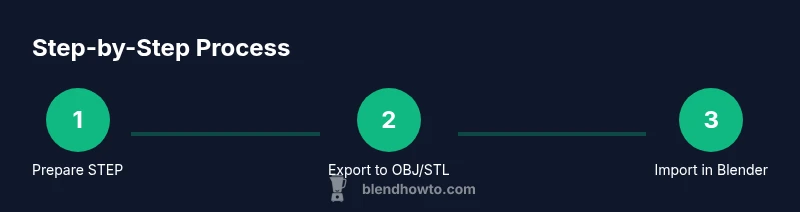
To provide a clear map, here’s the high-level sequence you’ll implement in your projects. Start with a clean STEP file, verify its units, and choose an intermediate format. Then import into Blender, perform geometry cleanup, apply scale and transforms, and prepare the asset for shading or export. This overview helps anticipate common pain points and plan where to invest time. BlendHowTo notes that a repeatable sequence reduces surprises and speeds up conversion. The detailed steps below expand this overview into actionable actions you can adapt to your needs.
Common pitfalls and how to avoid them
Common issues include unit mismatches, non-manifold edges, inverted normals, and lost UVs. If the mesh looks wrong after import, double-check scale and apply transforms before editing. Large assemblies can produce many separate objects; consider chunking exports or reassembling in Blender. Be cautious with booleans on dense meshes, which can create artifacts. Always inspect normals and edge flow, and run simple cleanup passes (remove doubles, recalc normals, merge by distance) before moving to materials. The BlendHowTo team emphasizes establishing guardrails at each stage to maintain quality and reliability throughout the converter workflow.
Real-world example: converting a chair model from STEP to Blender
Imagine receiving a STEP file that contains a chair with several subassemblies. You would export to OBJ, then import into Blender. Start with a quick topology check: remove hidden faces, join components that should be a single object, and verify UV islands. Recalculate normals for consistent shading, then adjust materials and lighting to preview renders. If needed, split the chair into separate parts for easier editing and reassemble later. This practical example demonstrates how a structured step to blender converter process translates CAD data into a Blender asset ready for posing, texturing, and rendering. The BlendHowTo team finds that breaking complex models into components yields better control over topology and shading during the final pass.
Authority sources
For further reading, consult the ISO 10303 STEP standard documentation and Blender’s official import/export documentation. These sources provide background on data exchange formats, topology conventions, and recommended practices when moving CAD data into Blender. BlendHowTo’s guidance aligns with these standards and emphasizes careful data handling throughout the converter workflow.
Tools & Materials
- Blender (latest stable release)(Install from blender.org; ensure compatibility with your OS.)
- STEP file (STEP/ .stp / .step) export from CAD(Export from your CAD software with preserved units.)
- Intermediate format: OBJ or STL(Choose based on whether you need UVs (OBJ) or a lightweight mesh (STL).)
- STEP importer addon (optional)(Useful if you want to import STEP directly; otherwise rely on an intermediate format.)
- Original STEP files backed up(Keep a pristine copy for re-export or adjustments.)
Steps
Estimated time: 45-75 minutes
- 1
Prepare STEP file and backup
Open the STEP file in your CAD tool, verify units, and save a backup copy. This prevents data loss if something goes wrong during conversion.
Tip: Always keep a clean backup before any export. - 2
Decide on intermediate format
Choose OBJ if you need UVs and texture data; choose STL for a lightweight mesh without texture data. This decision guides import settings in Blender.
Tip: If you plan textures, OBJ is the safer default. - 3
Export to intermediate format
Export the STEP data to OBJ or STL from your CAD software, ensuring scale is preserved and units are consistent.
Tip: Double-check that the export keeps topology intact. - 4
Import into Blender and configure options
In Blender, enable the relevant import addon or use the standard OBJ/ STL importer. Set scale to 1 Blender unit = 1 meter if appropriate.
Tip: Apply scale during import to avoid later surprises. - 5
Clean up geometry
Remove duplicate vertices, recalculate normals, and fix non-manifold edges. Use Merge by Distance and limited decimation to maintain topology.
Tip: Work on a duplicate of the mesh to preserve the original. - 6
Apply transforms and verify scale
Apply scale, rotation, and location so the asset behaves predictably in scenes. Save a version with transforms applied.
Tip: Use Ctrl-A to Apply All Transformations. - 7
UVs, materials, and shading
If UVs exist, verify them and adjust materials in Blender. Create basic shaders to preview how the model reacts to lighting.
Tip: Keep texture coordinates organized by naming UV maps clearly. - 8
Export from Blender and validate
Export to GLTF/FBX for use in pipelines, then re-import to verify integrity. Check geometry, UVs, and shading in the target environment.
Tip: Validate in a separate scene to catch environment-specific issues.
Frequently Asked Questions
What is a STEP file and why convert it for Blender?
STEP is an industry-standard CAD data format. Converting it to a Blender-ready mesh avoids topology and scale issues and enables efficient shading and animation workflows.
STEP is a CAD data standard. Converting it to Blender-ready meshes prevents topology and scale problems and speeds up shading and animation.
Do I need a STEP importer addon in Blender?
Blender can import common formats like OBJ or FBX directly. A STEP importer addon is optional but can simplify workflows if you need direct STEP imports.
A STEP importer addon is optional; you can usually import OBJ or STL first and convert in Blender.
Which Blender version supports STEP imports natively?
Blender does not include a built-in STEP importer by default. Most workflows rely on intermediate formats or addons for STEP data.
There isn’t a native STEP importer in Blender by default; use an addon or convert to OBJ/STL first.
What are common pitfalls when converting STEP to Blender?
Watch for unit mismatches, non-manifold geometry, inverted normals, and UV data loss. Clean up and verify scale early in the workflow.
Common problems include wrong units, bad geometry, and lost UVs; fix these early.
Can I import large STEP assemblies efficiently?
Yes—split the model into components, export/import in chunks, and reassemble in Blender to avoid memory bottlenecks and maintain control.
Splitting large models into parts helps manage memory and keeps editing smooth.
Is this process only for 3D printing?
No. While STEP-to-Blender workflows are common for 3D printing, they also support rendering, animation, and virtual prototyping.
Not just for 3D printing—this helps with rendering and animation too.
Watch Video
What to Remember
- Plan a clear converter workflow.
- Use an intermediate format to control topology.
- Verify units and scale early.
- Clean geometry before shading or export.
- Validate results within Blender before final delivery.