Blender 5.1: Practical Step-by-Step Guide
Blender 5.1 step-by-step guide covers install, setup, modeling, shading, lighting, rendering, and animation. Explore practical workflows, real-world examples, and best practices for beginners and advanced users to accelerate learning.


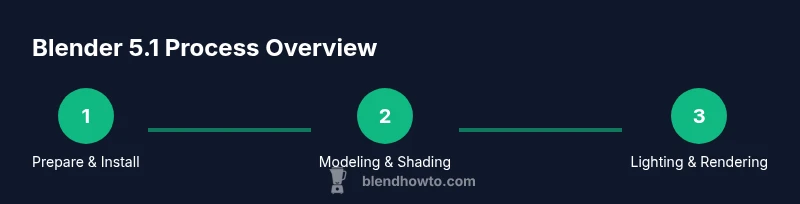
Blender 5.1 is a major release that expands modeling, shading, animation, and rendering workflows. This guide walks you through installation, key UI changes, and practical steps to build your first project, optimize performance, and master common tasks. You’ll find actionable tips, sample workflows, and checklists to accelerate learning today easily.
Blender 5.1 Overview and Context
Blender 5.1 marks another milestone in the open‑source project's ongoing evolution, refining modeling, shading, animation, and rendering workflows. The release emphasizes practical usability for beginners while preserving depth for experienced artists. In this section you’ll see how these concepts translate into concrete steps you can apply to real projects. According to BlendHowTo, the focus of this update is to improve accessibility, streamline viewport feedback, and tighten default settings for new scenes. The Blender ecosystem remains free and community-driven, which means a vibrant pool of tutorials, add-ons, and shared assets are available to accelerate learning. This guide anchors those ideas with concrete tasks you can try in a sandbox project or a real-world brief. When you start, you’ll adjust the default scene: replace the cube with a simple prop, set up a basic camera, and choose a render engine that fits your goal. Treat Blender 5.1 as a versatile toolkit rather than a single feature set; let the interface reveal tools when you need them and hide complexity when you don’t. As you read, relate each technique to practical outcomes—modeling a product, shading a character, or lighting a small scene for a portfolio render.
Installation and Setup
Getting Blender 5.1 up and running is straightforward. Start by visiting the official Blender website and downloading the stable 5.1 build for your operating system. After the download finishes, run the installer and follow the on‑screen prompts to complete the installation. When first launching Blender, you’ll encounter a splash screen and a default startup scene. Take a moment to adjust the general preferences: set your preferred theme (dark or light), configure input behavior, and choose the display units. If you’re new to Blender, enable the Load UI Tips toggle to surface helpful hints as you work. It’s also wise to create a simple project folder structure before you begin: assets, renders, exports, and a separate library for materials. Finally, verify your installation by opening a new file, switching to Eevee or Cycles, and rendering a quick test frame. If Blender 5.1 won’t start, check the system requirements and ensure your graphics drivers are up to date. The goal of this stage is a clean, stable workspace so you can learn without friction.
User Interface Changes and Shortcuts in 5.1
Blender 5.1 continues to streamline the user interface, with improved access to common actions and a more intuitive layout for newcomers. In this section you’ll explore the updated toolbar placement, panel organization, and faster context switching between modeling, shading, and animation workspaces. Keyboard shortcuts remain a cornerstone of speed; the guide highlights a few essential combos for rapid selection, transformation, and navigation. You’ll also see how to customize the startup workspace to fit your project type, whether you’re modeling a product prototype, sculpting a character, or creating a quick animation. Expect more responsive previews in the viewport, better drag-and-drop of assets, and clearer feedback when applying modifiers. As you practice, document your preferred setup so you can reproduce it across new projects with minimal friction.
Modeling in Blender 5.1: Core Techniques
Modeling remains Blender’s core strength, and 5.1 introduces refinements to mesh editing, sculpting, and topology workflows. This section walks through a practical approach: start with a simple primitive, use modifiers to non-destructively shape geometry, apply subdivision for smooth surfaces, and clean up topology with tracing and edge flow checks. You’ll learn how to use the mirror modifier for symmetrical parts, modify pivots for precise alignment, and leverage snapping and grid systems for accuracy. The new defaults reduce noisy geometry and improve viewport performance during heavy edits. Real-world tips include blocking out shapes with low-poly meshes first, then iterating toward detail, and keeping a clean modifier stack to simplify rendering.
Shading and Materials: Nodes in 5.1
The node editor in Blender 5.1 enables more efficient material authoring with the Principled BSDF shader at the center. This section demonstrates constructing a realistic material from base color, roughness, metallic, and normal inputs, then layering textures via Image Texture nodes. You’ll practice creating a metallic car body, a translucent plastic, and a rough diffuse surface for a desk prop. Emphasis is placed on organized node trees: group related nodes, name sockets, and use frames to keep large setups readable. The 5.1 version improves viewport shading fidelity, so you can preview lighting and material behavior more accurately as you work. UV mapping, texture coordinates, and projection mappings are covered with practical examples.
Lighting, Rendering, and Animation
Lighting choices and render settings deeply influence final quality and production time. This section compares Eevee and Cycles workflows in Blender 5.1, showing when to use real‑time lighting previews versus path-traced accuracy. Learn to place key, fill, and rim lights to sculpt form, and practice camera setup and animation basics like keyframing, easing, and simple curves. Rendering best practices cover sampling, denoising, and micro‑adjustments to exposure and color management. You’ll also explore batch rendering and basic animation pipelines for a short product reel or character move, including frame range selection and output formats.
Performance Tips and Common Pitfalls
Performance matters as scenes grow in complexity. In Blender 5.1, you’ll find guidance on optimizing memory usage, simplifying scenes before rendering, and tuning viewport quality for faster iteration. This section highlights common pitfalls—overly dense meshes, heavy textures, and unused modifiers—that slow projects down. Practical advice includes using collections to organize assets, binding common materials to a library, and enabling viewport simplification during heavy edits. You’ll also learn how to profile scene performance and adjust task manager or system preferences to balance speed and accuracy.
Real-World Workflow: A Simple Scene from Concept to Render
To ground the concepts, this section walks through a small, real-world project: a modern mug on a desk. Start with a quick block-out, model the mug using accurate topology, assign a set of materials, light the scene for a clean render, and export a final image. Along the way you’ll apply nodes, textures, and lighting to achieve a believable result. By the end, you can reuse elements from this scene in future renders, saving time on repeated setups. The section emphasizes practical decisions—when to refine geometry, how to balance texture detail with render times, and how to structure files for easy collaboration.
Next Steps: Learning Path and Resources
Blender 5.1 unlocks a broad learning path, from foundational modeling to advanced shading and animation. This section maps a progressive curriculum: basic navigation and object manipulation, intermediate modeling and UV work, material authoring and lighting, camera work and rendering, and finally basic animation and export pipelines. Recommended exercises include mini projects aligned to your goals (product visuals, character poses, or hardware demos). The guide also points to official documentation, community tutorials, and curated practice assets to keep you moving forward. Consistent practice and project-based learning are the fastest routes to mastery.
Tools & Materials
- Blender 5.1 software(Download from the official Blender site)
- Computer with internet access(Needed to download, install, and run Blender 5.1)
- 3-button mouse(Enhances navigation in 3D space)
- External storage or cloud drive(Useful for asset libraries and backups)
- Color-calibrated monitor(Helps with accurate shading and lighting decisions)
Steps
Estimated time: 2-3 hours
- 1
Prepare workspace and install Blender 5.1
Download the installer from the official Blender site and run it. Follow prompts to complete installation, then launch Blender to verify version is 5.1. Configure a clean workspace by selecting a suitable theme and enabling autosave.
Tip: Create a dedicated project folder before starting to keep assets organized. - 2
Create a new project and set up units
Open a new file, set scene units to match your project (metric or imperial), and choose an appropriate render engine. Save a startup file so you can reuse your preferred layout.
Tip: Keep units consistent to avoid scaling issues later. - 3
Model a simple prop
Block out a basic prop with a few primitive shapes, then refine topology using modifiers and edge loops. Use snapping to align parts precisely.
Tip: Work non-destructively by applying modifiers only when needed. - 4
Unwrap UVs and apply textures
Unwrap a basic object and assign textures using Image Texture nodes. Check UVs in the 3D view and adjust seams for clean results.
Tip: Label UV islands clearly to stay organized in complex scenes. - 5
Create materials with Principled BSDF
Build a material using the Principled BSDF shader, adjusting base color, roughness, and metallic settings. Add textures for color and roughness to enhance realism.
Tip: Group related nodes to keep the shader graph readable. - 6
Set up lighting and camera
Place key, fill, and rim lights to sculpt the form. Position the camera for a clear, cinematic view and adjust focal length to suit the scene.
Tip: Use a basic three-point lighting setup to start. - 7
Render a test frame and adjust
Render a low-resolution preview to check lighting, shadows, and materials. Tweak sampling, denoising, and color management as needed.
Tip: Render in a smaller resolution during iterations to save time. - 8
Finalize and export
Increase render resolution, perform a final pass, and export the image or animation. Organize outputs and back up assets.
Tip: Create a small checklist to ensure nothing is overlooked. - 9
Review and iterate
Review your final render with a critical eye, gather feedback, and iterate on materials, lighting, or topology as needed.
Tip: Keep a log of changes to reproduce the workflow later.
Frequently Asked Questions
What is Blender 5.1?
Blender 5.1 is a major release of the open-source 3D software that enhances modeling, shading, animation, and rendering workflows. It maintains Blender's free, community-driven ethos while improving usability and performance.
Blender 5.1 is a major release with better modeling, shading, animation, and rendering workflows, while remaining free and community-driven.
Is Blender 5.1 free to use?
Yes. Blender is open-source and freely available for personal, educational, and commercial use. You can download 5.1 from the official Blender website and use it without licensing fees.
Yes, Blender 5.1 is free to use for any purpose, including commercial projects.
How do I install Blender 5.1 on Windows?
Visit the official Blender site, download the Windows installer for Blender 5.1, run the executable, and follow the prompts. After installation, launch Blender and verify the version in the splash screen or under the Help menu.
Download the Windows installer from Blender, run it, and verify the version after install.
What are the key new features in Blender 5.1?
Blender 5.1 emphasizes improved UI usability, faster viewport feedback, enhanced shading workflows, and more robust default settings for new scenes. It also refines the node editor and integrates small but impactful quality-of-life changes.
The key features include better UI, faster viewport feedback, improved shading workflows, and smarter defaults.
Can Blender 5.1 be used for game asset creation?
Yes. Blender 5.1 supports typical game asset pipelines, including GLTF/OBJ exports, baking, and simple animation. It’s common to model, texture, and export assets for use in game engines.
Blender 5.1 is well-suited for game asset creation, with common export workflows to game engines.
Where can I find official Blender 5.1 tutorials?
Official Blender documentation and tutorials are hosted on Blender.org and docs.blender.org. Additionally, reputable third-party guides (including BlendHowTo) provide structured learning paths and hands-on projects.
Check Blender's official docs and trusted learning sites for guided tutorials.
Watch Video
What to Remember
- Learn Blender 5.1 fundamentals across modeling, shading, and rendering
- Configure a clean workspace and consistent units
- Master node-based materials with Principled BSDF
- Balance performance and quality with Eevee vs Cycles
- Adopt a project-based practice routine