Blender for Beginners 2025: A Practical Start
Learn Blender for beginners 2025 with a clear, step-by-step guide. Install, navigate the UI, model a simple object, add materials, light, and render—plus tips to keep you progressing.


Blender for beginners 2025 helps you install the software, configure essential preferences, and follow a practical, step-by-step workflow that covers navigation, basic modeling, materials, lighting, and rendering. This guide gets you from first launch to a finished render in a single, capped learning session—perfect for hobbyists and aspiring 3D artists.
What Blender is and why beginners should start in 2025
Blender is a free, cross-platform 3D creation suite that anyone can download and learn. For beginners, Blender 2025 brings a streamlined interface, improved rendering options, and expanded community resources. The BlendHowTo team notes that Blender’s neutrality—no licensing costs and a robust feature set—makes it ideal for personal projects, portfolio work, and learning fundamentals of 3D design. When you start in Blender for beginners 2025, you gain access to modeling, sculpting, texturing, lighting, animation, and rendering workflows all in one package. This versatility is especially valuable for hobbyists who want to experiment without heavy upfront investments, and for students who need a single tool to practice multiple skill areas.
To get the most from this guide, set realistic goals for a first project (such as a cup or mug) and treat each new feature as a small, achievable milestone.
Getting started: installation, system checks, and first run
Before you dive in, verify you have a computer that can run Blender smoothly and a stable internet connection to download the latest version from blender.org. Install Blender and launch the application to confirm it opens correctly on your operating system. In the first run, adjust a few preferences (such as units, theme, and default save location) so your workspace feels familiar. It’s common to enable the 3D Viewport shading you’ll use most, and to customize a quick-access layout for modeling and rendering tasks. If you encounter performance issues, check for driver updates and reduce preview resolution while you learn.
Pro tip: keep a small backup of your Blender configuration in case you want to reset later. This minimizes disruption if you experiment with new add-ons or layouts.
Navigating the Blender interface: panels, layout, and preferences
Blender’s layout centers on the 3D viewport, with panels such as the Properties editor, Outliner, and Timeline. The Toolbar and Sidebar give quick access to common tools and options. Understanding the relationship between the 3D Viewport, Object Mode, Edit Mode, and modifiers is key for efficient work. Learn the default navigation: rotate with middle mouse drag, zoom with scroll wheel, and pan with shift-middle mouse. Shortcuts speed up tasks, but take it slow at first to avoid confusion. In preferences, you can set up editor layouts, keymap presets, and add-ons to match your workflow.
Understanding hierarchy is also crucial: objects live in the scene, and their properties live in the Properties panel. The Outliner helps you manage multiple objects, organize groups, and quickly switch visibility for exploration and debugging.
Moving around: basic navigation and transform tools
Mastery of navigation and transforms (move, rotate, scale) unlocks faster modeling. In Object Mode, you can select an object and use G (grab), R (rotate), and S (scale). In Edit Mode, you edit individual vertices, edges, and faces to shape geometry. Use loop cuts (Ctrl+R) to refine topology and ensure clean geometry. Proportional editing lets you sculpt broader changes, which is handy for organic shapes. Remember to reset transforms before exporting to avoid surprises later.
Pro tip: enable snapping when aligning components or placing objects precisely. Use Incremental snapping (Shift-Tab) for controlled placement and quick alignment checks.
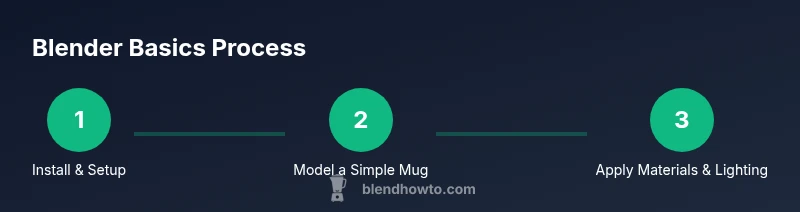
Your first project: modeling a simple mug
A mug is a friendly starter project because it combines primitive shapes with real-world topology. Start with a cylinder, then add a loop cut near the top and bottom to form the lip and base. Use the Mirror modifier if you plan to extend to a seamless paired object. Extrude the inner surface to create a hollow interior, then add a handle by duplicating a curved shape and attaching it to the main body. Subdivision modifiers can smooth curves, but test render often to avoid over-soft edges.
This step teaches you practical modeling, basic topology, and the iterative mindset that underpins most 3D workflows.
Basic materials and shader basics
Materials determine how your surface interacts with light. For beginners, start with a simple Principled BSDF shader. Assign a base color, adjust roughness to control shininess, and enable subtle subsurface scattering for translucent objects if appropriate. Use UV mapping to ensure textures align correctly on curved surfaces. Don’t overcomplicate materials at first; aim for believable but simple surfaces before layering complex textures.
Pro tip: keep a small library of base materials (metal, plastic, ceramic) to reuse across projects. This helps you focus on geometry and lighting first, then on material storytelling later.
UVs, textures, and simple mapping
Texture mapping adds realism and detail without increasing geometry. In Blender, unwrap the mug’s surface (U key) and create UV islands that lay flat on a 2D texture space. Apply a simple texture (color, roughness map) using the Shader Editor. If textures look stretched, adjust the UV mapping or use a cube projection for boxy objects. For beginners, procedural textures can simulate patterns without importing external images.
Tip: start with a single seamless texture to learn unwrapping basics before introducing multi-texture tiles or normal maps.
Lighting and camera fundamentals
Lighting is essential for mood and readability. Begin with a three-point lighting setup: key light, fill light, and back light to sculpt the mug’s form. Also experiment with an HDRI environment for realistic ambient light. Position your camera to frame the subject with a comfortable margin and apply a subtle depth of field to separate subject from background.
Keep the scene uncluttered at first; a quiet background helps you evaluate material and light behavior more clearly.
Rendering with Eevee and Cycles: setup and test render
Blender offers two main render engines: Eevee (real-time) and Cycles (path tracing). Start with Eevee for speed and iterative previews, then test with Cycles for higher realism. Set the render resolution to a practical size, adjust sampling modestly, and enable denoising to reduce grain. Compare results between engines to understand their strengths and trade-offs for your projects. Small iterations teach you how lighting and materials interact with different render paths.
Pro tip: use a clean, simple scene for your first renders to avoid long wait times while you learn the basics.
Troubleshooting and common beginner pitfalls
New users often encounter topology issues, misbehaving modifiers, and unexpected shading results. If a model deforms oddly, check for duplicated vertices or non-manifold edges. If materials look flat, verify normals, UVs, and shader connections. When renders look noisy, increase samples gradually and enable denoising. Always save incremental versions to compare progress and recover from missteps without losing work. Persistence and consistent practice reduce frustration and accelerate skill growth.
Tools & Materials
- Computer with Blender-capable GPU(Ensure a modern GPU driver and sufficient RAM for modeling and rendering.)
- Blender software (latest stable release)(Download from blender.org; keep updated after installation.)
- 3-button mouse(Smooth navigation; consider a tablet for texture painting later.)
- Stable internet connection(Needed for downloads, tutorials, and add-ons.)
- Graphics tablet (optional)(Helpful for sculpting and painting details later in your journey.)
- Notepad or digital notes(Track steps, shortcuts, and settings you try so you can reproduce success.)
Steps
Estimated time: 60-90 minutes
- 1
Set up project and preferences
Open Blender, create a new project, and configure the default units, save path, and render engine. Establish a clean workspace by choosing a modeling layout you’ll reuse. Save a first version to avoid loss of progress as you learn new tools.
Tip: Use a basic layout for modeling and switch to a dedicated shading workspace when you start materials. - 2
Add base mesh and rough shape
Add a cylinder as the mug’s body, enter Edit Mode, and shape it with proportional edits and loop cuts. Use extrude commands to form the rim and base, keeping topology clean for later modifications.
Tip: Keep geometry quads where possible to simplify subdivision and shading. - 3
Hollow the model and create a handle
Create interior voids by extruding inward faces or duplicating surfaces and using the Solidify modifier. Model a simple handle from a curved mesh, then join it to the mug with careful vertex merging.
Tip: Test-fit the handle visually before finalizing; adjust position with snap to ensure a natural grip. - 4
Assign a basic material
Switch to the Shader Editor, add a Principled BSDF shader, and connect it to the material output. Adjust base color and roughness to simulate ceramic or ceramic-like surfaces. Preview in Solid or Material Preview shading.
Tip: Start with a single color and subtle roughness; expand with textures once the base look is solid. - 5
Set up lighting and camera
Add a soft key light and a fill light to sculpt the mug’s form. Position the camera for a clean, centered shot with a small amount of depth of field. Test renders help refine lighting balance.
Tip: Use an HDRI for more realistic ambient light and reflections. - 6
Render a test image
Switch to Eevee for quick previews, then try Cycles for higher realism. Adjust render samples, enable denoising, and review the result. Iterate on materials and lighting based on the rendered output.
Tip: Keep a minimal scene during early tests to reduce render times. - 7
Save and export your work
Save as a Blender file frequently, and export a common image format (PNG) for sharing. Create a simple project archive with related textures and reference images.
Tip: Use versioned filenames (project_v01.blend) to track progress over time.
Frequently Asked Questions
What is Blender best used for as a beginner in 2025?
As a beginner, Blender is ideal for learning 3D modeling, basic texturing, simple lighting, and rendering. It also offers enough features to explore animation and sculpting as you grow.
Blender is great for learning 3D modeling, materials, lighting, and rendering right from the start, with room to explore animation as you gain confidence.
Do I need a powerful computer to start?
You don’t need top-tier hardware to begin. A modest modern computer with enough RAM will handle basic projects, though more complex scenes benefit from a capable GPU and more memory.
You don’t need a supercomputer to start; a reasonably modern PC will do for basics, and you can upgrade as your projects get more complex.
Which render engine should a beginner use?
Begin with Eevee for fast previews and learning, then try Cycles for higher realism. Each has settings that affect speed and quality; practice with both to understand their differences.
Start with Eevee to learn quickly, then experiment with Cycles for realism as you grow.
Where can I find beginner-friendly textures and assets?
Look for free texture libraries and Blender community resources. Start with simple color textures and gradually explore normal maps and roughness maps as you build confidence.
Check out beginner-friendly texture libraries and Blender community pages for free assets to practice with.
How long does it take to learn basic Blender skills?
Basic familiarity often develops within weeks of regular practice. Consistent, small projects and reviewing tutorials helps solidify core concepts faster than long, irregular sessions.
With steady practice, you can become comfortable with the basics in a few weeks.
Can I use Blender for non-3D tasks like design planning?
Yes. Blender’s versatility extends to visualization, product design previews, and motion graphics. Start with simple models to illustrate ideas and gradually add presentation polish.
Blender isn’t just for 3D art; it’s also great for quick visualizations and design previews.
Watch Video
What to Remember
- Start with a clear, small project to learn Blender basics
- Different render engines suit different tasks; test both Eevee and Cycles
- Practice modeling, materials, lighting, and rendering in balanced steps
- Save progress frequently and use incremental versions