Blender Guide for Beginners: Practical Start in 3D
A comprehensive blender guide for beginners, covering installation, interface basics, modeling, materials, lighting, and rendering with practical steps and tips for new artists.


This Blender guide for beginners walks you through installing Blender, exploring the interface, and building your first simple scene with basic modeling, shading, lighting, and rendering. It breaks tasks into clear steps and beginner-friendly milestones to help you gain confidence quickly while avoiding common pitfalls.
Why Blender is a Great Choice for Beginners
According to BlendHowTo, Blender is a robust, free 3D suite that lets beginners practice modeling, shading, lighting, and rendering without an upfront investment. The BlendHowTo Team also notes that the large online community and wealth of tutorials make it easier to find answers when you’re stuck. For newcomers, Blender’s non-destructive workflow and versatile toolset help you learn essential concepts—without switching programs as you grow. In this section you’ll see why starting with Blender aligns with both hobbyist goals and budding career ambitions, whether you’re modeling characters, products, or simple environments.
- Free and continuously updated, with many tutorials and assets.
- Non-destructive workflows mean you can experiment without losing your work.
- Large, supportive community helps you solve problems fast.
- Scales from quick sketches to professional-grade projects.
Tip: Keep a dedicated project folder and use consistent naming so your scenes stay organized as you grow.
Blender Basics You'll Master Early
As a beginner, you’ll first focus on core concepts that recur in every project: the 3D viewport, object transformation, basic navigation, and a first look at materials. This section highlights the essential ideas you’ll return to repeatedly: object mode vs edit mode, how to add primitives, the role of the Outliner for scene organization, and the Properties panel for materials and render settings. Practicing these basics lays a solid foundation for more complex tasks like sculpting or rigging later on. By mastering these building blocks, you can confidently tackle your first small project and progressively increase complexity without feeling overwhelmed.
- Learn the difference between Object and Edit modes.
- Use the Outliner to keep your scene organized.
- Practice adding primitives and transforming them with G (move), S (scale), and R (rotate).
- Get comfortable with the Properties panel for quick material tweaks.
Pro tip: Fluent navigation and efficient hotkeys dramatically speed up your early experiments.
Getting Blender Installed and Set Up
Before you begin your hands-on practice, ensure Blender is properly installed and your workspace is ready. Install the latest stable release from blender.org, and run through the initial setup wizard if prompted. Create a dedicated folder for tutorials and practice scenes, so you can revisit steps without digging through downloads. This setup reduces friction and helps you maintain a consistent learning tempo.
- Download Blender from the official site and install on your computer.
- Create a “Blender-learning” folder with subfolders for projects, references, and exports.
- Ensure you have a working mouse or a tracked pad that supports scroll and middle-click navigation.
Why it matters: a clean install and a predictable workspace remove friction, making your first days with Blender smoother.
Customizing Preferences for Comfort
Small tweaks to preferences can dramatically improve comfort and speed. In Blender, open Edit > Preferences to adjust themes, navigation, and selection behavior. Set up your interface to favor a layout you’ll actually use—many beginners prefer a simple workspace: 3D Viewport, Outliner, and Properties visible. Consider enabling “Move to Layer Playground” for temporary assets and turning on “Rotate around cursor” for intuitive orbiting around a point.
- Choose a theme that reduces eye strain (dark themes often work best).
- Enable key navigation toggles like Orbit, Pan, and Zoom in the 3D Viewport.
- Save your startup file once you’re comfortable to ensure a consistent environment.
Note: Regularly saving preferences helps you avoid re-doing setup after Blender updates.
Understanding the Interface: The 3D Viewport, Outliner, and Properties
Blender’s interface can feel dense at first, but it’s modular. The 3D Viewport is where you’ll model and sculpt; the Outliner lists every object in your scene; and the Properties panel houses materials, lighting, and render settings. Getting familiar with these areas lets you move from rough sketches to polished scenes. As you practice, start naming objects clearly and organize them into collections for future projects.
- 3D Viewport: transform and view objects from any angle.
- Outliner: manage visibility and hierarchy.
- Properties: access render engines, materials, textures, and modifiers.
Quick tip: Use N to open a side panel for even faster access to transform values and options.
Navigation and Shortcuts: Move, Pan, Zoom, and Focus
Efficient navigation is essential for productive modeling. Use middle-click to rotate the view, scroll to zoom, and Shift-middle-click to pan. Mastery of these basics lets you orbit around your model smoothly and place new geometry precisely. For newcomers, learning a few key shortcuts saves hours over the long run and keeps your focus on creativity instead of tool hunting.
- Orbit: middle-click drag
- Pan: Shift + middle-click drag or two-finger drag on trackpad
- Zoom: scroll wheel or Ctrl + middle-click drag
- Focus: Numpad . to zoom to the selected object
Pro tip: Customize your hotkeys in Preferences to fit your natural workflow—just be sure to keep a short cheat sheet handy.
Working with Objects: Transform, Duplicate, and Organize
In Blender you’ll regularly create, duplicate, and arrange objects to form scenes. Start with a few primitive shapes, then modify their location, rotation, and scale to compose a simple layout. Use collections to keep related items together, and remember to rename each object for clarity. Non-destructive workflows—like modifiers—allow you to adjust later without permanently changing geometry.
- Create primitives with Shift+A and choose Mesh > Cube, Sphere, or Plane.
- Duplicate with Shift+D and move to position.
- Organize with Collections and the Outliner to keep your project tidy.
Tip: Use Alt+D to create linked duplicates when you want identical objects that remain individually adjustable.
Modeling Fundamentals: Primitives, Modifiers, and Subdivision
Modeling starts with basic shapes, then refining geometry using simple operations. Begin with primitives to form the base shape, and apply modifiers like Mirror or Subdivision Surface to add detail non-destructively. This approach lets you experiment with forms quickly while preserving a clean, editable workflow. As you advance, you’ll combine multiple objects and use snapping to align parts precisely.
- Start with a cube or plane and reshape with Edit Mode.
- Apply modifiers to add symmetry and detail without editing every vertex.
- Use snapping (Increment, Vertex, Edge, or Face) to align geometry cleanly.
Best practice: Keep a clean topology and avoid creating unnecessary tris in early stages; it’s easier to refine later.
Materials and Shading: Quick Realism with Principled BSDF
Materials bring color and texture to your models. Start with a basic Principled BSDF shader, adjusting base color, roughness, and metallic values for a realistic look. You’ll learn to assign materials per object and tweak settings in the Shader Editor. This gives even simple shapes a palpable presence and helps you understand how lighting interacts with surfaces.
- Create a new material in the Material Properties tab and assign it to the object.
- Use the Principled BSDF for flexible results with minimal setup.
- Experiment with roughness and metallic values to simulate different surfaces.
Note: For beginners, limit the number of nodes to keep the shader graph readable and focus on fundamental parameters first.
Lighting and Rendering Basics: Eevee, Cycles, and Quick Previews
Lighting defines mood and realism. Start with a simple three-point lighting setup (key, fill, back) to illuminate your scene and prevent flat shading. Blender offers two main render engines: Eevee for fast previews and Cycles for more realism. Practice quick renders to iterate on lighting, materials, and camera angles.
- Choose Eevee for fast feedback during early stages.
- Switch to Cycles for higher realism when you’re ready to render final images.
- Use Workbench for speed-focused previews when checking geometry and layout.
Pro tip: Enable denoising and sample lower during early previews to speed up iteration.
Practice Project: Create a Simple Scene from Scratch
Put your new skills to the test by building a tiny scene: a ground plane, a chair or cup model, and a basic light setup. This exercise reinforces modeling, materials, and rendering in a cohesive workflow. Start with blocky primitives, refine shapes with modifiers, apply a couple of simple materials, add a soft light, and render a quick preview. Repeating this process with variations solidifies your fundamentals.
- Create a ground plane and a few primitive shapes.
- Apply materials and basic lighting; render a quick preview to evaluate.
- Save with a clear naming convention and organize assets in folders.
Tip: Re-create the scene with different colors and lighting to practice decision-making under varied conditions.
Next Steps: Where to Go from Here
You’ve built a solid foundation with Blender basics. The next phase involves deeper exploration of sculpting, UV mapping, texturing, and animation. Leverage community tutorials, practice projects, and your own curiosity to expand skills. Regular practice is more valuable than sprinting through features; steady, deliberate practice yields mastery over time. BlendHowTo’s method emphasizes practical steps, consistent practice, and reproducible workflows to help you learn efficiently.
- Expand into UV mapping and texture painting for more realistic surfaces.
- Try simple animation to understand timelines and keyframes.
- Build a small personal project library to track progress and celebrate milestones.
Tools & Materials
- Blender software (latest stable release)(Download from blender.org; verify your OS compatibility)
- A computer with adequate performance(Ensure your system supports OpenGL and has working internet for downloads)
- Mouse with middle-click or a trackpad with emulation(Middle-click to rotate the view; essential for navigation)
- Keyboard and a basic workspace(Use shortcuts to speed up workflow; consider printing a quick-reference sheet)
- Reference images or concept sketches(Helpful for guiding modeling and composition)
- Optional drawing tablet(Useful for sculpting or texture painting if you have one)
- Headphones or speakers for tutorials(Helpful for learning from video guides)
Steps
Estimated time: 45-60 minutes
- 1
Open Blender and reset to default
Launch Blender and close the splash screen. If you want a clean slate, choose File > Defaults > Load Factory Settings, then save startup file for future sessions.
Tip: Getting a clean start helps you learn without pre-existing scene clutter. - 2
Delete the default cube
Select the default cube by left-clicking, then press X to delete. You can also press A to select all and then X to delete if something is selected by mistake.
Tip: Starting fresh keeps your first projects simple and focused. - 3
Add your first primitive
Press Shift+A, choose Mesh > Cube (or Plane) to create a basic shape. Move, rotate, and scale it using G, R, and S keys to fit your scene.
Tip: Constrain to axes by pressing X, Y, or Z after starting a transform. - 4
Move and scale with precision
Open the sidebar (N) and adjust location, rotation, and scale values for precise placement. Practice snapping to grid for alignment.
Tip: Use increment snapping for consistent measurements and layouts. - 5
Duplicate and arrange objects
Duplicate objects with Shift+D and reposition them to build your scene. Use collections to group related items for organization.
Tip: Linked duplicates (Alt+D) keep geometry identical but allow separate edits when needed. - 6
Create a basic material
In the Material Properties, click New and assign a color. Switch to the Shader Editor to adjust Principled BSDF settings as needed.
Tip: Start with a simple color and roughness to see immediate results. - 7
Add a light source
Add a light (e.g., Sun) and position it to cast soft shadows. Adjust strength to avoid overly harsh or underexposed scenes.
Tip: Place lights at 45-degree angles for balanced illumination. - 8
Render a quick preview
Switch render engine to Eevee for fast previews, then try Cycles for realism. Press F12 to render a sample image to evaluate the result.
Tip: Enable denoising in render settings to clean up rough noise in previews. - 9
Save your progress
Save the project with a descriptive name and consider incremental backups (scene_v01.blend, scene_v02.blend).
Tip: Organized naming saves time when revisiting old projects.
Frequently Asked Questions
What is Blender and why should I learn it as a beginner?
Blender is a free, open-source 3D suite that covers modeling, shading, lighting, animation, and rendering. It’s well-suited for beginners due to its zero cost, active community, and many learning resources. Starting with Blender lets you learn essential 3D concepts in a single, comprehensive tool.
Blender is a free 3D program that covers modeling, shading, lighting, and rendering. It’s beginner-friendly thanks to its large community and abundant tutorials.
Do I need a powerful computer to run Blender well?
Blender runs on a wide range of hardware, but performance improves with a capable CPU, GPU, and enough RAM. Start with modest projects to learn, and upgrade hardware if you encounter slowdowns during heavy tasks like sculpting or high-resolution rendering.
Blender works on many computers; performance improves as you work on larger projects. Start small and upgrade if needed.
Should I learn Blender before starting 3D modeling?
Learning Blender early gives you a practical framework for modeling in a modern tool and helps you apply the concepts across disciplines. You’ll gain hands-on practice with geometry, materials, and rendering that transfer to other 3D domains.
Starting with Blender is a solid path to learn general 3D modeling concepts using a real tool.
What is the best render engine for beginners in Blender?
For beginners, Eevee offers fast previews and simpler setup, while Cycles provides more realistic results. Start with Eevee to iterate quickly and switch to Cycles when you want higher fidelity.
Use Eevee for quick previews and Cycles for realism when you’re ready.
How do I save my Blender projects effectively?
Name files clearly and use incremental saves (scene_v01.blend, scene_v02.blend). Back up important projects to a separate folder, and consider using Blender’s built-in automatic save feature for safety.
Keep clear labels and save versions so you can revert when needed.
Are there free resources to learn Blender?
Yes. The Blender Foundation and community channels offer extensive tutorials, projects, and documentation at no cost. Pair official guides with community lessons to reinforce concepts.
There are plenty of free Blender tutorials and docs to learn from.
Watch Video
What to Remember
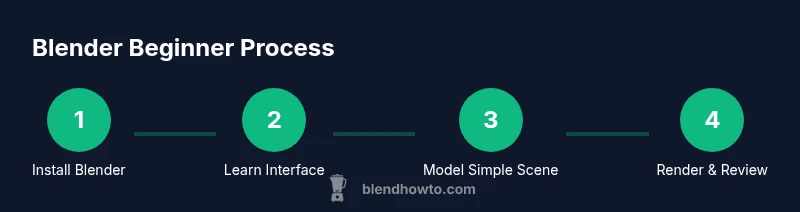
- Install Blender and set up a learning workspace
- Master the core panels: 3D Viewport, Outliner, Properties
- Model with primitives and simple modifiers
- Apply basic materials and lighting for realistic previews
- Render early and often to guide improvements