Blender and After Effects: Integrated 3D Workflows
Learn practical workflows to bridge Blender and After Effects, including exporting from Blender, importing with Alembic/FBX, and compositing 3D elements for seamless motion graphics.


Learn how to blend Blender and After Effects for seamless 3D workflows. This quick guide covers exporting from Blender, importing to After Effects via Alembic/FBX, setting up camera motion, and using Cineware or Blender Live Link-style pipelines. You’ll learn practical tips for motion tracking, compositing, and rendering passes that keep your Blender after effects projects efficient and visually cohesive.
Why Blender and After Effects Work Well Together
Home creators often pair Blender's real-time viewport and robust modeling/animation tools with After Effects' compositing, color grading, and motion graphics capabilities. According to BlendHowTo, the two tools complement each other by letting you generate high-fidelity 3D assets in Blender and then integrate them into complex composites in AE. This workflow shines for logo reveals, product visualizations, and short-form motion graphics where you need both believable 3D geometry and fast, flexible post-processing. In practice, you can model, texture, light, and animate in Blender, render passes to preserve control, and bring those passes into After Effects for color correction, depth of field, glows, and camera-based tracking. If you keep a clean folder structure and consistent naming, you’ll reduce friction when you re-import assets after updates. The BlendHowTo team has found that setting a clear hand-off protocol between the two apps saves hours on bigger projects.
Export options: Alembic, FBX, and Beyond
Blender offers multiple export formats; for animation and camera data, Alembic (.abc) is often the best choice because it transmits mesh, shading, and animation across frames as a sequence, preserving motion. FBX (.fbx) is another robust option for compatibility if you plan to manipulate assets inside AE or other software; it can export skeletons, meshes, and animations. For static assets or simple geometry, OBJ or image sequences (PNG/TEX) are viable. When choosing between Alembic and FBX, consider your scene complexity, the presence of modifiers, and how AE will ingest the data. The BlendHowTo analysis shows that Alembic tends to deliver fewer compatibility hiccups for complex scenes, especially with camera motion. If you’re working on a quick-turnaround project, exporting a PNG sequence of renders lets you composite overlays without worrying about scene graph translation.
Importing into After Effects: Cineware vs. Native Tools
After Effects doesn't read Blender's native .blend files; instead, import the intermediate formats. If you have Cinema 4D workflows, Cineware can be useful to drive a Blender-exported camera or geometry when used in a C4D pipeline; otherwise, you can bring in Alembic sequences or image sequences. In practice, create a new Composition in AE, import your .abc or .fbx; if you’re using a PNG sequence, place it as a 3D layer; then enable 3D for the layer and adjust parallax, lighting, and shadows in post. Some teams prefer to render passes from Blender (Diffuse, Specular, AO, Depth) and assemble in AE to keep control over color and light without re-rendering. The key is alignment: ensure the frame rate, resolution, and axis orientation match across apps. BlendHowTo recommends testing a short clip first to confirm that scale, timing, and camera angles align, avoiding lengthy rework.
Setting up Cameras and Motion in After Effects
One common challenge is matching Blender's 3D camera movement with AE's native layers. If you export camera animation through Alembic, you can approximate camera motion in AE or use a third-party tool to link Blender and AE camera rigs. A practical approach is to bake camera moves in Blender before export, then import as a sequence and offset in AE to align with the 2D composition. When you can't rely on direct camera data, you can simulate motion by tracking a 3D null object in AE that drives the Blender scene’s alignment. The goal is to maintain consistent perspective across elements, so check focal length, film back, and units. The BlendHowTo guidance emphasizes test renders at low resolution to validate parallax before final rendering.
Rendering Passes and Color Management
Render multiple passes from Blender: Diffuse, Specular, AO, Depth, Normal, and Shadow catches. Use a render engine that preserves shading details (Cycles or Eevee with appropriate passes). In AE, import passes as separate layers or channel maps and combine using blending modes and color corrections to achieve a cohesive final look. Maintain a linear workflow: use Blender’s Filmic color space and match AE’s color management settings to prevent lighting discrepancies. The ability to tweak individual passes in After Effects gives you flexibility without re-rendering from Blender, saving time on iterations.
Practical Workflows: From Scene to Composite
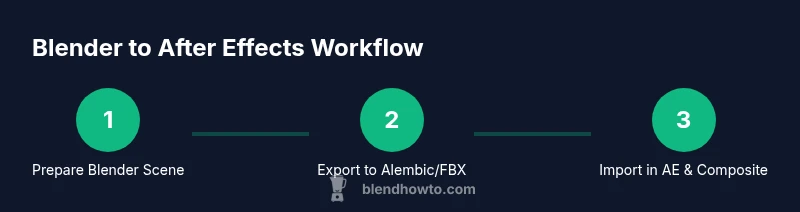
A typical Blender→After Effects workflow starts with a clean Blender scene: model, texture, light, and animate as needed. Bake any animations to ensure stability, then export to Alembic (.abc) or FBX (.fbx). In After Effects, create a new project and composition that matches Blender’s frame rate and resolution. Import the data sequence, place it in a 3D space, and integrate 2D elements, titles, and motion graphics. Use separate layers for passes (Diffuse, Matte, Depth) and color-grade them in AE. A final pass-through in After Effects allows you to control glow, motion blur, and depth effects before exporting the master. The BlendHowTo guide emphasizes keeping a consistent folder structure and naming convention to simplify updates if you tweak the Blender source later.
Common Pitfalls and Troubleshooting
Scale drift between Blender and AE is a frequent issue; ensure you apply Blender's scale and export with a consistent unit system. Frame-rate mismatch can cause stutter or speed changes; always align timeline settings before import. Color space differences between Blender’s linear workflow and AE’s sRGB can lead to washed-out or overly contrasty results; use a true linear workflow and correct color management in both apps. Large file sizes from high-resolution passes slow down AE; bake or render only the necessary passes and compress sequences where possible. Missing passes or incorrect layer order can derail composites—name passes clearly and verify with a quick test render before committing to a full sequence.
Quick-start Checklist
- Install and open Blender and After Effects with a consistent project plan.
- Prepare your Blender scene: clean naming, apply scales, bake animations if needed.
- Choose an export format (Alembic preferred for animation) and export; include camera data if possible.
- In After Effects, create a matching composition, import data, and set 3D layers for integrated elements.
- Render test sequences and adjust passes, lighting, and color management as needed.
- Iterate on timing, camera alignment, and color grading until satisfied.
Tools & Materials
- Blender (latest stable release)(Ensure compatibility with Alembic export (ABC) and multi-pass renders.)
- Adobe After Effects (CC or newer)(Creative Cloud recommended; supports layered compositing and 3D workflows.)
- Alembic export (ABC) support in Blender(Best for animated data, geometry, and camera information.)
- FBX export(Useful fallback for simpler scenes or tool compatibility.)
- High-resolution storage and backup drive(Store sequences, passes, and project files to avoid data loss.)
- Calibrated display or color-managed monitor(Helps maintain consistent color across Blender and AE.)
Steps
Estimated time: 2-4 hours
- 1
Prepare and clean the Blender scene
Organize objects, apply transforms, and bake animations where necessary. Check that the scale and orientation match your intended real-world measurements to prevent surprises in AE.
Tip: Apply scale (Ctrl-A) and freeze modifiers to lock in geometry before export. - 2
Export animation data with Alembic or FBX
Choose Alembic for robust animation and camera data transfer; use FBX if you need broader compatibility. Enable baked animation and include camera data when available.
Tip: Enable to bake animation so Blender motion maps survive the transfer. - 3
Create After Effects project and composition
Set up a new project and composition that matches Blender’s frame rate, resolution, and color settings. Prepare placeholder layers for Blender passes (Diffuse, AO, Depth).
Tip: Lock frame rate and resolution to prevent drift during import. - 4
Import data into After Effects and position in 3D space
Import the sequence or Alembic/.fbx, place it in a 3D composition, and adjust the position, scale, and orientation to align with 2D elements or other footage.
Tip: Verify scale, pivot points, and axis orientation for accurate placement. - 5
Add lighting, shadows, and color grading in AE
Use AE’s lighting and color tools to blend the Blender assets with live footage or 2D elements. Render passes separately and composite using proper blend modes.
Tip: Label passes clearly and group related layers for easy tweaking. - 6
Render test, review, and optimize
Render a short test clip to check timing, alignment, and color. Tweak passes, timing, and effects, then re-render as needed before final delivery.
Tip: Start with a low-resolution render to quickly iterate.
Frequently Asked Questions
Can I import Blender files directly into After Effects?
No. After Effects does not read Blender’s native .blend files. Use intermediate formats like Alembic (.abc) or FBX (.fbx) and then import into AE for compositing.
After Effects can’t read Blender files directly—use Alembic or FBX as intermediates.
What export formats work best for Blender-after-effects pipelines?
Alembic is preferred for animated scenes because it preserves geometry and motion data; FBX is a solid alternative for compatibility. Image sequences are great for quick previews or when passes must be assembled in AE.
Alembic for animation, FBX for compatibility, or image sequences for quick previews.
Do I need Cineware to use Blender assets in AE?
Cineware is primarily for Cinema 4D workflows. Blender assets can be integrated via Alembic sequences or image sequences without Cineware, though some teams use Cineware for specific pipelines.
Cineware isn’t required for Blender assets, but can help in certain pipelines.
How can I keep color consistent across Blender and After Effects?
Adopt a linear workflow: use Blender’s Filmic color space, then match After Effects color management to avoid mismatched brightness or saturation across passes.
Keep color space consistent across both apps to maintain accurate colors.
How long does it take to set up a Blender-after-effects pipeline?
Time varies with scene complexity. A simple setup can be completed in a few hours, while complex scenes with many passes may require more time.
It varies a lot depending on the scene, from hours to longer for complex projects.
Watch Video
What to Remember
- Master Blender→AE workflow with careful export (Alembic/FBX)
- Match frame rate, resolution, and color spaces across apps
- Render and manage passes for flexible post-processing
- Plan camera and lighting to minimize rework in AE
- Label assets and passes clearly to streamline iterations