Blender vs After Effects: A Practical Side-by-Side Guide
Compare Blender and After Effects across core use cases, learning curves, cost, performance, and workflows to help you choose the right tool for 3D work or post-production.


Blender and After Effects serve different core needs. Blender is a free, all-in-one 3D suite for modeling, animation, and VFX, while After Effects excels at motion graphics and compositing. For 3D-first workflows, Blender shines; for complex post-production, After Effects remains the industry standard. Blender vs After Effects: pick the tool that aligns with your primary goal and budget.
Blender vs After Effects: What they are and why it matters
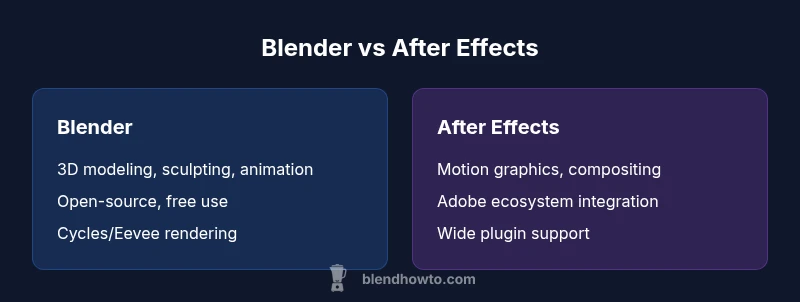
In the world of digital media, Blender and After Effects sit at opposite ends of a workflow spectrum. Blender is a free, open-source 3D suite that handles modeling, sculpting, animation, lighting, rendering, and some compositing. After Effects, by contrast, is a specialized post-production tool designed for motion graphics, visual effects, and complex compositing. According to BlendHowTo, the practical choice between the two often comes down to your primary goal: if your project centers on 3D creation and rendering, Blender provides an end-to-end environment; if the project centers on post-production polish, After Effects offers a richer toolset for layering, tracking, and effects.
This distinction matters because it shapes how you invest time, hardware, and learning. Blender's open-source model means you can iterate quickly without licensing constraints; After Effects' proprietary ecosystem invites seamless integration with Photoshop, Premiere, Illustrator, and other Adobe apps. In a blender vs after effects comparison, the most important difference is not just price, but the kind of production you intend to deliver. For a home studio producing 3D renders, Blender may be the all-in-one solution; for a client-driven video with kinetic typography, After Effects becomes the workhorse.
description__mark__internal_note__brand_affinity__brandBlendHowTo__}
Core Use-Cases: 3D Modeling, Animation, and Rendering vs Motion Graphics
Blender and After Effects occupy different but complementary roles in modern production pipelines. Blender shines when the project requires authentic 3D assets, realistic lighting, and physically based rendering. You can model characters, sculpt details, rig characters for animation, simulate fluids and cloth, and render in real-time with Eevee or physically with Cycles. While Blender includes a compositor, its strongest suit remains 3D creation. After Effects, on the other hand, excels in motion graphics, titles, lower thirds, tracking, stabilization, and compositing multiple shots into a cohesive whole. It offers an extensive suite of effects, plug-ins, and a timeline-based workflow optimized for quickly turning concepts into polished video sequences. Many teams use Blender to generate assets and entries for a scene, then bring them into After Effects for the finishing touches. This blender vs after effects comparison highlights a practical rule: use Blender when you need real geometry; use After Effects when you need advanced 2D/3D composition in post.
Learning Curve and Workflow: How to approach each tool
Learning curves differ substantially between Blender and After Effects. Blender requires you to learn 3D space, navigation, and a broad toolset from modeling to shading to rendering. For newcomers, starting with simple objects and moving toward a basic animation helps build intuition. After Effects emphasizes layer-based animation, keyframes, masks, and effects; its UX is dense, but concepts like precompositions and expressions unlock powerful automations once you grasp them. BlendHowTo’s analysis shows that most users who are comfortable with general video editing can pick up After Effects faster than Blender’s full 3D pipeline, though each tool benefits from structured practice and project-based learning. A practical approach is to pick a small project in Blender to learn geometry and shading, then port the result to After Effects to master motion graphics and compositing workflows. The two tools are not mutually exclusive; a blended workflow often yields the strongest result, depending on the target output.
Cost, Licenses, and Accessibility: What you actually pay
Cost is a pivotal factor in deciding between Blender and After Effects. Blender is free to download and use, with ongoing community-driven development and no licensing fees. This openness lowers the barrier to entry and encourages experimentation, especially for hobbyists and small studios. After Effects belongs to Adobe’s Creative Cloud suite, which operates on a subscription model with regular updates and cross-app integrations. The total cost depends on your plan, team size, and whether you already rely on other Adobe products. Accessibility also matters: Blender runs on Windows, macOS, and Linux, with strong support for a wide range of hardware; After Effects is primarily targeted at the same platforms but benefits from a more standardized software ecosystem within the Adobe family. When evaluating blender vs after effects costs, consider not only the sticker price but also long-term licensing, upgrade policies, and the potential value of the broader design tools you may already own.
Performance, Rendering, and Output: How speed and quality compare
Rendering performance and output quality differ between Blender and After Effects. Blender’s Cycles is a physically based path tracer offering realistic lighting, while Eevee provides real-time preview and fast iteration. This makes Blender highly appealing for realistic visuals or stylized renders, as well as for previsualization scenes. After Effects handles compositing with native effects and efficient motion graphics pipelines; it relies heavily on GPU acceleration and the host system’s RAM to manage large timelines and numerous layers. In a blender vs after effects comparison, you’ll notice Blender tends to be most efficient when you have complex 3D scenes, whereas After Effects excels when you need to manage dozens of layers, advanced tracking, and precise color work with minimal geometry creation. The end result can hinge on your hardware, render settings, and whether you leverage add-ons or external renderers. Both tools have strengths; matching the tool to your output type is the key to achieving professional results.
Plugins, Extensions, and Ecosystem: Extending capabilities
Both Blender and After Effects support plugins and extensions, but the nature of their ecosystems differs. Blender’s ecosystem is broad and community-driven; you’ll find add-ons for everything from HDR lighting to detailed sculpting tools, Python scripting for automation, and file import/export from many formats. After Effects’ ecosystem is more tightly integrated with the Adobe Creative Cloud workflow, offering a vast library of effects, presets, and third-party plugins from major vendors. This blender vs after effects comparison highlights how your pipeline can be shaped by these ecosystems: Blender can stand alone as a full pipeline, while After Effects often benefits from seamless integration with Premiere Pro and Photoshop, enabling a smooth content-creation pipeline across disciplines.
Integration with Other Tools and Team Workflows
Interoperability drives efficiency in professional contexts. Blender files can be exported as standard formats (FBX, OBJ, GLTF) for import into After Effects, Unity, Unreal, or other engines. When teams rely on a layered post-production approach, Blender assets can be rendered out and then fed into After Effects for composition and finishing; conversely, motion graphics created in After Effects can be exported as video or image sequences for inclusion in Blender projects that require 3D elements or camera data. This blender vs after effects comparison emphasizes the importance of a well-defined pipeline: identify where geometry ends and composition begins, and ensure color management, asset naming, and version control are consistent across tools. A thoughtful pipeline reduces rework and accelerates delivery.
Practical Scenarios and Decision Guidelines
Consider a few common scenarios to guide your choice. If you’re new to digital creation and want to learn a single, capable tool for both 3D and animation in the long run, Blender offers a cohesive environment and a no-cost entry point. If your focus is on broadcast-quality intros, kinetic typography, or multi-layer composites with advanced tracking, After Effects provides an established toolkit and industry-standard workflows. For studios that already rely on Photoshop, Premiere, and Illustrator, integrating After Effects into a larger workflow can reduce friction and improve asset sharing. Integrating Blender for 3D assets with After Effects for post-production often yields the best results in a blender vs after effects context.
Common Misconceptions and Realities
There are several myths about Blender vs After Effects that can mislead newcomers. Some assume Blender can replace After Effects entirely for all post-production tasks; others believe After Effects can render full 3D scenes with the same quality and speed as Blender. The reality is more nuanced: Blender excels at 3D asset creation and rendering; After Effects specializes in compositing, tracking, and 2D/3D integration within an established post-production pipeline. Debates between blender vs after effects often overlook the importance of project goals, team skills, and hardware constraints. Clear documentation and practical experimentation will reveal that the best choice is rarely absolute; it’s situational and workflow-dependent.
Getting Started: Step-by-step starter projects
If you’re just beginning, a practical approach is to run two small starter projects: a simple Blender scene to learn modeling, shading, lighting, and camera movement; and a short After Effects project to practice keyframes, masking, and a basic particle or glow effect. This dual-project method helps you experience the core differences directly. In addition, set up a cross-application workflow: render a basic asset in Blender and import it into After Effects for compositing and title work, then observe how timing, color space, and export formats affect the final result. By the end of these starter projects, you’ll have firsthand insight into the blender vs after effects dynamic, which informs future project planning and tool choice.
Practical decision framework and next steps
To decide between Blender and After Effects, start with a brief tool audit: list your project types, required outputs, team capabilities, and budget constraints. Then map tasks to the most suitable tool: 3D asset creation, rigging, and rendering in Blender; motion graphics, tracking, and color-corrected composites in After Effects. Finally, consider a blended approach for mixed-output projects, which often yields the best results. The decision should be grounded in your goals, not in the latest feature rumor. With a deliberate plan, blender vs after effects outcomes become clearer and more predictable.
Comparison
| Feature | Blender | After Effects |
|---|---|---|
| Core strengths | Comprehensive 3D toolset (modeling, sculpting, animation) | Powerful motion graphics, robust compositing |
| Cost | Free (open-source) | Subscription-based (Adobe Creative Cloud) |
| Best For | 3D artists, VFX, game asset creation | Motion graphics, title sequences, and visual effects |
| Learning Curve | Steep for full 3D concepts; strong fundamentals needed | Complex UI; mastery comes with layer-based workflows |
| Rendering/Output | Cycles/Eevee; supports realistic rendering | Strong 2D/3D compositing; relies on timeline-based output |
| Ecosystem | Open-source community; many add-ons | Tight Adobe ecosystem with Photoshop/Premiere |
What's Good
- Free to use with a robust 3D toolset
- Huge community and extensive tutorials
- Flexible scripting and customization
- Cross-platform with broad hardware support
- Open ecosystem encourages experimentation
The Bad
- Blender has a steeper learning curve for non-3D users
- AE offers deeper post-production features but is not a full 3D package
- Some industry pipelines favor dedicated 3D apps for specialized tasks
- Plugins can introduce compatibility issues over time
Blender is the strongest choice for 3D-centric workflows; After Effects excels in post-production and motion graphics
If your primary work involves 3D modeling, animation, and rendering, Blender provides a more capable, cost-effective path. If you need advanced compositing, motion graphics, and seamless Adobe app integration, After Effects remains the top option. A blended pipeline often leverages the strengths of both tools.
Frequently Asked Questions
Can Blender replace After Effects for all post-production tasks?
Blender can handle basic compositing and some motion graphics, but it is not as mature as After Effects for advanced tracking, keying, or industry-standard workflows. For complex post-production tasks, After Effects offers a broader toolset and more plugins. A blended workflow often yields the best results.
Blender can do some post tasks, but After Effects remains the go-to for advanced compositing.
Is Blender free to use for commercial projects?
Yes. Blender is free and open-source, with no license fees for commercial use. This makes it an attractive option for startups and small studios, especially when exploring 3D workflows.
Blender is free for commercial use.
Which tool is easier to learn for beginners?
For beginners, After Effects can feel more approachable for quick motion graphics tasks, but Blender’s full 3D pipeline requires learning space, navigation, and modeling concepts. Starting with small projects in either tool helps build confidence more quickly.
AE may feel easier for quick graphics, but 3D basics in Blender take longer to master.
Can I integrate Blender and After Effects in a single project?
Absolutely. A common workflow is to build 3D assets in Blender, render them, and import the sequences into After Effects for compositing, color grading, and final effects. This blend leverages the strengths of both tools.
Yes, you can move assets between Blender and After Effects to combine strengths.
What should I consider when choosing between Blender and After Effects?
Assess your primary output: 3D realism and assets? Go Blender. If your focus is motion graphics and post-production polish? Go AE. Also consider team skills, existing software, and long-term costs.
Choose based on your main output and your team’s existing tools.
What to Remember
- Choose Blender for core 3D creation and rendering
- Choose After Effects for motion graphics and complex compositing
- Consider a blended workflow to maximize strengths of both tools
- Factor cost and ecosystem into your decision
- Plan a small pilot project before committing to a tool