How to Import a Model in Blender: A Practical Guide
Learn how to import models into Blender with a clear, practical workflow. Covers OBJ, FBX, GLTF, STL, and more, plus scaling, textures, and material cleanup for smooth editing.


Importing a model into Blender is straightforward: choose File > Import, pick the right format (OBJ, FBX, GLTF/GLB, STL), and adjust import options as needed. After importing, verify scale, rotation, and materials, then apply transforms and save your project. This quick guide shows you exactly how to import a model in Blender and get it ready for editing.
Why Importing a Model into Blender Matters for Your Projects
Understanding the process of how to import a model in blender unlocks a world of possibilities for your 3D scenes. When you bring external geometry into Blender, you save time, preserve design intent from original creators, and create seamless integrations with your existing assets. The BlendHowTo team emphasizes a repeatable workflow so you can import models with confidence, whether you’re building a product mockup, a character scene, or a stylized environment. In this section, we explore why a well-executed import matters, what to expect from common formats, and how a consistent approach reduces frustration later in the project. By treating the import as a defined step—check geometry, check scale, verify textures—you’ll spend more time refining your scene and less time chasing missing assets. According to BlendHowTo, establishing a reliable import routine helps avoid surprises when you adjust lighting, rigs, or materials later on.
Supported Import Formats and When to Use Them
Blender supports a wide range of file formats for imports. The most common choices are OBJ for clean geometry, FBX for more complex meshes and animations, and GLTF/GLB for modern PBR textures and embedded materials. STL is a staple for 3D printing workflows, while PLY and 3DS remain useful for legacy assets. When you’re asking how to import a model in blender for a realistic render, GLTF/GLB often provides the best balance of geometry, textures, and shading. OBJ is excellent for static meshes with simple textures, and FBX shines for assets that include animation data. Always consider the source of the model, the level of texture fidelity you need, and whether you require skinning, rigging, or animation support. BlendHowTo analysis confirms that choosing the right format at import saves time during later shading and lighting work.
Preparing the Source Model for Import
Before you import, do a quick prep pass on the source model to minimize post-import cleanup. If you can, apply transforms in the source software so the model exports with a stable scale and orientation. Name obvious parts (doors, panels, limbs) and remove stray vertices or hidden geometry. If you know the target project’s unit scale, set that in the exporter (for example, meters vs centimeters) so Blender imports with the intended size. Also, check texture paths and ensure textures are embedded in GLTF/GLB when possible to improve compatibility. Following these steps helps reduce surprises in Blender and keeps you moving toward the editing and rendering phases.
Import Process in Blender: Step-by-Step Visuals
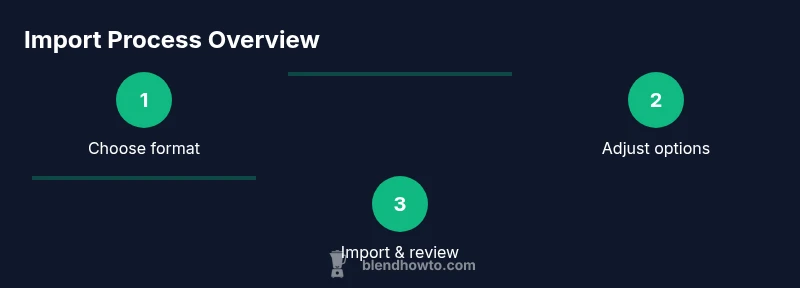
In Blender, import is a precise, repeatable action. Start with File > Import and choose the correct format from OBJ, FBX, GLTF/GLB, or STL. Locate your file, review the import options (such as axis orientation, scale, and materials), then click Import. After the model appears in your scene, inspect for any geometry issues, off-axis orientation, or missing textures. Depending on the asset, you may need to toggle Import Normals or Apply Transform to reset scale and rotation. These steps set a reliable foundation for further work, including texture tweaking and material setup. For best results, keep a consistent import profile across projects and asset packs. BlendHowTo recommends testing with a small sample file before loading a large, complex model.
Handling Materials and Textures After Import
Textures often require extra attention after import, especially if they reference external image files. Check the material nodes in the Shader Editor and verify texture paths. If textures fail to load, relink the image textures or re-import using GLTF/GLB, which tends to embed textures more reliably. You may need to reassign materials to correct objects or split multi-material meshes for clean shading. In some cases, exporting a version with embedded textures from the source app simplifies Blender’s material workflow. Keeping a tidy material setup during import helps you animate, render, or modify lighting without chasing missing textures.
Adjusting Scale, Orientation, and Units
Import scale is a frequent source of trouble. Blender’s default unit is Blender Units, which often correspond to meters in real projects but can differ. After import, measure with the Ruler tool and compare to your scene’s scale. If the model is too big or too small, adjust the scale in the Import options or apply scale with Ctrl-A > Scale inside object mode. For orientation, many software packages export with Z-up or Y-up; in Blender you may need to rotate the model by 90 degrees around X or Y to align it with your scene. Consistently verifying scale and orientation during import prevents cascading adjustments later in UVs, textures, and lighting.
Common Import Issues and Solutions
Two frequent issues are missing textures and unexpected geometry. For missing textures, relink image textures in the Shader Editor or re-export with embedded textures. For geometry problems, enable option to merge by distance during import or manually clean up duplicate vertices in Edit Mode. If lighting looks off after import, check normals and double-sided shading. Another common issue is collapsed scale after import; always apply transforms and verify dimensions against your reference. By anticipating these problems and having a standard checklist, you’ll reduce debugging time and keep your project moving forward smoothly.
Saving, Versions, and Best Practices
As soon as you’re satisfied with the import, save a dedicated version of your Blender file to preserve the original asset and its import state. Use meaningful file names and version numbers so you can backtrack if needed. Maintain a consistent import protocol across your projects: note the source, format, export settings, and any post-import tweaks. Document any texture relinks or material rearrangements so teammates can reproduce the same setup. Finally, when handing off to others, consider packaging assets with relative paths or embedding textures where appropriate to avoid missing data in different workspaces. Following these practices saves time and prevents rework down the line.
Next Steps: Lighting, Materials, and Rendering
Once the model is imported and cleaned, you can plan the rest of your scene. Set up lighting to highlight geometry and textures—consider a three-point lighting arrangement for realism or an HDRI for quick environment illumination. Refine materials in the Shader Editor: adjust roughness, metalness, and ambient occlusion to achieve the desired look. Create a simple render test to verify how the model interacts with lighting and scene depth. As you iterate, consider creating a small library of frequently used import profiles and keeping sample assets handy for testing geometry, scale, and texture fidelity.
Tools & Materials
- Blender software(Latest stable release; ensure it supports GLTF/GLB and OBJ formats)
- Source 3D model file(Choose OBJ, FBX, GLTF/GLB, or STL depending on your use case)
- Texturing assets(Embedded textures if possible; otherwise ensure texture paths are correct)
- File converter (optional)(Some formats may require conversion before import)
- Ruler/measurement tool (Blender built-in)(Use for quick scale checks in Blender)
Steps
Estimated time: 15-25 minutes
- 1
Prepare the source model and workspace
Review the source model for clean geometry, apply transforms if possible, and note the export settings you will use. Align the model’s scale with your target scene so Blender imports at a predictable size. Open a new Blender project to prevent accidental changes to your existing work.
Tip: If you can, export with embedded textures to minimize texture relinking after import. - 2
Launch Blender and set up a clean scene
Start Blender with a fresh scene and reset the world settings. Create a simple camera and lighting setup to preview the imported model. This baseline helps you evaluate scale and shading without distraction.
Tip: Save a baseline copy of the clean scene before importing any assets. - 3
Import the model via the File menu
Go to File > Import and select the appropriate format (OBJ, FBX, GLTF/GLB, or STL). Locate your file, review the import options (axis, scale, materials), and then click Import. Inspect the model in the viewport after it appears.
Tip: If you don’t see the model, switch to Wireframe or use the Outliner to verify visibility. - 4
Adjust import settings for best results
Tweak axis alignment, scale, and material import options. Enable or disable textures as needed and check for animation data if present. Apply transforms if necessary to normalize the object's size and orientation.
Tip: For complex assets, import in a sub-selection and test the result before importing the entire model. - 5
Check scale, orientation, and textures
Use the Ruler/Measure tool to verify the model's dimensions relative to your scene. If the orientation is wrong, rotate by 90 degrees on the appropriate axis. Inspect textures in the Material/Shader Editor and relink any missing textures.
Tip: Consider applying rotation (Ctrl-A > Rotation) after aligning to the scene to lock the orientation. - 6
Finalize and save your import state
Once the model looks correct, apply the transforms if needed and save your Blender file with a descriptive version name. Create a short documentation note on the import settings for future reference.
Tip: Keep a separate folder with exported reference files to simplify re-imports later.
Frequently Asked Questions
What formats can I import into Blender?
Blender supports OBJ, FBX, GLTF/GLB, STL, and several other formats. OBJ and FBX are common for static meshes and animations, while GLTF/GLB is great for textures and PBR shading. Choose the format that best preserves geometry and textures for your project.
Blender can import OBJ, FBX, GLTF, STL, and more. GLTF/GLB is a strong choice for textures, while OBJ is reliable for static meshes.
Scale after import
If the imported model doesn't match your scene scale, adjust the scale in the Import settings or apply a global scale after import. Use the Measure tool to verify dimensions and align with your project’s units.
If the size is off, adjust the scale in the import options or apply scale after importing, then verify with a measurement.
Textures import?
Textures can import with the model or require relinking in the Shader Editor. GLTF/GLB tends to embed textures, while OBJ/FBX may rely on external image files. Always test texture visibility after import.
Textures may come in with GLTF, but with OBJ or FBX you might need to relink textures in Blender.
Multiple model import?
Blender allows importing multiple models one at a time or via a batch script. For large asset packs, import in smaller batches to diagnose issues incrementally and keep the scene manageable.
You can import models one by one or in small batches to manage imports and catch problems early.
Lighting changed after import?
Imported models can alter scene lighting due to materials and shading. Reconcile with your lighting setup by adjusting HDRIs, lights, and shading values to achieve the intended look.
Importing can affect how lighting looks; tweak lights and shading to restore your intended mood.
Import fails?
If an import fails, check compatibility of the file, ensure the correct format is selected, and verify the path to textures. Sometimes re-exporting from the source app or using a different format resolves the issue.
If you hit a wall, check the file format, paths, and try re-exporting or using another compatible format.
Watch Video
What to Remember
- Know the best import formats for your asset type.
- Always verify scale and orientation after import.
- Embeddings textures simplify texture management.
- Apply transforms only after you confirm correct alignment.
- Document your import settings for future projects.