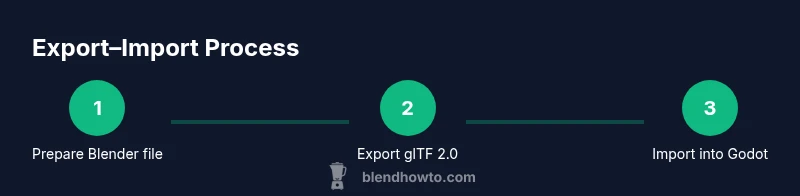
Put Blender Models into Godot: A Practical Guide
Learn how to export Blender models to Godot using glTF, adjust scale and textures, and import assets with a reliable workflow. This guide covers prep, export settings, import options, and troubleshooting to ensure smooth Blender-to-Godot integration.


You’ll learn how to export Blender models to Godot using glTF, apply proper scale, textures, and animations, and import them into Godot with a clean scene. This guide covers prep steps, export settings, import options, and basic troubleshooting to ensure reliable results. Whether you’re building a prop or a character, these steps minimize common issues.
Why the Blender-to-Godot workflow matters
Successful integration of Blender models into Godot hinges on keeping data intact through export and import stages. Mastering how to put blender models into godot means aligning units, preserving vertex normals, and ensuring textures travel with the mesh. When you standardize on glTF 2.0, you gain a portable, compact format that Godot reads efficiently and Blender exports reliably. The goal is to minimize surprises: objects arrive at runtime with correct scale, intact UVs, and faithful materials. A clear workflow also makes collaboration easier, since teammates can share a single interchange format without bespoke pipelines. This section introduces the core considerations and flags typical trouble spots to watch for early in the project.
Preparing Blender files for export
Before exporting, prepare Blender models to travel cleanly into Godot. Switch Blender to Metric units (1 Blender unit ≈ 1 meter) and apply a scale of 1.0 so the import in Godot matches your intended size. Apply all modifiers (such as Mirror, Subdivision) to guarantee the geometry Godot sees is final. Apply rotation and location for predictable orientation, and reset the transform on every object to zero if needed. Name objects clearly and avoid overly long hierarchies that will complicate the import. Finally, check that textures are saved somewhere Blender can access, and consider packaging external textures with the GLB if you plan to ship assets without a separate texture bundle.
Exporting to glTF from Blender
Exporting to glTF 2.0 is the most reliable path for Godot interoperability. Choose File → Export → glTF 2.0 (.glb) to create a binary file that bundles textures and data. Set 'Format' to Binary (.glb) to ensure a single-file asset Godot can import without chasing external textures. Enable 'Transform' → 'Apply Unit' and 'Apply Modifiers' so the mesh arrives with correct size and geometry. If your model includes animations, enable 'Animation'. Decide whether to embed textures (GLB) or link externally (glTF) based on your project packaging. For team workflows, embedding textures often reduces import-time issues.
Importing the glTF into Godot
In Godot, place the .glb file into your project directory or an appropriate subfolder, then select it in the Godot FileSystem to inspect Import settings. Enable 'Animation' import if your Blender file carries armature-driven motion, and set the material import to a compatible shader path (e.g., StandardMaterial3D in Godot 4). After adjusting these options, click 'Reimport' to apply changes. Verify the node hierarchy mirrors Blender’s structure and that the mesh scales correctly in the scene. A clean import is the foundation for reliable visuals and animation.
Configuring materials and textures in Godot
GlTF textures often carry over as embedded data, but you may need to tweak materials after import. In Godot, switch to the StandardMaterial3D (or the appropriate PBR shader) and assign Base Color, Metallic, and Roughness maps as needed. If textures didn’t import, rebind the textures in the material slots or re-export with embedded textures. Check normal maps and emissive textures, adjusting their strength to taste. For complex materials, consider simplifying to PBR-friendly values to ensure consistent appearance across platforms.
Animations, rigging and skinning
If your Blender model has an armature, Godot will import the animation data embedded in the GLB. Inspect the imported skeleton in the scene tree and ensure the animations appear in the AnimationPlayer (Godot 4 uses the new AnimationTree workflow in many cases). Test playing the animation in the viewport and in the runtime to confirm bone weights and keyframes transfer correctly. If issues arise, re-export after verifying bone names and parent-child relationships in Blender, as mismatches often cause glitches in Godot.
Troubleshooting common issues
If textures are missing after import, re-export with textures embedded (.glb) or verify texture paths and pack textures in a single directory. If the model is too large or too small, adjust the import scale or apply a final scale factor in Godot. Pink/murple shading usually means a shader or normal map issue; verify the shader model and rebind maps. Animation import problems often come from non-uniform bone naming or incompatible export options; ensure animations are included during export and that bones aren’t renamed after export.
Quick validation checklist
- The import scale matches your Blender scene.
- Textures render correctly on all materials.
- Animations play at the expected speed.
- The object hierarchy reflects Blender’s structure.
- There are no missing meshes or stray modifiers after import.
Tools & Materials
- Blender (latest stable release)(Use the built-in glTF 2.0 exporter; ensure modifiers are applied.)
- Godot Engine (latest stable)(Supports glTF 2.0; verify import settings before test.)
- glTF 2.0 exporter(Integrated in Blender; use .glb for single-file assets.)
- Texture images (optional but recommended)(If embedding textures, ensure paths are consistent or use embedded textures in GLB.)
- Project folder for Godot(Keep assets organized in a dedicated subdirectory.)
- RAM and storage(Large assets benefit from ample RAM during export/import.)
Steps
Estimated time: 60-120 minutes
- 1
Prepare Blender model
Open your Blender file and review the model for export. Ensure the origin is logical, apply any necessary modifiers, and rename objects for clarity. This minimizes confusion once imported into Godot.
Tip: Use consistent naming conventions and avoid nested empty objects that complicate the import. - 2
Set units and transforms
Switch to Metric units and set a 1.0 unit scale. Apply rotation and scale to all objects to prevent surprises in Godot’s scene. Center the pivot points for predictable animation and placement.
Tip: Apply scale last to avoid altering the mesh topology. - 3
Apply modifiers
Apply modifiers such as Mirror or Subdivision to guarantee the final geometry is exported. Review edge loops and normals to ensure clean shading in Godot.
Tip: Only apply necessary modifiers to reduce export time and file size. - 4
Export to glTF 2.0
Export as .glb (Binary) for a single-file asset. Enable Transform → Apply Unit and Modifiers, and include Animations if present. Choose 'Selected Objects' if exporting a subset.
Tip: Embed textures when possible to avoid path issues in Godot. - 5
Move file to Godot project
Copy the .glb file into your Godot project directory. Refresh Godot’s FileSystem to recognize the new asset.
Tip: Keep a consistent directory structure (models/, textures/). - 6
Import and adjust options
In Godot, reimport the asset and review Import settings. Ensure Animation is enabled and switch to a compatible material shader if needed.
Tip: If materials fail, try re-exporting with embedded textures. - 7
Configure materials and textures
Assign or adjust materials within Godot. Link Base Color, Metallic, and Roughness maps to match Blender’s appearance. Test under lighting conditions similar to your scene.
Tip: Consider using StandardMaterial3D for predictable results across devices. - 8
Test animations and finalize
Play animations in the editor and in runtime. Check bone weights and interpolation. Make final tweaks to scale, pivot, and texture settings as needed.
Tip: Always run a quick runtime test to catch runtime-only issues.
Frequently Asked Questions
What is the best export format for Godot when moving Blender models?
GLB (glTF 2.0 Binary) is generally the most reliable format for Godot, as it bundles meshes, textures, and animations into a single file.
The best format is GLB, because it packs everything you need into one file, simplifying Godot import.
Why are textures missing after import?
Ensure textures are embedded in the GLB or that texture paths are accessible by Godot. Re-export with textures embedded if needed and reimport.
Textures missing usually means they weren't embedded or paths couldn't be resolved; re-export with embedded textures.
How do I handle animations from Blender in Godot?
Export animations from Blender by enabling the Animation option during glTF export; in Godot, verify the AnimationPlayer or AnimationTree is receiving keyframes.
Enable animations on export and check the AnimationPlayer in Godot to ensure keyframes are present.
Can I optimize assets for mobile devices?
Yes. Use compact textures, lower polygon counts, and simplify materials. Consider baking details into normal maps where appropriate.
You can optimize by lowering texture resolution and geometry and by baking details into maps.
Do I need to apply transforms before exporting?
Yes. Apply transforms and rotations to avoid mismatches in Godot, then export with Apply Unit enabled.
Apply transforms before export to ensure the scene in Godot matches your Blender setup.
What should I do if the import scale is off?
Adjust the import scale in Godot or reset Blender units to match Godot’s unit system, then reimport the asset.
If scale is off, adjust the import scale in Godot or Blender and reimport.
Is it okay to export multiple objects together?
Yes, you can export multiple objects, but group and name them clearly to keep the hierarchy manageable upon import.
You can export several objects, just keep the names clear so Godot's scene stays organized.
Watch Video
What to Remember
- Export to GLB for reliability
- Match Blender scale to Godot units
- Verify textures and materials after import
- Test animations in runtime to catch drift