How to Put Blender Models into GMod: A Step-by-Step Guide
Learn a reliable workflow to import Blender-created models into Garry's Mod using Blender Source Tools, QC files, and MDL compilation. Includes prerequisites, step-by-step export, testing tips, and common pitfalls.


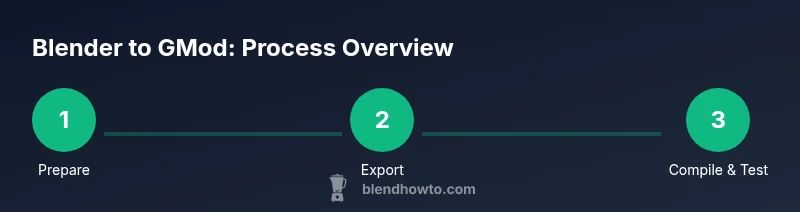
Export your Blender model as SMD/DMX using Blender Source Tools, write a QC file, compile to MDL with StudioMDL, and place the resulting files into garrysmod/models. This workflow ensures correct scale, origin, textures, and collision, so your Blender creations work smoothly in Garry's Mod. Plan for texture paths, verify bone weights, and test in-game early to catch issues like missing textures or misaligned pivots.
Understanding the Blender-to-GMod workflow
The process to put Blender models into Garry's Mod follows a pipeline that converts your Blender geometry into a Source-engine-friendly format. The core idea is to export from Blender to the Source MDL workflow (SMD/DMX), compile a usable MDL, and install it into garrysmod/models so you can spawn it in-game. The key decisions are file formats, texture handling, and correctly setting the model origin. When you learn how to put blender models into gmod, you gain a repeatable method: model in Blender, export to SMD/DMX, assemble a QC, compile to MDL, and load in GMod. You can reuse this approach for props, NPCs, or playermodels as long as you respect scale and bone rigging. A successful import relies on consistent scale between Blender (world units) and the Source engine (units), precise pivots, and clean texture paths. If you’re new to this, start with a simple cube or low-poly mesh to confirm the pipeline works before moving to more complex characters, vehicles, or builds. As you work, keep notes on file locations and naming conventions to speed up future imports. This section lays out the conceptual flow you’ll use repeatedly.
Prerequisites and compatibility notes
Before you start, verify that your setup supports the pipeline. Garry's Mod runs on the Source engine, which expects MDL assets compiled from QC descriptions and SMD/DMX meshes. Blender must have the Blender Source Tools plugin installed to export to SMD/DMX. Your Blender model should use a clean UV map, proper pivot/origin, and a simple rig if you plan to animate. Textures should be in VTF format and referenced via VMT materials; you won’t get away with flat textures. The model’s scale should map to Source units; a good starting point is to work with a unit scale where 1 Blender unit roughly equals 1 Source unit. If you already have an MDL from another project, you can compare its vertex counts and bone hierarchy to your import. Finally, ensure you have a working QC file editor and access to a QC compiler such as StudioMDL or Crowbar for the final step.
Preparing Blender models for export
Start by applying all transforms: select the model and apply Location, Rotation, and Scale. This ensures the exported SMD/DMX uses a stable origin and predictable geometry. Reset the rotation so the model faces the correct forward direction in Source. Clean up modifiers and unsupported polygons; remove anything that would complicate the export, like subdivision modifiers unless baked. Check the mesh for non-manifold edges, and fix them to avoid export errors. If you’re importing multiple parts (body, head, accessories), join or keep separate objects with clear naming conventions. Create a simple texture map for the test model and keep all textures in a single folder. Finally, exit Blender with a known project path and prepare the BST export path so you can locate the generated SMD/DMX files quickly. This preparation reduces debugging time later in the pipeline.
Exporting to SMD/DMX with Blender Source Tools
Install the BST plugin and enable the SMD/DMX export option. In Blender, select your mesh or armature, then use the BST export command to generate an .smd or .dmx file for each part (mesh, rig, and animations if applicable). Choose an output folder that mirrors your future Garry’s Mod project structure (models/yourmod). If your model uses textures, generate a separate texture manifest or ensure your QC file points to the correct texture paths. Keep bone names consistent with Source conventions to minimize re-targeting in StudioMDL. After export, inspect the SMD/DMX files for obvious errors, such as missing bones or incorrect weights. If you plan to animate, you’ll need to export animation frames as separate SMDs and reference them in QC. This step is where many imports fail, so take a moment to verify the geometry and rigging.
Writing and configuring the QC file for GMod
The QC file is the blueprint that compiles SMD/DMX data into MDL for Garry's Mod. Create a plain text QC file in your preferred editor and reference the mesh and animation SMD/DMX files you exported. Define the QC file’s $modelname as the intended in-game path under garrysmod/models. Include the $body, $sequence, and $pose parameters if you’re including animations; otherwise, you can skip them. Point the texture paths in the QC to your VMT/VTF assets and ensure the textures exist in the correct folder. The QC must also specify the correct bone hierarchy and collision model if you want accurate physics. If your model uses multiple materials, create $texture for each material, or rely on a bulk texture directory. Validate the QC syntax by running a quick parse test or using a QC helper tool. A well-structured QC reduces troubleshooting time during compilation and in-game testing.
Compiling, testing, and debugging in Garry's Mod
With a QC file ready, run StudioMDL or Crowbar to compile the MDL from the QC and SMD/DMX. Place the resulting MDL, VVD, and VTX files into garrysmod/models/yourmod, and copy textures into garrysmod/materials/yourmod. Launch Garry’s Mod, enable developer content if needed, and attempt to spawn your model in a clean map. If the model appears in the wrong location or scale, re-check your origin, model scale, and collision mesh. Missing textures typically indicate incorrect VMT paths or missing VTF files; fix the paths or re-export textures. If animation looks off, verify your bones, proper weight painting, and reference to the correct animation SMDs in QC. For playermodels, ensure you have a proper view model, hands, and additional rigs. Iterate on the QC and recompile until the asset loads cleanly. Testing in-game prevents surprises and helps you verify that everything behaves as intended in the engine.
Common pitfalls and quality checks
To save time, run through a quick checklist: confirm scale mapping between Blender and Source, confirm origin at the model’s feet or root bone, verify texture paths and VMT texture settings, and ensure a collision model exists if needed. Pay attention to the naming conventions for bones, meshes, and materials; inconsistent names require manual patching in QC. Avoid over-complicating your model with too many materials; consolidate textures where possible. If your model crashes or refuses to load, it’s often due to mismatched bone counts or a missing collision model. Keep a simple proxy for testing before committing to a full rig. Finally, document every path and folder in your project so future imports can reuse the same structure and avoid reconfiguring every asset.
Tools & Materials
- Blender(Use a recent stable release and apply Location/Rotation/Scale before exporting.)
- Blender Source Tools (BST) plugin(Install to export to SMD/DMX from Blender.)
- Garry's Mod installed(Have the game installed to test assets in-game.)
- StudioMDL or Crowbar(Compiler to turn QC+SMD/DMX into MDL for Garry's Mod.)
- QC file editor(A simple text editor is sufficient for QC syntax.)
- Textures (VTF/VMT)(Keep textures organized in a textures/yourmod folder and reference correctly in QC.)
- Reference folder structure plan(Optional but helpful to speed future imports.)
Steps
Estimated time: 2-6 hours depending on model complexity and previous setup
- 1
Prepare Blender model
Apply transforms (Location, Rotation, Scale) and set the correct front-facing direction. Clean up modifiers, ensure clean UVs, and name parts clearly. This ensures a predictable export and a smooth start for QC and MDL compilation.
Tip: Document the origin and scale decisions you make for future assets. - 2
Export to SMD/DMX with BST
Export the model’s mesh and rig to SMD/DMX. Use an output folder that mirrors garrysmod/models/yourmod for easy organization. Verify bone names align with Source conventions.
Tip: Export a minimal test rig first to confirm basic export works. - 3
Create the QC file
Write a QC that points to your SMD/DMX files, sets the model name path, and links all textures. Include basic body data and, if applicable, sequences for animations. Keep a clean texture mapping.
Tip: Use a template QC to reduce syntax errors. - 4
Compile to MDL
Run StudioMDL or Crowbar to compile MDL/VVD/VTX from the QC. Ensure no errors are reported in the console, and adjust the QC if something fails.
Tip: If compilation fails, check for texture or bone-name mismatches first. - 5
Install in Garry's Mod
Copy MDL/VVD/VTX files to garrysmod/models/yourmod and textures to garrysmod/materials/yourmod. Launch GMod and test in a clean map.
Tip: Spawn with a spawn tool to confirm origin and scale before a public release. - 6
Test and iterate
Observe loading; fix missing textures, pivot misalignment, or physics issues. Re-export, re-compile, and re-test until it behaves correctly.
Tip: Keep a log of fixes to reuse in future imports.
Frequently Asked Questions
Can I import Blender models directly into Garry's Mod without QC?
No. Garry's Mod requires MDL assets compiled from QC and SMD/DMX data. You must export from Blender to SMD/DMX, write a QC file, then compile to MDL.
No. Garry's Mod uses MDL assets created from QC and SMD data, so you need to compile with a QC file.
Do I need to rig models for Source before importing?
If you plan to animate the model in Garry's Mod, you should rig and export animation SMDs. For static props, a simple rig or none may suffice, but bone naming consistency helps.
If you want animations, rig the model and export animation data; for props, a static mesh may be enough.
What should I do if textures are missing in-game?
Check QC texture paths, ensure VMT/VTF files exist in the expected folders, and verify that texture names exactly match those referenced in QC.
If textures are missing, verify paths and that your VMT and VTF files are in the right folders with matching names.
Which tools are essential for compiling?
StudioMDL or Crowbar are common compilers. They convert QC+SMD data into an MDL usable by Garry's Mod.
A QC compiler like StudioMDL or Crowbar is essential to turn your QC and SMD files into an MDL.
How do I test the model in-game?
Place the MDL in garrysmod/models, launch Garry's Mod with content enabled, and spawn the model in a map to verify scale and collisions.
Load Garry's Mod, enable content, and spawn your model to check how it looks and behaves in-game.
Are there licensing concerns when importing Blender models?
Only use textures and assets you own or have rights to use. Respect copyrights and licenses when importing external content.
Make sure you own or have rights to any textures or assets you bring into Garry's Mod.
Watch Video
What to Remember
- Plan your asset structure before exporting.
- Keep Blender scale aligned with Source units.
- QC correctness is the bottleneck for clean MDL imports.
- Test in Garry's Mod early and often to catch issues.