How to Import Blender Models into Blender
A practical, step-by-step guide to importing Blender models into Blender across OBJ, FBX, GLTF/GLB, STL, and more, with tips for textures, scale, and animation.


Blender models can be imported into Blender by choosing the correct file format (OBJ, FBX, GLTF/GLB, or STL), enabling appropriate import options, and verifying scale, orientation, and texture alignment. This guide covers supported formats, best practices, and common pitfalls to help you import models reliably and efficiently.
Understanding import formats and Blender versions
Blender supports a range of import formats that determine how geometry, materials, textures, and animations travel into your scene. The most common formats are OBJ, FBX, GLTF/GLB, and STL, with newer Blender builds improving support for GLB and GLTF. If you're asking how to import blender models into blender, the answer starts with choosing the right format for your data and the Blender version you use.
- OBJ: Simple geometry with an accompanying MTL file for basic materials; textures are referenced by name and paths must be accessible.
- FBX: Keeps hierarchies and animation data better than OBJ, but its export/import behavior can vary by exporter; you may need to adjust scale and axes on import.
- GLTF/GLB: Modern, texture-friendly, and efficient; GLB embeds textures in a single file, while GLTF uses separate image files.
- STL/PLY: Good for pure geometry; no material data in STL, PLY can carry per-vertex color in some variants.
Consider Blender version and units: newer Blender versions offer improved import dialogs and more reliable automatic transforms. Always test imports with a small sample file before loading a large asset.
Preparing your source models
Before you try to import anything, prepare the source model to maximize data fidelity in Blender. Export with transform data applied from the original application to avoid cumulative scaling issues. If textures are essential, bundle them with the model or ensure they’re embedded in GLTF/GLB exports. Normalize the scale so the model matches your Blender scene’s unit system. Name objects clearly to ease later editing, and triangulate faces if your pipeline requires it. If your model uses multiple materials, confirm that their names match texture files to prevent missing texture warnings after import. Finally, validate that the origin and orientation (X, Y, Z axes) align with your Blender project to reduce surprises once the import is complete.
Import formats and their quirks
Each supported format behaves differently in Blender. OBJ is straightforward but relies on the accompanying MTL for materials; ensure the MTL file stays with the OBJ and that texture paths remain valid. FBX tends to preserve hierarchy and animation data but can introduce scale and axis quirks; you may need to tweak the import scale, up-axis, and animation settings. GLTF/GLB is increasingly preferred for texture fidelity and scene organization; GLB offers a self-contained file with embedded textures, while GLTF keeps materials separate but generally performs better for complex scenes. STL is geometry-only and often used for 3D printing; it lacks materials, so you’ll assign materials in Blender after import. PLY can sometimes carry color, but its material data is limited. When in doubt, test each format with a small sample before committing to a large asset.
Import workflow in Blender: File > Import
Open Blender, start a fresh or existing project, then go to File > Import and choose your format. In the import dialog, review options like whether to apply transforms, keep vertex order, or separate by object/material. If you’re importing GLTF/GLB, you can decide whether textures are embedded or linked; for OBJ, confirm the MTL association. Enable “Apply Transform” if you want the incoming model to adopt Blender’s world scale immediately. After import, inspect the Outliner to confirm object names and hierarchies, and zoom in to verify that textures align with the intended UV maps. If textures don’t appear, you may need to relink them or adjust the material nodes in the Shader Editor.
Fix common import issues: scale, textures, materials
Importing rarely goes perfectly on the first try. The most common problems are scale mismatches, missing textures, and materials not loading as expected. Start by adjusting the global scale or the scale factor in the import dialog; ensure that Blender’s unit system (Metric vs. Imperial, scale per unit) matches your source. For textures, confirm that image paths are correct, or use GLTF/GLB to embed textures; for OBJ, ensure the MTL file is alongside and the texture paths point to valid locations. If materials don’t appear, check material assignments and relink textures in the Shader Editor, or re-create materials using Blender’s Principled BSDF shader. Finally, verify animations if present: some formats require explicit import options to bring in keyframes, bones, and constraints.
Managing multiple objects and hierarchies after import
After a successful import, you’ll likely see a collection of objects with a mix of meshes, empties, and possible modifiers. Use the Outliner to organize by collection, rename objects for clarity, and group related objects under a single parent for easier editing. Check for duplicate objects or hidden geometry that may interfere with shading or performance. If the original scene contained a rig, verify that bones and constraints map correctly to the imported geometry and adjust weight painting as needed. Maintaining a clean hierarchy helps with rendering, animation, and future updates.
Animations and baked data: what survives import
Animation data can be a tricky area. FBX and GLTF/GLB generally offer the best chance of preserving animation curves, bones, and constraints, but exporters vary in fidelity. After import, scrub through the timeline to verify keyframes, check armature deformation, and ensure the animation plays in the expected frame rate. If animation data doesn’t come through, you may need to re-export with baked animations or export separately as a separate file. For static assets, you can still reuse the geometry and materials and bake animations inside Blender later.
Post-import cleanup: applying transforms, re-linking textures, and saving
With the model in Blender, perform a final pass of cleanup. Apply any remaining transforms if needed (Ctrl-A in Object Mode), verify normals and shading, and re-link textures using the Shader Editor if necessary. Organize materials and textures into a consistent naming scheme for future projects. Save incrementally and maintain a clean, well-documented project folder. If you’re sharing the asset with teammates, consider exporting a simplified version with materials optimized for real-time engines or render farms.
Quick tips for professional results and best practices
- Use a small, representative test file before importing a full asset to catch scale, texture, and animation issues early.
- Prefer GLTF/GLB for texture quality and scene organization, especially for complex scenes.
- Always verify unit scales and axes alignment to prevent surprises in later modeling or animation work.
- When in doubt, import with the most conservative options first and gradually enable more advanced features (like animations or meshes split by material).
Tools & Materials
- Blender installed (version 3.x)(Use a recent stable build for best import support.)
- Source model file(s) in a supported format(OBJ, FBX, GLTF/GLB, STL, PLY; keep a copy of the original.)
- Texture image files or embedded textures(Ensure textures are accessible if not embedded in GLTF/GLB exports.)
- MTL/Materials file (for OBJ)(Place with OBJ to preserve materials when possible.)
- Notes on unit scale(If your source uses centimeters or inches, be prepared to adjust Blender’s unit scale.)
Steps
Estimated time: 25-60 minutes
- 1
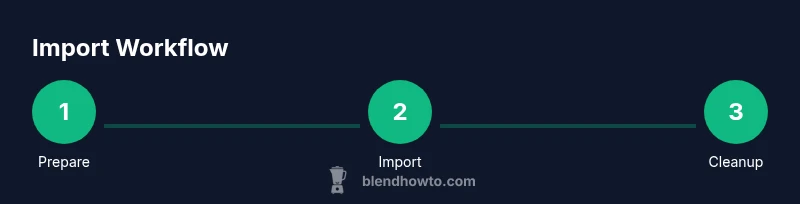
Prepare the source model
Export the model from its original tool with transforms applied where possible. Confirm that textures are accessible and the scale matches your project. Rename objects for clarity and test a small export to verify fidelity.
Tip: Export with Apply Transform to avoid scale surprises in Blender. - 2
Choose the target import format
Decide between OBJ, FBX, GLTF/GLB, or STL based on your needs for textures, animations, and scene complexity. GLTF/GLB is recommended for modern workflows with textures intact.
Tip: If textures are important, GLTF/GLB often yields the best results. - 3
Open Blender and set up the scene
Open a new or existing project and save a version before import. Set the scene scale to match your project units to prevent later adjustments.
Tip: Create a dedicated import workspace to keep assets organized. - 4
Import the file via File > Import
Navigate to your file, select the appropriate format, and review import options such as Apply Transform, Split by Material, and Import Animation. Confirm textures are embedded or correctly referenced.
Tip: Enable Apply Transform if you want immediate alignment to Blender units. - 5
Verify object scale and orientation
Inspect the imported objects, check axes orientation, and adjust rotation or scale as needed. Correctly oriented geometry prevents awkward posing and rendering issues.
Tip: Use a quick measurement with a known dimension object to confirm scale. - 6
Relink textures and materials
If textures are missing, locate the image files or re-embed textures in GLTF/GLB. For OBJ, ensure the MTL file is present and linked correctly.
Tip: In the Shader Editor, reconnect Image Texture nodes to the appropriate image files. - 7
Check for duplicates and hidden geometry
Hide or delete any duplicate meshes or hidden faces that might affect performance or shading. Clean geometry improves render times and is easier to manage.
Tip: Select all and enable Merge by Distance to clean up small gaps. - 8
Inspect animations and rig data
If the file contains animation, scrub the timeline to verify keyframes and bone movements. Ensure the armature preserves pose and constraints.
Tip: If animations drift, re-export with baked animation data. - 9
Save and document your workflow
Save incremental versions of your Blender file and keep notes about import settings for future reuse. This makes it easier to reproduce results or troubleshoot issues later.
Tip: Create a baseline import preset for common formats.
Frequently Asked Questions
What file formats does Blender import support?
Blender can import OBJ, FBX, GLTF/GLB, STL, PLY, and more depending on the build. Always verify format support for your Blender version.
Blender supports OBJ, FBX, GLTF/GLB, STL, and PLY formats; check your Blender version for exact supported formats.
Why is the imported model's scale off?
Scale differences usually come from unit mismatches between source data and Blender. Adjust the import scale or apply transforms after import, and verify axes alignment.
Scale differences happen due to unit differences; adjust import scale or apply transforms after import.
How can I preserve textures after import?
For GLTF/GLB, textures are often embedded or linked reliably. For OBJ, ensure the MTL file and texture paths stay together; verify image paths in Blender.
Textures may break if paths change; keep MTL and textures with the OBJ, or use GLTF/GLB to embed textures.
Can you import animations from FBX into Blender?
Yes, Blender can import animation data from FBX and GLTF/GLB, but you may need to enable animation options and verify keyframes after import.
Yes, but sometimes animations don't export cleanly; check export/import settings.
What should I do if a model has multiple materials?
Blender supports multiple materials; during import, choose settings that either keep materials or split by material, depending on the format.
Use the import option to split by material or keep materials, depending on format.
How do I fix missing textures after import?
Relink textures by locating image files in the Shader Editor or re-exporting with embedded textures. GLTF/GLB often handles textures more reliably.
Relink textures in the shader editor or re-export with embedded textures.
Watch Video
What to Remember
- Choose the right import format for your data.
- Check unit scales early to avoid large rework.
- Relink textures and confirm materials after import.
- Organize objects and hierarchies for easier editing.
- Save incremental versions and document import settings.