How to Put Blender Models into Unity: A Practical Guide
Learn how to import Blender models into Unity using FBX or GLTF, with export settings, material management, and animation import. This step-by-step guide covers preparation, export, import, optimization, and troubleshooting for production-ready Unity scenes in 2026.


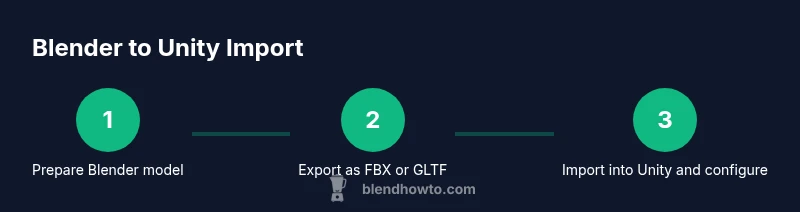
Export from Blender as FBX or GLTF, then import into Unity and adjust scale, materials, and textures to preserve geometry and animations. This quick, practical approach minimizes post-import fixes and keeps rigging intact where supported. Use consistent axis, apply transforms, and test a small asset in a fresh scene to verify everything.
The Why and What of Importing Blender Models into Unity
A clean Blender-to-Unity workflow ensures your 3D assets look right, animate correctly, and perform well in real-time scenes. Unity's real-time renderer means geometry, textures, and rigs must survive export and import without heavy tweaking. According to BlendHowTo, planning export early—deciding FBX vs GLTF, organizing textures, and applying transforms—reduces post-import fixes. The BlendHowTo team notes that starting with a consistent axis convention (Blender uses Z up) and a unit scale of 1 world unit = 1 meter helps prevent surprises when assets land in Unity. After exporting, test a small, representative asset in a fresh scene to verify geometry, textures, and animation import. Maintain a clear folder structure and naming convention to speed up future imports.
Supported export formats for Unity
Unity supports a few interchange formats, with FBX and GLTF/GLB being the most common for Blender assets. FBX remains robust for rigs and animations, while GLTF/GLB offers compact, real-time-friendly textures and PBR workflows. The choice often depends on asset type and engine targets—use FBX for characters and articulated objects, and GLTF for props and lightweight scenes. BlendHowTo recommends testing both formats on a small asset to see which preserves materials and animations most reliably across Unity versions.
Preparing your Blender model for export
Before exporting, clean up the scene: apply all transforms (location, rotation, scale) to ensure the asset imports with the intended size and orientation. Center the origin for predictable placement in Unity, and rename objects with clear, consistent naming. Remove hidden geometry and modifiers you do not intend to export. Finally, pack textures or place them in a known folder to avoid missing texture references when Unity reads the file.
Export settings that preserve geometry and materials
When exporting from Blender, decide between FBX and GLTF/GLB based on your asset type. In the exporter, enable Apply Transform, choose Forward -Z, Up Y, and, if needed, Bake Animations. For textures, ensure they're either embedded (GLTF/GLB) or placed in a side-by-side folder (FBX). If your model uses armatures, verify that the export includes the skeleton and animations. These settings help minimize surprises when the asset lands in Unity.
Importing into Unity: first look and fixes
In Unity, drag the exported file into the Assets folder to create a Model importer entry. Check the Model importer settings: set the Scale Factor to 1, ensure Import Animations is enabled if you exported them, and review the mesh's normals. If materials don’t import automatically, you may need to reassign or recreate them using Unity's Standard or URP/HDRP shaders. Name conventions and a tidy folder structure speed up the iteration loop.
Materials and textures in Unity
Unity often requires re-linking textures and re-creating materials to match your Blender look. Use the appropriate shader (Standard, URP, or HDRP) and set textures to Albedo, Normal, and any Metallic/Roughness maps as needed. Ensure texture import settings use sRGB for color textures and Linear for data maps like roughness. If you’re using GLTF, textures can be packed within the file; otherwise, keep textures in a predictable path relative to the asset.
Animations and rigs
If you exported animations from Blender, verify that Unity correctly imports the animation clips and avatar (if using a humanoid rig). For humanoid characters, set Animation Type to Humanoid in the importer and configure the Avatar as needed for retargeting. If the asset is a generic prop, keep Animation Type as Generic and ensure the clips align with the timeline in Unity. Test a basic walk cycle or transform animation to confirm timing and playback.
Troubleshooting common issues
Texture mismatches, incorrect scale, and axis orientation problems are the most common pain points. If textures are missing, pack textures in Blender or place them in a predictable folder before export. If the model appears oversized or undersized, adjust the Import Settings’ Scale Factor in Unity and re-import. If the orientation looks wrong, consider applying a final rotation in Blender before exporting or compensate with a rotation in Unity after import. Always reimport after changing export or import settings to verify results.
Real-world workflow example: a simple prop
Imagine exporting a small Blender mug for a Unity scene. Start by applying transforms and packing textures. Export as GLTF for a compact asset with embedded textures, or FBX for robust animation support. Import into Unity, create a dedicated folder structure, and assign a Standard shader with Albedo and Normal maps. Place the mug in a test scene, check lighting and shadows, and iterate on scale and texture settings until it reads correctly in-game. This repeatable workflow scales for many asset types.
Tools & Materials
- Blender software(Installed and updated to latest stable version)
- Unity Editor(Installed, project configured for target platform)
- FBX and/or GLTF export from Blender(Choose format that preserves textures when possible)
- Texture files and materials(Pack textures or ensure correct path references)
- Test scene in Unity(Create a test scene to verify import and materials)
Steps
Estimated time: 30-45 minutes
- 1
Prepare Blender scene for export
Inspect the model, apply all transforms, and set the origin to a predictable point. Rename objects for clarity and remove unnecessary modifiers or hidden geometry. This step reduces surprises in Unity.
Tip: Apply transforms (Ctrl-A) before exporting to ensure correct size and orientation. - 2
Clean geometry and texture readiness
Check for non-manifold edges, stray vertices, and excess geometry. Pack or organize textures so their file paths are stable after export. Clean data improves import reliability.
Tip: Use 'Merge by Distance' to remove tiny gaps and reduce vertex count when appropriate. - 3
Choose export format
Decide between FBX and GLTF/GLB based on asset type and intended workflow. FBX is reliable for rigs and animations; GLTF/GLB is efficient for real-time textures and portability.
Tip: If uncertain, start with FBX for rigged assets and GLTF for simple props. - 4
Configure export options
In Blender's export dialog, enable Apply Transform, set Forward to -Z and Up to Y, and decide on Bake Animations if needed. Ensure textures export or are in a nearby folder.
Tip: Double-check axis orientation, especially when importing into Unity on different platforms. - 5
Export the asset
Export to a clean folder like Assets/BlenderExports with a clear file name. Keep separate exports for each asset to simplify iteration and debugging.
Tip: Use consistent naming to track versions across projects. - 6
Import into Unity
Drag the exported file into the Assets folder and allow Unity to reimport. Check the Model importer for scale and animation options and enable Import Animations if used.
Tip: Watch the import progress for any errors or notes in the Console. - 7
Configure import settings
Set the Scale Factor to 1, ensure Mesh Compression and Normals are appropriate, and verify material import behavior. For animated assets, confirm the Clip names align with expectations.
Tip: If you lose animations, re-export with Bake Animations enabled. - 8
Rebuild materials in Unity
Replace Blender materials with Unity-compatible shaders (Standard or URP/HDRP). Link textures, adjust tiling, and ensure normal maps are set to Normal Map type.
Tip: Use a consistent material workflow to avoid mismatches across assets. - 9
Test in a scene and adjust
Place the asset in a test scene, verify lighting, shadows, and interactions. Iterate on scale, texture mappings, and animation timing as needed.
Tip: Test on target platforms early to catch performance bottlenecks. - 10
Document and reuse the workflow
Create a small checklist and a reusable asset folder structure for future imports. This reduces setup time for new Blender assets.
Tip: Maintain versioned exports to track changes over time.
Frequently Asked Questions
What is the best export format for Unity?
FBX is widely supported in Unity for complex models and animations; GLTF/GLB offers compact, real-time textures and easier portability. Choose based on asset type and Unity version.
FBX is the safest default for rigs and animations, while GLTF/GLB works well for lightweight assets and web targets.
Why are textures missing after import?
Texture references may be lost if textures aren’t packed or placed in a known path relative to the asset. Repack textures in Blender or place them next to the exported file, then re-import.
Check that textures are in a predictable folder and reimport if needed.
Can I import Blender animations into Unity?
Yes. When exporting, enable Bake Animations if needed. In Unity, set the Animation Type to Humanoid for character rigs or Generic for props, and ensure the clips are available in the Animator.
Yes, you can import Blender animations by baking them during export and configuring the importer in Unity.
How do I adjust scale in Unity to match Blender units?
Unity uses meters as its base unit. Set Blender exports with a 1 unit = 1 meter assumption and set Unity's model Import Scale Factor to 1. Re-import if you change the export.
Keep the scale consistent—set 1 Blender unit to 1 meter in Unity and re-import if needed.
Should I bake materials in Blender before exporting?
Baking isn’t strictly required; Unity’s Standard/URP/HDRP shaders handle PBR textures. If Blender materials don’t translate, re-create materials in Unity after import.
Baking isn’t mandatory; re-create materials in Unity if needed for best results.
Do I need to clean up the model before export?
Yes. Remove hidden geometry, non-manifold edges, and modifiers not needed for export. A clean model reduces errors and helps Unity interpret geometry correctly.
Yes, clean up geometry and modifiers before exporting for reliability.
Watch Video
What to Remember
- Export with correct scale and orientation
- Choose FBX for rigs and GLTF for lightweight assets
- Check Unity import settings and adjust materials
- Rebuild Blender materials in Unity for best visuals
- Test animations and performance in a real scene