How Blender Works with Unity: A Practical Step-by-Step Guide
Learn how to integrate Blender and Unity smoothly—from exporting correctly to importing, texturing, and animating—so your 3D assets look right in Unity.


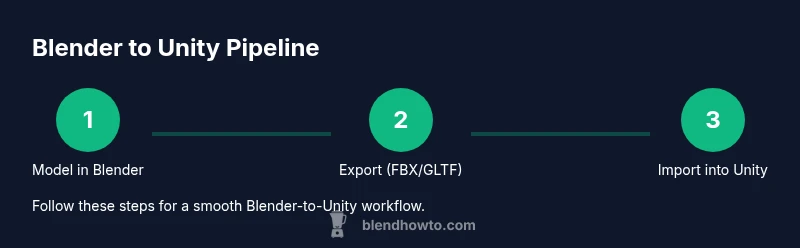
How does blender work with unity? In brief, create and animate in Blender, export with proper units and axes (FBX or GLTF), then import into Unity and reassign materials, colliders, and animations. This quick guide highlights the essential steps and common pitfalls for a smooth Blender-to-Unity workflow.
What is the Blender-Unity workflow?
The Blender-to-Unity workflow is a pipeline where you model, texture, and animate in Blender, then export assets for use in Unity's game engine. The goal is to preserve geometry, textures, and animations while ensuring correct scale and orientation in Unity. A solid workflow reduces rework and keeps your project on schedule. In this guide we focus on practical, repeatable steps for assets ranging from character rigs to hard-surface props, with notes on common pitfalls and best practices for 3D artists using Blender with Unity. This approach applies to many Unity pipelines, including Universal Render Pipeline (URP) and HDRP, and aims to minimize surprises when assets move between tools.
To answer the central question—how Blender works with Unity—you balance Blender’s modeling power with Unity’s runtime engine, carefully managing export formats, transforms, and material workflows so the final result looks and behaves as intended in real-time.
noteAdded
Tools & Materials
- Blender (3.x recommended)(Use a recent stable release to ensure FBX/GLTF export compatibility and robust animation baking.)
- Unity Editor (any supported version)(URP/HDRP pipelines will affect shader usage; ensure matching project settings.)
- Texture assets (PNG/JPG/EXR)(Export textures separately; Blender won’t embed textures into FBX by default.)
- FBX/GLTF export options(FBX is preferred for animations; GLTF/GLB is great for static assets and portability.)
Steps
Estimated time: 60-120 minutes
- 1
Prepare Blender scene
Organize your Blender scene with clean geometry, named objects, and a single active camera. Ensure your model’s scale is roughly aligned to Unity’s units (1 Blender unit ≈ 1 meter). This reduces later surprises during import.
Tip: Name bones, meshes, and materials clearly to simplify Unity rigging and material assignment. - 2
Apply transforms and fix orientation
Apply all transforms (Ctrl-A > Apply All Transform) and set the Forward to -Z and Up to Y when exporting FBX/GLTF to align with Unity’s coordinate system. This minimizes rotation issues after import.
Tip: Double-check model origin: set it at the base of the model for easier placement in Unity. - 3
Bake animations (if needed)
If your Blender animation uses actions, bake them before export (Action Editor > Bake Actions). This ensures consistent keyframes in Unity.
Tip: Only bake what you actually need to export to keep file size manageable. - 4
Export with correct settings
Choose FBX or GLTF, enable Apply Transform, and, for animations, Bake Animation. Include mesh, armature, and textures in the export; avoid embedding textures unless the exporter supports it for your workflow.
Tip: Export a small test asset first to confirm the pipeline behaves as expected. - 5
Import into Unity and configure
In Unity, import the FBX/GLTF file, set the model’s scale factor to 1, and choose the correct Rig (Generic vs Humanoid) depending on your asset. Check the animation import tab and adjust clip ranges as needed.
Tip: If using Humanoid rigs, re-target animations only after confirming bone compatibility. - 6
Set up materials and textures
Re-link Blender textures to Unity materials. Start with the Standard shader (or URP/HDRP equivalents) and configure Albedo, Metallic, Roughness, and Normal maps to resemble Blender’s appearance.
Tip: Keep a consistent texture naming scheme to prevent misassignment during re-imports.
Frequently Asked Questions
Will Blender's materials import into Unity?
Blender materials don’t translate one-to-one into Unity. You typically recreate materials in Unity’s Shader system and reassign textures after import.
Materials from Blender don’t transfer directly; you’ll recreate them in Unity using Unity's shaders and textures.
Should I bake animations before exporting?
Baking animations can prevent animation discrepancies in Unity, especially when using non-destructive animation setups in Blender. Bake only what you plan to export.
Baking animations helps ensure the motion behaves predictably in Unity.
Which export format is best for Unity?
For most animated assets, FBX is the go-to format. GLTF/GLB is excellent for static models or web-friendly pipelines.
FBX works well for animation; GLTF is great for static assets and modern pipelines.
How do I fix scale mismatches between Blender and Unity?
Ensure the Unity import scale is 1 and Blender exports with Apply Transform. Recheck the model’s bounding box in Unity and adjust as needed.
Set the Unity scale to 1 and bake transforms in Blender to align sizes.
Can I preserve UVs across export?
Yes. Blender UVs export with the mesh and should map correctly in Unity if you export normals and UV coordinates properly.
UVs generally transfer with the mesh, but verify them in Unity.
Watch Video
What to Remember
- Plan the export path early to avoid rework.
- Align Blender and Unity coordinate systems to prevent rotations.
- Choose FBX for animation-heavy assets and GLTF for simpler props.
- Rebuild materials in Unity for accurate PBR appearance.
- Test with small assets to validate the workflow quickly.