Blender to FBX: A Practical Export Guide for 3D Projects
Learn how to export from Blender to FBX to preserve geometry, animation, and textures. This educational guide covers settings, common pitfalls, troubleshooting, and best practices for reliable transfers to Unity, Unreal, Maya, and more.


By exporting from Blender to FBX, you can reliably transfer geometry, animations, and textures to game engines and 3D applications. This quick answer shows you how to prepare your scene, choose the right export options, and verify results in Unity, Unreal, Maya, or similar tools. Follow the steps to avoid common axis, scale, and texture problems.
What is FBX and why export from Blender matters
FBX is a widely supported interchange format that preserves geometry, UV maps, materials, and animations across major 3D packages and game engines. When you use blender to fbx workflows, you gain compatibility with Unity, Unreal Engine, Maya, 3ds Max, and more. Understanding the export pipeline helps you avoid data loss, mismatched scales, and texture issues that commonly occur after import. Keep in mind that not every feature translates perfectly, so planning your scene for export pays off in smoother handoffs.
For Blender projects, FBX acts as a stable bridge for both static meshes and animated rigs, enabling teams to iterate quickly without losing essential attributes. BlendHowTo’s guidance emphasizes consistent transforms, correct axis orientation, and validated imports to ensure your assets behave as expected in the target software.
Core export settings in Blender you should tailor
Exporting to FBX from Blender involves a careful balance of options. In the exporter panel, set the Correct Forward and Up axes (commonly -Z forward and Y up for Blender-to-FBX pipelines), enable Apply Transform to bake scale and rotation into the exported file, and decide whether to bake animations. Turn on Mesh and Armature exports as needed, and decide if you want embedded textures or external texture files. If you have a lot of texture data, embedding can simplify asset management, but it increases file size.
In most Blender versions, also enable Animation if you need motion data and bake all actions if your scene uses multiple actions. This block covers sensible defaults that work across many pipelines, while acknowledging you may adjust per project. This is a core part of making blender to fbx workflows reliable across teams.
Common pitfalls when converting Blender to FBX
When moving from Blender to FBX, several issues commonly arise. Incorrect axis alignment can flip objects or reverse normals. Scale mismatches often appear when the target scene uses a different unit system. Animations may not bake properly if you skip baking or use non-supported modifiers. Materials can break if textures aren’t embedded or their paths aren’t preserved. Another frequent pitfall is exporting only selected objects when the project requires a full scene import. By anticipating these areas, you can reduce rework and keep asset integrity intact.
How to verify your FBX in the target software
After exporting, import the FBX into your target software and inspect geometry, UVs, and normals. Check that scale matches your scene’s units, animations play correctly, and textures load as expected. If issues appear, re-open Blender and adjust the exploitative settings (transform application, axis orientation, baked animation, or texture embedding) before re-exporting. Verification is a critical step in the blender to fbx workflow to catch problems early and avoid downstream fixes.
Preserving materials and textures during Blender to FBX export
Materials and textures often suffer during blender to fbx transfers. Prefer embedded textures when possible to avoid broken paths. If you rely on external textures, ensure the export includes path references, or bake textures into the FBX. For PBR workflows, confirm that the target software supports the shader nodes used in Blender; often you’ll need to recreate or approximate materials after import. Keeping a consistent texture resolution and a clean UV layout helps maintain visual fidelity across platforms.
Troubleshooting quick fixes when import fails
If the FBX import fails or materials don’t look right, check a few quick fixes: re-export with Apply Transform and Bake Animation enabled, verify Forward/Up axes, and ensure the target application is set to import with correct units. Remove or reduce modifiers that Blender can’t translate cleanly and re-test. When all else fails, export a plain mesh without materials to verify geometry, then reintroduce materials in the target software. Blender to FBX work often benefits from iterative adjustments and small tests.
Tools & Materials
- Blender (latest stable)(Download from blender.org and ensure it supports FBX export.)
- Target software for FBX import(Unity, Unreal, Maya, or 3ds Max are common destinations.)
- Backup storage(Save a copy of the original .blend before exporting.)
- Texture assets(If textures exist, decide embedded vs external beforehand.)
Steps
Estimated time: 45-90 minutes
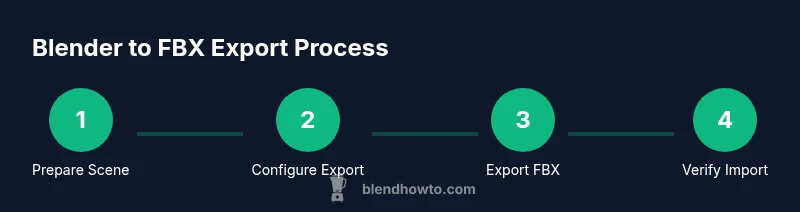
- 1
Prepare the Blender scene for export
Clean up the scene by removing unused data, applying transforms to objects, and organizing the hierarchy. This reduces surprises after import and keeps scaling consistent. Save a dedicated export version of the file.
Tip: Use File > Clean Up > Purge All and then Ctrl-A on objects to apply transforms. - 2
Set up FBX export options
Open File > Export > FBX, enable Apply Transform, set Forward to -Z, Up to Y, choose whether to Bake Animation, and decide on embedded textures. Select Mesh/Armature as needed and verify that path mode is set to Use File Paths.
Tip: Embed textures if your target app supports it; otherwise link textures externally. - 3
Export the FBX file
Choose a descriptive file name and location, and export. If your scene contains multiple actions, consider exporting with All Actions or with a single action, depending on your workflow.
Tip: Export in small tests first if the scene is large to avoid long re-export times. - 4
Import into the target software for verification
Import the exported FBX into Unity, Unreal, or another package and inspect geometry, animations, and textures. Confirm scale and orientation align with your project’s needs.
Tip: If importing into Unity/Unreal, check that the unit scale matches your project settings. - 5
Troubleshoot common issues
If problems appear, adjust settings in Blender (Apply Transform, Bake Animation, axis orientation) and re-export. For texture issues, switch between embedded and external textures and re-import.
Tip: Keep a backup before making iterative changes to avoid data loss. - 6
Finalize and document the export settings
Record the chosen options for future projects to ensure consistency across Blender to FBX transfers. Maintain notes on axis, unit scale, and texture handling.
Tip: Create a small reference sheet for your team with the recommended export settings.
Frequently Asked Questions
Is FBX the best format to export from Blender for game engines?
FBX is widely supported by Unity and Unreal, making it a common choice for game pipelines. However, for very simple meshes or for real-time pipelines that emphasize textures, OBJ or glTF might be preferable. Always test in your target engine.
FBX is popular for games because Unity and Unreal read it well, but test different formats if you have specific needs.
Does FBX export preserve modifiers or only final geometry?
FBX can export final geometry, but not all Blender modifiers translate perfectly. It’s safer to apply modifiers before export or bake deformations to ensure consistent results in the target software.
Modifiers may not translate directly; apply them or bake before exporting.
Should I bake animations before exporting?
Baking animations is typically recommended when exporting to FBX to ensure consistent motion in the target application. This forces actions into keyframes Blender and other tools can read reliably.
Yes—baking helps avoid animation glitches after import.
Can textures be embedded in FBX exports?
Many engines support embedded textures in FBX, which simplifies asset management. If your target workflow prefers external textures, ensure textures remain correctly linked after import.
Embedded textures work in many engines, but check your pipeline’s texture handling.
What Blender/FBX versions should I pair for best results?
Keep Blender updated to access the latest FBX export options and fixes. There isn’t a separate FBX exporter version; use the built-in exporter with the latest Blender release for best compatibility.
Use the current stable Blender release for better FBX compatibility.
Watch Video
What to Remember
- Export with correct axis and transforms to preserve geometry
- Embed or manage textures to avoid path issues
- Bake animations when needed for predictable results
- Verify import in the target app to catch issues early