Unity to Blender: Practical Asset Migration Guide
Learn how to move Unity assets into Blender with reliable export/import workflows, preserving scale, textures, animations, and rendering quality for smooth 3D pipelines.


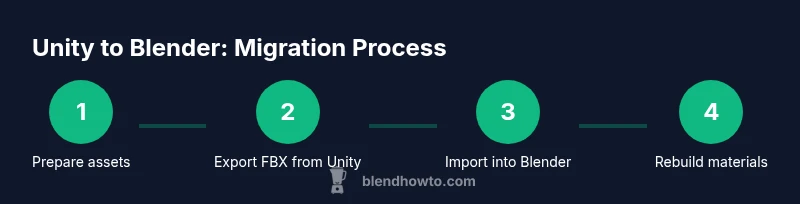
You can migrate assets from Unity to Blender by exporting models and animations as FBX using Unity's FBX Exporter, then importing them into Blender. This process preserves scale, textures, and basic animation, but you may need to re-link textures and recreate materials in Blender due to shader differences. The guide below covers an end-to-end workflow.
Why migrating Unity assets to Blender is common for 3D artists
For many artists, the workflow from unity to blender is essential when you want to take game-ready models and refine them with Blender’s modeling tools, UV mapping, sculpting, and high-end rendering. This path lets you preserve the numerical scale and geometry you built in Unity while reworking materials, lighting, and environment around your assets. The key is to separate asset-level exports from project-level scenes. By focusing on individual meshes, textures, and animations, you can build a robust pipeline that fits both real-time and offline rendering goals. BlendHowTo’s guidance emphasizes a pipeline that starts with a clear export strategy, documents texture paths, and plans for material recreation in Blender. This approach reduces surprises when you re-import assets for iteration, making the transition smoother and more predictable over time. unity to blender remains a practical bridge for creative workflows, especially when high-fidelity visuals are needed.
Prep: choose the right export format (FBX vs OBJ)
The FBX format is the most reliable interchange option between Unity and Blender for meshes, baked animations, and complex hierarchies. OBJ is simpler and lighter but lacks animation data and advanced rigging. When you anticipate animation or rigging, FBX is the better long-term choice. In Unity, ensure you export with embedded textures or keep texture paths consistent so Blender can locate textures after import. If your assets use non-standard shaders in Unity, plan to recreate materials in Blender after import. The goal of this prep step is to minimize rework and ensure Blender can read geometry, skeletons, and texture references correctly. The choice of FBX aligns with best practices recommended by BlendHowTo guides.
Unity side: exporting with FBX Exporter
To export from Unity, install the FBX Exporter package from the Package Manager. Select the meshes you want to export and choose Export As FBX. Enable Bake Animations if you plan to preserve animation data, and opt to embed textures if your workflow requires it. Double-check the axis orientation and unit scale to keep Blender from misinterpreting coordinates. If you have nested hierarchies or complex rigs, consider exporting each asset group separately to avoid import confusion in Blender. Remember to back up your project before exporting to prevent accidental data loss. This step is critical for a clean handoff from Unity to Blender.
Texture management: embedding textures vs external files
Textures can be embedded in the FBX file or referenced externally. Embedding simplifies transfer, but it can increase file size. If textures are external, ensure the same relative paths exist when importing into Blender. After import, verify that texture mappings and UVs align with Blender’s coordinate system. In Blender, you may need to relink textures in the Material nodes and adjust color spaces for accurate results. The choice between embedded vs external textures depends on project size and your asset management preferences, but embedding is often the simplest route for a one-off transfer.
Blender side: importing FBX and initial cleanup
In Blender, use File > Import > FBX to bring in the Unity-exported assets. Pay attention to the import settings: set up the correct scale, axis orientation (Blender uses Z-up, Unity uses Y-up, so you may need to adjust), and ensure animations are imported if they exist. After import, inspect each object in Object Mode, reset transforms if needed, and delete any empty helper objects that Blender sometimes creates during import. This cleanup stage is essential to ensure a predictable starting point for material and texture work in Blender.
Rebuilding materials in Blender
Shaders differ significantly between Unity and Blender. Start with Blender’s Principled BSDF shader and rebuild textures using the image textures already exported with the FBX. Re-create normal maps, roughness maps, and emissive textures as node-based inputs. Verify color space settings (sRGB for albedo, Linear for roughness and normal maps) and adjust specular highlights to match the look you intended in Unity. If you used light probes in Unity, replicate lighting results with Blender’s light types and HDRIs where appropriate. This step is where Blender’s shading workflow shines and where consistent texture setup pays off.
Rigging and animations: baking vs non-baking
If your Unity assets include rigs or animations, decide whether to bake animation data before exporting. Baking can help preserve motion when Blender imports the FBX, but it increases file size and reduces flexibility for later retargeting. In Blender, check that actions (animation data blocks) correspond to the imported armature. If rigging looks off, verify bone roll, axis orientation, and bone mapping. For complex rigs, you may need to tweak constraints and IK setups after import to achieve the same motion intent as in Unity.
Scale and units: matching Unity meters to Blender units
Unity uses meters as its basic unit, while Blender defaults to Blender Units (BU) with 1 BU roughly equal to 1 meter by convention. To avoid scale mismatches, set Blender’s unit system to metric and ensure that the FBX import preserves unit scale. You can also apply a uniform scale factor on import or in Blender after import to improve accuracy for animation timing and physics interactions. Consistency here saves time during rendering and animation work, especially when you plan to export back to Unity for further iteration.
Lighting and rendering considerations
Unity and Blender handle lighting differently, with Unity leaning toward real-time lighting and Blender favoring physically-based rendering. After import, evaluate environment lighting, HDRI choices, and shadow settings to achieve a similar look. Recreating light setups in Blender often requires re-adjusting color temperature, exposure, and volumetrics. If you intend to render in Blender, take advantage of Cycles or Eevee depending on your needs, and consider baking lighting for consistent results when exporting to Unity again. This section helps bridge the gap between real-time visuals and photorealistic rendering.
Common pitfalls and troubleshooting tips
Expect occasional misalignments in scale, misoriented normals, or missing textures after import. Start by checking the FBX export settings (Bake Animations, embedded textures) and Blender’s import options (transform orientation, apply Transform). If materials appear wrong, reassign textures and re-create nodes, as shader differences make direct one-to-one transfers rare. Keep textures organized with consistent naming and folder structure to reduce path issues. Finally, maintain a simple, repeatable pipeline for future asset transfers to minimize rework.
Alternative pipelines: glTF, OBJ, or direct mesh import
If FBX proves too heavy or you encounter compatibility issues, consider glTF for modern, efficient asset transfer with PBR materials, or OBJ for simple meshes without animation data. Blender can export back to Unity with similar options, enabling round-tripping. For character assets with rigs, FBX remains the most robust option, but test multiple formats to determine which best suits your project needs. BlendHowTo recommends prototyping with one asset before committing a full pipeline to ensure data integrity across tools.
Tools & Materials
- Blender software(Latest stable release installed and configured for FBX import)
- Unity project with target assets(Assets you intend to export; ensure textures are packaged)
- Unity FBX Exporter package(Install via Package Manager; enables FBX export)
- FBX export settings (Unity)(Bake animations, embed textures if needed, check axis/units)
- Texture files (PNG/JPG)(If textures are not embedded, ensure textures are available after import)
- Scale reference(Supply a scale reference tool or ruler for matching units)
Steps
Estimated time: 60-120 minutes
- 1
Install Unity FBX Exporter
Open Unity, access the Package Manager, search for 'FBX Exporter' and install. This tool enables exporting meshes and baked animations to FBX, which Blender can read reliably.
Tip: Verify you’re using a supported Unity and FBX Exporter version to avoid compatibility issues. - 2
Prepare Unity assets for export
Select the meshes and rig components you intend to export. Apply transforms (Reset Position, Rotation, Scale) to avoid unexpected shifts in Blender.
Tip: Backup the project before exporting and document the asset hierarchy for easier reassembly in Blender. - 3
Export FBX from Unity
In the FBX Exporter, choose 'Export As FBX' for the selected objects. Enable Bake Animations if you need animation data; embed textures when convenient.
Tip: Export each asset group separately to keep imports clean in Blender. - 4
Import FBX into Blender
Open Blender, use File > Import > FBX. Adjust scale and axis orientation (Unity's Y-up vs Blender's Z-up) to prevent scale and rotation issues.
Tip: Enable 'Apply Transform' during import to preserve local transforms. - 5
Relink textures and set up materials
Assign textures in Blender’s Material nodes using the imported maps. Rebuild shaders with Principled BSDF and correct color spaces.
Tip: Check texture paths and re-link if textures are not embedded in the FBX. - 6
Verify animations and riggs
Inspect armatures, bones, and animation data. Bake or retarget as needed to ensure motion matches the original Unity intent.
Tip: Test playback in Blender's Timeline and adjust keyframes as necessary.
Frequently Asked Questions
Can I export an entire Unity scene directly to Blender?
No. You export individual assets as FBX or OBJ and reassemble them in Blender. Unity scenes don’t map one-to-one to Blender projects.
No. You export assets, not full scenes, and then rebuild the composition in Blender.
What about textures and materials in Blender?
Textures can be embedded in FBX or re-linked after import. Materials in Blender will usually need to be recreated to match the Unity look.
Textures can be embedded, but you’ll typically recreate materials in Blender.
Will the animations transfer over?
If you bake animations before export, they can import into Blender. Check bone orientation and timing post-import and adjust as needed.
Yes, with baked animations, but you may need tweaks in Blender.
Which Blender version is best for Unity exports?
Any recent stable Blender release generally works well with FBX imports. Ensure you enable necessary import options for your assets.
Use a current stable Blender release and enable appropriate FBX import options.
Why should I move assets from Unity to Blender at all?
To edit models in Blender with advanced UVs, sculpting, and lighting, then render or export back to Unity if needed.
To take advantage of Blender's modeling and rendering tools and then repurpose in Unity.
Watch Video
What to Remember
- Define an export strategy before starting.
- FBX is the preferred interchange format for Unity↔Blender.
- Materials and textures typically require recreation in Blender.
- Validate scale, axis, and animation after import.