Can You Use Blender with Godot? A Practical Guide for 2026
Learn how to export Blender assets to Godot, import models and animations, optimize materials, and test your game in real-time with proven workflows for 2026.


Yes, you can use Blender assets in Godot to build 3D games. The core workflow exports models, rigs, and animations from Blender into Godot-friendly formats (GLTF/GLB, OBJ) and then sets up materials, physics, and runtime testing in Godot. This guide covers export settings, scene organization, animation retargeting, and troubleshooting common issues.
Blender-Godot Integration Overview
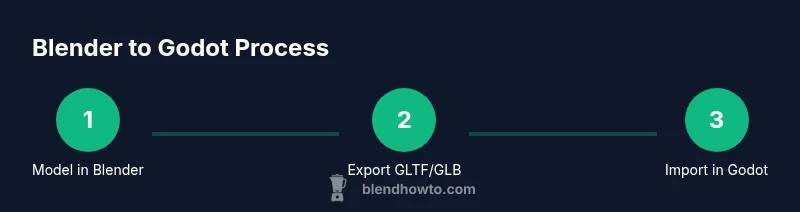
Can you use blender with godot? The short answer is yes, and the long answer depends on how you plan to organize assets and scenes across two powerful tools. According to BlendHowTo, a well-planned Blender-to-Godot workflow helps teams maintain consistent transforms, reliable animations, and clean textures when assets move from a modeling suite into a real-time engine. In practice, the pipeline usually starts with modeling and rigging in Blender, exporting to a Godot-friendly format, importing into Godot, and then refining materials, animations, and physics in the engine. The goal is to minimize surprises when you press Play, ensuring the asset looks correct and behaves as expected in runtime. This section lays out the foundations: choose the right export format, preserve animation data, and keep a clean scene structure to answer the question can you use blender with godot in a practical way that reduces friction for your project.
In the context of Blender and Godot, it helps to think in terms of data fidelity and runtime performance. You’ll want models that maintain their scale, bone hierarchies that map cleanly to Godot’s skeletons, and textures that Godot can read without heavy conversion. By planning early and keeping naming conventions consistent, can you use blender with godot becomes less of a mystery and more of a repeatable workflow. The BlendHowTo team emphasizes consistency, a clear export plan, and regular runtime checks to catch issues before they derail a project.
Tools & Materials
- Blender (latest stable release)(Enable GLTF/GLB export; set unit scale to meters; apply transforms before export)
- Godot Engine (3.x/4.x)(Choose a version compatible with your GLTF export; verify GLTF importer settings)
- GLTF/GLB export format(Preferred for animation and PBR materials; ensure textures are embedded or properly linked)
- Texture files (PNG/JPG/EXR)(Include if you want textures mapped exactly; can be external or embedded)
- Project folder structure (Blender project, GLTFs, textures)(Keep assets organized to simplify import and versioning)
- Optional: Blender addon for Godot export(Can streamline exporter setup, but not required for GLTF workflows)
Steps
Estimated time: 60-120 minutes
- 1
Prepare Blender scene
Arrange the model hierarchy with clear parent-child relationships, apply transforms, and reset scale to 1.0. Ensure the object origins align with expected pivot points. This reduces surprises when the model is imported into Godot and animations are played.
Tip: Apply scale and rotation (Ctrl-A) before export to prevent mismatches in Godot. - 2
Organize naming and pivots
Use consistent, descriptive names for meshes, bones, and controllers. Keep osteoporosis-free bone chains and avoid non-uniform naming across objects. A clean naming scheme makes retargeting and debugging easier in Godot.
Tip: Avoid spaces or special characters; use underscores to separate words. - 3
Enable and configure export options
Open the GLTF/GLB export panel and select the necessary items: mesh, armatures, animations, and textures. Enable 'Apply modifiers' if you need modifiers baked into the mesh. Choose 'Animation' export if you intend to bring in movement.
Tip: Export only what you need to keep the file size manageable. - 4
Export the asset
Export the selected objects to GLTF/GLB, ensuring the coordinate system is set to match Godot (Z-up in Blender often maps well). Check texture paths and animation samples in the export panel before finalizing.
Tip: Use a test asset first to validate the pipeline before committing a whole project. - 5
Import into Godot and inspect
In Godot, drag the GLTF/GLB file into the filesystem dock and inspect the scene tree. Confirm that the mesh, armature, and animation players appear as expected. Adjust import settings if necessary (e.g., animation quality, material import).
Tip: If bones don’t map correctly, verify bone naming and hierarchy in Blender. - 6
Refine materials and textures
Map Blender materials to Godot materials, or recreate them using Godot's materials with texture inputs. Ensure texture color spaces are correct (albedo in sRGB, metallic/roughness in linear). This step often requires iteration.
Tip: Prefer GLTF PBR workflows to minimize shader mismatches between Blender and Godot.
Frequently Asked Questions
Can I reuse Blender materials directly in Godot?
Direct material swapping from Blender to Godot is not always seamless. You may need to recreate or adapt materials in Godot to achieve the correct look and lighting. GLTF export helps preserve basic material data, but real-time shading often requires Godot-specific setup.
Materials from Blender usually require adjustment in Godot to look correct. GLTF helps, but expect some tweaking in Godot.
Which Godot version works best with Blender exports?
Both Godot 3.x and Godot 4.x support GLTF exports from Blender, but Godot 4.x offers newer rendering features that may influence material and lighting pipelines. Choose the version your project requires and test GLTF compatibility on a small asset first.
Godot 4.x brings newer rendering options; test on a small asset to confirm compatibility with your Blender exports.
How do I export animations from Blender to Godot?
Export the armature and animations via GLTF/GLB, ensuring keyframes survive the export process. In Godot, verify the animation player is importing and playing back correctly and adjust the animation tracks if needed.
Export the bone animations through GLTF and verify playback in Godot.
Why is my asset scale wrong after import?
Scale mismatches often come from Blender and Godot using different units or origins. Align scale in Blender to meters, apply transforms, and verify the import scale in Godot's settings.
Set Blender to meters, apply transforms, and check Godot import scale.
Do I need to retarget rigs in Godot?
If your Blender rig uses non-standard bone names, you may need to retarget in Godot or adjust bone names in Blender before export. GLTF exports preserve hierarchy, but naming consistency helps.
Retargeting may be necessary if bone names don’t align; keep naming consistent.
Are there pitfalls to avoid when exporting to Godot?
Common pitfalls include missing textures, incorrect UVs, non-uniform scales, and shader incompatibilities. Test with a minimal asset and gradually add complexity to catch issues early.
Test with small assets first to catch texture or shader issues.
Watch Video
What to Remember
- Establish a consistent Blender-to-Godot pipeline early
- Export GLTF/GLB with animations and textures intact
- Map materials carefully to Godot's material system
- Verify scale, orientation, and bone mappings in Godot
- Test iteratively to catch issues before production