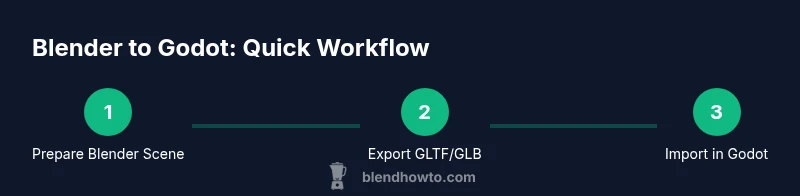
Blender to Godot: Practical Export Guide for Games
Learn how to export Blender models to Godot using GLTF/GLB, align scale, textures, and animations for a smooth, efficient game asset pipeline across engines.


You can transfer Blender models into Godot by exporting as GLTF/GLB from Blender and then importing into Godot, followed by material tweaks and scene setup. Ensure a clean, applied transform, consistent units, and correct animation settings if needed. This guide walks you through the end-to-end steps. We cover export options, import settings, material workflow, and common pitfalls. By the end, your Blender asset will render correctly in Godot with correct scale and textures.
Blender to Godot: Why this pipeline matters
For home developers and hobbyists, the Blender to Godot workflow is a proven path to bring 3D assets from creation to interactive scenes. The BlendHowTo team emphasizes a clean, repeatable process so you can iterate quickly without technical debt. In this guide, we’ll show you how to prepare your Blender models, export them via GLTF/GLB, and import them into Godot with fidelity preserved. The result is predictable lighting, materials, and animation behavior across engines, which saves time for artwork and gameplay iterations. This section also highlights common decision points—when to bake animations, how to choose between GLTF formats, and how to structure assets for large scenes. The lessons are designed for long-term efficiency, not just a single project.
Understanding File Formats for Godot
Godot shines when assets are exchanged via GLTF 2.0, stored as GLB, or output as GLTF. GLTF/GLB preserves mesh data, textures, and animations, while keeping file sizes reasonable for game runtimes. Blender’s GLTF exporter supports PBR materials, image textures, and morph targets, which Godot can import with minimal adjustments. While GLTF is widely supported, you’ll still need to verify material behavior in Godot since engines interpret some shader attributes differently. For best results, prefer GLB for a single-file asset that bundles textures, if your project pipeline favors simplicity.
Preparing Your Blender Scene for Export
Start with a clean workspace: apply all transforms (location, rotation, scale), set a consistent unit system (meters or centimeters), and remove any hidden or unused objects. Name your objects clearly to avoid confusion in Godot. Remove Blender-specific modifiers that won’t translate well (like array modifiers with dynamic counts, or physics modifiers unless you plan to bake them). Check that normals are correct and that the mesh is manifold where needed. Organizing the scene into a simple hierarchy helps Godot import scenes with predictable transforms and ease of editing later.
Export Settings in Blender: GLTF/GLB Best Practices
Choose GLTF 2.0 Binary (.glb) for compact, self-contained assets. In the exporter options, include Mesh, Materials, Textures, and Animations when needed. Enable the option to Apply Unit and Apply Transform to ensure coordinates map cleanly into Godot space. If your model uses textures, decide whether to embed textures in the GLB or keep them as external files next to the GLB file. For animations, bake actions if your rig or constraints rely on Blender-only features. Finally, test multiple export variants with small assets before committing to a large scene.
Importing into Godot and Initial Verification
Drop the GLB file into Godot’s FileSystem dock and let Godot create an scene instance. In the Import tab, verify that mesh, materials, and animations are detected. If materials look off, try reimporting with a different material mode or adjust PBR settings in Godot’s material properties. Check scale and orientation; Godot uses a different coordinate system than Blender, so you may need to adjust the import scale or rotate the model on import. Lighting and environment settings can also affect how textures appear, so test with a simple scene.
Common Pitfalls and How to Fix Them
Scale mismatches between Blender and Godot are common; ensure you consistently apply scale in Blender and lock the unit system before export. Texture paths can break when assets move; consider embedding textures in the GLB or packaging textures alongside the GLB. Materials may look different due to shader differences; you’ll often need to recreate or tweak Godot materials rather than hoping Blender’s shaders translate perfectly. Finally, animations can fail to export if actions aren’t properly labeled or if rigs rely on Blender-only constraints—bake or adjust to a Khronos-compliant setup.
Workflow Enhancements and Advanced Tips
For frequent pipelines, keep a small ‘export kit’ folder with a reference Blender file, a minimal GLB export, and a ready-to-import Godot scene. Use consistent naming conventions across assets, materials, and textures to simplify batch processing. If you’re integrating with a large scene, consider instancing standalone GLB assets and composing scenes in Godot rather than overloading a single file. Keep track of engine version changes; GLTF support evolves, so revisit export settings after major Godot or Blender updates.
Tools & Materials
- Blender (latest stable release)(Ensure GLTF export is enabled (built-in) and you're using Blender 3.x or newer)
- Godot Engine (latest stable)(Prefer Godot 4 for PBR workflows; import settings may differ between versions)
- GLTF/GLB export options(Apply transforms, include mesh, materials, animations; use glTF 2.0)
- Texture files (PNG/JPEG)(Place textures alongside GLB or embed in GLB)
- Reference images or HDRI (optional)(If you use HDR lighting in Godot scenes)
- Calibration reference for scale(Set Blender scene units consistently (e.g., meters) and apply scale before export)
Steps
Estimated time: 60-90 minutes
- 1
Prepare Blender scene
Audit the model for clean topology, apply transforms, and set a consistent unit system. Name objects clearly and remove unused data blocks. Decide which objects will be instanced or exported together.
Tip: Use Ctrl+A to Apply > Scale and Rotation before exporting to prevent scale drift in Godot. - 2
Optimize materials for GLTF
Convert complex Blender materials to PBR-friendly nodes (Principled BSDF). Reduce Blender-specific shaders and avoid nodes that won’t translate well to Godot’s PBR pipeline.
Tip: Keep texture maps simple and ensure UV maps are valid across all objects. - 3
Check UVs and textures
Confirm that every texture has a valid UV map and is referenced correctly in the material. Pack textures alongside the GLB or plan for embedding textures.
Tip: Use a single texture atlas if possible to reduce draw calls in Godot. - 4
Export to GLTF/GLB
In Blender, choose GLTF 2.0 Binary (.glb). Include Mesh, Materials, Textures, and Animations if needed. Apply unit scaling and ensure animations are baked if required.
Tip: Test export with a small sample model before exporting a full scene. - 5
Import into Godot
Drag the GLB into Godot’s FileSystem. Inspect the Import dock, enable necessary options (animations, textures). Validate scale and orientation in a test scene.
Tip: If materials look wrong, try a fresh material on import or adjust shader parameters in Godot. - 6
Verify visuals in Godot
Place the asset in a basic scene with lights and a camera. Confirm textures, normals, and shading behave as expected under real-time lighting.
Tip: Enable Global Illumination for more accurate lighting comparisons during testing. - 7
Troubleshoot and iterate
Document issues (texture paths, scale mismatches, animation glitches) and adjust your Blender export or Godot material setup accordingly. Iterate until the asset behaves consistently.
Tip: Keep a changelog of export settings to reproduce fixes later.
Frequently Asked Questions
What is the best export format from Blender for Godot?
GLTF/GLB is the recommended exchange format because it preserves meshes, textures, and animations with a compact footprint. Godot’s importer handles GLTF well, especially when materials are kept simple.
GLTF/GLB is the recommended exchange format because it preserves meshes, textures, and animations with a compact footprint.
Should I apply transforms in Blender before exporting?
Yes. Apply scale, rotation, and location to avoid mismatches in Godot. This ensures the asset imports with correct size and orientation.
Yes. Apply transforms to avoid mismatches in Godot.
Do I need to bake animations before importing to Godot?
If your Blender rig uses constraints, IK, or drivers, bake animations so Godot can reproduce them. Otherwise, GLTF can export animation data directly.
Bake if needed to ensure compatibility with Godot’s animation system.
How do I fix missing textures after import?
Embed textures in GLB or place them next to the GLB file with consistent paths. Then re-import or update texture references in Godot.
Make sure textures are embedded or properly referenced next to the GLB.
Can Godot 3 handle Blender exports as GLTF?
GLTF is supported in both Godot 3 and Godot 4, but be aware of version-specific importer options and shader behavior. Verify on your target engine version.
GLTF works in both Godot 3 and 4, but check your version notes for importer changes.
Watch Video
What to Remember
- Export with GLTF/GLB for fidelity and simplicity
- Apply transforms and maintain unit consistency
- Test in Godot early to catch import issues
- Expect material adjustments after import
- Document export settings for re-use