How to Join Objects in Blender: A Practical Guide
Learn how to join objects in Blender, when to use it, and how to clean up the result. This beginner-friendly guide covers keyboard shortcuts, transformations, and post-join cleanup for smooth modeling workflows.


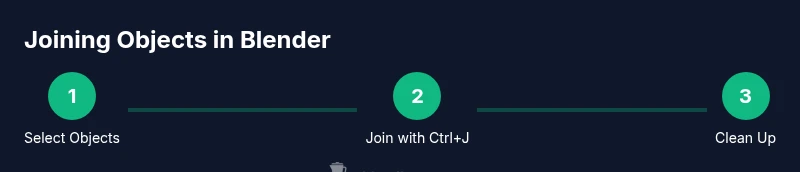
To join objects in Blender, select the objects you want to merge, then press Ctrl+J (or use Object > Join). The selected objects become a single mesh, which is ideal for creating cohesive assets or simplifying editing. You may need to apply transforms or adjust origins for precise placement after joining.
Understanding what joining does in Blender
Joining objects in Blender combines multiple selected objects into one editable object. The result is a single mesh data-block that you can edit in Edit Mode, allowing you to treat the combined geometry as a single entity. This is especially useful when you have assembled parts that should behave as one piece during modeling, sculpting, or export. While the join operation is straightforward, it’s important to know how Blender handles object origins, transforms, and modifiers before you execute the command. The BlendHowTo team emphasizes practicing joins on simple models first to build confidence and to reduce risk when working on complex scenes. Remember: joining is a workflow choice, not a mandatory step, and it can be reversed with undo or the Separate command if needed.
When to join vs. other methods
Joining is most appropriate when you want to edit multiple pieces as a single object, share a common origin, or export a unified mesh. If you still need to manipulate parts independently, consider non-destructive alternatives like parenting, grouping, or creating a single mesh via non-destructive modifiers. Parenting keeps a hierarchical relationship but preserves individual object data, while joining collapses separate objects into one data-block. The distinction matters for animation, modifiers, and future edits. For many projects, a hybrid approach—join only after final placement, then apply transforms—yields the best balance between editing flexibility and performance.
Preparing before you join: check types, origins, and transforms
Before you join, verify that the objects are appropriate for combination. In practice, most users join mesh objects and ensure their origins are aligned to a common reference point. Apply location, rotation, and scale if needed to avoid surprises after the join. You can do this with the Apply Transform command, typically found under the Object menu or with the shortcut Ctrl+A. If origins are scattered, re-centering or aligning origins to a shared point can simplify subsequent edits. Good preparation reduces post-join cleanup and keeps your workflow smooth.
Performing the join: keyboard and menu routes
To execute the join, switch to Object Mode and select all objects you want to merge. The active object is the one that will receive the merged data, though in most cases the active object’s name becomes the base for the new mesh. Press Ctrl+J to perform the join, or use Object > Join from the top menu. After joining, Blender creates a single object that you can enter Edit Mode for further mesh edits. If you want to reverse the action, simply use Undo or choose Separate from Edit Mode to split by selection.
After joining: origins, transforms, and data blocks
Joining redefines the object’s data-block into a single mesh. This can affect transforms and origin placement, so review the resulting object carefully. If the origins are misaligned, you can re-position the origin by using Set Origin to Geometry or Origin to 3D Cursor. Check that modifiers, shading, and vertex groups still reflect your intended workflow. If you had multiple materials, ensure material assignments are still correct and that there are not duplicate materials leaking into the new mesh.
Edit mode and post-join cleanup
In Edit Mode, you’ll often want to clean up the merged geometry. Look for duplicate vertices (merge by distance), hidden faces, or overlapping edges that could cause shading artifacts. The Merge by Distance option helps consolidate close vertices, improving performance and lighting calculations. After cleaning, review edge flow and, if needed, adjust vertex groups or closed loops to maintain your intended topology. Regularly saving a backup before deep edits is a best practice that reduces risk when making structural changes.
Special cases: different data types and modifiers
Blender’s Join is most reliable when working with mesh objects. If you attempt to join objects of different data types, results can be unpredictable, so plan to convert objects to Mesh first or avoid joining non-mesh types. Be mindful of modifiers attached to the original objects; after joining, modifiers may apply differently or require reconfiguration. If you anticipate needing independent parts later, consider keeping objects separate or using non-destructive methods like parenting instead of a full join.
Non-destructive alternatives: parenting, groups, and instances
When you want to coordinate multiple parts without permanently merging geometry, use parenting to link objects to a common control, or create a group or collection for organization. Instances, such as dupli-objects or scene references, let you reuse geometry without increasing geometry count. These approaches preserve editability of individual pieces, support animation, and keep file sizes manageable. If your goal is a single export, you can still join at the final stage for delivery.
Troubleshooting common issues after joining
If you notice shading artifacts, check normals and ensure a consistent face orientation across all joined geometry. Non-manifold edges or stray vertices can cause rendering issues, so review edge loops and fix gaps where needed. If you accidentally joined incompatible geometry, use Separate to revert the action on the affected portion. Regularly test the joined mesh in your target workflow (render, game, or 3D print) to catch issues early.
Real-world workflows: game assets, rendering, and 3D printing
In game art and archviz, joining objects can simplify asset pipelines and reduce draw calls, but you must balance efficiency with flexibility. For 3D printing, ensure the joined mesh is manifold and watertight before exporting. In rendering-heavy scenes, test smooth shading and lighting on the joined mesh to avoid unexpected shading artifacts. The key is to integrate the join step into a broader, repeatable workflow that aligns with your project’s constraints.
Tips for speed: hotkeys, preferences, and clean projects
Customize your Blender shortcuts to speed up joins, and consider enabling options like 'Auto Merge Editing' if available in your version. Keep your scene organized with clear object naming and logical collections. Regularly save incremental versions to compare edits, and use a consistent posture toward joins in your pipeline to minimize surprises across projects.
Tools & Materials
- Blender software (latest stable release)(Ensure you’re working in Object Mode when selecting objects to join)
- Project with multiple objects to join(Prefer meshes for predictable results)
- Mouse and keyboard (Ctrl key)(Ctrl+C etc. for common actions; Ctrl+J for join)
- Ability to apply transforms(Apply Location/Rotation/Scale before joining if alignment matters)
- A plan for post-join cleanup(Be prepared to remove doubles and fix normals)
Steps
Estimated time: 15-25 minutes
- 1
Select objects to join
In Object Mode, hold Shift and left-click to select all objects you want to merge. Make the last clicked object the active one since Blender uses it as the base for the joined data.
Tip: Use A to deselect all, then Shift-click to reselect precisely. - 2
Check object types and readiness
Ensure you’re joining compatible data types, typically Mesh objects. If you must join non-mesh types, convert them to Mesh first to avoid surprises.
Tip: If you’re unsure, convert early so you can undo cleanly. - 3
Apply transforms (optional but helpful)
Apply location, rotation, and scale if you expect precise placement after joining. This can prevent shifts in the merged mesh.
Tip: Ctrl+A to apply; choose Location, Rotation, and Scale as needed. - 4
Join the objects
With objects selected, press Ctrl+J or choose Object > Join from the menu. The selected objects become one editable mesh.
Tip: Verify the active object is the one you expect to be the base. - 5
Enter Edit Mode for cleanup
Switch to Edit Mode to scan for duplicates or bad geometry. Use Merge by Distance to remove nearby verts and fix topology.
Tip: Zoom in on dense areas to catch stray vertices. - 6
Inspect normals and shading
Ensure normals point outward and shading looks correct. Recalculate normals if needed and adjust face orientation.
Tip: Use Mesh > Normals > Recalculate Outside. - 7
Review materials and modifiers
Check that materials apply consistently and that any modifiers still behave as intended after the join.
Tip: If material slots spilled, reassign materials in the material properties tab. - 8
Save and test in your workflow
Save a new version and test the joined mesh in your render, game engine, or print workflow to confirm it behaves as expected.
Tip: Create a backup copy before major edits.
Frequently Asked Questions
What does joining objects do in Blender?
Joining creates a single editable mesh from multiple objects, allowing unified editing. You can still separate parts later using the Separate option in Edit Mode if needed.
Joining turns several objects into one editable mesh, and you can separate parts later if needed.
Can I join objects of different types, like a mesh and a curve?
Join works best with like data types. If you must combine different types, convert to a common mesh first to ensure a predictable result.
Joining different types can be unreliable; convert to mesh first if you need a single object.
What happens to modifiers after joining?
Modifiers from the original objects are not automatically merged; the joined object will have an edited modifier stack you’ll need to review and adjust.
Modifiers don’t automatically merge; check and adjust them after joining.
How do I undo a join if I change my mind?
Use Ctrl+Z or Edit > Undo to revert the join. If you already edited the mesh, use Separate to revert individual parts.
You can undo the join with Ctrl+Z or separate parts if you need to undo changes.
Is joining faster for rendering or printing?
Joining can simplify the scene and reduce draw calls, but very large joined meshes may slow down editing and rendering. Balance by testing in your target workflow.
A joined mesh can help rendering, but very large meshes can slow things down; test in your workflow.
What’s a safer alternative to joining for keeping edits flexible?
Use parenting, grouping, or instancing to coordinate parts without merging geometry. This keeps edits flexible while still allowing collective behavior.
Parenting or grouping keeps edits flexible without merging geometry.
Watch Video
What to Remember
- Join selected objects with Ctrl+J
- Prepare origins and transforms before joining
- Verify topology and normals after joining
- Consider non-destructive alternatives when editing separately
- Back up your project before major joins