How to Combine Objects in Blender: A Practical Guide
A comprehensive guide to combining objects in Blender using join, parent, grouping, and booleans. Learn practical steps, best practices, and common pitfalls for clean, editable models.


Learn how to combine objects in Blender to create unified models. This guide covers when to join, how to use parent-child relationships, and how to apply booleans and groups. You’ll learn practical steps, keyboard shortcuts, and common mistakes to avoid, so you can merge meshes, objects, and modifiers confidently.
Understanding why you might combine objects in Blender
According to BlendHowTo, combining objects blender is a fundamental skill that helps you manage complex scenes. When you assemble multiple parts into a single mesh, you simplify selection, transformation, and exporting. This practice also affects materials, modifiers, and animation. In this section, we’ll outline the core concepts behind combining objects, including when to join, when to rely on non-destructive strategies, and how Blender handles data blocks for merged geometries. You’ll learn to distinguish between a simple join, a parent-child relationship, a grouping, and a boolean operation, with practical examples from everyday Blender projects. The goal is to give you clear decision criteria for choosing the right method for your model and workflow, whether you’re building a character, a mechanical part, or a prop piece.
The Join operation: quick merge of meshes
When you combine objects blender, the simplest method is to join them into one mesh using the Join command (Ctrl+J). This action merges the active object’s mesh data with the others you’ve selected, creating a single editable mesh. It’s ideal for parts that share the same topology, scale, and shading setup. After joining, you’ll typically see a single object in the Outliner and a consolidated vertex/edge structure in Edit Mode. Remember to apply transforms before joining if you want consistent results across all parts. This approach is fast, but it’s not inherently non-destructive, so save a backup before merging complex assemblies.
Parent-Child relationships and grouping
Not every scenario requires a true merge. You can effectively manage related parts without joining by using parent-child relationships or grouping. Parent-child keeps each object’s data intact while letting you move, rotate, or scale the child as part of the parent’s transformation. Groups (or collections in newer Blender versions) let you organize objects for easier visibility and export without physically merging geometry. For the task of “combine objects blender” in a future editing stage, parental links or groups offer a non-destructive pathway to a unified scene. This approach is particularly valuable in character rigs, modular environments, and architectural models.
Boolean operations and modifiers
Boolean operations (Union, Difference, Intersection) can produce complex, hard-edged geometry that’s difficult to clean up manually. Use booleans when you need precise cuts or to fuse incompatible shapes quickly, but plan to perform cleanups afterward (remove doubles, fix topology, and possibly retopologize). Modifiers like Boolean, Remesh, or Lattice can be combined with joins for advanced effects, yet they add complexity. If you plan to export the model or animate it, validate geometry for non-manifold edges and ensure normals point outward. Booleans are powerful, but they demand careful post-processing to avoid shading issues.
Non-destructive organization: groups, collections, and shortcuts
If you want to keep your workflow flexible while you work on a model, use collections and parenting instead of jumping straight to a join. This keeps each piece editable, with separate materials and modifiers intact. Shortcuts such as Ctrl+G to group (or M to move to a collection) help maintain a clean scene. When you’re ready to finalize, you can perform a limited join to create a single mesh for export, while keeping a separate backup of the original parts. This strategy is ideal for iterative design workflows and collaborative projects.
A practical workflow: from separate parts to a final, fused model
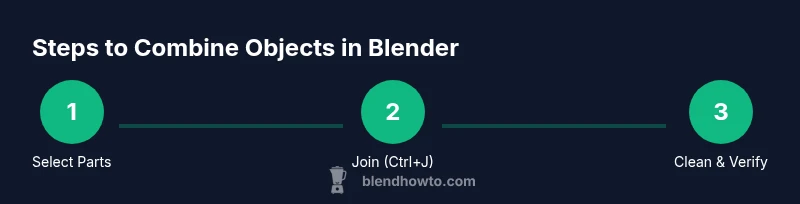
A typical scenario for combine objects blender begins with two or more distinct parts—like a chair seat and legs or a mechanical housing and internals. Start by inspecting scale and orientation; apply transforms if needed. Use Box Select (B) or Ctrl+Click to choose all relevant parts, then press Ctrl+J to join. In Edit Mode, run Merge by Distance to eliminate gaps, then review materials and normals. If you discover the merge was premature, you can undo or revert to a copy and retry with a different method (parenting, grouping, or a staged join). Finally, test the model in animations or exports to confirm integrity across pipelines.
Tools & Materials
- Blender software(Latest stable release from blender.org before starting.)
- Two or more Blender objects(Practice with simple primitives (cube, cylinder, plane) to replicate join scenarios.)
- Mouse with middle-click or trackpad(Essential for viewport navigation and intuitive operations; enable emulation if needed.)
- Optional: materials on separate objects(Helpful to understand how materials transfer after joining.)
Steps
Estimated time: 25-35 minutes
- 1
Select objects to merge
In Object Mode, Shift-click to select all parts you want to combine. Use Box Select (B) for quick multi-selection. The order of selection can influence the active object when joining, so plan accordingly.
Tip: Use the active object as the target for the final data block to keep materials predictable. - 2
Join the objects
With all parts selected, press Ctrl+J to join. This converts the selection into a single mesh data block under the active object’s name.
Tip: After joining, verify that you now have a single mesh in Edit Mode. - 3
Apply transforms before joining
Apply location, rotation, and scale to all parts (Ctrl+A) before joining to ensure consistent geometry and shading after the merge.
Tip: Applying scale helps prevent unexpected deformations later. - 4
Clean up the merged mesh
In Edit Mode, select all and use Merge by Distance (formerly Remove Doubles) to remove extraneous vertices. Check for internal faces that can cause shading artifacts.
Tip: Zoom in to inspect tight corners and gaps. - 5
Check modifiers and materials
Review modifiers on the merged object; some modifiers may not apply post-merge. Reassign or map materials if faces inherit wrong slots after joining.
Tip: If necessary, separate and rejoin with adjusted material indices. - 6
Consider non-destructive alternatives
If you anticipate edits, prefer parenting or grouping instead of joining to preserve editability while still achieving a composed scene.
Tip: Keep a separate backup file before performing any permanent joins. - 7
Test and finalize
Animate or export the model to verify geometry integrity, normals, and shading in downstream software. Make any final tweaks to topology.
Tip: Export options like Apply Modifiers can affect the final geometry; choose appropriately.
Frequently Asked Questions
What does 'Join' do in Blender?
Join merges multiple selected objects into one mesh, creating a single object with a shared mesh data block. This simplifies editing but consolidates materials and modifiers.
Join combines selected objects into a single mesh, making editing easier but reducing individual object data.
Should I join objects with different materials?
Joining objects with different materials is possible, but you’ll end up with a merged mesh that must have its materials reassigned per face. Consider keeping materials separate or using a control method to map materials after joining.
If materials differ, you’ll need to reassign materials after merging.
How do I separate a joined object back into parts?
Select the merged object in Edit Mode, use P to separate by selection, by loose parts, or by material. This restores individual objects while keeping their original data.
Use the Separate tool (P) to split a merged mesh back into parts.
Do modifiers survive a join?
Some modifiers affect the final geometry post-join, but others may be removed or need reconfiguration. Always review the Modifier stack after merging.
Modifiers may need adjustment after joining.
Can I join curves and meshes together?
Blender restricts join to compatible data types (usually meshes). If you need to merge different types, consider converting or using non-destructive methods.
Only meshes usually merge with meshes; convert types if needed.
What’s the difference between joining and grouping?
Joining makes a single mesh; grouping/parenting keeps objects separate but coordinated in transforms or exports. Choose based on whether you need editability or a single export.
Join = one mesh; group/parent = organized but separate objects.
Watch Video
What to Remember
- Join when you need a single editable mesh quickly.
- Use parent/group for non-destructive organization.
- Apply transforms before merging to ensure consistency.
- Check materials and modifiers after merging for clean results.