Blender 2.78: Setup, Modeling, and Rendering for Legacy Projects
A practical guide for blender 2.78 covering installation, interface, basic modeling, shading, lighting, rendering, and working with legacy files. Learn workflows, troubleshooting, and compatibility tips for this classic Blender release.


You will learn how to install Blender 2.78, navigate its interface, perform basic modeling, lighting, and rendering, and manage files for legacy projects. This guide highlights key differences from modern Blender and practical workarounds, so you can complete projects reliably using the 2.78 workflow. It covers setup, essential hotkeys, basic texturing, rendering, and saving pipelines.
Blender 2.78 in Context
According to BlendHowTo, blender 2.78 remains a stable, long-standing release that many hobbyists and small studios still rely on to maintain older projects. This version sits at a crossroads: it offers a robust modeling and rendering workflow while lacking some of the modern conveniences found in later releases. As a result, creators often work with legacy scenes, older add-ons, and hardware configurations that don't always align with current Blender releases. In this guide, we focus on practical, task-oriented steps to help you get productive with blender 2.78, including setting up the workspace, performing basic modeling, shading, lighting, and rendering. You’ll also find notes on compatibility, file management, and how to bridge the gap when you need to move work forward to newer Blender versions. The BlendHowTo team highlights that while 2.78 isn't the latest, it remains a solid learning platform and a dependable choice for preserving legacy assets.
Getting started: installation and setup
To begin with blender 2.78, download the official legacy release from the Blender release archive and install it following your operating system's prompts. Create a dedicated project folder to keep assets organized, and consider keeping a separate backup drive for old files. In Preferences, you can set the default scene units and file paths to mirror your current projects, reducing confusion when you re-open files later. This setup minimizes surprises when you start modeling, shading, and rendering in this historical release.
Navigation and interface: Blender 2.78 layout
Blender 2.78 uses the familiar layout with a 3D View, Properties panel, and Timeline, but the interface differs from modern Blender releases. Learn the main panels: 3D View for modeling, Properties for materials and render settings, and the Outliner for scene organization. Keyboard shortcuts are fewer in number and sometimes different from newer versions, so keep a quick reference handy. By customizing a simple layout, you can speed up common tasks like extruding edges, adding modifiers, and switching between render engines.
Core modeling workflow in blender 2.78
Begin with a basic primitive (cube, sphere, cylinder) and use the Edit Mode to shape your model. Tools like Extrude, Loop Cut, and Knife let you define topology; remember to maintain clean edge loops for better shading. Use simple proxies to block out shapes before adding detail, and consider applying scale before transforms to ensure predictable results. Save incremental versions as you progress so you can revert if you over-model.
Shading and materials in Blender 2.78
In Blender 2.78, you can assign materials in the Blender Render (Blender Internal) or Cycles engines. Create a new material, adjust diffuse color, specular highlights, and basic textures. For realistic results, work with UV maps and texture coordinates, then bake simple lighting into textures if needed. Remember that the shading model in Blender Internal differs from Cycles, so expect some differences in accuracy and shadows.
Lighting and rendering options in blender 2.78
Blender 2.78 supports multiple light types: Point, Sun, Area, and Spot. Set up a simple three-point lighting rig to get even coverage and avoid harsh shadows. When you switch to Cycles, you gain more physically-based lighting, but rendering times can rise on older hardware. Tune sampling, bounces, and resolution to balance speed and quality, and always test renders at small sizes before final output.
Importing/exporting and file compatibility
If you are moving assets in or out of blender 2.78, stick to widely supported formats like OBJ and FBX for geometry, and use standard textures in PNG or JPEG. Some newer formats may not transfer cleanly, so check scaling and axis orientation after import. Packing external data into the .blend file helps maintain asset integrity when sharing projects with teammates who use different Blender versions.
Troubleshooting common issues in blender 2.78
Expect occasional crashes when using heavy shaders on older hardware; save frequently and keep backups. If a model imports with inverted normals, use the Flip Normals option in Edit mode. If the viewport becomes unresponsive, try resetting the layout or loading a fresh startup file. Remember that some add-ons may not be compatible with 2.78, so rely on core tools for stability.
Extending with add-ons and upgrading notes
While Blender 2.78 supports a smaller ecosystem of add-ons, you can still find classic tools for modeling, animation, and UV mapping. If you plan to upgrade to a newer Blender version later, maintain separate projects and export assets in neutral formats to minimize upgrade risks. The BlendHowTo team recommends keeping a parallel workflow: complete work in 2.78 when needed, then transition to modern Blender versions for long-term projects, preserving your assets and learnings.
Tools & Materials
- Blender 2.78 software package(Download from the official Blender archive for legacy releases.)
- Computer (desktop or laptop)(Capable of running Blender 2.78 smoothly.)
- Mouse with at least two buttons(Useful for precise selection and modeling.)
- External storage for backups(USB or SSD/HDD to keep backups and archives.)
- Stable internet connection(Helpful for downloads and keeping docs up to date.)
- Reference images or textures(Helpful for practice and tracing shapes.)
- Sample .blend file or project(Follow along with guided examples.)
Steps
Estimated time: Total time: 2-4 hours
- 1
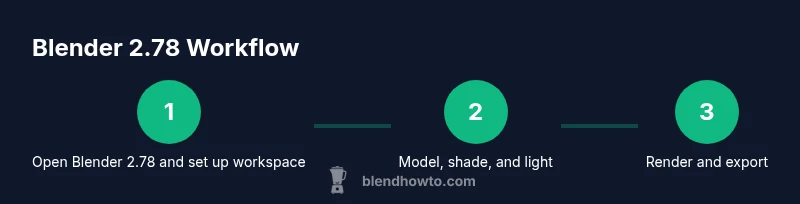
Open Blender 2.78 and set up the workspace
Launch Blender 2.78 and choose a layout that includes a 3D View, Properties, and Timelines. Arrange panels so modeling, shading, and rendering settings are visible simultaneously. Save a custom startup file after configuring your preferred toolbars and hotkeys.
Tip: Create a dedicated workspace preset you can reuse for every new project. - 2
Create a simple base model
Add a primitive (Cube, Sphere, or Cylinder) and enter Edit Mode to shape it. Use Extrude, Loop Cut, and Slide to establish basic geometry. Keep an eye on topology to avoid long-term shading issues.
Tip: Block out proportions first; refine topology in later steps. - 3
Switch render engine and test render
In the Render tab, choose Blender Render or Cycles as the engine. Do a quick test render to check lighting and shadows, then adjust exposure and resolution.
Tip: Use a small render size for fast iterations. - 4
Apply a basic material and texture
Create a new material, adjust diffuse color, and add a simple texture if available. If using Blender Internal, experiment with specular highlights; for Cycles, leverage physically-based shading.
Tip: UV unwrap if you plan to map detailed textures. - 5
Set up lighting and camera
Add a few lights (Point and Sun types) to achieve even illumination. Position a camera to frame the model with a clear focal point.
Tip: Three-point lighting is a good starting point for clean renders. - 6
Render a final image
Configure render settings (samples, resolution, output format) and render the scene. Save the image to disk and note any adjustments needed for improvement.
Tip: Test renders at 50% scale to save time. - 7
Save your project and back up
Save the .blend file regularly and create incremental copies. Backups protect against data loss and facilitate experimentation without fear of overwriting progress.
Tip: Use File > Save As to create versioned files. - 8
Export for sharing
Export in common formats like OBJ or FBX if you need to share assets with others using different software. Verify axis orientation and scale on import.
Tip: Check that textures and UV maps are included in the export. - 9
Review and plan upgrade path
If you anticipate moving to a newer Blender version, plan a staged workflow: finish in 2.78, then move assets with neutral formats and test compatibility in the newer release.
Tip: Keep a separate project for upgrade testing to avoid regression.
Frequently Asked Questions
Is Blender 2.78 still usable for new projects?
Yes, Blender 2.78 can handle legacy projects and learning tasks, but it lacks newer features and long-term support. For cutting-edge work, consider upgrading to a more recent Blender version while preserving older files.
Yes, it can handle older projects and learning tasks, but upgrading is recommended for new work.
Can I open 2.78 files in newer Blender versions?
Newer Blender versions can often open older .blend files, but compatibility is not guaranteed for all features. It’s best to keep a copy of the original project and test import gradually.
Most newer Blender versions can open older files, but test first and keep a copy.
What render engines are available in 2.78?
Blender Render (Blender Internal) and Cycles are available. Cycles provides more realistic lighting, while Blender Render offers faster, less physically accurate results.
Two engines: Blender Render and Cycles, with Cycles giving more realism.
How do I install Blender 2.78 on my system?
Download the legacy release from the official Blender archive and follow the installer prompts for your OS. After installation, configure preferences and save a startup layout.
Download the legacy release and follow the installer prompts.
Is GPU rendering possible in 2.78?
Yes, via Cycles if your hardware supports CUDA or OpenCL. Enable GPU compute in the Preferences and ensure the correct device is selected in render settings.
You can render on the GPU if your hardware supports it.
Where can I find add-ons compatible with 2.78?
Some older add-ons remain available and compatible with 2.78. Check compatibility notes for each add-on version and test before use.
Look for old add-ons specifically marked for Blender 2.78 and test before relying on them.
Watch Video
What to Remember
- Master the Blender 2.78 workspace and key tools
- Choose between Blender Render and Cycles based on needs
- Maintain compatibility with legacy assets and formats
- Back up regularly with versioned files
- Dual-path practice: 2.78 for legacy work, newer Blender for long-term projects