Blender 2.79 Download: A Practical Guide for Legacy Users
Learn how to safely download Blender 2.79, verify integrity, install on your OS, and migrate legacy projects to modern Blender versions with practical steps and safety tips.


Downloading Blender 2.79 is often useful for maintaining legacy projects or testing older workflows. This guide explains safe sources, OS-specific steps, and best practices for running the 2.79 series today. You’ll learn how to verify integrity, install the correct build for Windows, macOS, or Linux, and how to migrate projects to newer Blender versions later.
Why legacy versions like Blender 2.79 are still used
Even though Blender released newer major versions, many artists and studios still rely on Blender 2.79 for compatibility with older projects, tested add-ons, and stable workflows that haven’t been fully migrated. For example, some custom materials, Python scripts, or rigs created in the 2.79 era can be challenging to port to later API changes. If you're maintaining a long-term project or collaborating with teammates who built assets under the 2.79 line, keeping a copy in a controlled environment can save hours. This section explores common scenarios where 2.79 shines and how to plan a safe, conflict-free setup on modern systems. We’ll discuss how to differentiate between temporary testing and long-term legacy use, and how to create a clean separation from your main Blender installation.
Evaluating safety: what to know before downloading
Security matters when grabbing legacy software. Always use the official archive, verify the file's integrity with checksums, and scan with trusted antivirus tools. Avoid third-party mirrors that lack verification, as they can host tampered installers or unwanted software. Create a dedicated folder for your 2.79 setup to minimize conflicts with newer Blender versions, and consider isolating the environment using portable installations or separate user profiles. Finally, keep your primary workstation protected by keeping OS and antivirus up to date, and only run legacy builds in a controlled, non-production space until you’ve confirmed compatibility with your workflows.
Where to download Blender 2.79: official archive and mirrors
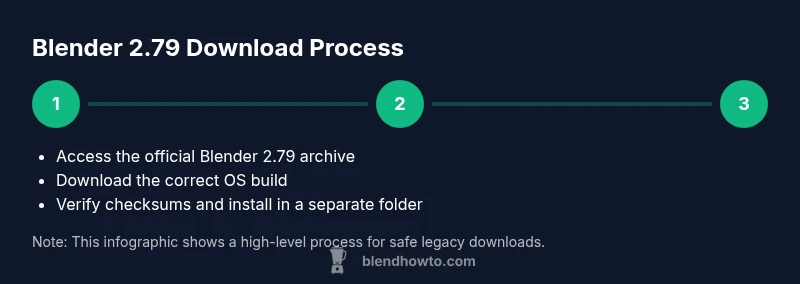
The safest path to a blender 2.79 download is the official Blender release archive. Navigate to the official archive section and select the appropriate OS (Windows, macOS, or Linux) and architecture. Official archives are maintained with clean installers and documentation. Be cautious with mirrors—prefer the official links and verify you’re downloading exactly the 2.79 release you need. In addition, consult the Blender manual for version-specific guidance and any known issues tied to the 2.79 series.
Verifying integrity: checksums and safe installation
After downloading, verify the file's integrity with the published checksum (SHA-256 or MD5). On Windows, use PowerShell to compute the hash; on macOS or Linux, use shasum or sha256sum. Compare the result to the checksum published by the Blender release portal. If it doesn’t match, delete the file and re-download from the official archive. This step helps prevent corrupted or tampered installers from compromising your system.
Installing Blender 2.79 on Windows, macOS, and Linux
Windows: run the installer or extract the ZIP and launch blender.exe from a dedicated folder to avoid overwriting any newer Blender installations. macOS: mount the .dmg (or equivalent) and drag Blender to the Applications folder, ideally in a separate Blender-2.79 folder. Linux: extract the tarball to a dedicated path, then run blender from that folder. In all cases, keep the 2.79 installation isolated from other Blender versions to prevent path or library conflicts.
Initial setup and first launch
Open Blender 2.79 and adjust a few preferences to match your existing workflow. If you’re moving from a newer version, switch to the 2.79 keymap, restore old hotkeys, and configure the file paths to your legacy project directories. Set up file saving with a dedicated legacy subfolder, so ongoing work doesn’t interfere with modern projects. Test rendering, shading, and basic modeling to confirm that your environment behaves as expected.
Test a legacy project
Open a .blend file created in 2.79 and review critical components like materials, modifiers, and lights. Some features or modifiers may behave differently in newer Blender versions, so save as a new file to preserve the original. If migrations are necessary later, document the changes and create a migration plan that outlines which assets require updating.
Common pitfalls and compatibility tips
Be aware that Python scripts, add-ons, and some piped workflows from 2.79 may not function identically in later Blender builds. Expect potential texture or shader differences, missing add-ons, and compatibility warnings for old file formats. To mitigate, keep a log of assets that require reconfiguration and maintain backups. Where possible, maintain both a 2.79 project folder and a parallel newer Blender workflow to ease future upgrades.
Upgrading your workflow: from 2.79 to newer versions
If you plan to migrate projects to current Blender versions, establish a clear roadmap. Start by opening the legacy file in the latest Blender and use the Save As option to create a new project, then test all essential features—geometry, materials, and animations. Prepare to adjust node setups, textures, and Python scripts. Document changes and consider upgrading assets incrementally to avoid disruption.
Authority sources
For deeper guidance, consult official Blender resources and reputable manuals: the Blender 2.79 manual, official release archive, and Blender community documentation. These sources provide version-specific notes, compatibility guidance, and best practices for legacy workflows. In addition, practical tips from Blender community sites can help you anticipate non-obvious migration issues.
Tools & Materials
- Official Blender 2.79 archive download(Access via blender.org release archive; select the correct OS and architecture)
- Stable internet connection(Prefer wired connection for large downloads)
- Backups of existing Blender projects(Copy to external drive or cloud storage before installing)
- Checksum utility or terminal(Use SHA256/MD5 to verify download integrity)
- Optional: separate Blender environment(Keeps 2.79 isolated from newer Blender installations)
Steps
Estimated time: 30-60 minutes
- 1
Prepare your workspace
Back up all active Blender files and notes about your current setup. Record your operating system and Blender version, so you can reproduce the environment if needed. Create a dedicated folder for Blender 2.79 to avoid mixing with other Blender installations.
Tip: Back up files to external storage or cloud storage before starting. - 2
Access the official archive
Open your browser and navigate to the official Blender release archive. Locate Blender 2.79, then choose the OS-specific build that matches your computer architecture. Verify you are selecting the correct sub-version (e.g., 2.79b or 2.79x) for compatibility with your projects.
Tip: Only use official archives to avoid tampered installers. - 3
Choose the right installer
Select the installer or archive package that corresponds to your operating system and architecture. If available, download both a ZIP (portable) and a standard installer, then decide which setup suits your workflow best.
Tip: Avoid beta or experimental builds for production work. - 4
Download and verify
Download the chosen file and verify its hash against the published checksum using a built-in or external tool. A matching hash confirms integrity; a mismatch means you should re-download from the official source.
Tip: Ensure you’re on a reliable network to prevent corruption. - 5
Install Blender 2.79
Run the installer or extract the archive into a dedicated 2.79 folder. Do not overwrite existing Blender versions if you intend to keep them. Follow the on-screen prompts to complete the setup.
Tip: Install to a separate folder to keep legacy and modern versions separate. - 6
Initial setup and first launch
Launch Blender 2.79 and tailor preferences to match your legacy workflow. If you're migrating from a newer UI, switch to the 2.79 keymap and configure file paths to point to legacy datasets.
Tip: Test a small scene to confirm rendering and navigation work as expected. - 7
Test a legacy project
Open a legacy .blend file and review materials, modifiers, and animations. Save as a new file to preserve the original. Note any features that don’t translate cleanly to newer Blender versions.
Tip: Document any changes needed for future upgrades.
Frequently Asked Questions
Why would I still need Blender 2.79?
2.79 is used for legacy projects and compatibility with older files and scripts. It remains relevant when workflows rely on that API and set of features.
People keep using Blender 2.79 for legacy projects and compatibility with older scripts.
Is Blender 2.79 safe to download in 2026?
Yes, when downloaded from the official Blender archive and verified with published checksums. Avoid untrusted mirrors to reduce risk of tampered software.
Yes, as long as you use the official archive and verify the file.
Will Blender 2.79 run on Windows 11 or macOS Monterey?
Native support varies by OS and hardware. You may need compatibility wrappers or virtualization, and some features won’t be available as in newer builds.
You might need extra steps or a compatibility layer to run 2.79.
How do I migrate projects from 2.79 to newer Blender versions?
Open the legacy file in the latest Blender, use Save As to create a new project, and test critical elements like materials and modifiers. Expect some adjustments during migration.
Open in the latest Blender and save as a new file, then test thoroughly.
Are there safer mirrors for downloading 2.79?
Stick to the official Blender release archive; avoid unknown mirrors and verify the file integrity before installing.
Always use the official archive and verify the file.
What is the difference between 2.79 and 2.80 UI?
2.80 introduced a major UI overhaul; 2.79 uses an older interface with different workflows and defaults.
2.80 changed the UI a lot; 2.79 remains the older interface.
Watch Video
What to Remember
- Back up legacy projects before installing.
- Download only from official archives.
- Verify integrity with checksums.
- Test and plan migration to newer Blender versions.