Blender 2.8 Download: A Step-by-Step Guide for Legacy Versions
Learn how to download Blender 2.8 from the official legacy archive, verify integrity, and install on Windows, macOS, or Linux. This step-by-step guide covers safety, compatibility, and migration paths to modern Blender for ongoing projects.


To download Blender 2.8, access the official legacy archive and choose the appropriate OS and 2.8.x build. Note that 2.8 is legacy software; for current projects use a modern supported release. Always download from Blender's official site to avoid tampered files. We also provide step-by-step instructions below for Windows, macOS, and Linux.
Why download Blender 2.8 today
According to BlendHowTo, there are legitimate reasons to keep a local copy of Blender 2.8, especially for legacy projects, assets created in 2.8, and for historical comparison. Blender 2.8 introduced a redesigned user interface and modern viewport features that many artists still rely on when examining older projects. Home cooks and hobbyists who juggle 3D modeling exercises may need to test compatibility with older files or confirm how certain shaders looked in the 2.8 era. While BlendHowTo generally recommends using the latest long-term support (LTS) or stable releases for production work, there are scenarios where a local 2.8 installation is valuable for education, archival work, or verifying file integrity across platform upgrades. The key to success is understanding that 2.8 is a legacy version and should be treated as a reference or learning tool rather than the primary production tool. The goal here is to equip you with a safe, informed approach to obtaining and using Blender 2.8 without compromising your current workflow.
In the context of Blender, “blender 2.8 download” is more than a link—it’s a doorway to a specific era of the software. You’ll see how the UI, workflows, and add-ons differed from newer releases, which can illuminate why certain assets or scenes behave differently when opened today. This guide is designed for home cooks, hobbyists, and aspiring 3D artists who want practical guidance on accessing these legacy builds and integrating them into a broader Blender journey.
Where to download Blender 2.8
The official source for Blender 2.8 legacy builds is Blender's archived releases. To get Blender 2.8, go to the official legacy archive page and search for 2.8.x builds appropriate to your operating system. Do not rely on third-party sites that offer modified installers, since those files can pose security risks. Once you locate a 2.8.x release that matches your OS, download the installer or archive file and keep a backup copy in a separate location.
If you’re working across multiple machines, it’s helpful to organize downloads by version and OS. Label directories clearly (for example, Blender_2.8_win64, Blender_2.8_mac, Blender_2.8_linux64) so you don’t confuse 2.8 with the newer versions. Remember that legacy builds may not receive security updates, bug fixes, or formal support, so treat them as reference tools rather than ongoing production engines. After downloading, verify that you have the correct file size and name before starting the installation process.
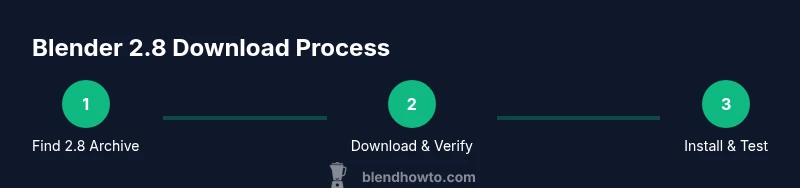
In short, the clean path to a safe blender 2.8 download is: official archive → select the 2.8.x build → confirm OS compatibility → download the installer or archive, then move to the installation phase. This approach minimizes risk and ensures you’re testing a genuine legacy build rather than a modified package.
For content creators curious about historical context, this legacy option helps you compare the 2.8 era with modern Blender behavior. It also provides a concrete baseline for understanding how UI and feature changes evolved in subsequent releases. The BlendHowTo team emphasizes that using official archives preserves file integrity and minimizes compatibility surprises when loading older projects.
How to choose the right build for your OS
Blender 2.8 legacy builds come in several formats tailored to Windows, macOS, and Linux. When selecting a build, first confirm your system’s architecture (32-bit vs 64-bit) and the OS version. Most modern machines run 64-bit operating systems, and 2.8.x builds for 64-bit are typically the standard choice you’ll find in the archive. If you’re unsure about your system, check your system information in your OS settings before downloading. The installer type may differ: Windows tends to offer an installer executable, macOS provides a disk image (dmg), and Linux users may download a tarball or distribution package.
Next, consider the glibc or system library requirements that may be listed in the release notes. Some Linux distributions require compatibility libraries or specific runtime environments. If you’re testing 2.8 on Windows or macOS for a project, test a quick run of the interface after installation to confirm that the layout and navigation feel correct. Finally, ensure that the hardware you’re using supports the older OpenGL requirements of Blender 2.8, as some modern GPUs and drivers may present minor compatibility quirks. Selecting the right build reduces setup time and avoids post-install surprises when opening legacy .blend files.
In all cases, match the target OS and architecture (Windows 64-bit, macOS 64-bit, Linux x86_64). For users who want to experiment with 2.8 screenshots or scene files, a portable or standalone tarball can be convenient, but an installer is typically easier for first-timers. The goal is to have a clean, compatible environment to study 2.8’s workflow without affecting your main Blender setup.
Safety and integrity: verify downloads
Security starts with the download itself. Always verify the integrity of the Blender 2.8 archive or installer when the official archive provides checksums or signatures. The verification process helps ensure you received an unmodified file and protects against tampered software. On Windows, you can run CertUtil to compute a SHA-256 hash; on macOS, use shasum; on Linux, use sha256sum. If a checksum is provided by the Blender archive, compare it against your computed value exactly. If there is any mismatch, do not continue with the installation.
Another safety step is to scan the downloaded file with a trusted antivirus tool before running the installer. Keep your antivirus definitions up-to-date, and avoid executing files from untrusted networks or public machines. If you’re downloading over a public or shared connection, consider using a VPN for extra security. Finally, store the downloaded installer in a dedicated folder with a clear label and create a separate backup copy in another location to prevent accidental loss when you decide to test or upgrade.
If the archive provides a PGP signature or a digital certificate, you can verify it with the appropriate tool. While this step may feel technical, it significantly increases your confidence in the file’s integrity. Remember: the security of legacy software matters as much as its functionality. The BlendHowTo approach is to verify, back up, and then proceed with installation to minimize risk and maximize learning.
Installing Blender 2.8 on your system
After you’ve chosen the correct build and verified integrity, proceed with installation. On Windows, run the installer executable and follow the on-screen prompts, selecting an installation directory and starting menu options that won’t interfere with your current Blender setup. On macOS, mount the DMG and drag the Blender app to the Applications folder, then run it. On Linux, extract the tarball to a preferred location and use the Blender binary inside the extracted folder. If you encounter permission prompts, grant the necessary rights or run from an admin-enabled account.
Once installed, launch Blender 2.8 and configure your initial preferences. If you’re coming from a newer version, reset to factory settings to understand the default workspace in 2.8. Consider enabling or loading the Filmic color management preset, which was commonly used in 2.8-era projects, and configure your render engine to the Cycles or Workbench option depending on your needs. If the 2.8 interface feels unfamiliar, explore the layout and shortcuts and consider importing a simple test file to confirm that basic functions (move, rotate, scale, render) operate as expected. Keep in mind that some add-ons designed for 2.8 may not be compatible with newer 3.x tools, so test add-ons with a small project before committing more work.
First-run setup and essential tweaks
With Blender 2.8 installed, you’ll want to customize your first-run experience to align with the legacy UI and workflows. Start by adjusting user preferences: set the startup file to a simple scene, enable the add-ons you’ll be testing, and configure keyboard shortcuts you’re comfortable with. If you plan to work with older materials or assets, consider loading a minimal sample file to confirm that materials, lighting, and rendering look correct. This is also a good time to set up a dedicated project folder and establish file paths to ensure assets from older projects are easy to locate.
A common tweak is enabling the legacy 2.8-era color management by selecting Filmic or the default sRGB option, depending on your needs. If you encounter OpenGL or viewport issues on older GPUs, try lowering the viewport shading quality or switching to a more basic render mode to preserve performance while you learn the 2.8 workflow. Finally, save these preferences as your startup file so you don’t repeat steps when you reopen Blender 2.8 in the future.
Reading legacy projects: tips for opening 2.8 files in newer Blender
Historically, newer Blender versions can open 2.8-era .blend files but upgrading the file format. This means that opening a 2.8 file in a modern Blender will upgrade the file to a newer format, potentially making it non-reversible. If your goal is to preserve compatibility with the 2.8 format, keep a separate copy of the original 2.8 file and open it only in 2.8 for archival or reference. When you want to work further in a newer Blender, use Save As and a new filename to create an upgraded version while keeping your 2.8 archive intact. If you must continue editing in 2.8, load the file in that version and export assets or renders as images or sequences to reuse components in newer versions.
For users documenting legacy projects, maintain notes about which features were used in 2.8, including shader nodes and renderer settings, since those can differ significantly from modern Blender defaults. A practical workflow is to compare renders from 2.8 and a current version to understand how materials and lighting have evolved and to determine what adjustments are necessary if you eventually migrate to a newer Blender.
At this stage, you’ll have a working 2.8 install and a clear plan for moving legacy work forward. The aim is to preserve the original project’s integrity while learning how modern Blender handles similar tasks more efficiently.
Alternatives and next steps for legacy projects
If Blender 2.8 is serving as a historical sandbox or a learning tool, you can continue to use it for isolated tasks while preparing a clear upgrade path. For ongoing production or collaboration, plan to migrate to a supported Blender version (for example, the latest stable release or the recommended LTS). The migration process can involve exporting assets, updating materials to newer shader nodes, and testing renders in the newer environment. Start by converting your project to an intermediate format (such as Alembic or FBX) to preserve meshes and animations before upgrading the file. This reduces the risk of loss and allows you to reformat settings for the newer Blender.
Finally, document your migration plan with steps, backups, and milestones. This documentation helps teammates understand the rationale for moving from 2.8 to a current Blender version and ensures a smoother transition for future work. BlendHowTo’s recommended approach is to use 2.8 only for archival references and use a modern Blender for production tasks, ensuring compatibility with current file formats, GPUs, and add-ons.
Quick checklist before you download
- Confirm you need Blender 2.8 for a legacy project or educational purpose.
- Access the official archive and verify the OS and architecture matches your machine.
- Ensure you have enough storage and administrator rights to install.
- Prepare a backup plan for your 2.8 files and a migration path for future work.
- Be aware that 2.8 is obsolete for new features and security updates; plan to move to a current Blender version when possible.
Tools & Materials
- Computer with internet access(Stable connection; enough browser bandwidth for downloads)
- Blender 2.8 legacy installer or archive(Choose the 2.8.x build for your OS)
- Storage space(At least 2–3 GB free for install plus backups)
- Checksum utility (optional but recommended)(Windows CertUtil or macOS/Linux sha256sum)
- Backup drive or cloud storage(Keep a copy of 2.8 files and assets)
- Administrative rights(Needed to install on Windows/macOS/Linux)
Steps
Estimated time: 60-120 minutes
- 1
Find Blender 2.8 legacy release
Open the official Blender archive and locate the 2.8.x build matching your OS and architecture. Verify you’re selecting a genuine archive, not a third-party mirror.
Tip: Use browser search with terms like 'Blender 2.8 archive' to locate the official page quickly. - 2
Select OS and 2.8.x build
Choose the correct OS and architecture (32-bit vs 64-bit) and pick the 2.8.x release that corresponds to your system. Double-check compatibility notes in the release information.
Tip: If you’re unsure about 64-bit support, check your system settings before downloading. - 3
Download the installer or archive
Click download and save the file to a dedicated folder. Label it clearly (e.g., Blender_2.8_win64) for easy retrieval.
Tip: Avoid downloading over public networks to reduce the risk of tampering. - 4
Verify download integrity
If a checksum or signature is provided, compute the hash and compare exactly. This confirms the file hasn’t been altered.
Tip: Use Windows CertUtil, macOS shasum, or Linux sha256sum. - 5
Install Blender 2.8
Run the installer (or extract the tarball) and follow the prompts. Choose an installation directory that won’t interfere with other Blender versions.
Tip: Run as administrator if prompted to ensure full access. - 6
Initial launch and preferences
Open Blender 2.8 and reset to default factory settings if you’re transitioning from a newer version. Configure color management (Filmic or default) and render settings as needed.
Tip: Save the startup file after configuring preferences. - 7
Open a legacy file and verify
Open a 2.8-era .blend to confirm basic operations (move, rotate, render). If a newer Blender asks you to upgrade, avoid upgrading the original if you need a 2.8 backup.
Tip: Keep a separate backup of the original 2.8 file. - 8
Test add-ons compatibility
Some 2.8-era add-ons may not work in newer environments. Disable incompatible add-ons to stabilize the workflow.
Tip: Document which add-ons you plan to reuse and test each one. - 9
Plan your upgrade path
Create a migration plan to move work from 2.8 to a current Blender version, including asset export and material conversion.
Tip: Export assets like meshes and textures cleanly (e.g., FBX/OBJ) to ease upgrade.
Frequently Asked Questions
Where can I download Blender 2.8?
From Blender's official legacy archive. Locate the 2.8.x builds for your OS and download the appropriate installer or archive. Avoid third-party sites to reduce security risks.
You can download Blender 2.8 from Blender's official legacy archive; choose your OS and the 2.8.x build, and avoid untrusted sources.
Is Blender 2.8 still supported?
No. Blender 2.8 is a legacy version and does not receive updates or official support. Use it primarily for archival work or learning and migrate to a current Blender for production.
Blender 2.8 is no longer supported; use it for legacy work and migrate to a newer Blender for ongoing projects.
Can I open 2.8 files in the latest Blender?
Yes, newer Blender versions can open 2.8-era files but will upgrade the file format. Keep a copy of the original 2.8 file if you need to preserve the legacy version.
New Blender can open 2.8 files but it upgrades the file, so keep a backup of the original.
Are there security concerns with old Blender versions?
Legacy builds do not receive security updates. Only use them for education or archival purposes, and avoid exposing them to untrusted networks without safeguards.
Yes, old versions don’t get updates, so use them carefully and keep backups.
What is the best migration path from 2.8?
Export assets from 2.8 (meshes, textures) and re-create or re-import them in a modern Blender version, adjusting materials and shaders as needed. Maintain backups of the original files.
Export assets from 2.8 and re-create them in a current Blender version, with careful backups.
Do add-ons work in Blender 2.8?
Some 2.8-era add-ons may not function in newer Blender releases. Test essential add-ons individually before starting a project and seek 2.8-compatible versions if available.
Some add-ons from 2.8 may not work in newer Blender; test them before heavy use.
Should I install 2.8 on Windows, macOS, or Linux?
Blender 2.8 provides builds for Windows, macOS, and Linux. Choose the one that matches your current system architecture and ensure you meet the required dependencies.
Install 2.8 on the OS that matches your system architecture and dependencies.
Watch Video
What to Remember
- Download from the official legacy archive.
- Choose the correct OS build and architecture.
- Verify integrity before installation.
- Back up 2.8 files before upgrading or migrating.
- Plan migration to a modern Blender for ongoing work.