Blender Download: A Complete Step-by-Step Guide for 2026
Learn how to download Blender for Windows, macOS, or Linux from the official site, install it safely, and start creating with confidence. A BlendHowTo step-by-step guide for all skill levels.


Blender download is free and straightforward from Blender's official site. This quick guide shows you how to grab the right version for Windows, macOS, or Linux, verify the file, and complete a clean install. You’ll get Blender up and running quickly with a safe, future‑proof setup that supports immediate creative work and learning for beginners and pros alike.
What Blender is and why you might want to download it
Blender is a free, open source 3D creation suite that supports modeling, sculpting, texturing, animation, rendering, compositing, and video editing. Whether you are working on a hobby project, prototyping a character, or learning the basics of 3D art, Blender provides a comprehensive toolset in a single package. The software is cross-platform and regularly updated, which means your blender download may evolve with your projects. According to BlendHowTo, Blender's open source license and active community make it an ideal choice for learners and professionals who want a powerful tool without costly licenses. The software runs on Windows, macOS, and Linux, and the project maintains backwards compatibility for many workflows while introducing new features that accelerate creative work. This means you can start with simple tutorials and grow into advanced projects without changing tools. The following sections walk you through safe download practices, version choices, and a step-by-step path from download to first session.
Where to download Blender safely
The safest path to Blender download is the official Blender site and its supported mirrors. Third party download sites often bundle adware or outdated builds, which can compromise your system. To keep your computer protected, always start at the official source and avoid unofficial installers. BlendHowTo emphasizes that Blender is free to download and use, with no license fees; this means you should not pay for a copy or download from suspicious pages. After you reach the official download page, you will typically see options for Windows, macOS, and Linux; you may also encounter zip or installer formats. If you are unsure about a mirror, return to the official site, and if a link looks unusual, do not click. Keeping your browser up to date and using a reputable security tool adds another layer of protection. In short: use official Blender download pages for a clean setup and to avoid potentially harmful edits or bundled software. BlendHowTo analysis, 2026 notes that many safety issues stem from fake mirrors and misleading popups.
Understanding Blender versions: stable vs experimental
Blender releases stable builds that are recommended for everyday work and learning. There are also experimental or nightly builds that include the latest features and performance improvements, but they can be less stable and are best reserved for testing or specialized projects. For most beginners and hobbyists, starting with the latest stable Blender release is the best path. BlendHowTo Analysis, 2026 observes that beginners benefit from a stable environment, while more experienced users may experiment with new features on dedicated machines. When you download, look for labels like stable or current release, and consider keeping a separate profile for experiments so your default workspace remains intact. Blender’s open development model welcomes testing, but always balance curiosity with reliability for productive work.
System requirements and compatibility basics
Blender runs on Windows, macOS, and Linux, with a focus on modern hardware and a capable graphics setup. The essential idea is to ensure your computer can handle 3D data, textures, and shading without excessive lag. If your hardware feels worn, you can still learn and practice basic workflows with simpler projects. The BlendHowTo team notes that keeping your operating system updated and ensuring your graphics drivers are reasonably current improves stability and performance. Remember to check for compatibility notes on the download page and pick a build that matches your system. This approach reduces crashes and ensures a smoother learning curve as you explore modeling, texturing, and animation tasks.
How to download Blender for Windows, macOS, and Linux
Downloading Blender is straightforward once you know where to look. On Windows, macOS, and Linux, you’ll typically access a dedicated download section that offers installer packages or portable archives. Choose the package that matches your OS and architecture, then click to start the download. If you’re on Linux, you may have additional options such as distribution-specific packages or tarballs. Ensure you select the official Blender download page to avoid compromised installers. After the download begins, you can move to the next steps while the file finishes, then proceed with installation. The process is designed to be beginner-friendly, with clear prompts and sensible defaults that let you quickly reach a functional Blender setup.
Installing Blender: a quick install checklist
Run the downloaded installer or extract the archive as instructed. Follow the on-screen prompts and choose the standard installation path unless you have a specific setup. If prompted, allow the installer to install essential components and set up desktop shortcuts. After installation completes, you can launch Blender and begin with a fresh workspace. Saving a startup file with your preferred layout helps you return to a familiar environment each time you open Blender. If you keep multiple versions installed, you can switch between them for project comparisons or feature testing.
BlendHowTo recommends keeping a separate user profile for additive addons or custom preferences so your core setup remains stable through updates.
First-run setup: preferences, layout, and basic workflows
When Blender first starts, you’ll want to tailor preferences to your hardware and workflow. Open the Preferences panel to adjust memory usage, rendering options, and GPU configuration if you have a capable graphics card. You can switch to a layout that suits your goals, pin the tools you use most often, and configure hotkeys for faster access. Remember to save the startup file after you’ve arranged panes and panels to your liking. This initial setup streamlines your early projects and helps you focus on learning core concepts like sculpting, texturing, or basic animation.
Keeping Blender up to date and managing settings
Blender releases updates regularly, with improvements to performance, rendering, and UI. You can enable automatic updates or periodically check the official site for new builds. After updating, review any changes that affect your existing projects, especially add-ons and custom presets. Regular maintenance also includes backing up preferences and addon lists so you can restore your setup if something changes in a future release. The goal is to maintain a stable, productive environment for your creative work.
Troubleshooting common download and install issues
If you encounter problems during download or install, review the official Blender site for known issues and troubleshooting tips. Verify you downloaded the correct package for your OS and architecture, and ensure admin access if the installer requires it. If a download appears corrupted, delete it and re-download from the official source. Check your security software to rule out false positives and consider temporarily disabling VPNs or proxies that might interfere with the installer. When in doubt, revert to the latest stable release and reattempt installation with default options.
Summary and next steps
You now understand where to download Blender safely, how to choose a version, and the basics of installation across major operating systems. Use the step-by-step and tips to establish a reliable workflow, then explore tutorials to expand your skills. As you gain confidence, you can experiment with features and addons to deepen your craft while keeping a solid, stable base.
Tools & Materials
- Stable internet connection(Broadband recommended for downloading large installers)
- Supported computer hardware(A reasonably modern CPU/GPU and adequate RAM for your projects)
- Operating System (Windows/macOS/Linux)(Ensure your OS supports modern Blender releases)
- Official Blender download page(URL: https://www.blender.org/download/)
- Admin rights to install(Needed to run the installer and modify system paths)
- Backup plan(Optional: backup important files before upgrade)
Steps
Estimated time: 20-35 minutes
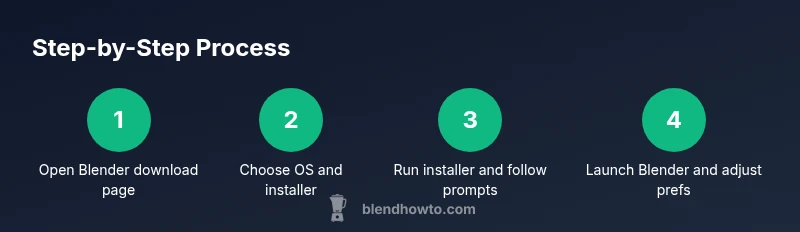
- 1
Open Blender's official download page
Navigate to the official Blender download page to locate the latest stable builds for your OS. Opening the official source minimizes risk from malware and counterfeit installers.
Tip: Verify the URL and look for HTTPS; avoid third-party mirrors. - 2
Choose your platform
On the downloads page, select Windows, macOS, or Linux to see the appropriate installer formats and system notes.
Tip: If you’re on Linux, consider your distro's package manager for easy updates. - 3
Download the installer
Click the installer file to start the download. If the browser warns about the file type, confirm you want to proceed from the official site.
Tip: Keep the installer in a download folder you can easily access. - 4
Run the installer
Open the downloaded file and follow the prompts. Choose recommended defaults unless you have a reason to customize.
Tip: Close other applications to speed up the installation. - 5
Launch Blender and adjust settings
After installation, run Blender. Open Preferences to configure GPU, memory limits, and auto-save behavior.
Tip: Save your startup file to apply your preferred layout. - 6
Check for updates
Blender will offer updates; keeping Blender current improves stability and features.
Tip: Enable automatic updates if you want them to run in the background.
Frequently Asked Questions
Is Blender download free?
Yes. Blender is free to download and use under its open-source license, with no subscriptions or hidden fees.
Blender is free to download and use under an open-source license.
Do I need admin rights to install Blender?
Most installations require administrative privileges to run the installer and modify system paths.
You typically need admin rights to install Blender.
Which Blender version should I download for beginners?
Start with the latest stable release, which is designed for general use and learning.
For beginners, download the latest stable Blender release.
Can Blender run offline after download?
Yes. Once installed, Blender runs offline for local projects.
You can use Blender offline after installation.
How do I verify the downloaded file's integrity?
Download from the official site and use any provided checksums or signatures to confirm file integrity.
Check for a checksum or signature if the site provides one.
What if Blender won't install?
Check system requirements, run the installer as administrator, and verify you downloaded the correct package for your OS.
If installation fails, verify system compatibility and try again as admin.
Watch Video
What to Remember
- Download from official site first
- Choose the correct OS build
- Install and launch, then configure preferences
- Regularly update Blender for best results
- BlendHowTo's verdict: download only from official sources and keep Blender updated