Blender 3D Download: A Beginner's Guide
Learn how to safely perform a blender 3d download, install Blender 3D on Windows, macOS, and Linux, and start your first project with practical tips. A comprehensive, beginner-friendly guide from BlendHowTo.


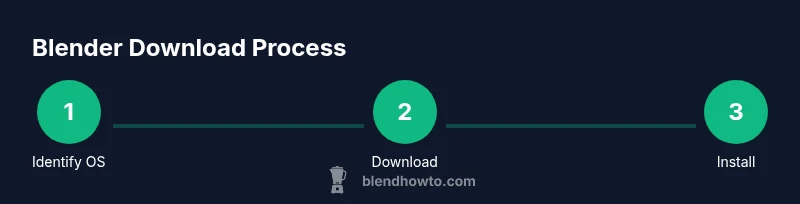
This guide covers a blender 3d download from the official Blender site, followed by installation and initial setup. You’ll confirm your OS compatibility, download the installer, and launch Blender 3D for your first project. This approach keeps you safe from tampered installers and helps you start quickly with a stable, supported build.
What Blender is and why you might want to download it
Blender is a free, open-source 3D creation suite used for modeling, sculpting, animation, rendering, compositing, and more. For home cooks, hobbyists, and aspiring 3D artists, a blender 3d download opens the door to creating digital prototypes of kitchen gadgets, visualizing recipes, and learning through hands-on practice. Blender’s versatility makes it possible to design a 3D model of a whisk, simulate materials like glass, and render photorealistic scenes without expensive software. This guide focuses on a safe blender 3d download from the official source, how to install, and how to start a first project. By the end, you’ll have a working setup and a clear path to advancing your skills. According to BlendHowTo, starting with the official Blender site reduces risk and ensures you get the authentic, up-to-date tool. The BlendHowTo team found that using official builds minimizes download-related issues and helps you stay secure as you learn.
Where to download Blender safely
The safest blender 3d download comes from the official Blender Foundation site at blender.org. Downloading from other sources risks tampered installers, bundled malware, or outdated builds that lack critical security fixes. On the Blender.org download page, you can choose the latest stable release, guided by notes about new features and performance improvements. If you’re a student or professional experimenting with new features, you may also explore the experimental builds, but be aware that these may be less stable. Always verify TLS connection (https), and bookmark the official URL to prevent phishing shortcuts. After downloading, keep the installer in a known folder and scan it with a trusted antivirus before running.
Choosing the right Blender version and build
Opt for the latest stable release when you are learning, as it provides a reliable baseline for tutorials and projects. Nightly or experimental builds offer access to cutting-edge features but can be unstable and introduce workflow changes. Consider your hardware and project needs when selecting a build; stable releases generally balance features with reliability, while experimental builds should be reserved for testing features you’re curious about. Review the release notes on blender.org to understand what’s new and identify any potential compatibility issues with add-ons or external tools.
System requirements and setup
Blender runs on Windows, macOS, and Linux, but performance depends on your hardware and driver support. Ensure your operating system is up to date and that your GPU drivers are current for optimal rendering and viewport performance. Create a dedicated workspace folder for all Blender projects, including textures, assets, and export targets. If you plan to render animations, verify you have enough storage space and a capable GPU to accelerate rendering. Keep in mind that heavier scenes will demand more RAM and faster disk I/O, so plan your setup accordingly. As BlendHowTo notes, starting with a clean, organized environment helps you learn faster and reduces file management headaches.
Installing Blender on Windows, macOS, and Linux
Windows users typically download an installer package and run it through the standard setup wizard. macOS users download a disk image (DMG) and drag Blender to Applications. Linux users may install via their distribution’s package manager or download a tarball for manual installation. Regardless of platform, follow the on-screen prompts, accept the license, and choose a reasonable install location. After installation, create a desktop shortcut for quick access and confirm Blender launches correctly from your system menu. If you run into permission prompts, grant the installer or Blender appropriate access.
First launch: basic workspace and preferences
On first launch, Blender presents a default layout. Switch to a simple workspace suitable for beginners, such as the Layout or Modeling preset, to reduce clutter. In Edit > Preferences, set units, themes, and file paths, and decide whether to start with a blank project or a basic scene. Save your startup file so Blender uses your preferred settings every time you open it. Take a moment to explore the basic panels: the 3D Viewport, Outliner, and Properties, and customize your toolbar to match your workflow. This initial setup speeds up your next projects and makes learning more intuitive.
Tools & Materials
- Computer with Windows/macOS/Linux(A supported OS with internet access and administrative rights for installation.)
- Reliable internet connection(Needed to download the installer and access online help resources.)
- Official Blender download URL (blender.org)(Only use the official site to avoid tampered software.)
- Sufficient storage space(Have space for the installer and Blender project files.)
- Optional: backup media(USB drive or external HDD to store installer or project backups.)
Steps
Estimated time: 20-30 minutes
- 1
Identify OS and download source
Determine whether you’re on Windows, macOS, or Linux. Visit the official Blender download page and select the correct operating system and architecture. Save the installer to a known, accessible folder.
Tip: Double-check the URL and make sure the page uses https to avoid phishing. - 2
Download the Blender installer
Click the download button for your OS and wait for the file to finish. If offered, choose a trustworthy mirror near you. Keep the file in a predictable location like Downloads for easy access.
Tip: Avoid ad-laden buttons; stick to the official blender.org domain. - 3
Run the installer
Open the downloaded installer and follow the on-screen instructions. Accept default options unless you have specific needs. Allow the installer to modify system paths if prompted.
Tip: If Windows prompts for permission, choose 'Run as administrator' to ensure proper installation. - 4
Launch Blender for first-time setup
Open Blender from your Applications/Program Files or Start Menu. On first launch, Blender will load a basic startup screen with default settings. Consider starting with a simple scene layout to learn navigation.
Tip: If Blender asks to enable add-ons, you can skip or enable them later as needed. - 5
Configure basic preferences
Open Edit > Preferences and adjust units, theme, and file paths to fit your workflow. Save your preferences as the default startup file to retain settings for future launches.
Tip: Set a hotkey for a frequently used tool to speed up your workflow. - 6
Create a starter project and practice
Create a new project and save it in a dedicated folder. Build a basic scene (cup, fruit, or simple utensil) to test modeling, materials, lighting, and rendering workflows.
Tip: Enable autosave or set a regular manual save to prevent data loss. - 7
Check for updates and maintain Blender
From the Help menu, check for updates to ensure you have the latest features and security fixes. Establish a routine to update Blender when major releases arrive.
Tip: Back up important projects before updating to avoid compatibility issues.
Frequently Asked Questions
Is Blender free to download?
Yes, Blender is free and open-source. You can download, install, and use it without any licensing costs.
Yes, Blender is free and open-source; you can download it from the official site and start using it right away.
Where can I download Blender safely?
Always download Blender from blender.org to avoid tampered installers and insecure copies. Avoid third-party mirrors and questionable links.
Always download Blender from the official site, blender.org, to stay safe.
Do I need an account to download Blender?
No, you do not need an account to download Blender. You can download directly from blender.org without signing in.
No account is needed; you can download Blender directly from the official site.
What are the system requirements for Blender on a beginner setup?
Blender runs on Windows, macOS, and Linux. For smooth operation, ensure your system has a modern OS, reasonably capable graphics, and sufficient RAM for basic projects.
Blender works on Windows, macOS, and Linux; make sure your system is up to date for best results.
Stable vs nightly builds for learning?
For learning and reliable work, start with the latest stable release. Nightly builds expose new features but can be unstable for beginners.
Stick with stable builds while learning; nightly builds are for testing new features.
How can I verify the download integrity?
If available, use the checksum or signature provided on the download page to verify the installer’s integrity before running it.
Check the official page for checksums and verify the file before installation.
Watch Video
What to Remember
- Download Blender from the official site first.
- Verify your OS compatibility before installing.
- Launch Blender and set basic preferences after install.
- Keep Blender updated to access new features.