Blender 3.0 Download: A Practical Start Guide
Discover where to download Blender 3.0, how to choose the right installer, and safe setup steps. A practical BlendHowTo guide for home cooks and aspiring 3D artists to start confidently.


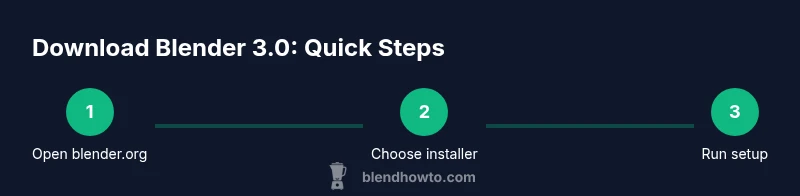
Blender 3.0 download is available from Blender’s official site. Choose the correct installer for your OS (Windows, macOS, Linux), verify system requirements, and follow the on‑screen prompts. For safety, download only from the official site and consider using the portable option to test features before a full install. BlendHowTo also notes to check GPU driver compatibility and back up personal preferences.
What Blender 3.0 means for your projects
Blender 3.0 marks a milestone in the open‑source 3D ecosystem, delivering smoother performance, a more approachable interface, and expanded capabilities for modeling, shading, animation, and rendering. For beginners, this version lowers the barrier to entry with streamlined defaults and improved documentation. According to BlendHowTo, users increasingly start with the official download to ensure compatibility and safety. The goal of this release is to make professional‑grade tools accessible to home cooks visualizing food in 3D, hobbyists prototyping ideas, and students exploring basics of animation. When you download Blender 3.0, you’re tapping into a cross‑platform tool that runs on Windows, macOS, and Linux, with a large ecosystem of add‑ons and community tutorials. Expect a more cohesive experience across platforms thanks to unified input handling and a refreshed default workspace. The upshot is faster onboarding, a steadier workflow, and a broader set of sample projects to study and remix.
Where to download Blender 3.0
Your first stop is blender.org, the official Blender website. Navigate to the Download section, where you’ll see available builds for Windows, macOS, and Linux. If you’re new, start with the stable release rather than nightly builds. There’s also a portable ZIP option for testing without installing. Always verify you’re on the Blender project’s domain to avoid tampered files. BlendHowTo emphasizes prioritizing the official source to minimize risk and ensure integrity. After selecting the installer, you’ll see guidance on language preferences, installation location, and optional components. Take a moment to review these choices, especially if you plan to share the machine with others or run Blender from a USB drive.
System requirements and compatibility
Blender 3.0 runs on modern 64‑bit operating systems and expects a reasonably capable hardware setup for smooth performance. Ensure your OS is up to date and that you have a compatible graphics driver installed. If you’re starting from a mid‑range laptop or desktop, you’ll appreciate improved responsiveness in viewport editing and rendering previews. For hobbyists and students, Blender’s flexibility shines when you balance scene complexity with render resolution. Remember to close unnecessary programs to free up memory during heavy sessions. If you encounter driver warnings, update your GPU drivers from the manufacturer’s site rather than relying on old Windows or OS defaults. This keeps features working reliably and reduces crashes during editing or rendering.
Installers and getting started
Downloading the correct installer is the first step; the next is installation. Run the installer, accept the license terms, and choose an installation path that’s easy to locate later. On Windows, you may be prompted to install related dependencies or libraries; follow the prompts carefully. On macOS, you may need to allow software from identified developers in Security & Privacy settings. After installation, launch Blender 3.0 and review the initial preferences. You can opt into sending anonymous usage data or enabling auto‑save. If you want to experiment without committing to a full install, consider the portable ZIP and extract it to a preferred folder, then run blender.exe directly.
Safety and verification
Security starts with the download source. Blender.org provides checksums and, in some cases, digital signatures; use these to verify file integrity after download. Run a quick antivirus scan on the installer file before executing it. Keep your system’s protection up to date and avoid downloading from mirrors you don’t recognize. If you work on shared devices, create a separate Blender profile to keep your preferences organized. BlendHowTo recommends storing a backup of any custom preferences so you can restore your workspace quickly after upgrades or fresh installs.
First launch: UI tour and quick start
When Blender 3.0 first opens, you’ll see the default layout with the 3D Viewport, Timeline, and Outliner. Take a few minutes to familiarize yourself with navigation: orbit with the middle mouse button, pan with Shift+MMB, and zoom with the scroll wheel. The Quick Start section in Blender’s documentation offers beginner projects to ease you into modeling, shading, and simple animation. Customize the workspace by dragging panels, save your favorite layout as a startup file, and attach a basic material to a sample object to see how the shader workspace updates in real time. If you’re migrating from an older version, export essential assets first, then import them into Blender 3.0 to test compatibility.
Upgrading from older versions
If you’re upgrading, back up your current preferences and any custom add‑ons before installing. Blender 3.0 may change default keyboard shortcuts and panel layouts, so a quick review of the settings helps you preserve your workflow. Export important projects to a stable file format and test them in Blender 3.0 to confirm compatibility. Keep your add‑ons up to date by checking the official add‑on repository or the developer’s page. If you rely on external rendering engines, verify that they’re compatible with the new build and gracefully switch between engines as needed.
Troubleshooting download and install issues
Download or installation problems can arise from network restrictions, blocked domains, or antivirus interference. If the installer won’t run, try running as an administrator or using a different user account. On Linux, you might need to install dependencies or grant execution permissions; use your package manager to install required libraries. If the initial launch crashes, reset the preferences by starting Blender with the factory settings option, then reimport your data gradually. In any case, consult Blender’s official release notes and BlendHowTo’s troubleshooting guide for recommended steps and known issues in your specific OS and hardware setup.
Blender 3.0 for different use cases
Whether you’re visualizing food with 3D models, creating basic animations for a school project, or prototyping a small 3D print, Blender 3.0 offers a flexible environment for experimentation. Beginners can take advantage of ready‑to‑use templates and community tutorials to accelerate learning. Intermediate users will appreciate improved shading options, better asset management, and streamlined rendering workflows. Artists exploring character design, product visualization, or architectural scenes can leverage Blender 3.0’s multi‑discipline toolset to build, refine, and render scenes with greater efficiency. TheBlendHowTo approach emphasizes learning by doing—start with simple scenes and gradually add complexity as you grow more comfortable with the interface.
Tools & Materials
- Computer with internet access(Stable connection; modern OS)
- Web browser(Chrome/Firefox/Safari recommended)
- USB flash drive (optional)(For portable testing—extract Blender there)
- Blender 3.0 installer (official)(Download from blender.org; OS-specific bundle)
- Backup of preferences (optional)(Keep a copy in case you upgrade)
Steps
Estimated time: 20-30 minutes
- 1
Visit the official Blender download page
Open blender.org and navigate to the Download section. Confirm you’re on the official site and select the appropriate installer for your operating system. This initial check helps prevent tampered files and ensures you’re getting a stable build.
Tip: Bookmark blender.org/download for quick access in future sessions. - 2
Choose the correct installer for your OS
Identify whether you’re on Windows, macOS, or Linux, and pick the corresponding installer or ZIP/portable option. If you’re unsure, start with the standard installer to guarantee all required components are installed.
Tip: If you plan to run Blender from a USB drive, download the portable ZIP. - 3
Download and verify the file
Begin the download and, if available, compare the provided checksum with your downloaded file. Verification helps detect any tampering or incomplete downloads before you run the installer.
Tip: Use a second device to double‑check the hash if you’re concerned about security. - 4
Run the installer and configure options
Launch the installer and follow the on‑screen prompts. Choose your install location and select any optional components you want. On Windows, consider administrative install for multi‑user setups.
Tip: Keep the default settings if you’re new to Blender to avoid surprises. - 5
Launch Blender and adjust preferences
Open Blender 3.0 and review the initial preferences. Set Units, Input, and Save settings to your preference. If you’re migrating from an older version, import your presets gradually.
Tip: Save a startup file after configuring the workspace you prefer. - 6
Explore a starter project or tutorial
Open a beginner-friendly template or tutorial to get a feel for navigation, object manipulation, and basic shading. Focus on one task at a time: modeling, lighting, or rendering.
Tip: Keep notes of keyboard shortcuts you find useful so you can reuse them. - 7
Update and maintain your setup
Check for updates periodically and install patches when offered. Keep add‑ons updated to maintain compatibility with Blender’s core changes.
Tip: Enable automatic updates if you want to stay current without manual checks.
Frequently Asked Questions
Is Blender 3.0 free to download?
Yes. Blender is free and open‑source, and Blender 3.0 can be downloaded from the official blender.org site without any cost.
Blender 3.0 is free to download and use from the official site.
Can I run Blender 3.0 on my operating system?
Blender 3.0 supports modern Windows, macOS, and Linux distributions. Check Blender.org for the exact supported versions and driver recommendations.
Blender 3.0 runs on modern Windows, macOS, and Linux; verify your OS version on the official site.
What is the difference between stable and nightly builds?
Stable builds are tested and recommended for everyday work. Nightly builds include the latest changes but may be less stable for production projects.
Stable builds are for daily work; nightly builds have new features but can be less stable.
How do I verify the download integrity?
Blender.org provides checksums or signatures for downloads. Use these to confirm the file hasn’t been corrupted or tampered with.
Use the provided checksums or signatures to verify the file's integrity.
What if Blender.org is blocked on my network?
Try a different network or download the installer via an approved mobile hotspot. Avoid third‑party mirrors that aren’t endorsed by Blender.
If Blender.org is blocked, switch networks or use a trusted alternative approved by your IT policy.
Watch Video
What to Remember
- Download from official Blender site and verify integrity
- Choose the correct OS installer and keep backups
- Test with portable option before full install
- Back up preferences and start with beginner tutorials
- Keep Blender updated for best stability