How to Get Blender: A Practical Beginner's Guide
Learn how to get Blender, the free open-source 3D software. This step-by-step guide covers official downloads, safe installation, and first-use setup for Windows, macOS, and Linux.


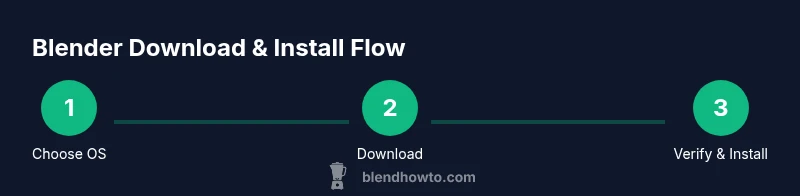
In this guide you will learn how to get Blender—the free, open-source 3D creation suite. You’ll verify system requirements, download from the official Blender website, and install on Windows, macOS, or Linux. The steps emphasize safety, verification, and beginner-friendly setup. No cost, no license required, and cross-platform compatibility. This quick overview helps you start confidently.
Why getting Blender matters
If you're asking how to get blender, you’re aiming to start with the official, free tool used by millions. Blender.org hosts the official downloads and supports a vibrant community of learners and professionals. Having Blender on your computer unlocks modeling, sculpting, animation, and rendering without licensing barriers. It’s a cross‑platform solution that runs on Windows,
What Blender offers for beginners
Blender's breadth can be intimidating, but its beginner-friendly workflow exists. The core modules cover modeling, sculpting, shading, lighting, animation, and rendering. Start with simple shapes, then add modifiers and textures as you learn. The UI is configurable, so you can show only what you need and save a comfortable layout. Blender ships with quick presets for scenes and materials, and Eevee renderer provides real-time feedback for faster iteration. Online tutorials, official manuals, and community assets accelerate progress. For someone exploring 'how to get blender', focusing on a single small project—like a kitchen gadget or a simple cup—helps translate lessons into practical skills. As you progress, consider extending Blender with add-ons that fit your goals, such as modeling helpers, texture packs, or rigging tools. Consistent practice and small, repeatable projects yield steady improvement.
Downloading Blender from the official site
To begin, head to Blender.org and locate the download section. The site automatically detects your operating system and architecture, presenting the most stable release for Windows,
Verifying you downloaded a safe copy
Security matters when you download software. Blender.org provides checksum values so you can confirm file integrity after download. Use a SHA-256 tool to compare the hash of the local file with the number listed on the Blender site. A match indicates the file is intact and authentic; a mismatch means you should delete and re-download from the official source. This extra step protects your system and your learning environment from corrupted installers or malware. After you verify, you’re ready to move to installation with confidence.
Installing Blender on your operating system
Windows users run the installer, accept the license, choose an install location, and follow the prompts to install.
Setting up Blender for the first use
Launch Blender and complete any first-run setup wizard. Set your preferred units, scales, and input preferences to match your project type. Enable a few essential add-ons that support beginner tasks, such as measurement tools or basic modeling helpers, but avoid enabling too many at once. Organize the layout by docking the 3D Viewport, Shader Editor, and Outliner in convenient positions. Save these settings as your startup file so every new project starts from a stable baseline. Finally, run a tiny test: create a basic object, apply a material, light the scene, and render a quick image to verify everything works.
Keeping Blender up to date and finding resources
Blender updates bring stability, performance, and new features. Check for updates via the built‑in updater or Blender.org periodically, and read the release notes to learn what’s new. Build a learning library with official tutorials, community channels, and practical projects. Keep a list of go‑to resources, including beginner guides, open clips, and example files to study. For ongoing practice, schedule regular sessions and track your progress with small, defined tasks. This is also a good time to explore popular add-ons and community assets that align with your interests, whether it’s 3D printing, game prototyping, or product visualization.
Tools & Materials
- Computer with internet access(Stable connection; admin rights if installing on a work device)
- Official Blender download source (Blender.org)(Always download from the official site to avoid tampered installers)
- Storage space(At least 500 MB free for install; more for projects)
- Checksum verification tool(Use SHA-256 or equivalent to verify the download integrity)
- Optional: USB drive for offline installation(Useful for air-gapped environments)
- Backup plan for projects(Keep copies of your Blender files in a separate folder)
Steps
Estimated time: 30-45 minutes
- 1
Identify OS and plan install
Determine your operating system and whether you will use an installer or a portable AppImage. This helps you choose the correct Blender package and avoids compatibility issues. If you’re unsure, start with the standard installer for your OS and keep notes on your system version.
Tip: Check your system version in Settings > About to confirm compatibility. - 2
Download the official Blender installer
Visit Blender.org and click the download button. Ensure you pick the stable release appropriate for your OS. Save the file to a known location so you can easily locate it for verification.
Tip: Always use the official site to minimize security risks. - 3
Verify the downloaded file
Run your checksum tool and compare the hash to the value listed on Blender.org. A match confirms integrity; a mismatch means you should redownload from the official site.
Tip: If sums don’t match, delete and re-download—don’t proceed with a corrupted file. - 4
Install Blender on your OS
Run the installer (Windows), mount the disk image (.dmg) and drag to Applications (macOS), or use your distro’s package manager or AppImage (Linux). Follow prompts and choose a sensible install location.
Tip: Avoid installing in deeply nested folders to minimize path issues. - 5
Launch Blender and complete initial setup
Open Blender for the first time and complete any onboarding prompts. This is a good moment to set the default workspace and basic preferences.
Tip: Set a simple startup layout you’ll reuse for your first projects. - 6
Configure basics and save startup file
Adjust units, grid scale, and input preferences, then save as your startup file so every new project starts similarly. Create a quick test scene to validate it all.
Tip: Saving a startup file saves you from redoing settings after updates.
Frequently Asked Questions
Is Blender really free to download and use?
Yes. Blender is free and open‑source, suitable for personal, educational, and commercial projects.
Yes, Blender is completely free and open-source for all uses.
Do I need an account to download Blender?
No account is required to download Blender from the official site.
No account is needed to download Blender.
Can Blender run on Windows, macOS, and Linux?
Blender supports Windows, macOS, and Linux desktop environments with cross‑platform compatibility.
Blender runs on Windows, macOS, and Linux.
What if my computer is older or has limited graphics?
Blender works on many systems, but performance improves with modern hardware; you can adjust settings for lower-end GPUs.
Blender can run on older hardware, but you may need to tune settings for performance.
Installer vs portable/AppImage options—what should I choose?
For most users, the standard installer is easiest; AppImage or portable options are for specific workflows.
Choose the standard installer unless you need portability.
Where can I learn Blender basics beyond downloading?
Official Blender tutorials, documentation, and the BlendHowTo guides offer beginner-friendly steps and projects.
Check Blender’s official tutorials and BlendHowTo’s beginner guides for basics.
Watch Video
What to Remember
- Download only from Blender.org and verify hashes
- Install with a default, simple layout for a smoother start
- Keep Blender up to date to access new features
- Save a consistent startup file for faster onboarding