How to Install Blender: A Step-by-Step Guide (2026)
A comprehensive, beginner-friendly guide to installing Blender on Windows, macOS, and Linux, with safety checks, setup tips, and troubleshooting from BlendHowTo.


Install Blender by downloading the official installer for your operating system, running the installer, and following the on-screen prompts to complete setup. You’ll need a supported OS (Windows, macOS, or Linux), admin rights, and a stable internet connection. After installation, launch Blender and customize basic preferences to suit your hardware and workflow.
How to install blender: quick start
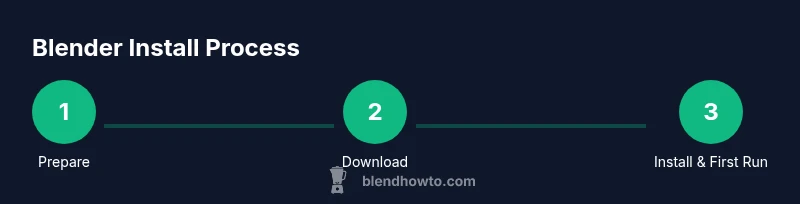
If you're asking how to install blender, this guide walks you through it, step by step. The core steps apply across Windows, macOS, and Linux: download the official installer for your OS, run the setup wizard, and finish with any startup preferences you want. According to BlendHowTo, using the official Blender.org source is the first guard against tampered packages and out-of-date builds. After installation, open Blender to verify the interface loads correctly and begin customizing key preferences like input devices, render engine, and memory usage to suit your hardware. This block outlines the high-level flow and what to watch for during the early setup, so you can move confidently into the more detailed OS-specific steps that follow.
System requirements and pre-install checks
Before you start the installation, confirm your system can run Blender smoothly. Blender publishes requirements on its official site, and these guidelines typically cover supported operating systems, processor speed, RAM, and available disk space. BlendHowTo emphasizes choosing a machine that comfortably meets or exceeds these requirements to minimize performance hiccups. If you’re unsure, perform a quick benchmark or run Blender on a lighter project first to gauge responsiveness. Gather your system information, update essential drivers, and close unnecessary background applications to ensure the install goes without hiccups.
Download, verify, and prepare the installer
The next phase is obtaining the installer from the official Blender website. Always download from Blender.org to avoid modified or bundled software. After downloading, verify the file integrity if a checksum is provided, and note the installation directory you plan to use. Create a small backup of existing Blender settings if you have an older version installed. This preparation helps prevent surprises during the first launch and ensures a clean baseline for preferences and add-ons.
Install Blender on Windows, macOS, and Linux
Run the installer corresponding to your operating system. On Windows or macOS, the setup wizard guides you through language selection, license terms, and component choices. Linux users can opt for a package manager install or a portable executable, depending on the distribution. During installation, you can select an installation path and whether to create desktop shortcuts. After the installer finishes, launch Blender to confirm the application opens correctly and begins loading essential components like the user interface, rendering engine, and basic scripts.
First-run setup and configuring preferences
When Blender first starts, you’ll land on a default workspace. Take a moment to configure basic preferences: set your preferred render engine (Cycles or Eevee), adjust memory usage limits, and configure input devices such as a 3D mouse or graphics tablet if you have one. You may also want to enable auto-save, set the autosave interval, and customize the startup file so Blender opens with your favorite scene setup. If you’re using multiple monitors, arrange panels to maximize your workflow. This initial setup can shave minutes off every future session.
Post-install maintenance and updates
Blender releases frequent updates that improve stability, performance, and feature sets. After installation, check for updates regularly and enable automatic updates if you prefer hands-off maintenance. Keep your graphics drivers current and consider subscribing to Blender release notes to track new features relevant to your projects. If you maintain multiple projects or versions, document where you store preferences and add-ons to prevent cross-version conflicts.
Troubleshooting common install issues
If Blender won’t start after installation, verify the installation completed successfully and that your system meets the minimum requirements. Check the log or error messages for clues, such as missing runtime libraries or GPU driver conflicts. On Linux, ensure you have the required dependencies installed; on Windows and macOS, a clean install often resolves configuration errors. When in doubt, reinstall Blender using the official installer and reset preferences to default. This approach fixes a large portion of startup and stability issues.
Tools & Materials
- Computer meeting minimum system requirements(Check Blender’s official site for current hardware needs and recommended specs)
- Active internet connection(Needed to download the installer and receive updates)
- Administrative rights on the computer(Required to install software system-wide)
- Preferred installation path(You can customize during installation)
- Backup plan for existing Blender settings(Export preferences before upgrading to a new version)
- Optional: Updated graphics drivers(Ensures best performance and stability)
Steps
Estimated time: 15-30 minutes
- 1
Download Blender from the official site
Navigate to Blender.org and download the installer for your operating system. Verify you’re downloading the latest stable release. Save the file to a known location and prepare for installation by closing unnecessary programs.
Tip: Always verify the source to avoid tampered installers. - 2
Run the installer and accept terms
Launch the downloaded file and follow the on-screen prompts. Accept the license agreement and choose whether to install for just you or all users.
Tip: If prompted, allow the installer to make changes to your device. - 3
Choose installation options and destination
Select an installation path, decide if you want desktop shortcuts, and choose any optional components you may need based on your workflow.
Tip: Keep the default path if you’re unsure; you can customize later. - 4
Complete installation and launch Blender
Finish the setup wizard and open Blender to confirm the application loads without errors. If Blender starts slowly, give it a minute to initialize.
Tip: Observe the splash screen for any immediate error messages. - 5
Configure initial preferences
Set your preferred render engine, memory limits, and input devices. Enable autosave at a reasonable interval to protect your work.
Tip: Start with conservative memory settings and adjust as you go. - 6
Test Blender with a quick scene
Create or load a simple scene to verify both UI responsiveness and rendering. If something is off, check drivers and recent updates.
Tip: A small project helps you spot issues without wasting time.
Frequently Asked Questions
Is Blender free to download and use?
Yes. Blender is free and open-source software available for anyone to download from the official Blender.org site. You can use it for personal projects, commercial work, and education without a license fee.
Yes, Blender is free to download and use from Blender.org.
What operating systems does Blender support?
Blender supports Windows, macOS, and Linux. Check the official site for the latest compatible versions and any distribution-specific notes.
Blender works on Windows, macOS, and Linux.
Do I need admin rights to install Blender?
In most cases, yes. Admin rights are required to install software system-wide. On some Linux setups, you can install Blender locally without admin access using a portable version or a user package manager.
Usually you need admin rights to install Blender.
Where are Blender preferences stored?
Blender stores preferences in your user profile. The exact path varies by OS, so start Blender and export your current preferences if you plan to transfer to another machine.
Preferences live in your user profile and can be exported.
What if Blender won’t start after installation?
Check for common causes like missing dependencies, outdated graphics drivers, or a problematic upgrade. Reinstall using the official installer and reset preferences if needed.
If Blender won’t start, verify dependencies and drivers, then reinstall from Blender.org.
Can I run multiple Blender versions on the same computer?
Yes. You can install and run multiple Blender versions side by side by using separate installation folders and carefully managing your preferences and add-ons for each version.
You can have more than one Blender version installed at once.
Watch Video
What to Remember
- Follow the official source to download Blender.
- Complete OS-specific steps with care to avoid common errors.
- Configure preferences early to tailor Blender to your hardware and workflow.
- Regularly update Blender and drivers to maintain performance.
- Back up settings before upgrades to protect your work.
- BlendHowTo’s guidance emphasizes safety and correct source checks.