Software Blender Download: A Step-by-Step Blender 3D Guide
Learn how to safely perform a software blender download from the official Blender site. This guide covers OS support, checksums, installation, and first-use tips for 2026.


With this guide, you'll complete a software blender download by installing Blender from the official site, selecting your OS, and choosing the right installer. You'll verify the checksum, run the installer, and configure basic preferences. Before you begin, ensure your PC meets the minimum requirements and you have a stable internet connection.
What is a software blender download and why it matters
Blender is a free, open-source 3D creation suite that runs on Windows, macOS, and Linux. A proper software blender download means grabbing the latest official installer from blender.org, avoiding counterfeit copies, and ensuring your system can run Blender smoothly. For home artists and hobbyists, downloading the official version guarantees access to the current features, bug fixes, and cross-platform compatibility. According to BlendHowTo, starting with the official site minimizes security risks and provides a straightforward update path. In this article, you will learn how to perform a safe download, verify integrity, install Blender, and begin a first project with confidence.
System requirements and OS support
Blender supports Windows, macOS, and Linux builds, with versions tailored to each platform. In practice, a modern multi-core CPU, adequate RAM, and a compatible GPU improve performance, especially for modeling, sculpting, and rendering tasks. The BlendHowTo team emphasizes basing your choice on your workload: light projects run fine on mid-range hardware, while complex scenes benefit from faster GPUs and more memory. Ensure your operating system is up to date and that you have enough disk space for Blender and sample projects. This section helps you plan your software blender download around your hardware and workflow.
Official sources: where to download and how to stay safe
Always use blender.org/download for the current Blender release. Third-party mirrors can host outdated or tampered installers. If you encounter warnings from your browser or antivirus, pause and verify the source. For safety, enable the installer’s default options and avoid modifying system paths unless you know what you’re doing. The BlendHowTo Analysis, 2026, underscores the importance of using official sources to protect your computer. Rely on the official page to ensure you access stable builds and accurate system requirements before you begin the software blender download.
Verifying the download and integrity
After downloading, verify the installer’s integrity using the checksum or signature provided on the Blender download page. This step helps ensure your file wasn’t corrupted or tampered with in transit. If you don’t see a checksum, look for a digital signature or a hash value on the page. Guidance from BlendHowTo Team suggests performing this check before running any installer to prevent unexpected software changes. Verifying integrity saves time and avoids post-install surprises in your projects.
Step-by-step download overview (OS-agnostic)
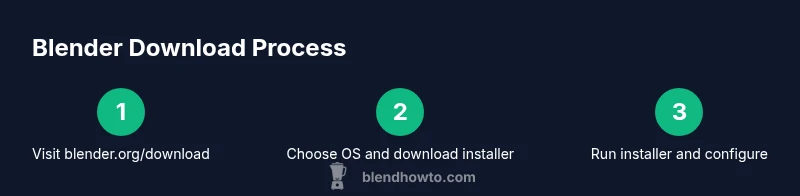
This section outlines the general flow for all platforms: locate the official Blender page, pick your OS, click the download button, and save the installer to your computer. Keep the file name simple and note the download location. If you’re on a shared or restricted machine, you may need to request admin access to save or run the installer. The goal is to have a clean, locally stored installer ready for the next step, ensuring a smooth software blender download experience.
How to download Blender on Windows, macOS, and Linux
The official Blender page presents distinct installers for each OS. On Windows, save the .exe installer; on macOS, download the .dmg; on Linux, you may use a package manager or a standalone AppImage. For Linux users, Blender often ships as an AppImage or can be installed via your distro’s package manager. In all cases, choose the stable release and avoid beta builds unless you need cutting-edge features. Following these steps will help you complete a safe software blender download with minimal friction.
Installation and initial setup after download
Run the installer and follow the on-screen prompts to install Blender. Accept the license, choose an install location, and allow default components unless you have a reason to customize. After installation, launch Blender at least once to complete the setup wizard and confirm that the program starts correctly. If you plan to use add-ons, enable the built-in Add-ons section and search for popular tools to install. This phase establishes the environment for productive work with Blender from the very first run.
First launch, interface basics, and basic preferences
The first launch acquaints you with the Blender interface: the 3D viewport, timeline, and properties panels. You can customize your layout to suit your workflow, enable essential add-ons, and adjust preferences such as system memory usage and rendering options. The BlendHowTo Team suggests saving a small test project immediately to confirm everything works as expected and to practice with a simple scene. Getting comfortable with the interface early speeds up future creative sessions.
Troubleshooting, updates, and next steps
If Blender won’t start, check system compatibility and ensure your graphics drivers are current. Look for error messages in the console and consult Blender’s user forums or the Blender manual for guidance. Regularly check for updates on blender.org/download and install the latest stable release to receive performance improvements and bug fixes. For ongoing learning, explore official tutorials and community projects to build proficiency. The BlendHowTo Team emphasizes keeping your setup up-to-date to maximize your software blender download results.
Tools & Materials
- A computer or laptop with internet access(Ensure a supported OS (Windows/macOS/Linux) and a stable connection)
- Web browser(Chrome, Edge, or Firefox recommended for best compatibility)
- Official Blender download page(URL: blender.org/download — always use the official source)
- Administrative rights to install software(May be needed to install on Windows or macOS)
- Optional: checksum verification tool(Used to verify downloaded installer integrity if provided)
- Sufficient disk space for Blender and sample projects(Projects and assets can grow; plan ahead)
Steps
Estimated time: 25-40 minutes
- 1
Open the official Blender download page
Launch your browser and navigate to blender.org/download. Confirm you’re viewing the official Blender site and not a mirror. This ensures you get the latest stable release and accurate system requirements.
Tip: Bookmark blender.org/download for quick access during future software blender downloads. - 2
Choose your OS and download the installer
On the downloads page, select Windows, macOS, or Linux. Click the corresponding installer file (.exe, .dmg, or AppImage) and save it to a known folder on your computer.
Tip: Use the latest stable release unless you specifically need a feature in a beta build. - 3
Verify the installer is intact
If a checksum or signature is provided, compute the hash of the downloaded file and compare it to the official value. A mismatch indicates the file may be corrupted or tampered with.
Tip: If unsure, re-download from the official site and re-check. - 4
Run the installer
Double-click the installer and grant any required permissions. Follow the on-screen prompts to proceed with installation.
Tip: Close other applications to speed up the installation process. - 5
Install with default options
Accept default components and install location unless you have a specific reason to customize. Default options are tailored for most users.
Tip: Keep the default path to avoid confusion later on. - 6
Launch Blender for the first time
Open Blender after installation to run the initial setup wizard. This step helps configure basic preferences and confirms the program runs correctly.
Tip: Run through the wizard quickly to set a comfortable layout. - 7
Enable useful add-ons
Go to Edit > Preferences > Add-ons and enable those you plan to use. Only enable what you need to keep startup fast.
Tip: Install a few core add-ons first before exploring the full catalog. - 8
Configure performance preferences
Adjust memory usage, rendering device (CPU/GPU), and viewport display to balance speed and quality for your projects.
Tip: If you have a strong GPU, set the rendering device to GPU for faster renders. - 9
Create a test project
Start a small scene (cube, camera, light) and render a quick preview to confirm everything works as expected.
Tip: Save early and use a simple file path to keep things organized. - 10
Check for updates and back up
Regularly check blender.org for updates and back up your Blender preferences and essential add-ons.
Tip: Enable automatic updates if you prefer hands-off maintenance.
Frequently Asked Questions
Is Blender download free and open-source?
Yes. Blender is free and open-source software. You can download and use it without any license or fee. The project is maintained by volunteers and supported by the community.
Blender is free and open-source, so you can download and use it without paying anything.
Do I need admin rights to install Blender?
On most systems you will need administrator privileges to install new software. After installation, you can run Blender without admin rights for daily use.
Yes, admin rights are usually required to install Blender, but you can run it normally afterward.
Which operating systems are supported?
Blender supports Windows, macOS, and Linux. Check the Blender download page for the exact versions and system requirements for your platform.
Blender runs on Windows, macOS, and Linux, with specific builds per OS.
How do I verify the download integrity?
Look for a checksum or signature on the Blender download page and compare it to the hash of your downloaded file. If it matches, the file is intact.
Use the provided checksum to verify the installer before running it.
Can I use Blender on old hardware?
Blender can run on older hardware, but complex scenes may run slowly. Consider reducing scene complexity or upgrading components for better performance.
Yes, Blender can run on older hardware, though performance may vary with complex scenes.
Watch Video
What to Remember
- Download Blender only from the official site.
- Verify installer integrity before running it.
- Install with default options and configure essentials after launch.
- Keep Blender up to date and back up your preferences.