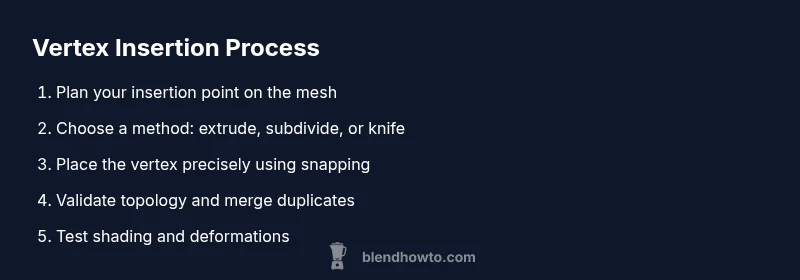
Blender Add Vertex: Step-by-Step Vertex Insertion
Learn how to add a vertex in Blender with precise placement using extrude, subdivide, knife, and snapping. A practical guide for Blender 3D modeling beginners and hobbyists.


In Blender, adding a vertex is a foundational modeling action you’ll use often. You’ll switch to Edit Mode, select a vertex or edge, and use the extrude or subdivide tools to place new vertices precisely. You can also merge vertices to create clean topology. This guide shows step-by-step methods suitable for beginners and intermediates.
Vertex fundamentals in Blender
A vertex is a single point that marks a location in 3D space. In Blender, every mesh is built from vertices, edges, and faces, and the way you place those vertices shapes the model. The action blender add vertex is one of the most common operations when you start a new mesh or refine an existing one. Understanding how vertices connect helps you avoid gaps, non-manifold geometry, and messy topology that complicates later steps like sculpting or texturing. According to BlendHowTo, mastering vertex placement is a foundational skill for efficient modeling, since even small changes in a vertex’s position can ripple through the entire mesh. In practical terms, you’ll want to think in terms of edge loops, quads, and clean intersections as you add vertices. The goal is to preserve a predictable flow of faces that deformation tools can handle smoothly. As you gain experience, you’ll know when to add a vertex on an edge, in the middle of a face, or at a corner, depending on your final shape.
Basic workflows to add a vertex
There are several reliable ways to insert new vertices in Blender, and each method suits different modeling situations. The most common technique is extruding a vertex from an existing one: select a vertex in Edit Mode, press E to extrude, and place the new point where it helps your silhouette without breaking the mesh’s topology. Subdividing edges is another strong option: select the edge you want to refine, right-click and choose Subdivide, which inserts a new vertex along that edge. The Knife tool (K) is ideal when you need a precise cut that places vertices exactly where you click, even across faces. A fourth approach is to enable snapping and position a new vertex on a grid or another vertex for exact alignment. Each workflow has its own quirks, so practice all four in a simple plane to see how they interact with surrounding geometry. Remember to switch back to Vertex or Edge selection as needed, depending on your current goal.
Vertex placement strategies for precision
Precise vertex placement requires a mix of tools and settings. Start by enabling snapping to Vertex and using the move tool to push a point into an exact position. You can also input numeric coordinates in the Transform panel (N-key) to place a vertex at exact X, Y, and Z values. When working on a flat plane, use orthographic views (Numpad 1, 3, 7) to align placement with respect to the viewport. The Knife tool can place a vertex on a specific edge or face by clicking where you want, then pressing Enter to confirm. If you’re aligning to a grid, enable Snap to Grid and hold Ctrl to snap more tightly. With practice, you’ll be able to position vertices by feel for rough work and by numbers for precise calibration. The aim is to reduce guesswork and ensure that new vertices connect cleanly to existing geometry.
Maintaining clean topology when adding vertices
Adding vertices should not create triangles or n-gons unless necessary, especially for organic models. Strive to keep quads where possible, and watch for overlapping vertices that cause shading artifacts. After placing new points, run Merge by Distance to collapse duplicate vertices that might occur during extrudes or knife cuts. Use Edge Loops to guide topology and avoid creating holes in your mesh. If you’re working on a pipe or cylinder, consider placing vertices along evenly spaced rings to maintain consistent edge flow. On larger scenes, group related vertices with vertex groups or consider using the Mirror modifier to keep symmetry intact while you add vertices on one side. Clean topology makes later steps—texture mapping, rigging, and animation—much more predictable.
Common mistakes and fixes
Common mistakes include adding vertices that straddle faces, creating tiny gaps, or leaving unused vertices that bloat the mesh. To fix, select the problematic vertices and use Merge by Distance to eliminate duplicates; ensure there are no hidden vertices by selecting all and using Select All by Trait > Non-manifold to detect issues. Another frequent error is placing a vertex too close to an existing edge, which can cause shading artifacts. Use exact coordinates and snap helps ensure correct placement. If you subdivide excessively, you can end up with a dense mesh that slows viewport performance; prune unnecessary vertices while preserving essential silhouette. Finally, refresh your geometry after major edits by recalculating normals (Shift+N) to keep shading consistent.
Working with modifiers and sculpting contexts
Modifiers like Subdivision Surface or Boolean can influence how inserted vertices affect the mesh. When you intend to place vertices for an exact shape, draft your base topology with editable geometry first, then apply the modifier to observe how vertices survive the process. In sculpt mode, added vertices act like new anchors; you may want to flatten or relax them using the Smooth brush to maintain a coherent surface. If you plan to animate, ensure that added vertices won’t create pinching during deformation. In short, think about how your vertex additions will behave under the modifier stack and during animation, not just in the static model.
Practice scenarios: modeling a mug or bottle
Try a hands-on exercise: model a simple mug by creating a cylinder, adding vertices along the rim to define the handle, and extruding to sculpt the inner cavity. For a bottle, start with a foundation loop, place vertices along the profile, and adjust using proportional editing to achieve a natural contour. As you experiment, switch between the extrude, knife, and subdivide tools to see which yields cleaner geometry. These mini-projects will help you translate the theory of blender add vertex into practical, repeatable results and boost your confidence for more complex models.
Quick cheatsheet for vertex insertion
- Use Extrude (E) to create new vertices from existing ones when you need to pull a point away from the current edge flow.
- Use Subdivide to insert a vertex along an edge without changing the edge's direction.
- Use Knife (K) for precise, user-defined vertex placement across faces.
- Enable snapping (magnet icon) and set Snap Element to Vertex for exact positioning.
- Input exact coordinates in the Transform panel for repeatable results.
Tools & Materials
- Blender software (latest stable)(Install the current stable release; ensure Edit Mode is available.)
- Mouse with precise pointer(Precision helps when placing vertices accurately.)
- Keyboard shortcuts cheat sheet(Familiarize with E, K, Subdivide, Knife, and Merge by Distance for speed.)
- Optional: Graphics tablet(Helpful for freehand adjustments, not required.)
Steps
Estimated time: 5-12 minutes
- 1
Select the target mesh
In Object Mode, click the mesh to select it. This prepares the object for editing and ensures you edit the intended geometry. You can verify selection in the Outliner or the 3D Viewport's highlight.
Tip: Use the Outliner to quickly find and select complex scenes. - 2
Enter Edit Mode
Press Tab to switch to Edit Mode and enable Vertex selection. This view shows the mesh's vertices, edges, and faces for precise manipulation.
Tip: Press 1 for vertex select, 2 for edge, 3 for face. - 3
Extrude a new vertex
Select a vertex, press E to extrude, then move the new point to your desired position and click to place. This creates a new vertex connected to the original geometry.
Tip: Hold Shift to constrain movement along a specific axis. - 4
Subdivide an edge
Select an edge, right-click and choose Subdivide to insert a new vertex along that edge. Adjust the number of cuts in the operator panel if needed.
Tip: Subdivide evenly to maintain uniform edge flow. - 5
Knife tool for precision
Press K to activate Knife, click to place new vertex locations across faces, then press Enter to confirm. This allows targeted vertex insertion.
Tip: Use C to constrain theKnife editing to a freehand mode. - 6
Snap and coordinate input
Enable snapping to Vertex, move the new vertex with Ctrl to snap exactly to the nearest vertex or grid point, and optionally enter exact coordinates in the Transform panel (N).
Tip: Turn on Grid Snap for grid-aligned placements. - 7
Merge duplicates and finalize
After insertion, merge any overlapping vertices by distance to clean the topology, and recalculate normals if needed for consistent shading.
Tip: Check shading in both solid and rendered views.
Frequently Asked Questions
What is a vertex in Blender?
In Blender, a vertex is a single point in 3D space that forms the corners of edges and faces. Vertices connect to other vertices via edges to create a mesh surface, and their arrangement determines shape and topology.
A vertex is a point in 3D space that helps define the shape of a mesh. It's the building block you move to sculpt or model.
What are the best methods to add a vertex?
The most common methods are extrude from an existing vertex, subdivide an edge to insert a new vertex, use the Knife tool for precise placement, and enable snapping for exact alignment.
You can add vertices by extruding, subdividing, knife cuts, or snapping for precision.
Can you add vertex in sculpt mode?
Sculpt mode edits the surface with brushes and does not directly alter topology like Edit Mode. You can introduce new topology with dynamic topology or retopology tools.
Sculpt mode focuses on surface sculpting; for topology changes, use Edit Mode with methods like extrude or knife.
How do I remove a vertex?
In Edit Mode, select the vertex and press X to delete; choose Vertices to remove the point. If duplicates exist, Merge by Distance helps clean them up.
Delete a vertex in Edit Mode, or merge duplicates to clean up topology.
Are there keyboard shortcuts to speed vertex addition?
Yes. E extrudes, F creates edges, K Knife for cuts, and Subdivide inserts vertices. Snapping shortcuts speed precise placement as well.
You can speed vertex work with E, K, Subdivide, and snapping.
Watch Video
What to Remember
- Master multiple vertex-adding methods.
- Use snapping and numeric input for precision.
- Maintain quad-friendly topology for easier texturing.
- Practice with simple shapes to build intuition.