Character Blender: Learn to Create 3D Characters in Blender
Meta description: A practical character blender guide in Blender—from base mesh to rig and render. BlendHowTo walks home artists through a clear, step-by-step workflow.


Learn to model, texture, rig, and animate a character in Blender with a clear, repeatable workflow. This concise guide highlights core steps and common pitfalls; for full details, see our step-by-step guide.
What is a character blender in Blender?
In the realm of 3D, a character blender describes the end-to-end workflow for creating a fully realized character inside Blender. It combines modeling, sculpting, topology, UVs, textures, rigging, and animation into a coherent pipeline. The term emphasizes blending techniques and passes to achieve a cohesive character that can be rendered or animated across projects. For home artists, this approach helps you balance artistic intent with practical constraints—polygon budget, texture resolution, and rig complexity. According to BlendHowTo, starting with a clear character style reduces rework and speeds up learning. Begin with concept art and turnarounds, then translate the design into a Blender-friendly plan that includes silhouette, proportions, and key features. Save incremental versions so you can backtrack if a design diverges from the concept. This disciplined setup makes the character blender workflow accessible to beginners while remaining robust for more advanced projects.
Core workflow for a character blender in Blender
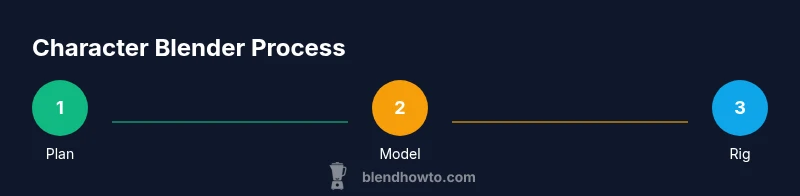
A robust character blender workflow in Blender typically follows a cycle: concept and planning → base mesh → sculpting → retopology → UV mapping → texturing and shading → rigging and weight painting → animation → final render. The core idea is to build in stages that can be tested at each step. The BlendHowTo team emphasizes maintaining clean topology and non-destructive iterations. Start with a simple concept and a rough blockout to validate proportions, then incrementally add detail. Use reference boards, keep backup versions, and test deformations early with a basic pose. This approach helps you stay organized and makes it easier to adjust style or requirements mid-project.
Blocking and base mesh creation
Blocking is where you establish the character blender’s overall proportions and silhouette using simple primitives. Begin with a symmetric mesh and mirror modifier for speed. Focus on major volumes: head, torso, limbs, and hands. Check proportions against reference images from multiple angles. Keeping topology in mind at this stage saves time later during sculpting and retopology. The goal is a solid foundation that accurately communicates personality and scale. A well-blocked base reduces surprises when you add detail and rigging later in the pipeline.
Sculpting vs retopology: balancing detail and topology
Sculpting adds the character blender’s personality by forming muscles, curves, and facial features. Switch to sculpting after you’re satisfied with the base mesh proportions. Maintain a balance between sculpted detail and clean topology so deformation during animation remains predictable. After sculpting, retopology replaces dense sculpt meshes with clean quad topology that supports joints and limbs. This separation of sculpture and topology keeps your workflow flexible and animation-friendly, while still allowing high-detail baking if needed.
UV mapping and texturing: PBR materials in Blender
Once topology is in place, unwrap the character blender’s model to create UV maps that maximize texture quality. Place seams strategically to minimize distortion and preserve important features. Bake or paint textures using PBR workflows—base color, roughness, metallic, normal maps, and ambient occlusion as needed. In Blender, you can texture directly in the viewport or export textures to external editors like Krita or Substance Painter. Consistent texel density across parts helps maintain visual coherence, especially when the character blender is viewed up close or under varied lighting.
Rigging and weight painting for smooth deformation
Rigging provides the skeleton that drives motion in the character blender. Add bones for the spine, limbs, fingers, and facial controls if needed. Parent the mesh to the armature with appropriate weights, then refine weight painting to ensure natural deformations at joints (shoulders, knees, elbows). Test poses early to catch pinching or collapsing geometry. A well-weighted rig pays off in later animation, reducing the need for corrective blend shapes and re-rigging.
Animation basics and performance tips
With a rig in place, start with a simple walk cycle or idle motion to test deformation and timing. Use reference video to guide pose flow and rhythm. Optimize the character blender by keeping polygon counts reasonable, using LODs where appropriate, and baking complex shading into textures for real-time previews. When animating, maintain consistent keyframe spacing and use drivers or constraints to streamline repetitive motions. This stage is where the character blender comes to life, revealing personality and performance.
Rendering, optimization, and final polish
For final outputs, choose between Eevee or Cycles depending on realism needs and performance constraints. Set up lighting that flatters the character blender and use HDRIs for consistent reflections. Bake lighting or shadows when exporting to game engines or real-time viewers. Polish textures, tweak material roughness, and ensure silhouettes read well at various distances. A thorough render pass is the last step in delivering a compelling character that performs well in your target medium.
Common pitfalls and quick fixes
Avoid common traps like over-detailing early, poor seam placement, or neglected edge loops around joints. Regularly test deformations with simple animations to catch topology problems before they escalate. Keep backups and document your pipeline so that future work remains consistent with the character blender style. By spotting issues early, you’ll save time and keep the project on track. BlendHowTo recommends practicing with small, repeatable character blender projects to build confidence and skill.
Tools & Materials
- Blender software(Latest stable release; set up for modeling, sculpting, shading, rigging)
- Graphics tablet (optional)(Helpful for sculpting and texture painting)
- High-resolution reference images (front, side, back)(Provide 3-4 angles for accurate proportions)
- Image editor (GIMP/Krita) or Substance Painter (optional)(Texture work; Blender can handle painting, too)
- Mood board / concept art(Guide style, silhouette, and overall character feel)
- Backup storage (external drive or cloud)(Regular backups of project files)
Steps
Estimated time: 12-18 hours
- 1
Prepare references and plan
Collect concept art and turnarounds for your character blender project. Define a consistent style, silhouette, and proportion targets. Create a simple plan with milestones and a rough polygon budget by project scope.
Tip: Save a reference board in your project folder and label milestones clearly - 2
Create base mesh with simple primitives
Start with a cube or sphere and shape major volumes using mirror symmetry. Avoid fine details at this stage; focus on broad proportions that capture the character blender’s silhouette. This base will guide every later refinement.
Tip: Enable the Mirror modifier and use proportional editing for smooth volume changes - 3
Block proportions and silhouette
Block in limbs, torso, and head, checking proportions against references. Refine the silhouette to read clearly from all angles. WHY: a strong silhouette communicates character even at low detail and reduces later rework.
Tip: Rotate the model to inspect from three-quarter views and back views - 4
Refine forms with sculpting
Switch to sculpting to add major muscle groups and personality. Maintain topology awareness near joints to avoid converting to dense mesh with poor deformation later. This stage adds character blender personality without committing to final topology.
Tip: Use symmetry and progressive subdivision; avoid over-detailing before topology is settled - 5
Retopology for animation
Create clean quad topology focusing on edge loops around joints and facial features. Keep edge density even and predictable to support deformation. WHY: retopology enables reliable rigging and animation for the character blender.
Tip: Plan loop placement around shoulders, elbows, knees, and hips first - 6
Unwrap UVs and bake textures
Unwrap with careful seam placement; create UV islands that minimize distortion. Bake normals, ambient occlusion, and curvature as needed for detailed shading. This step lays the foundation for accurate texturing in the character blender.
Tip: Keep texel density consistent across major body regions - 7
Texture and shading
Create PBR materials, paint base color, and add roughness/metalness maps. Use Blender's viewport to preview lighting and adjust textures for realism. Ensure the character blender looks coherent under different lighting setups.
Tip: Test textures under multiple light angles to avoid flat shading - 8
Rig the character and weight paint
Add a skeleton, parent the mesh with appropriate weights, and refine weight painting for natural deformation. Start with a basic pose to validate joint behavior. This ensures the character blender moves convincingly in animation.
Tip: Test major poses early; adjust weights where deformation is awkward - 9
Animate a basic cycle and review
Create a walk or idle cycle and observe deformations on the knees, elbows, and spine. Refine weights and joint limits as needed. Final polish should include a quick render pass to verify materials and lighting in the character blender.
Tip: Use reference footage and time remapping to refine motion
Frequently Asked Questions
What is a character blender?
A character blender refers to the end-to-end workflow of creating a 3D character in Blender, from base mesh to rig and render. It emphasizes a balanced approach to modeling, texturing, rigging, and animation.
A character blender is a complete workflow in Blender for building a 3D character—from model to rig and render.
Do I need advanced sculpting skills to start?
No, you can start with simple shapes and gradually add detail as you learn. Focus on proportions and silhouette before diving into complex sculpting.
No—start simple and build up details as you go.
What is the best rendering engine for character projects?
Blender offers Eevee for fast previews and Cycles for realism. Choose based on your project's needs and available hardware.
Use Eevee for speed and Cycles for realism, depending on your hardware.
How long does it take to master character creation in Blender?
Mastery comes with practice. Start with small, repeatable projects and gradually tackle more complex characters over weeks and months.
It takes ongoing practice; start with small projects and grow from there.
Should I retopologize a high-detail sculpt?
Yes. Retopology creates clean topology that deforms well during animation and simplifies rigging.
Yes—retopology is essential for good deformation.
Can I reuse character assets across projects?
Yes, with proper naming, modular parts, and consistent rigs. This speeds up production for multiple projects.
Absolutely—reuse assets with a solid pipeline and naming.
Watch Video
What to Remember
- Plan before you model to keep style consistent
- Block rough shapes first, refine gradually
- Retopologize for clean deformation during animation
- Invest in UVs early for better texturing
- Test rigs and animation early to avoid late fixes