How to Check Blender Poly Count: A Practical Guide
Learn practical methods for checking poly count in Blender. From viewport statistics to Python scripting, discover how to evaluate vertices, edges, and faces to optimize models for rendering and real-time use.


To check Blender poly count, select the object and view the viewport statistics overlay. Enable Viewport Overlays > Statistics to see total vertices, edges, and faces; switch between Object Mode and Edit Mode to compare scene-wide counts versus the active object. For precise per-object counts, use a quick Python snippet in the Scripting tab.
Understanding poly count and why it matters in Blender
When you begin a Blender project, one of the first technical considerations is poly count—the total number of geometric primitives that make up your mesh. The phrase how to check blender poly count matters because it directly affects viewport performance, edit responsiveness, and render times. High-poly models can slow down interactive work, complicate shading, and increase file size. Conversely, very low counts may compromise detail and realism. According to BlendHowTo, poly count is a practical performance metric that guides decisions during modeling and optimization. In professional workflows, builders balance visual fidelity with hardware limits, ensuring that assets render cleanly across devices and engines. Understanding where counts come from—verts, edges, and faces—helps you plan decimation, retopology, or LOD strategies early in the process.
tip
Tools & Materials
- Blender (2.8+)(Any recent version supports the methods described in this guide)
- Active object/model(Select the object you want to inspect before counting)
- Viewport Overlays -> Statistics(Enable for quick scene-wide counts in the 3D Viewport)
- Python Console or Scripting tab(For scripting counts across objects or the whole scene)
- 3D Print Toolbox add-on (optional)(Provides per-object counts and quick summaries)
Steps
Estimated time: 25-40 minutes
- 1
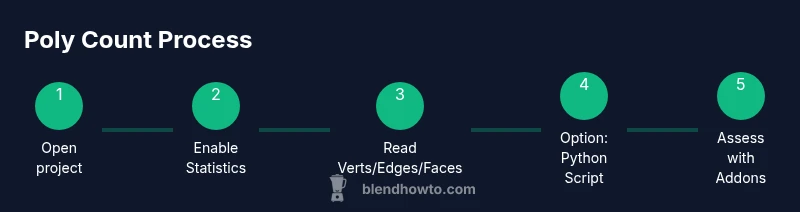
Open your Blender project and select the target object
In the 3D Viewport, click the object you want to inspect to make it the active object. Active selection ensures subsequent count methods reference the correct geometry. If you’re counting the whole scene, skip this step and focus on the overlay method first.
Tip: Keep the object selected while testing both Object Mode and Edit Mode for accurate comparisons. - 2
Enable the Statistics overlay in the 3D Viewport
Open the Overlay dropdown in the 3D Viewport header and check Statistics. The overlay will display Verts, Edges, and Faces for the active object in Edit Mode, or for all objects in Object Mode. This live readout helps you gauge density quickly.
Tip: If you don’t see counts, ensure you’re in the correct viewport region and that you’re using a recent Blender version. - 3
Read counts in Object Mode vs Edit Mode
In Object Mode, the statistics reflect the scene-wide geometry. In Edit Mode, you’ll see the counts for the selected object’s mesh. Switch modes using the drop-down at the top-left of the 3D Viewport. Use both modes to understand how many polys your model actually contains and how that changes with edits.
Tip: Note the distinction: editing a single object changes only its own counts in Edit Mode. - 4
Try Python for exact per-object counts
Open the Scripting workspace and run a short script to extract precise counts for the active object. This method is reliable and version-agnostic, especially when Blender’s built-in overlays are insufficient.
Tip: Use the snippet below as a starting point and adapt it to count multiple objects if needed. - 5
Python snippet to count verts, edges, faces
Code lets you print exact per-object counts. You can run it in the Scripting tab or the Python Console. Adjust obj = bpy.context.active_object to loop over all objects for a full-scene tally.
Tip: To count all objects, replace the active object reference with a loop over bpy.data.objects. - 6
Optional: use addons like 3D Print Toolbox
Install and enable addons such as 3D Print Toolbox to obtain per-object statistics and quick summaries. These tools provide a more detailed breakdown when you’re preparing assets for print or game engines.
Tip: Addons simplify per-object counts but don’t replace the fundamental concept of understanding verts/edges/faces.
Frequently Asked Questions
What is poly count and why does it matter in Blender?
Poly count equals the total number of vertices, edges, and faces in a mesh. It matters because higher counts slow down the viewport, increase render times, and may affect export performance. Managing poly count helps you balance detail with performance.
Poly count is the total geometry in a mesh. It matters because more detail can slow things down, so you want to keep it appropriate for your project.
How do I see the vertex count in Edit Mode?
Switch to Edit Mode and enable the Statistics overlay. In Edit Mode, the counts typically reflect the active object’s geometry, showing vertices, edges, and faces for that mesh.
In Edit Mode, turn on Statistics to see how many vertices the active object has.
Do modifiers affect poly count if they are not applied?
Modifiers do not change the real poly count until they are applied. Your counts reflect the underlying base geometry; applying modifiers increases or reduces counts depending on the modifier type.
Modifiers don’t change the count until you apply them.
Can I count poly count for multiple objects at once?
Yes, use the Statistics overlay in Object Mode for a scene-wide readout. For per-object counts, count objects individually or use Python to loop through all objects and aggregate results.
You can get a scene-wide count, but per-object counts require looping through objects with Python.
Is there a quick way to count polys using Python?
Yes. A short script can iterate over objects and sum vertices, edges, and faces. This is reliable for large scenes or when you need a reproducible report.
You can run a small Python script to count everything quickly.
What’s the difference between verts, edges, and faces?
Vertices are points, edges connect two vertices, and faces are polygons enclosed by edges. The poly count metric typically tracks all three components to measure mesh complexity.
Verts are points, edges connect them, faces enclose areas. Poly count uses all three to measure how complex a mesh is.
Watch Video
What to Remember
- Enable Statistics overlay for quick counts
- Use Object vs Edit mode to understand scope
- Leverage Python for exact, reproducible results
- Modifiers affect reads—apply or compensate accordingly
- Addons can aid per-object counting without heavy scripting